
Typically, an OBProxy cluster has already been created when OceanBase AI Database is deployed. If you need to add multiple new OBProxies to connect to the OceanBase AI Database cluster, you can create an OBProxy cluster through OCP.
Prerequisites
The current user is assigned the OBPROXY_MANAGER role and has permissions to manage OBProxy. If the current user is not assigned the OBPROXY_MANAGER role, add the role to the user first.
Procedure
Log in to OCP.
In the left-side navigation pane, click OBProxy to go to the OBProxy page.
Click Create OBProxy Cluster in the upper-right corner.
On the Create OBProxy Cluster page, enter the following information:
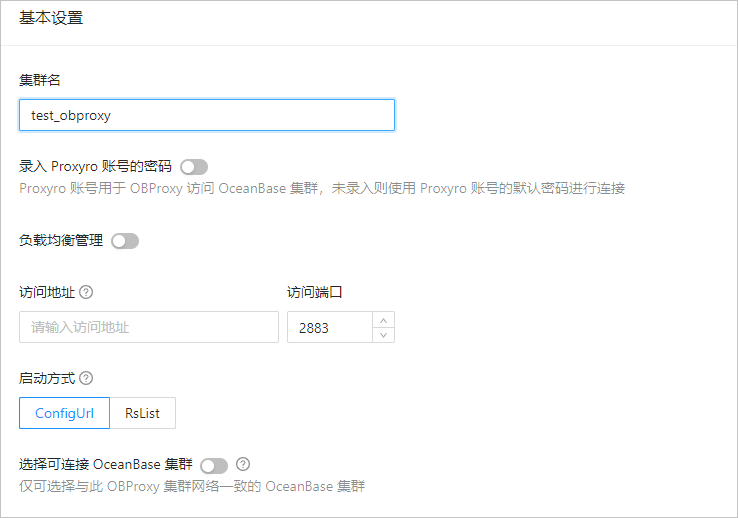
Refer to the following table to specify the fields in the Basic Information section.
ParameterDescriptionCluster Name You can customize the cluster name based on your actual business needs. It must start with a letter and can contain letters, numbers, and underscores. Password for the Proxyro Account The proxyro account is used by OBProxy to access the OceanBase cluster. If no password is entered, the default password of the proxyro account is used for the connection. The password must meet the following requirements: - Length is 8 to 32 characters.
- Can only contain letters, numbers, and special characters
~!@#%^&*_-+=|(){}[]:;,.?/. - Must contain at least 2 uppercase letters, 2 lowercase letters, 2 numbers, and 2 special characters.
Load Balancing Management After enabling load balancing management, you can enhance the load balancing capability of the OBProxy cluster by configuring OBLB. - OBLB Service: You can choose the OBLB service that was configured when deploying OCP, or click Add OBLB Service and then add the OBLB service on the right-side pane.
- OBLB Service Address: The address of the OBLB service.
- OBLB Service Port: The port of the OBLB service. The default port is 9090. You can change the port as needed.
- Username and Password: The username and password of the OBLB service, which are used for authentication when calling the OBLB API.
- VIP: The virtual IP address of OBLB.
- Access Port: The default access port is 2883. You can specify a custom port number.
- Domain Configuration (Optional): The configuration that points to the VIP and port. The platform does not provide mappings between VIPs and domain names. You must prepare a domain name resolution service.
Note
The SLB Service in Load Balancing Management applies only to private cloud environments. We recommend that you contact Technical Support for assistance.
Access Address The access address of the OBProxy cluster. This parameter is displayed when Load Balancing Management is disabled. In this case, you need to manually configure load balancing. The access address is only used to generate a connection string for the tenant. If the access address is a VIP, you must apply for the VIP and bind it to the OBProxy server. Access Port The access port number. The default port number is 2883. Specify the actual port number based on the VIP. This parameter is displayed when Load Balancing Management is disabled. Startup Method The startup method of the OBProxy cluster. Valid values: - ConfigUrl: the multi-cluster startup method, where the OBProxy cluster can access multiple OceanBase AI Database clusters.
- RsList: the single-cluster startup method, where the OBProxy cluster can access only the OceanBase AI Database cluster specified when the OBProxy cluster is created. After the OBProxy cluster is created, no more connectable OceanBase clusters can be added.
Select Connectable OceanBase AI Database Cluster The OceanBase AI Database clusters that are accessible to the OBProxy cluster. - This parameter is optional if you set Startup Method to ConfigUrl. After the cluster is created, you can add clusters by Manage OceanBase AI Database clusters connected to OBProxy.
- You must specify this parameter when Startup Method is set to RsList. Select the corresponding cluster from the drop-down list.
- If the password box contains the credentials of the proxyro user of the cluster, the proxyro user is selected by default.
- Otherwise, click Create Connection to create a connection credential for the proxyro user of the cluster.
(Optional) Configure Deploy OBProxy.
If you want to deploy OBProxy when you create the OBProxy cluster, perform this step. Otherwise, skip this step. After the cluster is created, you can add an OBProxy to the cluster by taking over an OBProxy or adding an OBProxy.
Toggle on the switch in the upper-right corner of the Deploy OBProxy page.
Refer to the following table to specify the parameters.
ParameterDescriptionSQL Port Number The default port is 2883. Exporter Port Number The default port is 2884. Software Version Select the OBProxy software version to install. Note
If a cluster of V4.0 or later exists in the connectable OceanBase cluster list, only OBProxy software packages of V4.0.0 or later are supported.
Data Center, Host Type (Optional), Host Configure the host where OBProxy is to be deployed by setting Data Center, Host Type (Optional), and Host. 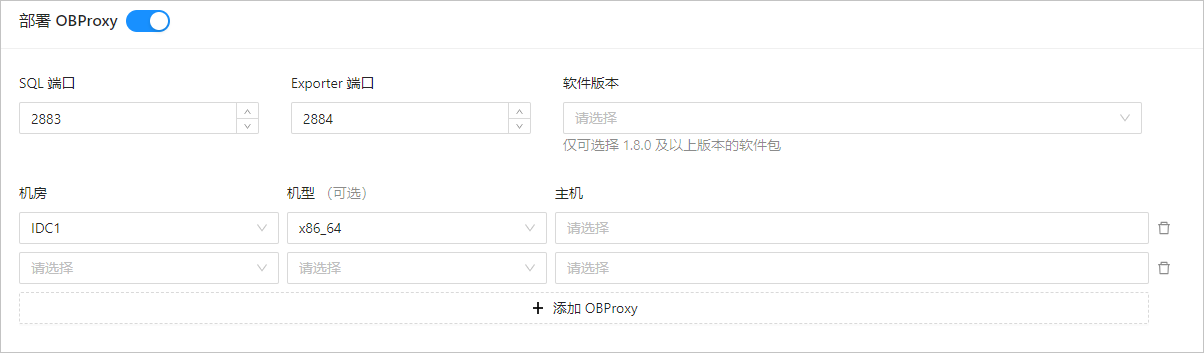
By default, two hosts are displayed, which is only sufficient to deploy two OBProxies.
To deploy more OBProxies, click Add OBProxy to add a host.
If you need to deploy only one OBProxy, click the delete icon to the right of a host to remove it.
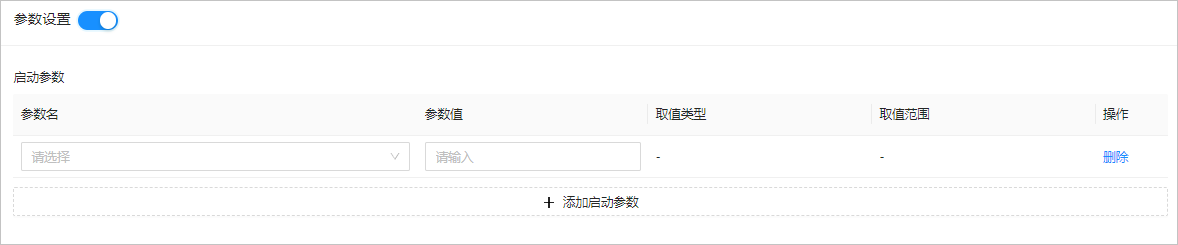
Enable Parameter Settings to add or modify startup parameters and other parameters. For more information, see OBProxy parameters.
Click Submit.
Note
When OBProxy is installed, the system checks whether the permissions on the installation directory are correct. The system checks the read and execute permissions of a specified user (the admin user by default) on folders at each level of the
/home/admin/logs/obproxydirectory. If the user does not have the required permissions, the "check directory xxx permission failed, reason: xxx" error is reported in the log.