
Navicat is a universal database client. It connects to a database through the Java Database Connectivity (JDBC) driver provided by this database. It supports normal relational databases, non-relational databases, and distributed databases.
You can connect to a user tenant of OceanBase AI Database by using the OceanBase or MySQL driver that comes with Navicat. This topic describes how to connect to a user tenant of OceanBase AI Database by using the OceanBase driver of Navicat.
Prerequisites
You have downloaded and installed Navicat. You can download the Navicat installation package for your operating system from the Navicat Premium website.
The IP address of the OBServer node to be connected has access to the server where Navicat is installed.
You have installed OceanBase AI Database and created a user tenant.
Procedure
Step 1: Obtain the database connection string
Contact the deployment personnel or administrator of OceanBase AI Database to obtain the connection string. The following is a connection string example:
obclient -h$host -P$port -u$user_name -p$password -D$database_name
Parameter description:
$hostspecifies the IP address for connecting to OceanBase AI Database. It is the IP address of ODP for connection through ODP, or the IP address of an OBServer node for direct connection.$portspecifies the port for connecting to OceanBase AI Database. For connection through ODP, the default value is2883, which can be customized when ODP is deployed. For direct connection, the default value is2881, which can be customized when OceanBase AI Database is deployed.$database_namespecifies the name of the database to be accessed.Notice
The user connecting to the tenant must have the
CREATE,INSERT,DROP, andSELECTprivileges on this database. For more information about user privileges, see Privilege types in MySQL-compatible mode.$user_namespecifies the tenant account. Two formats are supported in the case of connection through ODP:username@tenant_name#cluster_nameandcluster_name:tenant_name:username. In the case of direct connection, the format isusername@tenant_name.$passwordspecifies the password of the account.
For more information about the connection string, see Connect to OceanBase AI Database by using OBClient.
Example:
obclient -hxxx.xxx.xxx.xxx -P2881 -utest_user001@mysql001 -p****** -Dtest
Step 2: Connect to OceanBase AI Database by using the Navicat console
Notice
The GUI of Navicat varies based on the product versions. This topic describes how to connect to OceanBase AI Database by using Navicat 16.3.7. For more information about the operations in other versions, see Navicat documentation of the corresponding versions.
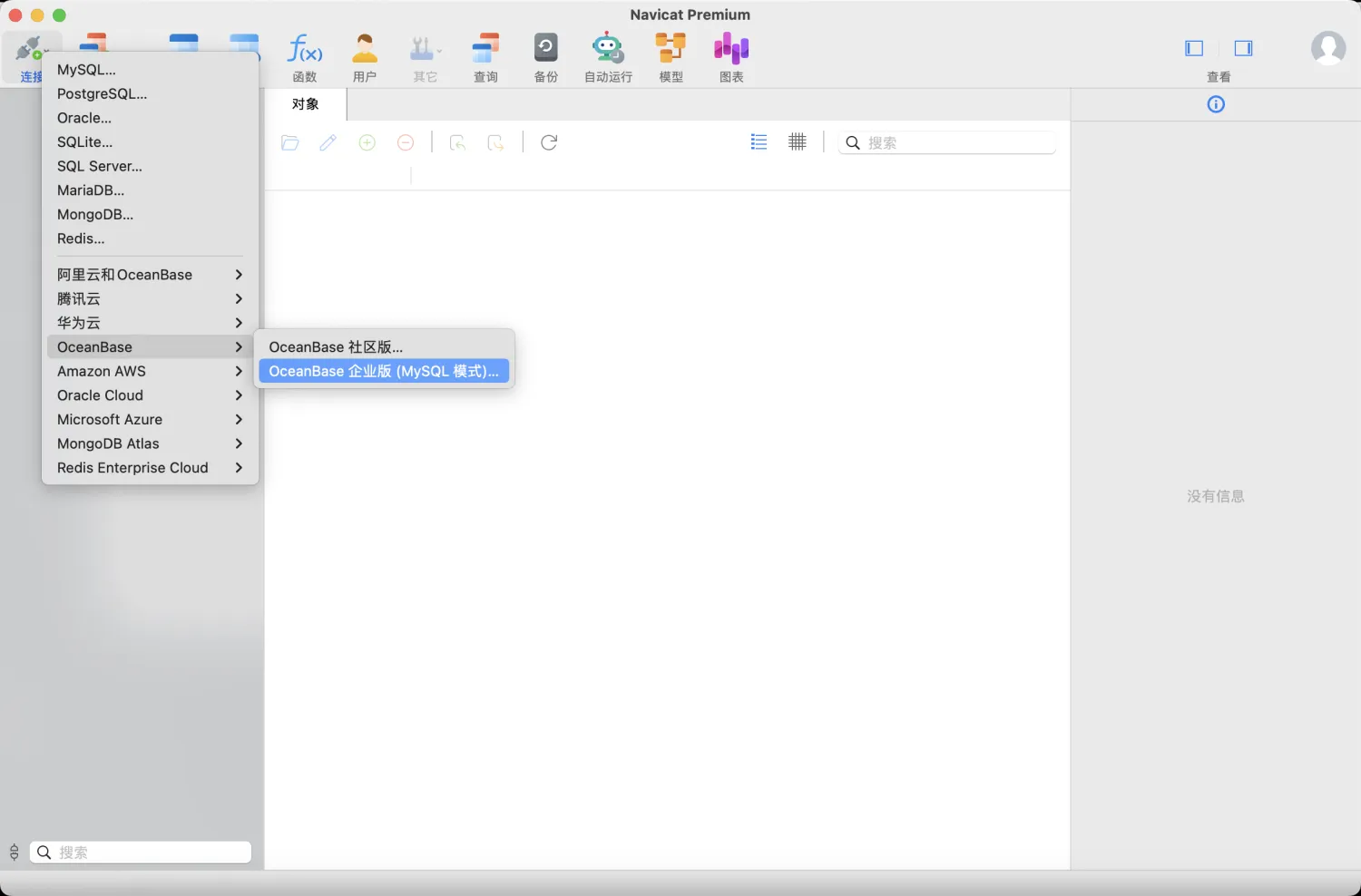
Click Connect
 > OceanBase > OceanBase Enterprise Edition (MySQL-compatible mode) to go to the Create Connection page.
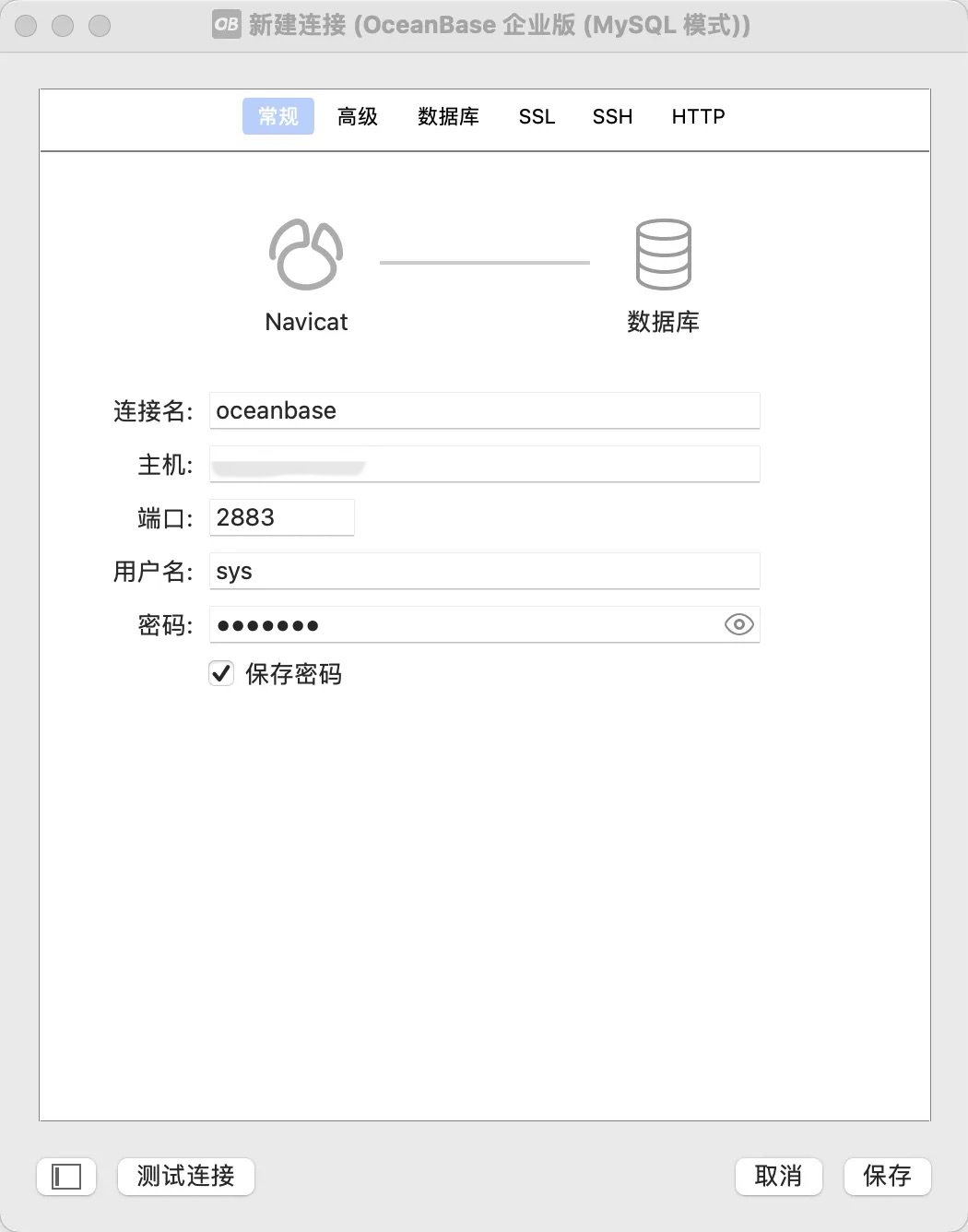
On the Create Connection page, enter the information for the database you want to connect to, and then click Test Connection.
Notice
You can connect to OceanBase AI Database by using an IP address or ODP. When you use an IP address, enter the port number specified by the
mysql_portparameter. The default port number is2881. When you use ODP, enter the port number specified by theproxy_portparameter. The default port number is2883.If Connected is displayed in the Test Connection pop-up window, the database can be connected. Then, click Save.
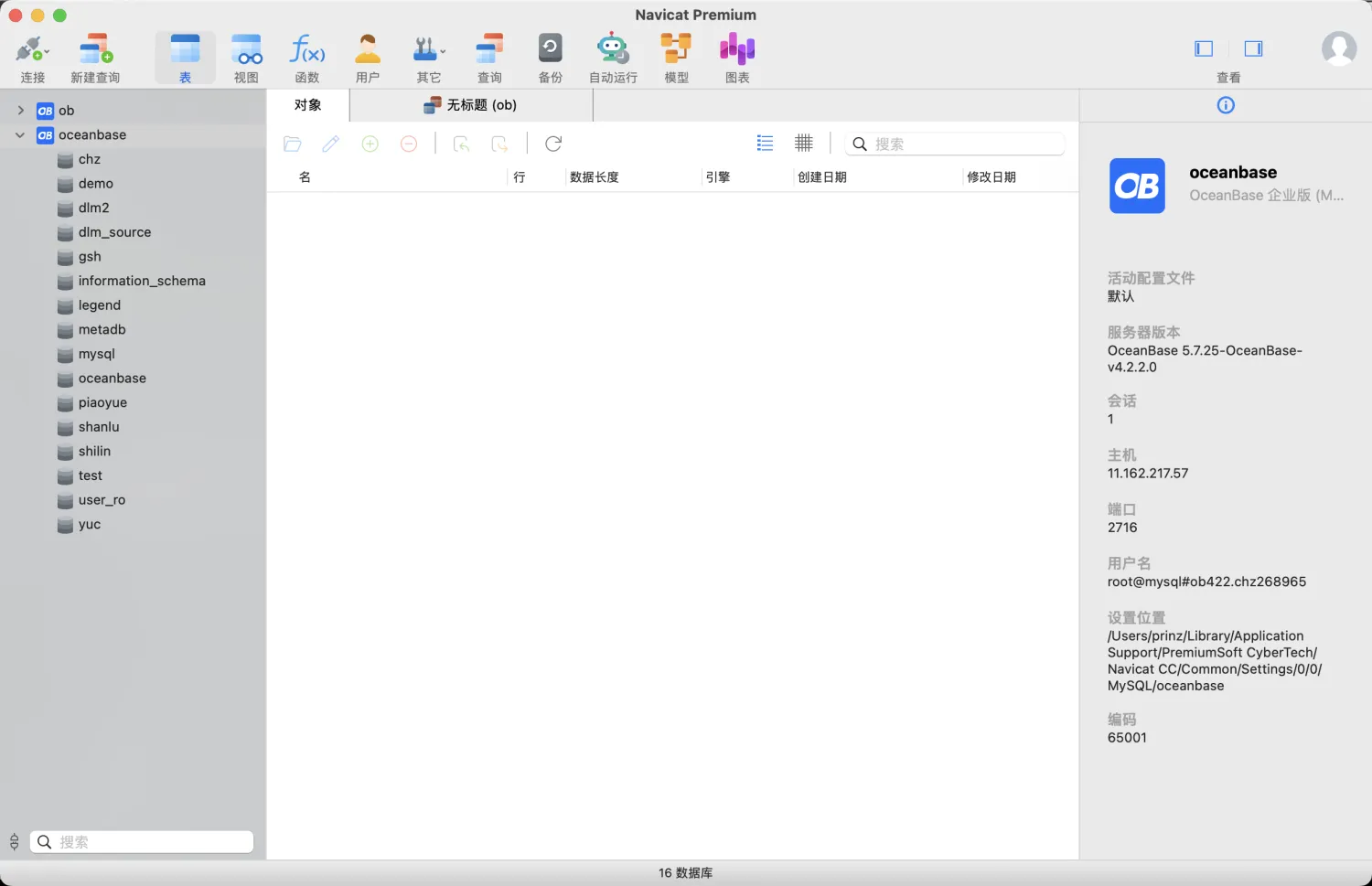
Double-click the database name on the Database Navigator tab. If the database instances appear under the database, you have connected to OceanBase AI Database.
More information
For any problems encountered when you connect to OceanBase AI Database by using Navicat, see related information in Navicat Documentation.