
Vercel is a platform for front-end and full-stack developers, offering fast builds, deployments, and global distribution. Using OceanBase Cloud with Vercel lets you build and scale applications on top of a MySQL-compatible database with high availability, scalability, and strong data security and compliance.
This guide explains how to connect your OceanBase Cloud database to a Vercel project by setting an environment variable, so your deployed app can read and write OceanBase data.
Prerequisites
- You have a transactional instance available in your environment, and a MySQL-compatible tenant under the instance.
- You have a MySQL database and account available under the tenant, and you have granted read and write permissions to the database account. For more information, see Create an account and Create a database (MySQL only).
- You have the Project Admin or Instance Admin role so you can manage instances in the project. If not, ask your organization admin to grant the required permissions.
- You have a Vercel account. If not, see the Vercel docs to create a personal account or create a team.
- You have created or imported a project in Vercel. If you don't have an app to deploy yet, you can create a new project from a template or import an existing repo in Vercel, or use the OceanBase Next.js Vercel demo project.
Note
Vercel deployments use dynamic IP addresses. If you use an OceanBase Cloud cluster instance, set the instance IP allowlist in the console to allow all IPs (for example 0.0.0.0/0). Otherwise your Vercel app may not be able to connect to the database.
Step 1: Get your database connection details
Log in to the OceanBase Cloud console. On the instance list, expand the target transactional instance, then under the target tenant click Connect > Get Connection String.
In the dialog, choose Public Network.
On the Connect via Public Network page, complete the following to generate a connection string:
(Optional) If the tenant does not yet have a public endpoint, under Step 1: Get Public Endpoint, click Get Public Endpoint. If one already exists, skip this step. Then click Next Step.
Under Step 2: Security Settings, do the following, then click Next Step:
Add IP Address(es) to Allowlist: Click Add, choose Allow All IP Addresses, then click OK.
Download Certificate: Click Download CA Certificate to download the certificate and complete verification.
Under Step 3: Access Database, select the database and account you created in the prerequisites, and choose MySQL CLI as the connection method. Copy the connection string for use in the next step.
Step 2: Configure the environment variable in Vercel and deploy
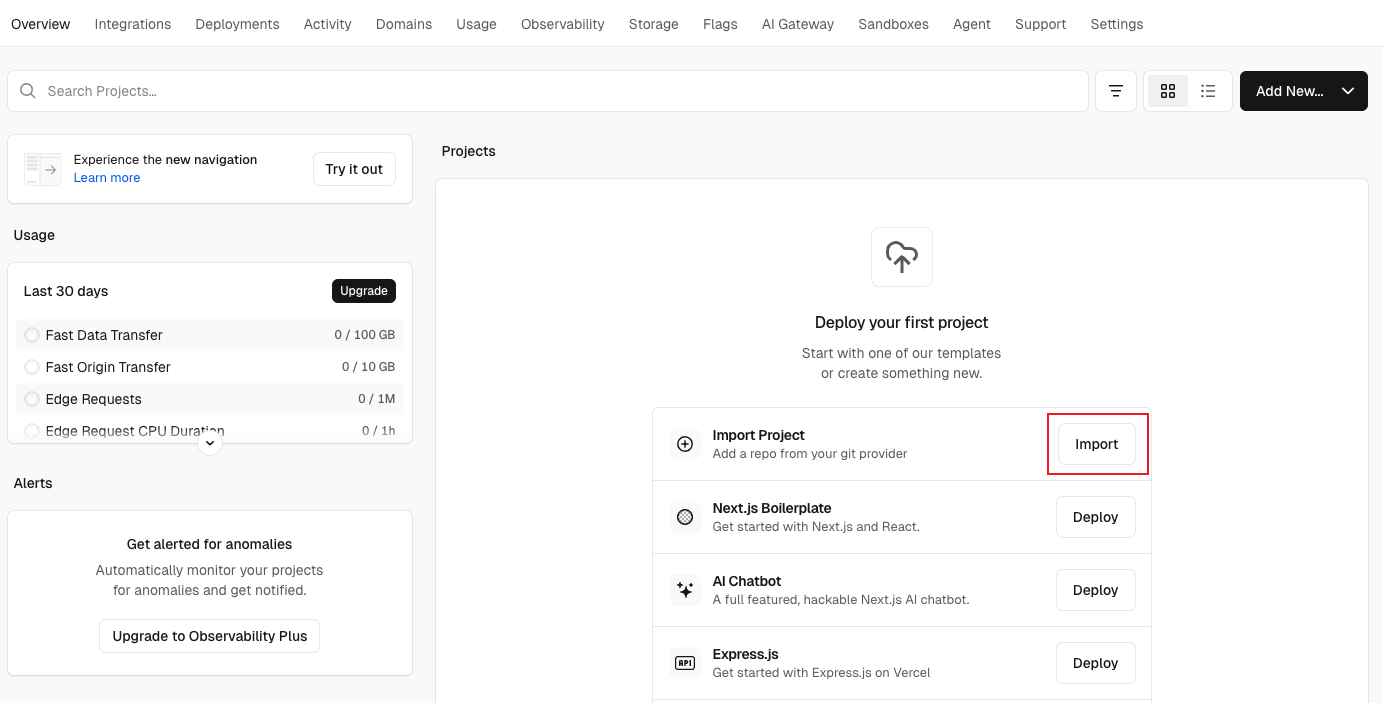
Open the Vercel dashboard and choose Import Project > Import.
Under Let's build something new, enter the demo repository URL and click Continue.
https://github.com/sc-source/oceanbase-nextjs-vercel-demo.git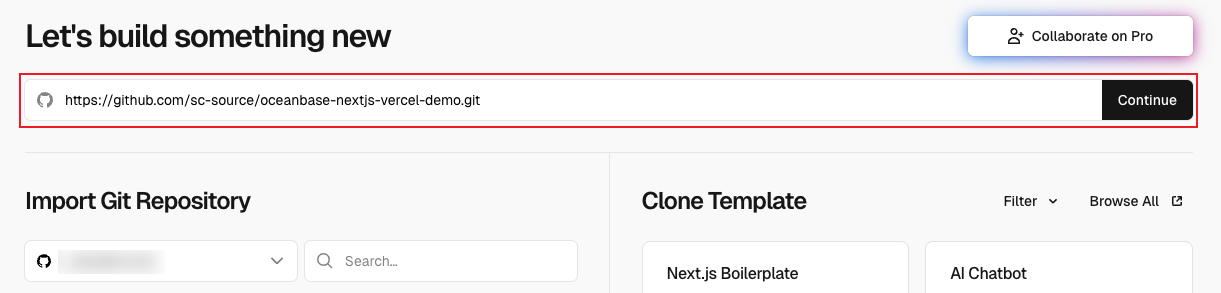
On the deployment page, add the
DATABASE_URLenvironment variable under Environment Variables:FieldDescriptionKey DATABASE_URLValue mysql://<User>:<Password>@<Endpoint>:<Port>/<Database>Replace
<User>,<Password>,<Endpoint>,<Port>, and<Database>with the connection details from Step 1 (or take them from the connection string you copied).
Example:mysql://admin:YourPassword@xxx.oceanbase.cloud:3306/my_dbNote
When configuring during the Import flow, you can set
DATABASE_URLin the wizard. For an existing project, add it underSettings>Environment Variables, then redeploy for the variable to take effect.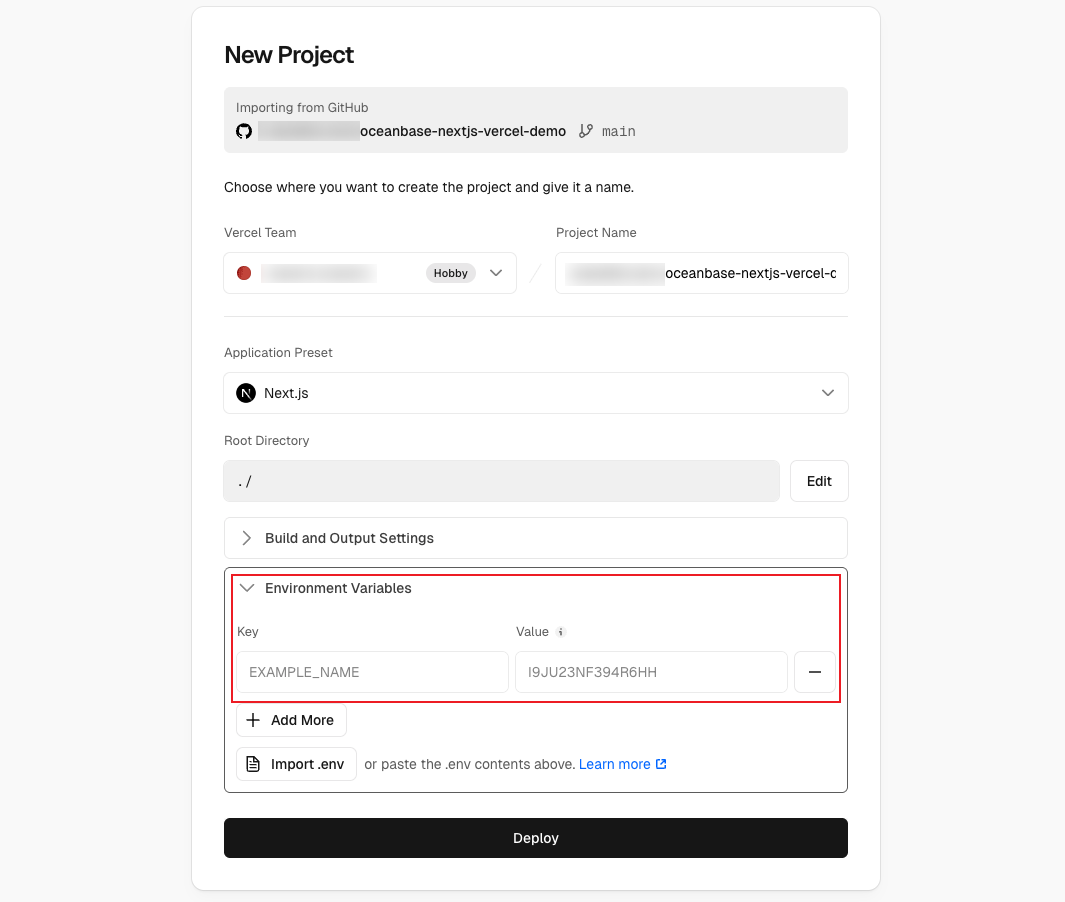
Deploy the project. After deployment completes, your Vercel app can use
DATABASE_URLto connect to OceanBase Cloud and read or write data.