OceanBase
English日本語简体中文
Docs Home
Products
Integrations
Release Notes

Databases

OceanBase DatabaseOceanBase Cloud OceanBase Best Practices

Tools

OceanBase Cloud PlatformOceanBase Migration ServiceOceanBase Developer CenterOceanBase Migration AssessmentOceanBase Admin ToolOceanBase Loader and DumperOceanBase DeployerKubernetes operator for OceanBaseOceanBase Diagnostic Tool OceanBase Binlog Service

Connectors and Middleware

OceanBase Database Proxy OceanBase Connector/C OceanBase Connector/J OceanBase Connector/ODBC OceanBase Connector/NETOceanBase Command-Line Client

Databases

OceanBase DatabaseOceanBase Cloud OceanBase Best Practices

Connectors and Middleware

OceanBase Database Proxy OceanBase Connector/C OceanBase Connector/J OceanBase Connector/ODBC OceanBase Connector/NETOceanBase Command-Line Client

Tools

OceanBase Cloud PlatformOceanBase Migration ServiceOceanBase Developer CenterOceanBase Migration AssessmentOceanBase Admin ToolOceanBase Loader and DumperOceanBase DeployerKubernetes operator for OceanBaseOceanBase Diagnostic Tool OceanBase Binlog Service
OceanBase DatabaseOceanBase Cloud ToolsConnectors and MiddlewareLifecycle Support Policy

OceanBase Cloud

  • Overview
  • Schema evolution
    • Liquibase
    • Flyway
  • Data ingestion
    • Canal
    • dbt
    • Debezium
    • Flink
    • Glue
    • Informatica Cloud
    • Kafka
    • Maxwell
    • SeaTunnel
    • DataWorks
    • NiFi
  • SQL development
    • DataGrip
    • DBeaver
    • Navicat
    • TablePlus
  • Orchestration
    • DolphinScheduler
    • Linkis
    • Airflow
  • Visualization
    • Grafana
    • Power BI
    • Quick BI
    • Superset
    • Tableau
  • Observability
    • Datadog
    • Prometheus
  • Database management
    • Bytebase
  • AI
    • LlamaIndex
    • Dify
    • LangChain
    • Tongyi Qianwen
    • OpenAI
    • n8n
    • Trae
    • SpringAI
    • Cline
    • Cursor
    • Continue
    • Toolbox
    • CamelAI
    • Firecrawl
    • Hugging Face
    • Ollama
    • Google Gemini
    • Cloudflare Workers AI
    • Qoder
    • OpenCode
    • Claude Code
    • GitHub Copilot
    • Codex
    • Jina AI
    • Augment Code
    • Claude Code
    • Kiro
  • Development tools
    • Cloudflare Workers
    • Vercel

Download PDF

Document Feedback
  1. Documentation Center
  2. OceanBase Cloud

Connect to OceanBase Cloud in Tableau

Last Updated:2026-09-04 07:03:30

Prerequisites
Procedure
Step 1: Obtain an OceanBase Cloud connection string
Step 2: Connect to OceanBase Cloud in Tableau Desktop
What's next

This topic will demonstrate how to import data from OceanBase Cloud into Tableau Desktop, using an example of OceanBase Cloud MySQL-compatible tenant.

Prerequisites

  • You have downloaded and installed Tableau Desktop.
  • You have registered an OceanBase Cloud account, and have created an instance and a MySQL-compatible tenant. For details, refer to Create an instance and Create a tenant.

Procedure

Step 1: Obtain an OceanBase Cloud connection string

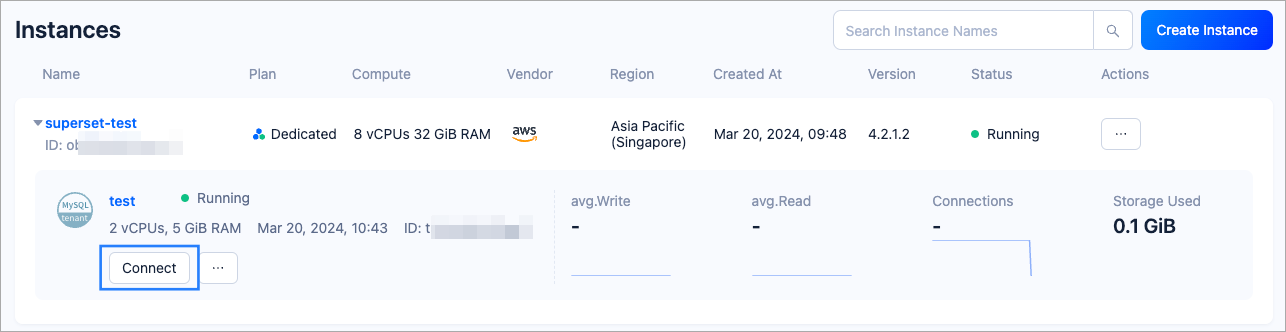
  1. Log in to the OceanBase Cloud console. On the Instances page, expand the target instance and click Create under the target tenant.
    connect-1
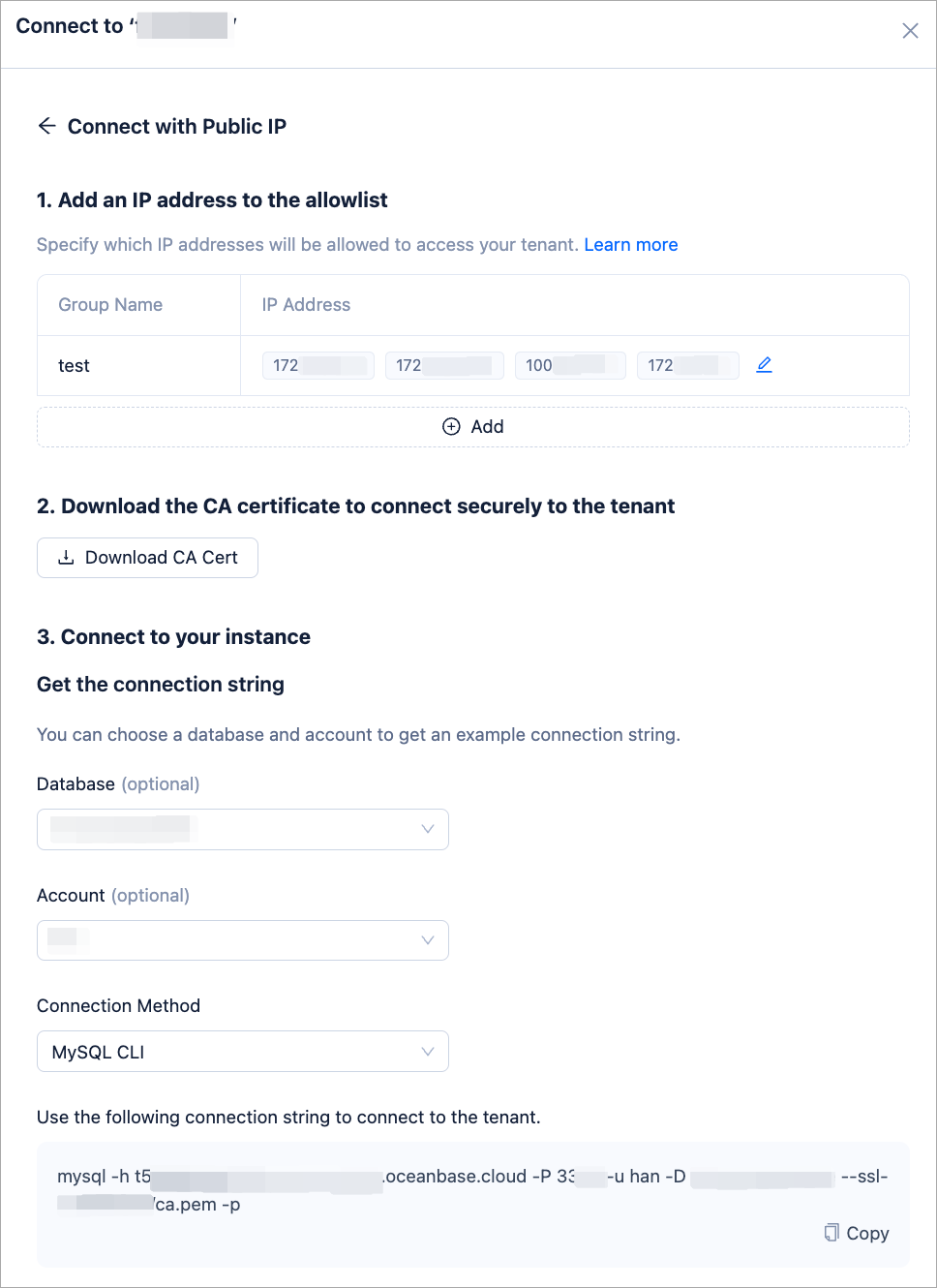
  2. In the pop-up window, click Connect with Public IP.

  3. In the Connect with Public IP window, complete the following settings to generate the connection string:

    1. Under 1. Add an IP address to the allowlist, click Add to add your exit IP address(es) used for the connection to the allowlist.

    2. (Optional) Under 2. Download the CA certificate to connect securely to the tenant, download the CA certificate and complete the verification.

    3. Under 3. Connect to your instance, click the drop-down list for Database and Account to create a database and an account for the connection. Select MySQL CLI as the connection method.

      Notice

      Please keep your password in a secure place after creating your account.
      connect-1

Step 2: Connect to OceanBase Cloud in Tableau Desktop

  1. Open Tableau Desktop. In the Connect pane on the left, under To a Server, select More > MySQL.

  2. In the MySQL dialog, configure as follows based on the connection string obtained in Step 1: Obtain an OceanBase Cloud connection string:

    Field
    Description
    Server Taken from the -h parameter in the connection string, which is the hostname of OceanBase Cloud database, for example, t5******.aws-ap-southeast-1.oceanbase.cloud.
    Port Taken from the -P parameter in the connection string, which is the OceanBase Cloud database connection port.
    Database Taken from the -D parameter in the connection string, which is the name of the database to be accessed.
    Username Taken from the -u parameter in the connection string, which is the account name, for example: test.
    Password Taken from the -p parameter in the connection string, which is the account password.
    connect-1
  3. Click Sign In. If you see the interface as shown below, it means you have successfully connected to OceanBase Cloud.

    connect-1

    Note

    If you are choosing MySQL for database connection for the first time, Tableau Desktop will prompt you to install the MySQL driver before connecting. You can follow the prompts to install the MySQL driver required for connection. For specific installation steps, refer to the MySQL Driver Download page.

What's next

Once the connection is established, you can start using Tableau Desktop. For detailed operational guidance on Tableau, refer to the Tableau Desktop Official User Guide.

Previous topic

Superset
Last

Next topic

Datadog
Next
on this page
Prerequisites
Procedure
Step 1: Obtain an OceanBase Cloud connection string
Step 2: Connect to OceanBase Cloud in Tableau Desktop
What's next