OceanBase
English日本語简体中文
Docs Home
Products
Integrations
Release Notes

Databases

OceanBase DatabaseOceanBase Cloud OceanBase Best Practices

Tools

OceanBase Cloud PlatformOceanBase Migration ServiceOceanBase Developer CenterOceanBase Migration AssessmentOceanBase Admin ToolOceanBase Loader and DumperOceanBase DeployerKubernetes operator for OceanBaseOceanBase Diagnostic Tool OceanBase Binlog ServiceOceanBase DataPilot

Connectors and Middleware

OceanBase Database Proxy OceanBase Connector/C OceanBase Connector/J OceanBase Connector/ODBC OceanBase Connector/NETOceanBase Command-Line Client

Databases

OceanBase DatabaseOceanBase Cloud OceanBase Best Practices

Connectors and Middleware

OceanBase Database Proxy OceanBase Connector/C OceanBase Connector/J OceanBase Connector/ODBC OceanBase Connector/NETOceanBase Command-Line Client

Tools

OceanBase Cloud PlatformOceanBase Migration ServiceOceanBase Developer CenterOceanBase Migration AssessmentOceanBase Admin ToolOceanBase Loader and DumperOceanBase DeployerKubernetes operator for OceanBaseOceanBase Diagnostic Tool OceanBase Binlog ServiceOceanBase DataPilot
OceanBase DatabaseOceanBase Cloud ToolsConnectors and MiddlewareLifecycle Support Policy

OceanBase Cloud

  • Overview
  • Schema evolution
    • Liquibase
    • Flyway
  • Data ingestion
    • Canal
    • dbt
    • Debezium
    • Flink
    • Glue
    • Informatica Cloud
    • Kafka
    • Maxwell
    • SeaTunnel
    • DataWorks
    • NiFi
  • SQL development
    • DataGrip
    • DBeaver
    • Navicat
    • TablePlus
  • Orchestration
    • DolphinScheduler
    • Linkis
    • Airflow
  • Visualization
    • Grafana
    • Power BI
    • Quick BI
    • Superset
    • Tableau
  • Observability
    • Datadog
    • Prometheus
  • Database management
    • Bytebase
  • AI
    • LlamaIndex
    • Dify
    • LangChain
    • Tongyi Qianwen
    • OpenAI
    • n8n
    • Trae
    • SpringAI
    • Cline
    • Cursor
    • Continue
    • Toolbox
    • CamelAI
    • Firecrawl
    • Hugging Face
    • Ollama
    • Google Gemini
    • Cloudflare Workers AI
    • Qoder
    • OpenCode
    • Claude Code
    • GitHub Copilot
    • Codex
    • Jina AI
    • Augment Code
    • Claude Code
    • Kiro
  • Development tools
    • Cloudflare Workers
    • Vercel

Download PDF

Document Feedback
  1. Documentation Center
  2. OceanBase Cloud

Migrating OceanBase Data Using AWS Glue

Last Updated:2026-09-04 07:03:30

Connect OceanBase Cloud by using Glue
Use Glue ETL Tasks

AWS Glue is a serverless data integration service. It helps users easily discover, prepare, move, and integrate data from multiple sources to support analytics, machine learning, and application development. AWS Glue provides comprehensive data integration capabilities, including data discovery, modern ETL, data cleansing and transformation, and centralized cataloging, all integrated into a single service. AWS Glue does not require users to manage infrastructure, supports various workloads such as ETL, ELT, and streaming, and can scale on demand to accommodate any data size and type. This topic uses OceanBase Cloud. AWS Glue migrates data from one OceanBase instance to another. As for data streaming, you need to write ETL scripts and schedule tasks.

Note

  • AWS Glue cannot connect to data sources via public IP and has very strict network requirements. Therefore, when you use AWS Glue, you need to place the Glue task and OceanBase instance in the same subnet during network configuration. The key and endpoint must also be located on the same node.
  • Using AWS Glue is subject to AWS's billing rules and may incur corresponding charges. Please visit its official website or view the relevant documentation to confirm and accept its billing standards before proceeding. If you disagree, please do not proceed with the operation.
  • Connect OceanBase Cloud by using Glue

    Follow these steps to connect to the OceanBase Cloud by using Glue:

    1. Create an EC2 instance.

    2. Set up the AWS S3 VPC Gateway Endpoint. AWS Glue cannot connect to data sources via public IP, so this topic uses a private IP to connect to OceanBase Cloud. Make sure that your Glue subnet has an Amazon S3 VPC gateway endpoint or a NAT gateway route in the subnet routing table. Follow these steps to set up the AWS S3 VPC Gateway Endpoint:

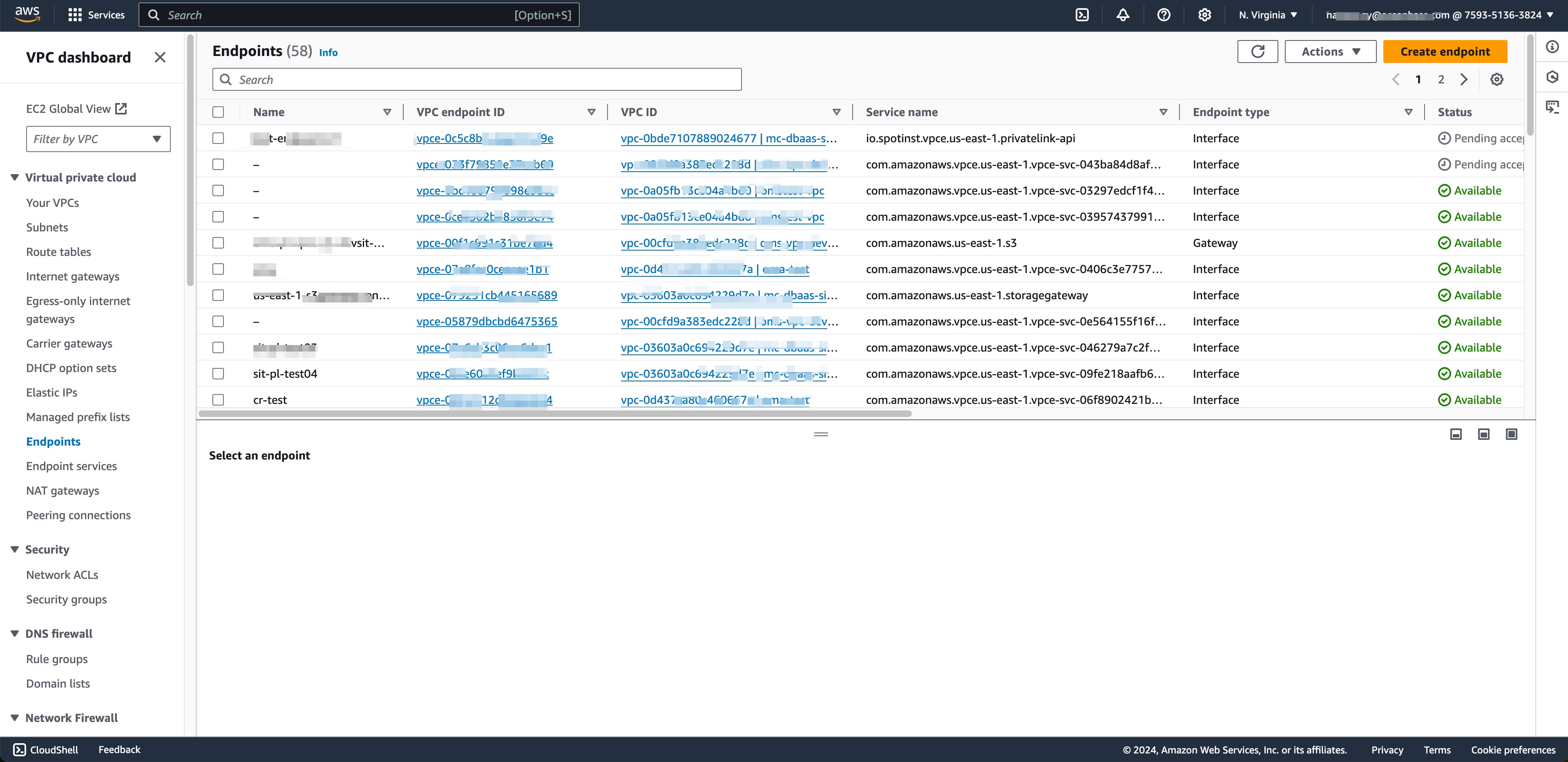
      1. Open the Amazon VPC console. In the navigation pane, select Endpoints.
      2. Select Create Endpoint. VPC
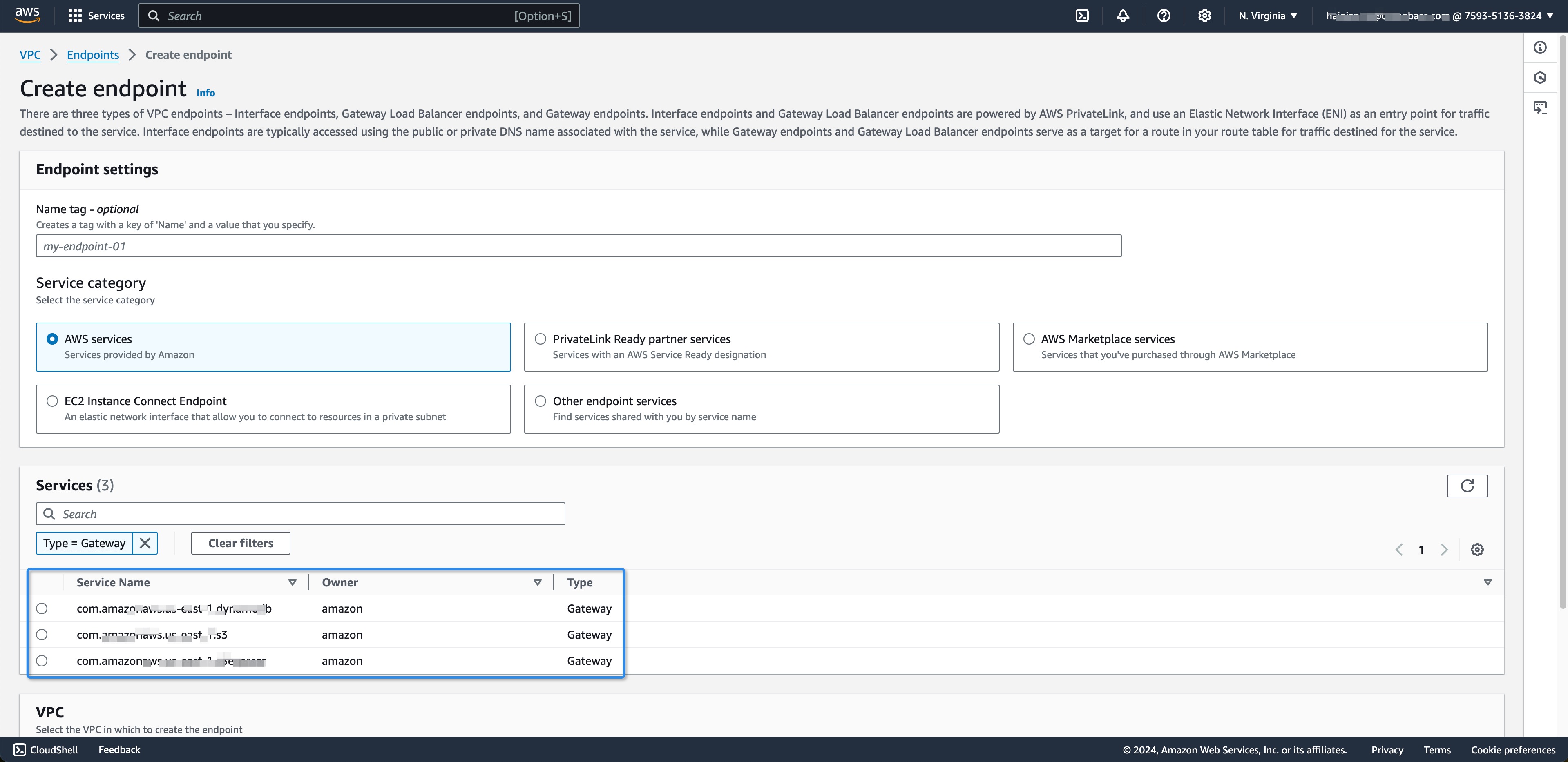
      3. For Service Name, select com.amazonaws.us-east-1.s3. Make sure that the Type column indicates Gateway.

        Note

        You must replace us-east-1 with the AWS region you choose.

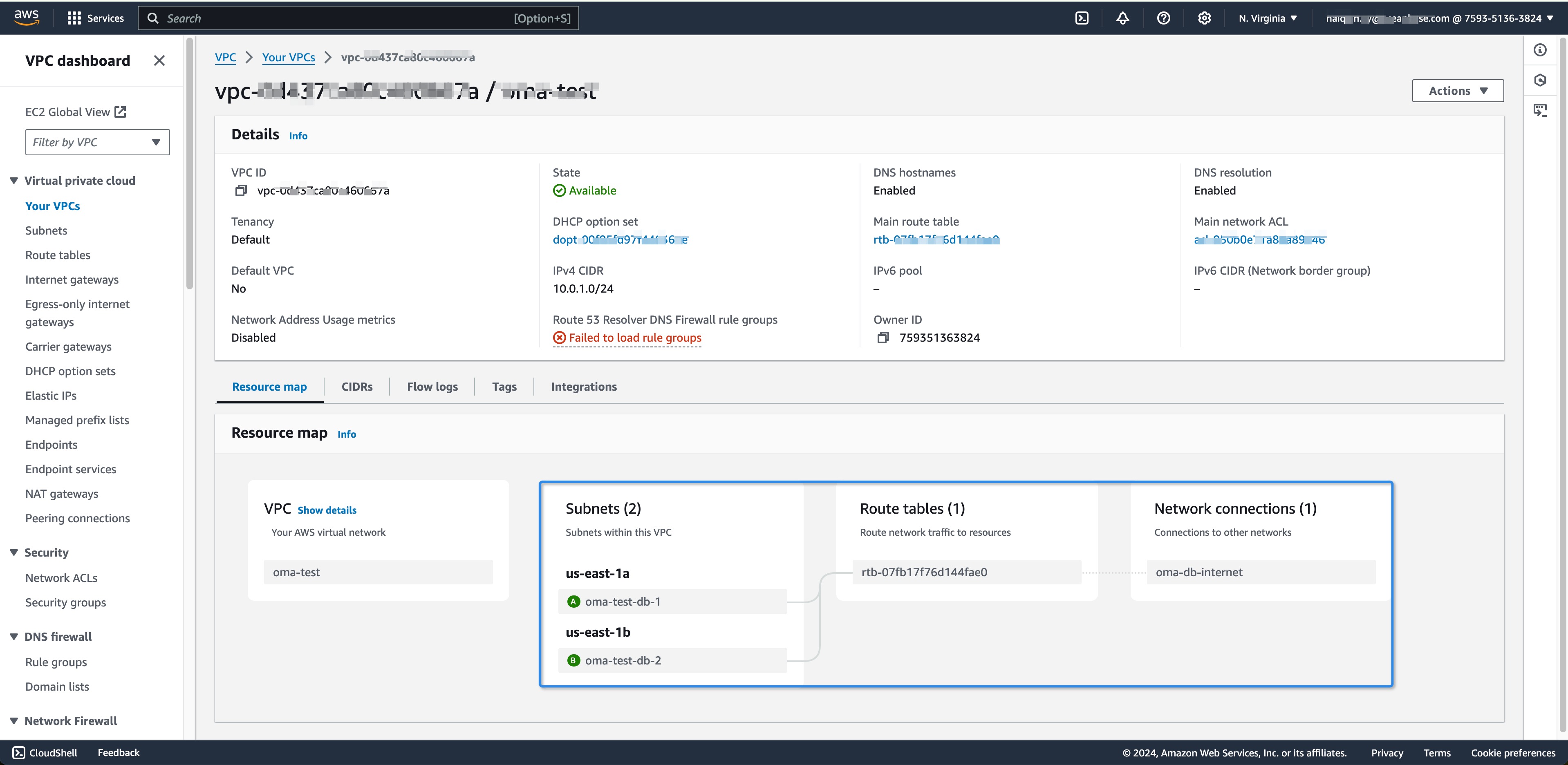
      4. For VPC, select the VPC in which you want to create the endpoint.
      5. For Configure routing table, the system will automatically add routes to the S3 VPC endpoint. endpoint
      6. For Policy, retain the default option Full Access.
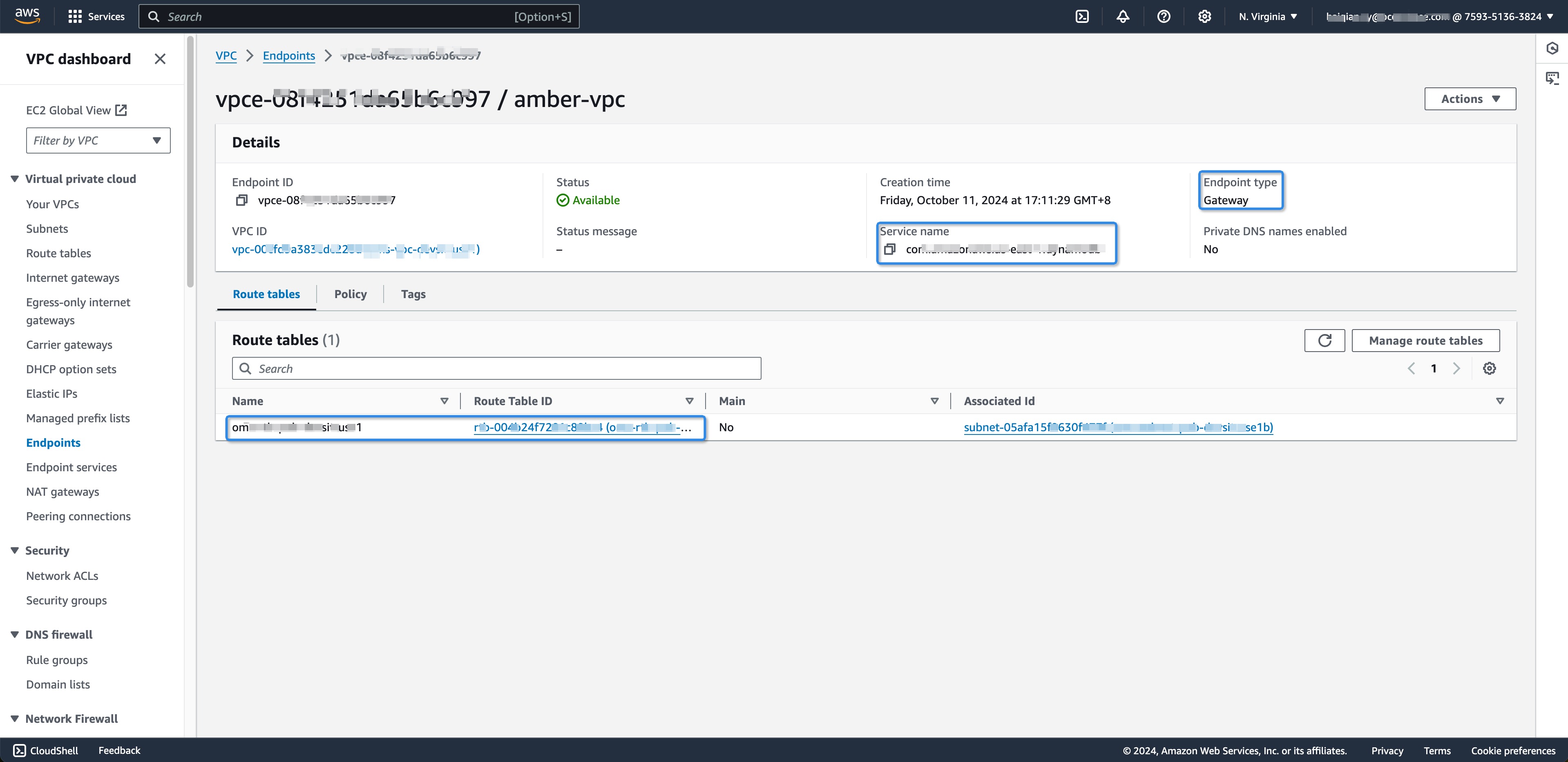
      7. Select Create Endpoint. After the endpoint is created, you can view the endpoint details and subnet information. detail sub-net
    3. Test the Glue Connection.

      1. Open the AWS Glue Console, select JDBC.
      2. Use a private IP for JDBC.
      3. Set Network Options. Use the subnet information configured in the endpoint step for the subnet to S3 VPC link.
      4. Click Next to complete creation.
      5. Test the connection.

    Use Glue ETL Tasks

    Follow these steps to use Glue ETL tasks, connect to OceanBase instances, and transform data to OceanBase instances.

    1. Add the OceanBase Source Database.

      1. Click Connections, select the JDBC type.
      2. Fill in the OceanBase data source information.
      3. Complete creation.
      4. Test the connection.
    2. Add the OceanBase Target Database. This topic uses Crawlers for target database mapping.

      1. Click Crawlers -> Create Crawler.
      2. Fill in the Crawler information.
      3. Add data sources.
      4. Select the JDBC connection type and database table.
      5. Click Next and assign users.
      6. Add the location for table mapping.
      7. Select the database and complete, click Next to finish creating the Crawler.
      8. Pre-create the table in the target database.
      9. Run the Crawler and view the table mapping information.
    3. Create an ETL Task.

      1. Click Visual ETL to create a job.
      2. Select MySQL for the Source type.
      3. Click the MySQL node, select JDBC Source and Table Name to preview data.
      4. Click Targets, select MySQL for the Target type.
      5. Save and run the task.
      6. View the execution results.

    Previous topic

    Flink
    Last

    Next topic

    Informatica Cloud
    Next
    on this page
    Connect OceanBase Cloud by using Glue
    Use Glue ETL Tasks