OceanBase
English日本語简体中文
Docs Home
Products
Integrations
Release Notes

Databases

OceanBase DatabaseOceanBase Cloud OceanBase Best Practices

Tools

OceanBase Cloud PlatformOceanBase Migration ServiceOceanBase Developer CenterOceanBase Migration AssessmentOceanBase Admin ToolOceanBase Loader and DumperOceanBase DeployerKubernetes operator for OceanBaseOceanBase Diagnostic Tool OceanBase Binlog Service

Connectors and Middleware

OceanBase Database Proxy OceanBase Connector/C OceanBase Connector/J OceanBase Connector/ODBC OceanBase Connector/NETOceanBase Command-Line Client

Databases

OceanBase DatabaseOceanBase Cloud OceanBase Best Practices

Connectors and Middleware

OceanBase Database Proxy OceanBase Connector/C OceanBase Connector/J OceanBase Connector/ODBC OceanBase Connector/NETOceanBase Command-Line Client

Tools

OceanBase Cloud PlatformOceanBase Migration ServiceOceanBase Developer CenterOceanBase Migration AssessmentOceanBase Admin ToolOceanBase Loader and DumperOceanBase DeployerKubernetes operator for OceanBaseOceanBase Diagnostic Tool OceanBase Binlog Service
OceanBase DatabaseOceanBase Cloud ToolsConnectors and MiddlewareLifecycle Support Policy

OceanBase Cloud

  • Overview
  • Schema evolution
    • Liquibase
    • Flyway
  • Data ingestion
    • Canal
    • dbt
    • Debezium
    • Flink
    • Glue
    • Informatica Cloud
    • Kafka
    • Maxwell
    • SeaTunnel
    • DataWorks
    • NiFi
  • SQL development
    • DataGrip
    • DBeaver
    • Navicat
    • TablePlus
  • Orchestration
    • DolphinScheduler
    • Linkis
    • Airflow
  • Visualization
    • Grafana
    • Power BI
    • Quick BI
    • Superset
    • Tableau
  • Observability
    • Datadog
    • Prometheus
  • Database management
    • Bytebase
  • AI
    • LlamaIndex
    • Dify
    • LangChain
    • Tongyi Qianwen
    • OpenAI
    • n8n
    • Trae
    • SpringAI
    • Cline
    • Cursor
    • Continue
    • Toolbox
    • CamelAI
    • Firecrawl
    • Hugging Face
    • Ollama
    • Google Gemini
    • Cloudflare Workers AI
    • Qoder
    • OpenCode
    • Claude Code
    • GitHub Copilot
    • Codex
    • Jina AI
    • Augment Code
    • Claude Code
    • Kiro
  • Development tools
    • Cloudflare Workers
    • Vercel

Download PDF

Document Feedback
  1. Documentation Center
  2. OceanBase Cloud

Manage OceanBase instances with Bytebase

Last Updated:2026-09-04 07:03:30

Prerequisites
Procedure

Bytebase is an open-source database change management and collaboration tool that provides both SaaS services and a self-hosted version. This topic will use the OceanBase Cloud MySQL-compatible tenant as an example to demonstrate how to manage OceanBase instances using Bytebase.

Prerequisites

  1. Deploy Bytebase. For specific instructions, refer to the GitHub repository.

  2. Log in to OceanBase Cloud database,locate the connection string of the target tenant. For more information, refer to Connect using a public IP address.

    1. On the instances list page, expand the target cluster instance, and click Connect under the target tenant.

    2. In the pop-up window, select Connect with Public IP.

    3. Add the Bytebase IP address in the pop-up window. For more information, see Set allowlist groups.

    4. Based on the generated connection string, enter the information of host, port, username, and password in Step 3 below.
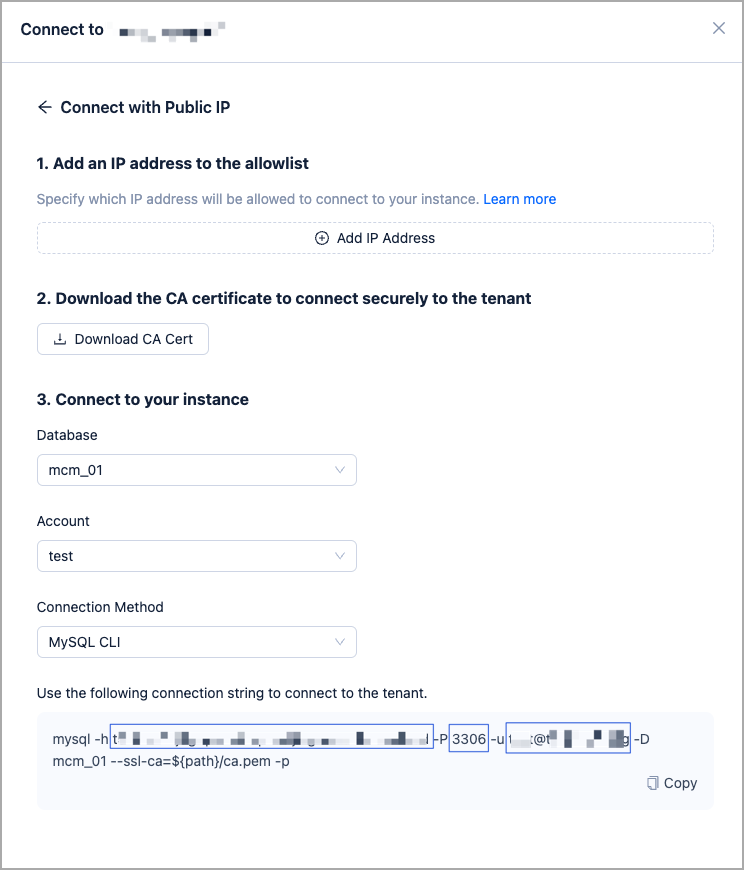
      connect

  3. Create an account, authorize the account according to permission requirements of Bytebase and your actual business needs. For details, refer to Create an account.

Procedure

  1. Log in to the Bytebase platform, follow the prompts to create a workspace and enter your workspace.
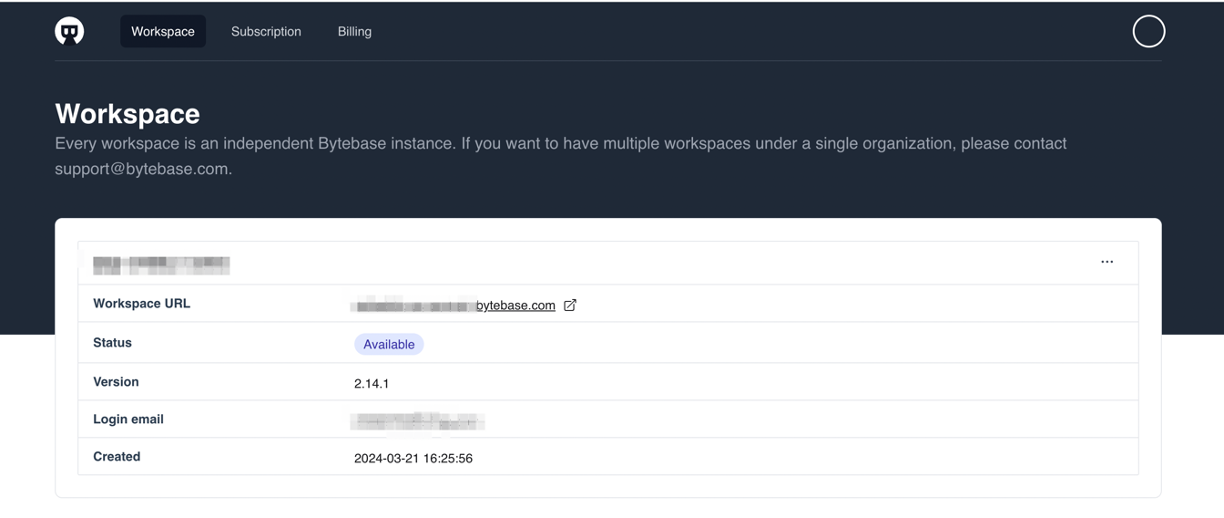
    Bytebase

  2. Click Add Instance and select OceanBase (MySQL) in the pop-up box.
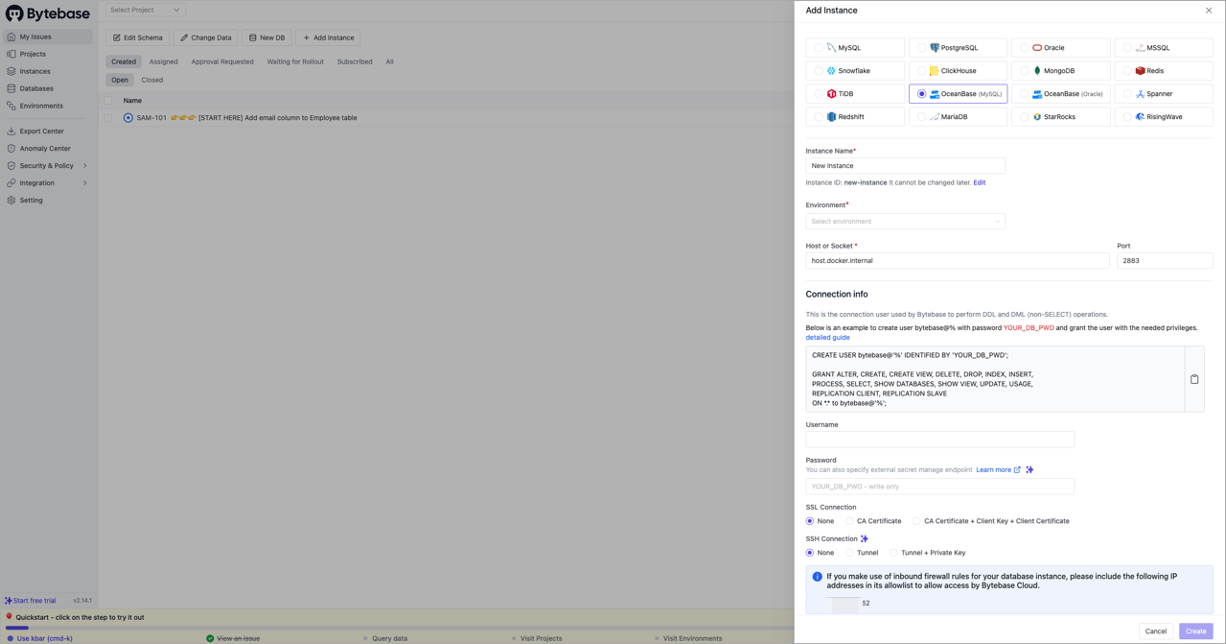
    Add Instance

    Field
    Description
    Instance Name Specify your instance name.
    Environment Select the Test or Pro environment based on your needs.
    Host or Socket Taked from the -h parameter of the connection string generated in the Prerequisites section.
    Port Taken from the -p parameter of the connection string generated in the Prerequisites section.
    Username Taken from the -u parameter of the connection string generated in the Prerequisites section.
    Password Enter the password of the account created in OceanBase Cloud.
  3. Click Test Connection. After the connection is successful, click Create.

  4. After the creation is complete, you can integrate with GitOps.

    • If you need to enable the GitOps workflow, you can integrate with your code repository service, such as GitHub, GitLab, or Bitbucket Cloud, in Bytebase.
    • Configure Git repositories to store database change scripts and submit changes to the corresponding branches. Bytebase will automatically pull changes and execute the approval and release process.
  5. Manage database changes.

    • Create SQL migration scripts and submit change requests through the Bytebase interface.
    • Participate in the review process and collaborate with other team members to review SQL changes.
    • After approval, execute the approved changes, and Bytebase will automatically apply them to the target database within the preset time window.

Previous topic

Prometheus
Last

Next topic

LlamaIndex
Next
on this page
Prerequisites
Procedure