OceanBase
English日本語简体中文
Docs Home
Products
Integrations
Release Notes

Databases

OceanBase DatabaseOceanBase Cloud OceanBase Best Practices

Tools

OceanBase Cloud PlatformOceanBase Migration ServiceOceanBase Developer CenterOceanBase Migration AssessmentOceanBase Admin ToolOceanBase Loader and DumperOceanBase DeployerKubernetes operator for OceanBaseOceanBase Diagnostic Tool OceanBase Binlog Service

Connectors and Middleware

OceanBase Database Proxy OceanBase Connector/C OceanBase Connector/J OceanBase Connector/ODBC OceanBase Connector/NETOceanBase Command-Line Client

Databases

OceanBase DatabaseOceanBase Cloud OceanBase Best Practices

Connectors and Middleware

OceanBase Database Proxy OceanBase Connector/C OceanBase Connector/J OceanBase Connector/ODBC OceanBase Connector/NETOceanBase Command-Line Client

Tools

OceanBase Cloud PlatformOceanBase Migration ServiceOceanBase Developer CenterOceanBase Migration AssessmentOceanBase Admin ToolOceanBase Loader and DumperOceanBase DeployerKubernetes operator for OceanBaseOceanBase Diagnostic Tool OceanBase Binlog Service
OceanBase DatabaseOceanBase Cloud ToolsConnectors and MiddlewareLifecycle Support Policy

OceanBase Cloud

  • Overview
  • Schema evolution
    • Liquibase
    • Flyway
  • Data ingestion
    • Canal
    • dbt
    • Debezium
    • Flink
    • Glue
    • Informatica Cloud
    • Kafka
    • Maxwell
    • SeaTunnel
    • DataWorks
    • NiFi
  • SQL development
    • DataGrip
    • DBeaver
    • Navicat
    • TablePlus
  • Orchestration
    • DolphinScheduler
    • Linkis
    • Airflow
  • Visualization
    • Grafana
    • Power BI
    • Quick BI
    • Superset
    • Tableau
  • Observability
    • Datadog
    • Prometheus
  • Database management
    • Bytebase
  • AI
    • LlamaIndex
    • Dify
    • LangChain
    • Tongyi Qianwen
    • OpenAI
    • n8n
    • Trae
    • SpringAI
    • Cline
    • Cursor
    • Continue
    • Toolbox
    • CamelAI
    • Firecrawl
    • Hugging Face
    • Ollama
    • Google Gemini
    • Cloudflare Workers AI
    • Qoder
    • OpenCode
    • Claude Code
    • GitHub Copilot
    • Codex
    • Jina AI
    • Augment Code
    • Claude Code
    • Kiro
  • Development tools
    • Cloudflare Workers
    • Vercel

Download PDF

Document Feedback
  1. Documentation Center
  2. OceanBase Cloud

DolphinScheduler

Last Updated:2026-09-04 07:03:30

Configure an OceanBase data source for DolphinScheduler
Obtain an OceanBase Cloud connection string

DolphinScheduler supports OceanBase data sources. You can configure a data source of OceanBase Database in the MySQL compatible mode like a MySQL data source.

Configure an OceanBase data source for DolphinScheduler

Log on to the DolphinScheduler console. In the top navigation bar, click Datasource, and then click Create DataSource. On the Choose DataSource Type dialog box, select MYSQL. If you use DolphinScheduler of the latest version, you can select OCEANBASE as the data source type.

The following table describes the parameters for configuring an OceanBase data source for DolphinScheduler.

Parameter
Description
Datasource Select OCEANBASE.
Datasource Name Enter the name of the data source.
IP Enter the IP address for connecting to the OceanBase data source.
Port Enter the port number for connecting to the OceanBase data source.
User Name Enter the username for connecting to the OceanBase data source.
Password Enter the password for connecting to the OceanBase data source.
Database Name Enter the database name for connecting to the OceanBase data source.

Perform the following steps to obtain information about the OceanBase data source.

Obtain an OceanBase Cloud connection string

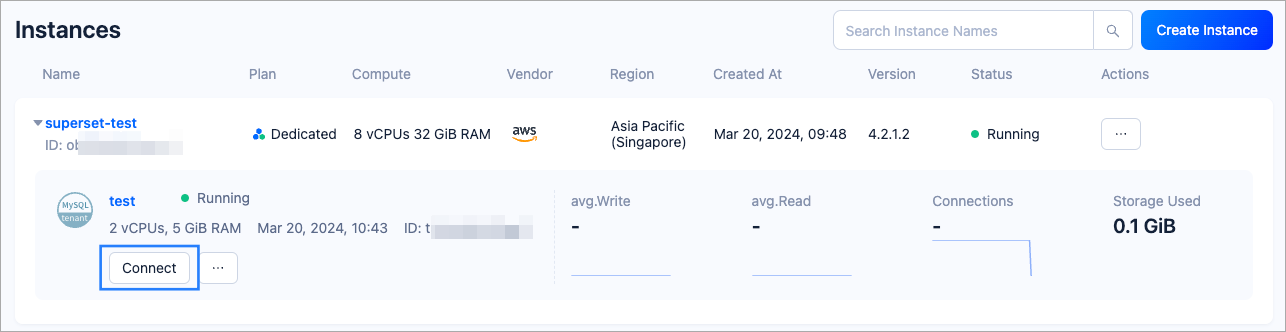
  1. Log in to the OceanBase Cloud console. On the Instances page, expand the target instance and click Create under the target tenant.
    connect-1
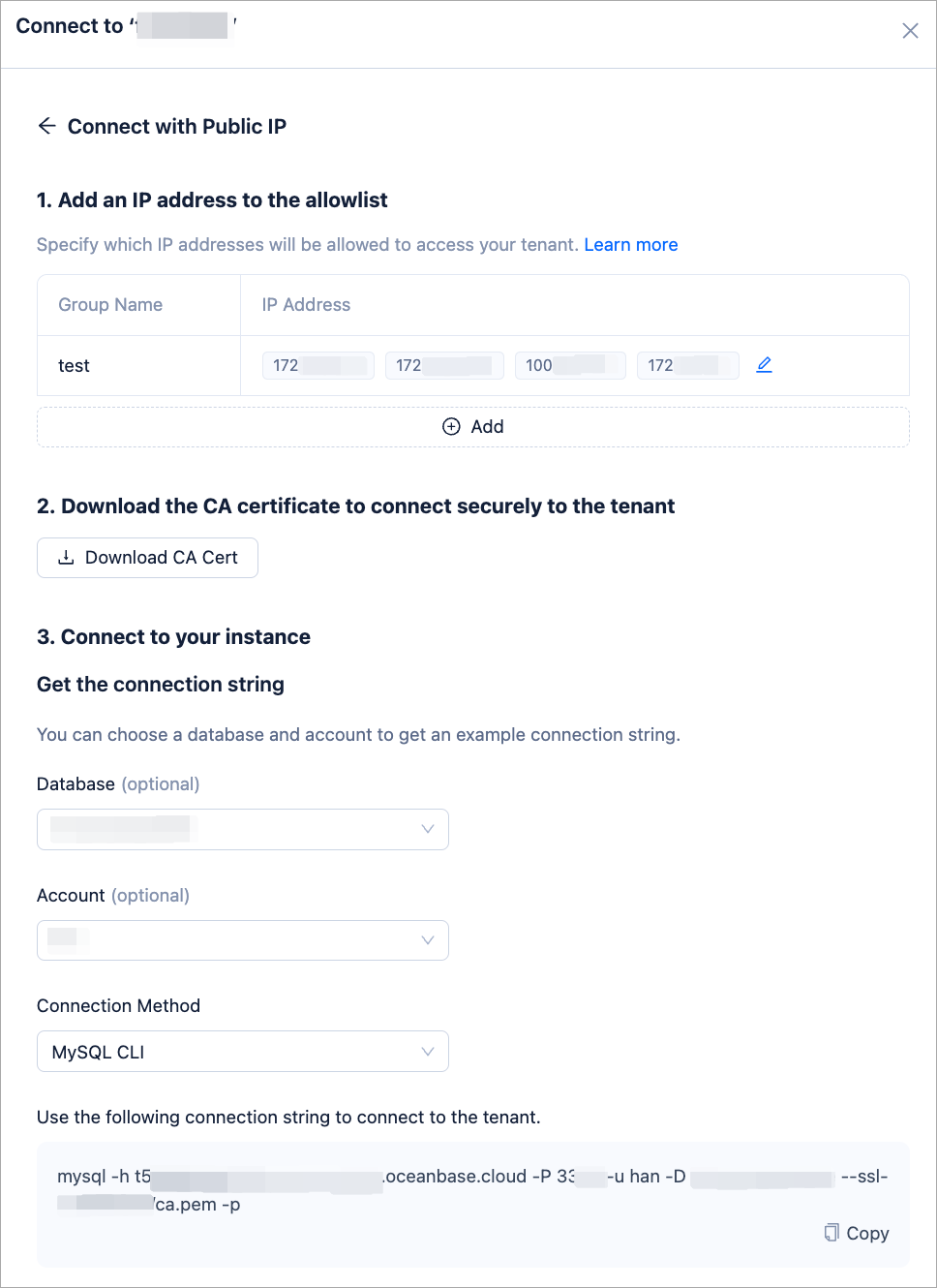
  2. In the pop-up window, click Connect with Public IP.

  3. In the Connect with Public IP window, complete the following settings to generate the connection string:

    1. Under 1. Add an IP address to the allowlist, click Add to add your exit IP address(es) used for the connection to the allowlist.
    2. (Optional) Under 2. Download the CA certificate to connect securely to the tenant, download the CA certificate and complete the verification.
    3. Under 3. Connect to your instance, click the drop-down list for Database and Account to create a database and an account for the connection. Select MySQL CLI as the connection method.

    Notice

    Please keep your password in a secure place after creating your account.
    connect-1

For more information, visit DolphinScheduler Documentation.

Previous topic

TablePlus
Last

Next topic

Linkis
Next
on this page
Configure an OceanBase data source for DolphinScheduler
Obtain an OceanBase Cloud connection string