
Background
OceanBase Developer Center (ODC) allows users with special permissions, such as administrators with permissions on the public resource console, to define change task processes. Users with read-only permissions can initiate change tasks based on the defined task processes.
Users with this special permission can modify, view, and disable change task processes in the public resource console. Supported task processes include data import, export, and mocking, database changes, and connection permission application.
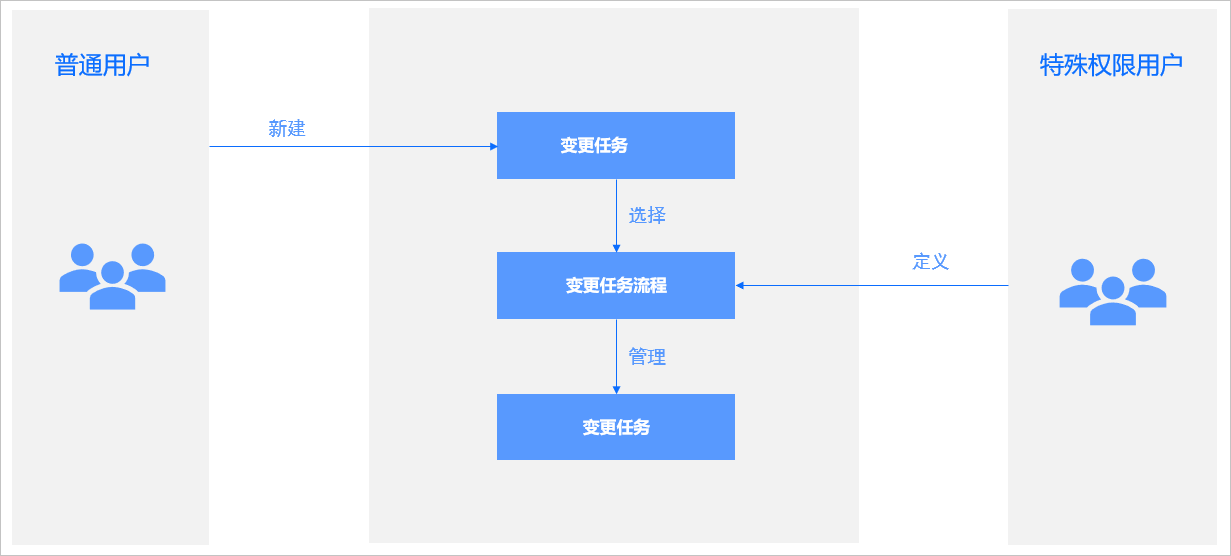
Create a task process
The following example shows how to create a connection permission application process in ODC. Procedure:
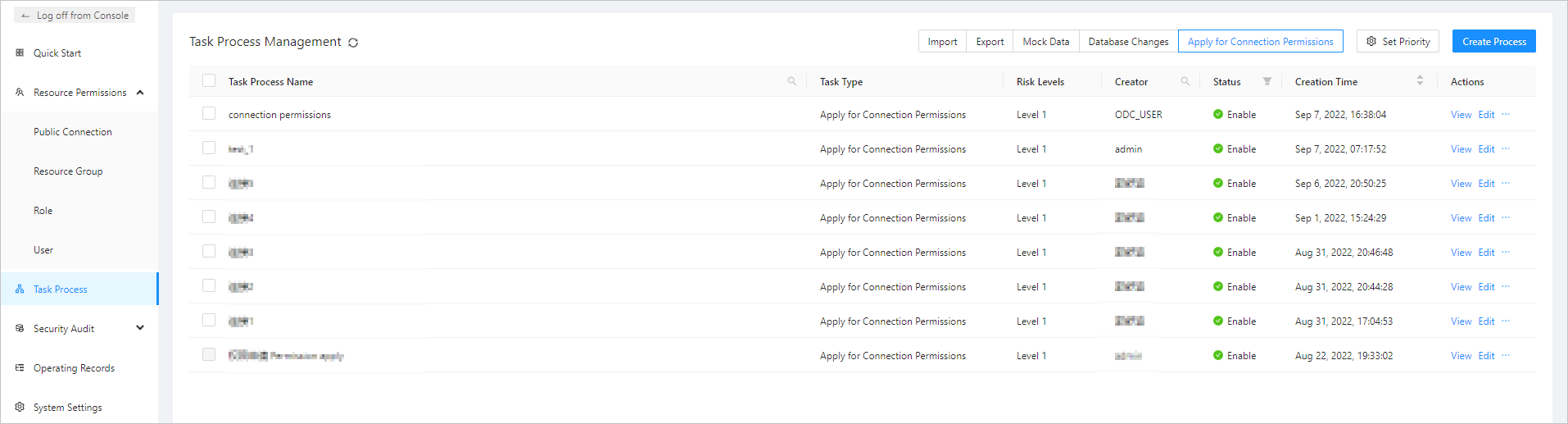
Log on to ODC as the administrator, and go to the Public Resource Console page. In the left-side navigation pane, click Task Process to go to the task process management page.
In the upper-right corner of the Task Process Management page, select the desired task process type and click Create Process. The Create Task Process panel is displayed.
In the Create Task Process panel, specify the following parameters.
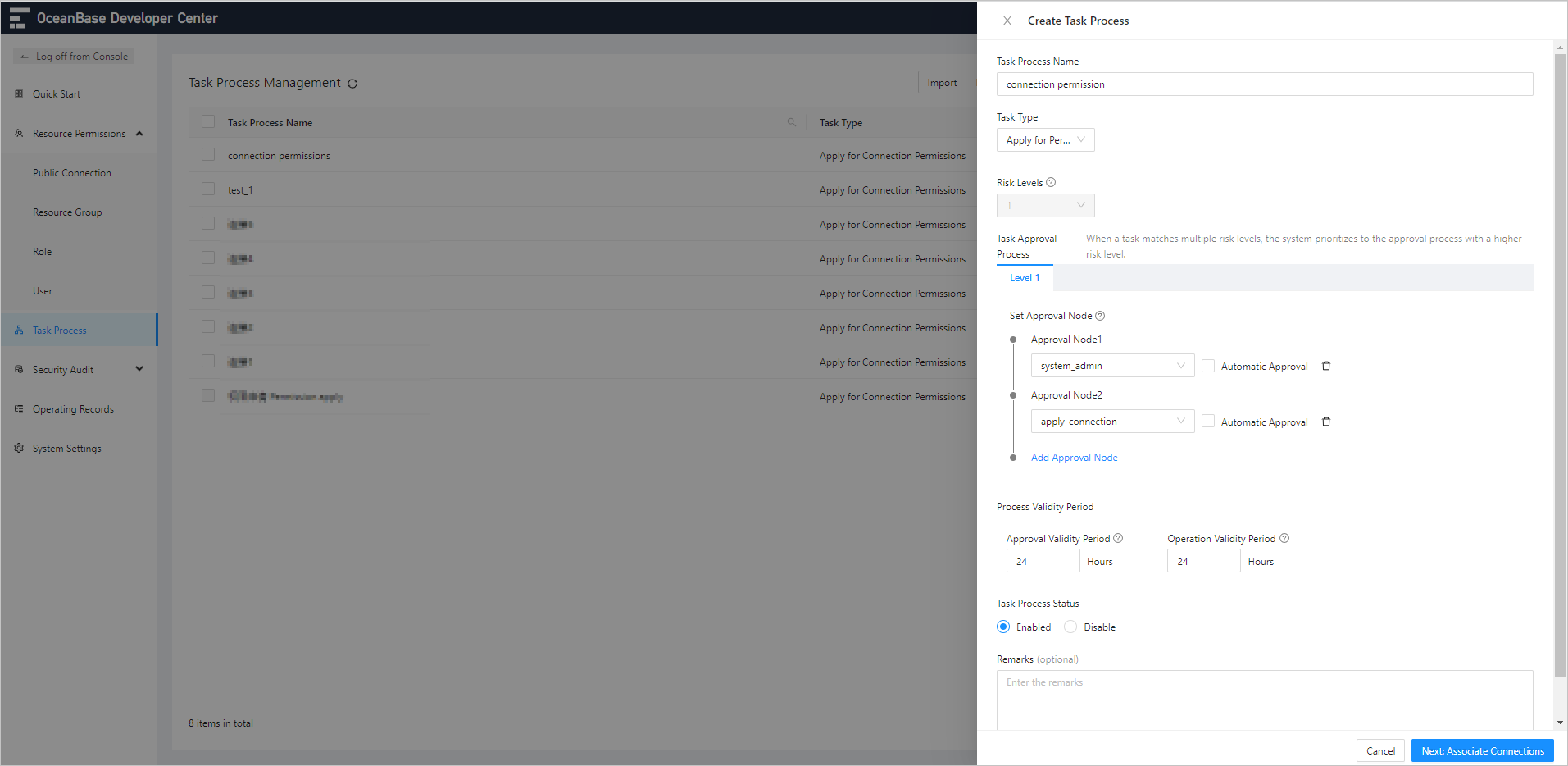 ItemDescription
Task Process Name The name of the task process. Task Type The task type, which can be Import, Export, Mock Data, Database Change, and Apply for Permission. Risk Levels The risk levels. Task Approval Process The approval nodes for the task process. Process Validity Period The validity period for approval and execution. If the execution times out, the task will expire. Task Process Status You can enable or disable the task process. Remarks (Optional) You can enter the description of the task process. Click Next: Associate Connection to select the associated public connections.
Specify Associate Connection.
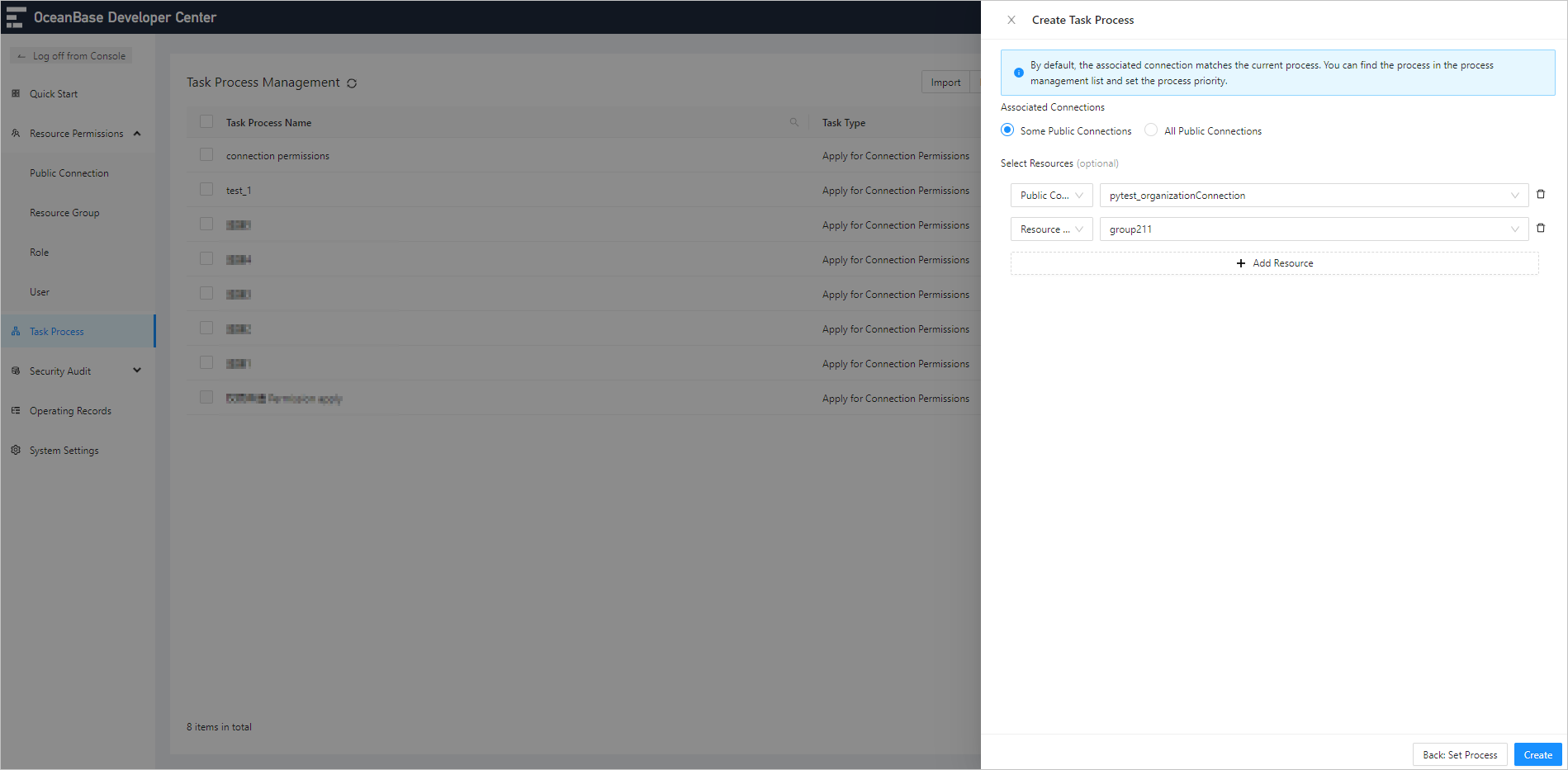 ItemDescription
Some Public Connections When you select Some Public Connections, you need to add public connections or public connections in resource groups. All Public Connections Associates all public connections. After you specify the preceding information, click Create in the lower-right corner of the panel.
Manage task process

Log on to ODC as the administrator, and go to the Public Resource Console page. In the left-side navigation pane, click Task Process to go to the Task Process Management page.
The information about task processes is displayed in a list on the Task Process Management page. On this page, you can perform the following operations:
- Click the refresh icon to manually refresh the list.
- In the upper-right corner of the list, click Set Priority to specify the execution sequence for the task process. The task process with the highest priority is associated when you create a task.
- You can select the check box
 in front of one or more task process names and click the delete icon to delete the selected processes.
List of task processes
The following table describes the columns in the list of task processes. Each column provides a filter for you to filter task processes.
Column |
Description |
|---|---|
| Task Process Name | The name of the task process. |
| Task Type | The type of the task. You can click the filter icon  to filter task processes by task type. The following task types are supported: Import, Export, Mock Data, and Database Change. to filter task processes by task type. The following task types are supported: Import, Export, Mock Data, and Database Change. |
| Risk Levels | The specified risk levels. The default value is 1. You can modify the value as needed. The maximum value is 10. You can set the risk levels only for database changes. Other types of tasks can have only one risk level. |
| Created By | The user who initiated the task. You can click the search icon  to search for the creator. to search for the creator. |
| Status | The status of the task process. You can click the filter icon to filter task processes by status. |
| Created At | The time of the last action on the task process. |
| Actions | The actions you can take. Valid values: View, Edit, and Disable/Enable. - View: View the details of the current task process. - Edit: Modify the details of the current task process. - Disable/Enable: Change the status of the current task process. |
View a task process
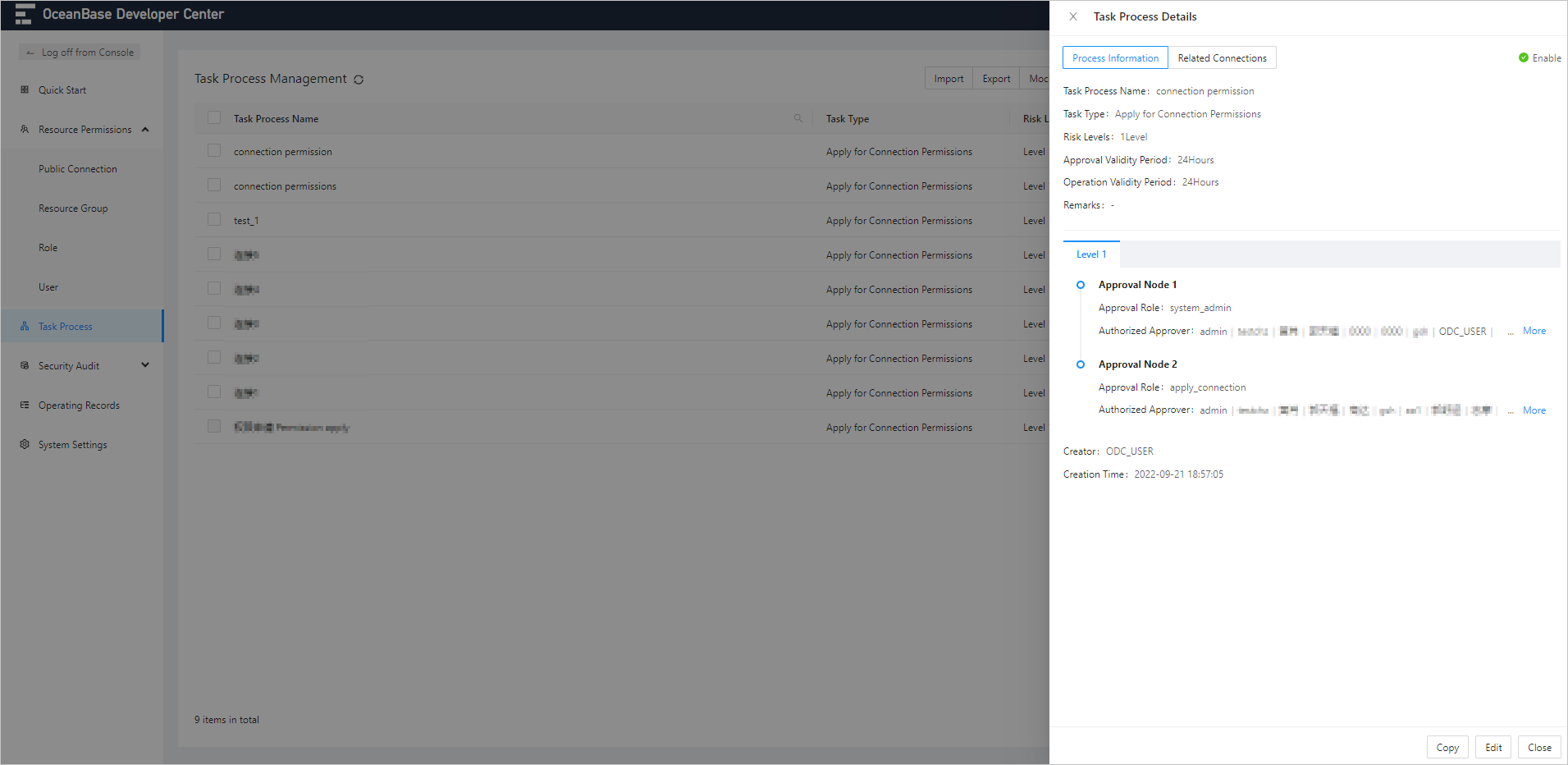
On the Task Process Management page, click View in the Actions column of the target task process. The Task Process Details panel appears.
View process information
Item |
Description |
|---|---|
| Basic information | Displays the basic information of the task process in the following fields: Task Process Name, Task Type, Risk Levels, Approval Validity Period, Valid Waiting Period, Operation Validity Period, and Remarks. |
| Level | Displays the task level information, which contains the approval node, approval role, and authorized approvers. |
| Created By | The user who initiated the task. |
| Created At | The time when the task process was created. |
View associated connections
Item |
Description |
|---|---|
| Associated Connection | The associated public connections. |
| Task Process Status | The status of the task process. |
Edit a task process
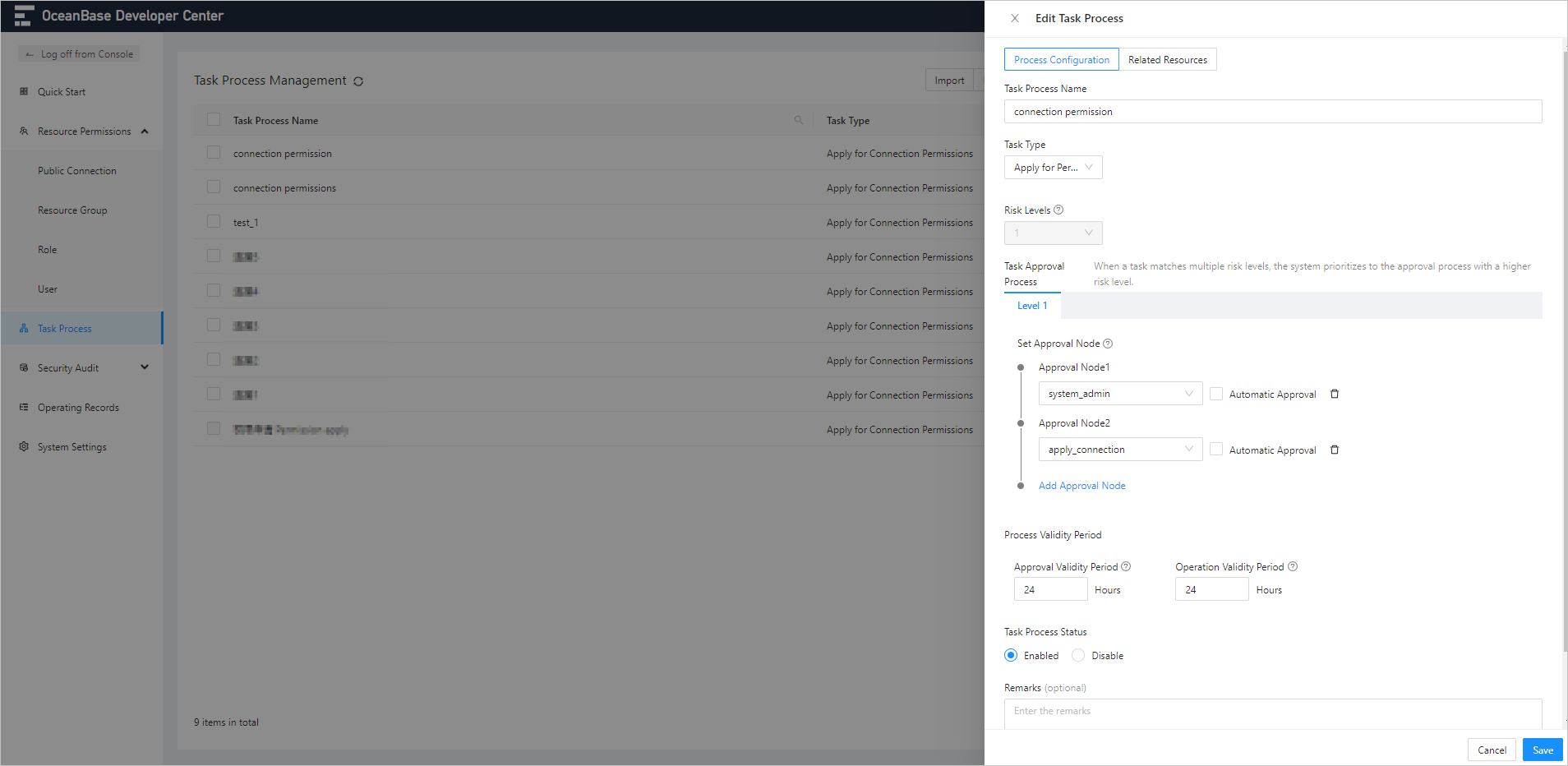
On the Task Process Management page, click Edit in the Actions column of the target task process. The Edit Task Process panel appears.
Item |
Description |
|---|---|
| Task Process Name | The name of a task process can contain up to 110 characters in length, and can contain digits, letters, and Chinese characters. The names of task processes in the same organizational structure must be unique. |
| Task Type | The task subtypes of database changes include Update, Delete, Insert, Select, Create, Drop, Alter, and Other. |
| Risk Levels | The default value is 1. You can modify the value as needed. The maximum value is 10. We recommend that you set this parameter to 3. You can set the risk levels only for database changes. Other types of tasks can have only one risk level. |
| Task Approval Process | - This section is displayed only for database change processes. By default, only one risk level is set. The risk level contains all task subtypes you selected, does not limit the volume of data to be changed, and requires approval by the system administrator by default. You can set custom approval nodes for the risk level by setting the number of nodes and the approval roles. - If multiple risk levels are set, you can set Task Subcategory, Number of SQL Statements Supported, and Set Approval Node for each risk level. |
| Process Validity Period | You can specify the validity period of approval. If the specified period expires, the approval is automatically terminated. The default value is 24 hours (1 day). You can modify the value as needed. The maximum value is 240 hours (10 days). - Approval Validity Period: the validity period of approval. If this period times out, the task expires. - Valid Waiting Period: the waiting period before manual execution. If this period times out, the task expires. - Operation Validity Period: the validity period of execution. If this period times out, the task expires. |
| Task Process Status | You can enable or disable the task process. You cannot initiate tasks of a disabled process. |
| Remarks | The description of the task process. It can contain up to 200 characters in length. |
Set priorities of task processes
On the Task Process Management page, click Set Priority.

In the Set Priority panel, select the task type. In the list in the Process Priority section, drag and drop the icon in the Sort column of a task process to adjust the priority order of the task process.
Note
Tasks will be executed based on the priority order set by the administrator in the Set Priority panel in the public resource console. If a connection is associated with multiple processes, the tasks within the connection are matched against the processes by the priority order.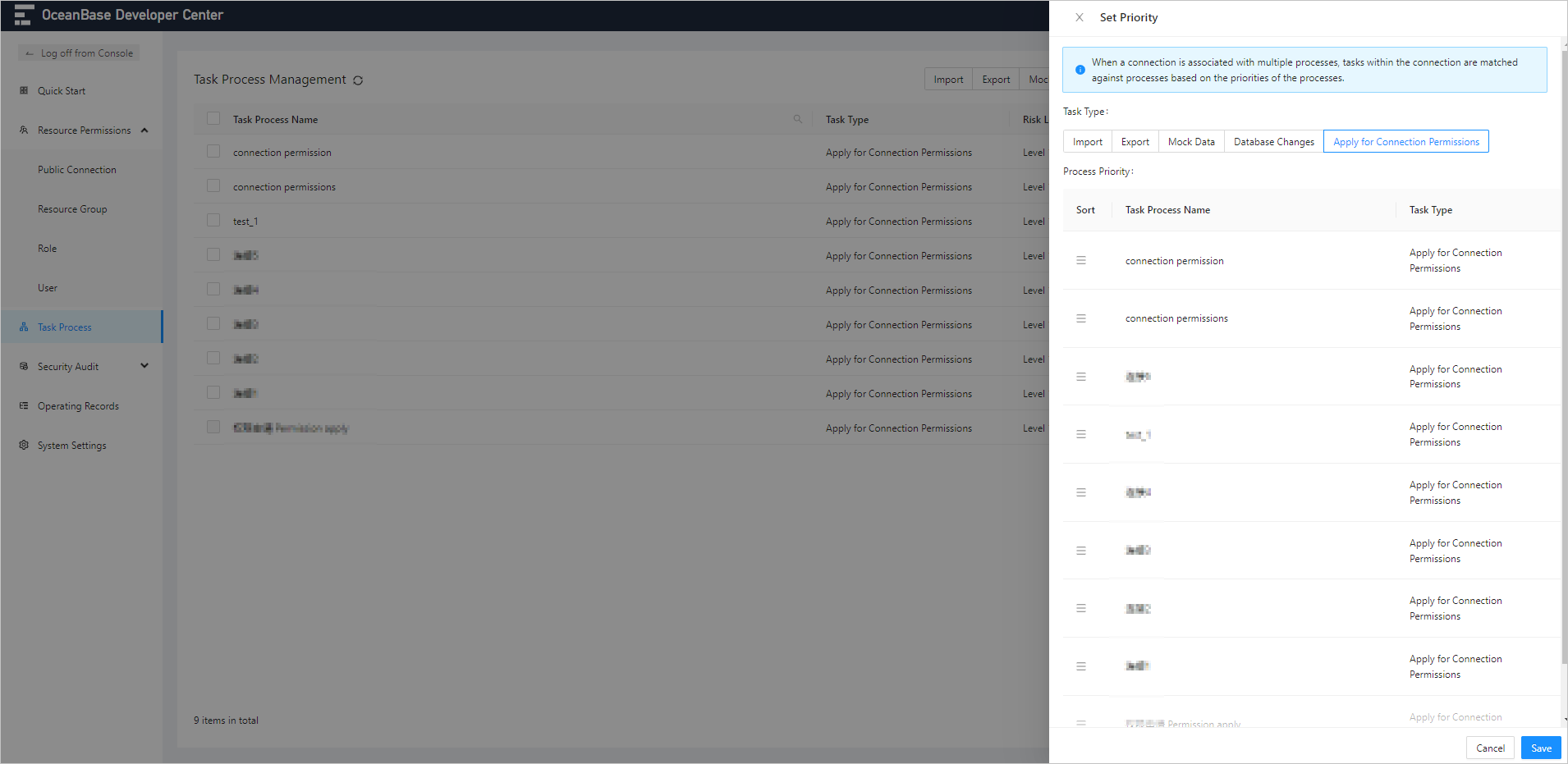
After the adjustment, click Save in the lower-right corner of the panel. The priority is set.
Disable a task process
Click Disable in the Actions column of the target task process. In the dialog box that appears, click OK.
Note After a task process is disabled, it is no longer displayed on the task initiation page, which means that you cannot initiate tasks of it.