OceanBase
English日本語简体中文
Docs Home
Products
Integrations
Release Notes

Databases

OceanBase DatabaseOceanBase Cloud OceanBase Best Practices

Tools

OceanBase Cloud PlatformOceanBase Migration ServiceOceanBase Developer CenterOceanBase Migration AssessmentOceanBase Admin ToolOceanBase Loader and DumperOceanBase DeployerKubernetes operator for OceanBaseOceanBase Diagnostic Tool OceanBase Binlog Service

Connectors and Middleware

OceanBase Database Proxy OceanBase Connector/C OceanBase Connector/J OceanBase Connector/ODBC OceanBase Connector/NETOceanBase Command-Line Client

Databases

OceanBase DatabaseOceanBase Cloud OceanBase Best Practices

Connectors and Middleware

OceanBase Database Proxy OceanBase Connector/C OceanBase Connector/J OceanBase Connector/ODBC OceanBase Connector/NETOceanBase Command-Line Client

Tools

OceanBase Cloud PlatformOceanBase Migration ServiceOceanBase Developer CenterOceanBase Migration AssessmentOceanBase Admin ToolOceanBase Loader and DumperOceanBase DeployerKubernetes operator for OceanBaseOceanBase Diagnostic Tool OceanBase Binlog Service
OceanBase DatabaseOceanBase Cloud ToolsConnectors and MiddlewareLifecycle Support Policy

OceanBase Developer Center

V3.4.0Enterprise Edition
  • Document Overview
  • What's New
    • What's New
  • Overview
    • What is ODC?
    • Benefits
    • Architecture
    • Features
    • Limits
  • Quick Start
    • Overview
    • Install ODC
    • Log on to ODC with an account
    • Create a private connection
  • Tutorials
    • Tips on the SQL Console
    • Create a connection
    • Export data
    • Import data
    • Debug a stored procedure
    • View the performance of an SQL statement
  • User Guide (Web ODC)
    • Log on to ODC
      • Log on to ODC with an account
      • Change the password
    • ODC homepage
    • Connect to a database
      • Create a private connection
      • Manage private connections
    • Public resource management
      • Overview
      • Quick start
      • Resource permissions
        • Manage public connections
        • Manage resource groups
        • Manage roles
        • Manage users
      • Task process management
      • Manage operation records
      • Data desensitization management
      • System settings
    • Use the workspace
      • Overview
      • SQL window
      • Anonymous block window
      • Command-line window
      • Stored scripts
      • Snippet
    • Use tools
      • Data export and import
        • Overview
        • Export and import formats
        • Batch export and import
        • Single table export and import
      • Data mocking
      • Database changes
    • Recycle bin
    • View operation records
    • Task management
      • Overview
      • Import tasks
      • Export tasks
      • Data mocking tasks
      • Database change tasks
      • Permission application tasks
    • Session management
    • Database objects
      • Table objects
        • Overview
        • Create a table
        • Table list
        • Manage table attributes
        • Manage table data
      • View objects
        • Overview
        • Create a view
        • Manage views
      • Function objects
        • Overview
        • Create a function
        • Manage functions
      • Stored procedure objects
        • Overview
        • Create a stored procedure
        • Manage stored procedures
      • Sequence objects
        • Overview
        • Create a sequence
        • Manage sequences
      • Package objects
        • Overview
        • Create a program package
        • Manage program packages
      • Trigger objects
        • Overview
        • Create a trigger
        • Manage triggers
      • Type objects
        • Overview
        • Create a type
        • Manage types
      • Synonym objects
        • Overview
        • Create a synonym
        • Manage synonyms
    • Help center
  • User Guide (Client ODC)
    • Install ODC
    • ODC homepage
    • Connect to a database
      • Establish a connection
      • Manage connections
    • Use the workspace
      • Overview
      • SQL window
      • Anonymous block window
      • Command-line window
      • Stored scripts
      • Snippet
    • Use tools
      • Data export and import
        • Overview
        • Export and import formats
        • Batch export and import
        • Single table export and import
      • Data mocking
      • Asynchronous execution
    • Recycle bin
    • View operation records
    • Task management
      • Overview
      • Import tasks
      • Export tasks
      • Data mocking tasks
      • Database Change
    • Session management
    • Database objects
      • Table objects
        • Overview
        • Create a table
        • Table list
        • Manage table attributes
        • Manage table data
      • View objects
        • Overview
        • Create a view
        • Manage views
      • Function objects
        • Overview
        • Create a function
        • Manage functions
      • Stored procedure objects
        • Overview
        • Create a stored procedure
        • Manage stored procedures
      • Sequence objects
        • Overview
        • Create a sequence
        • Manage sequences
      • Package objects
        • Overview
        • Create a program package
        • Manage program packages
      • Trigger objects
        • Overview
        • Create a trigger
        • Manage triggers
      • Type objects
        • Overview
        • Create a type
        • Manage types
      • Synonym objects
        • Overview
        • Create a synonym
        • Manage synonyms
    • Help center
  • Deployment Guide
    • Deployment overview
    • Preparations before deployment
    • Deploy a single ODC node
      • Deployment process
      • Load and run an ODC image
    • Deploy ODC in high availability mode
      • Deployment process
      • Load and run an ODC image
      • Deploy SSL certificate
      • Deploy the NGINX proxy
      • Configure certificate trust
    • Deployment verification
  • Upgrade Guide
    • Overview
    • Preparations before upgrade
    • Upgrade single-node ODC
      • Upgrade process
      • Stop ODC of the earlier version
      • Load and run an ODC image
    • Upgrade high-availability
      • Upgrade process
      • Stop ODC of the earlier version
      • Load and run an ODC image
      • Upgrade NGINX image
    • Upgrade verification
    • Rollback after upgrade failed
  • FAQ

Download PDF

Document Feedback
  1. Documentation Center
  2. OceanBase Developer Center
  3. V3.4.0

Configure certificate trust

Last Updated:2026-09-04 08:15:22

Configure certificate trust in Windows
Configure certificate trust in macOS

A browser does not trust a self-signed certificate. You must manually configure certificate trust in the browser. Notice

Google Chrome does not trust a self-signed certificate. After you complete the certificate trust configuration, you will receive a message indicating that the connection is not secure.

Configure certificate trust in Windows

Google Chrome is used as an example to describe the certificate trust configuration procedure.

  1. Log on to ODC in Chrome. When the system prompts that the connection is not secure, click Not Secure on the left side of the address bar and click Certificate in the list that appears to view the certificate details.
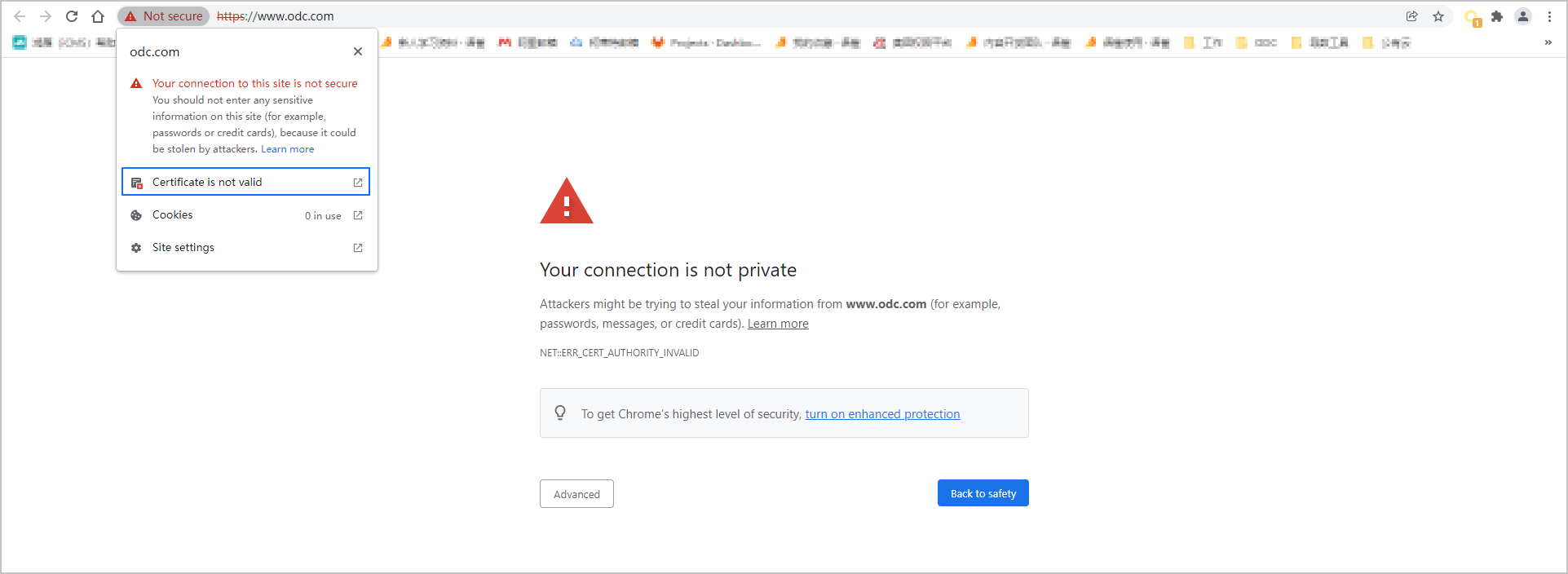
    Image 739

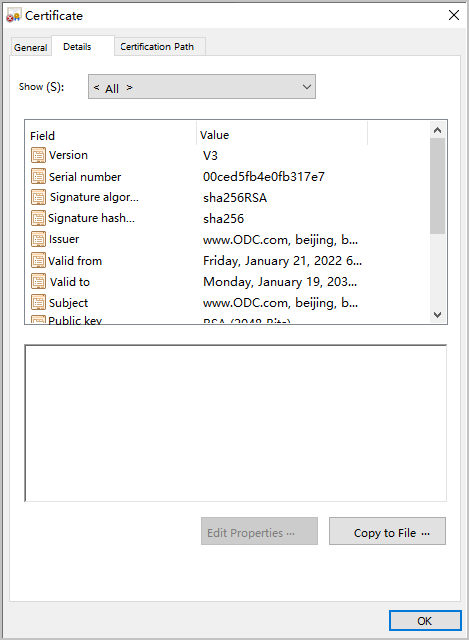
  2. In the Certificate window that appears, click the Details tab and click Copy to File in the lower-right corner of the tab.
    window2

  3. In the Certificate Export Wizard step, click Next .

  4. In the file export format setting step, select DER encoded binary X.509 (CER) and click Next .

  5. In the file path selection step, click Browse . In the file resource manager window, select an export path, enter a file name in the File Name field, and click Save to go back to the Certificate Export Wizard step. Then, click Next .

  6. In the Completing the Certificate Export Wizard step, click Finish in the lower-right corner to export the file to a local device.

  7. Find the certificate file in the path specified in Step 5, right-click the certificate file, and then select Install Certificate from the context menu that appears.

  8. In the Certificate Import Wizard window, click Next .

  9. In the Certificate Store step, select Place all certificates in the following store and click Browse . In the Select Certificate Store window, select Trusted Root Certification Authorities and click OK . In the Certificate Store step, click Next .

  10. In the Completing the Certificate Export Wizard step, click Finish in the lower-right corner.

  11. After the certificate trust configuration is completed, log on to ODC again in the browser.

Configure certificate trust in macOS

Google Chrome is used as an example to describe the certificate trust configuration procedure.

  1. Log on to ODC in Chrome. When the system prompts that the connection is not secure, click Not Secure on the left side of the address bar and click Certificate in the list that appears to view the certificate details.
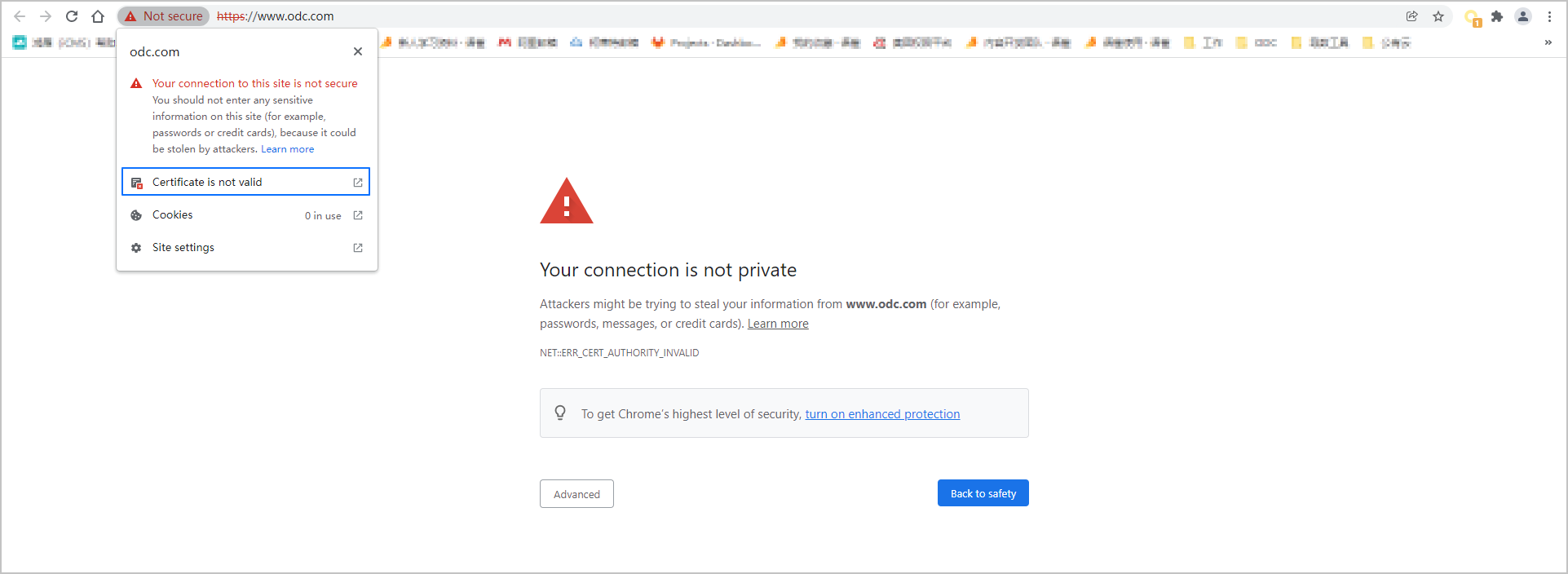
    Image 749

  2. Details of the certificate are displayed.
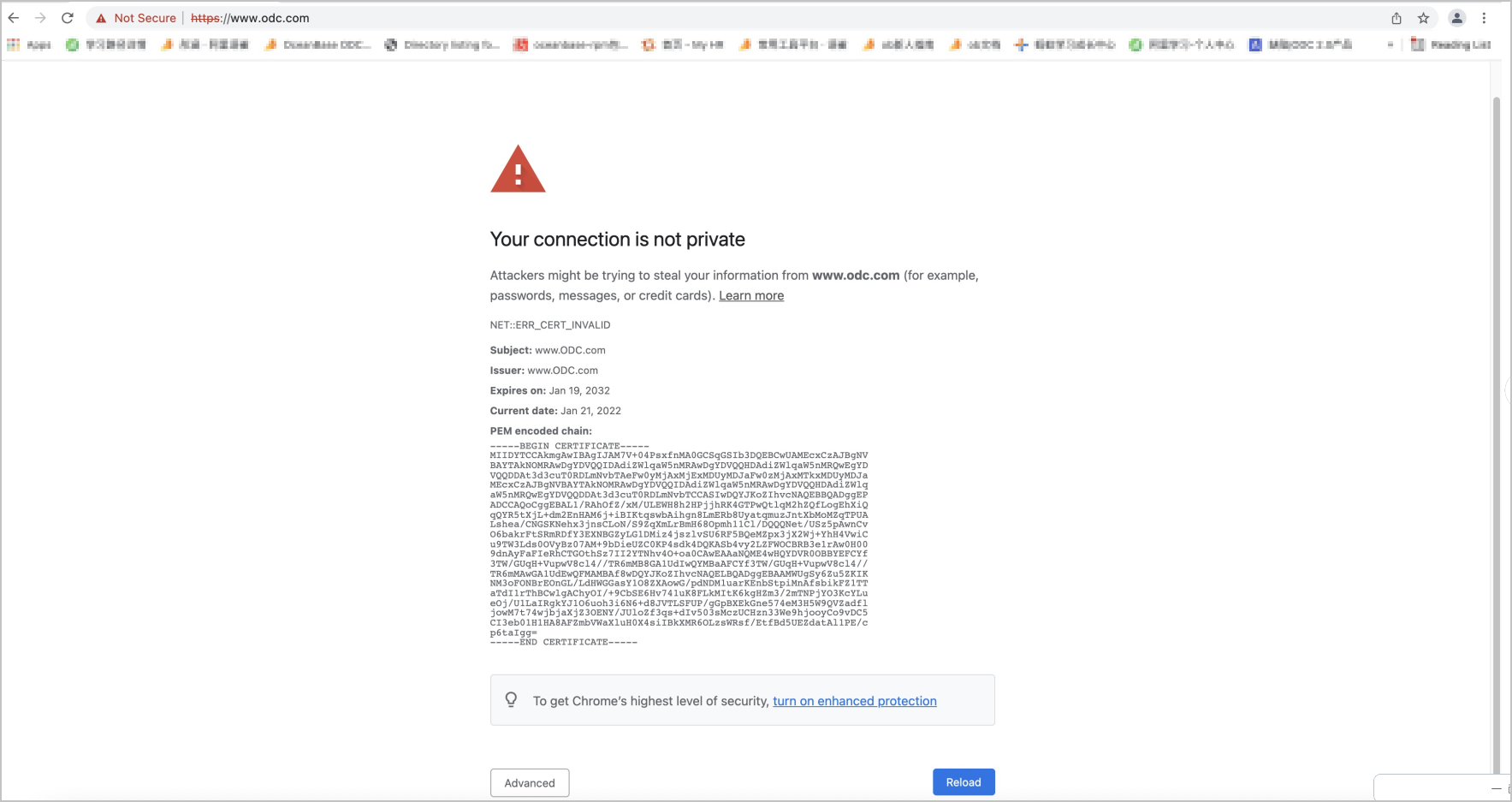
    Image 750

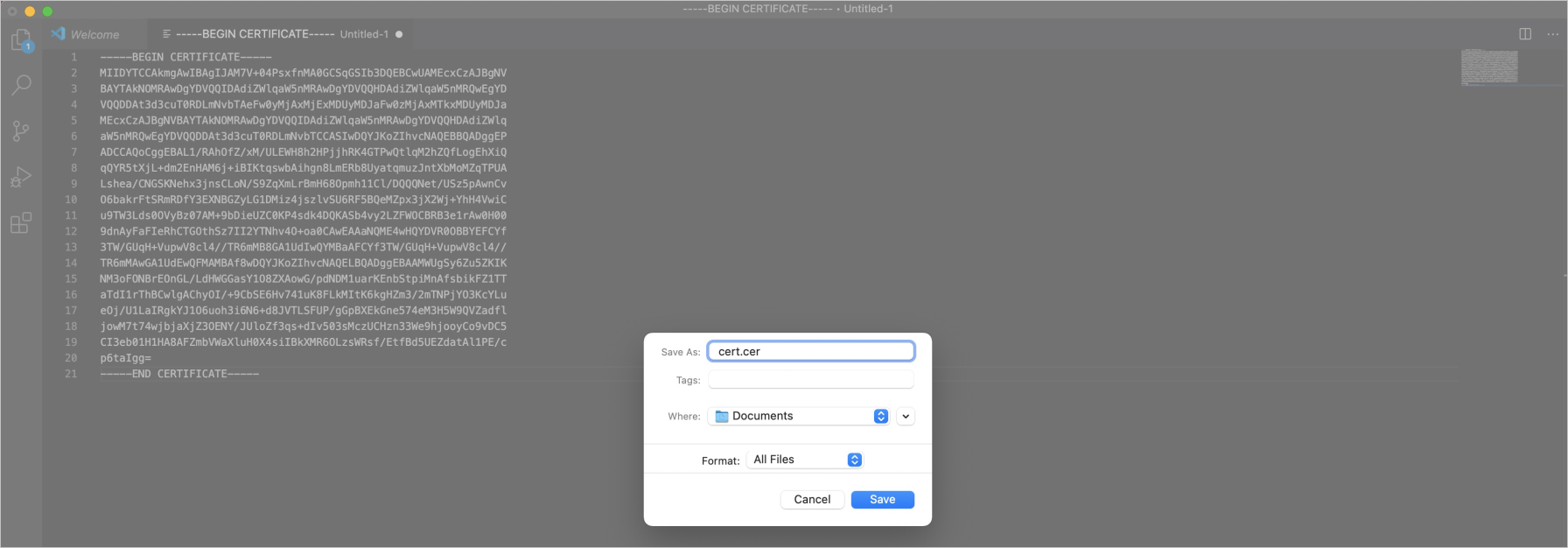
  3. Create a file with the extension of .cer, copy the certificate details to this file, and save the file.
    macios3

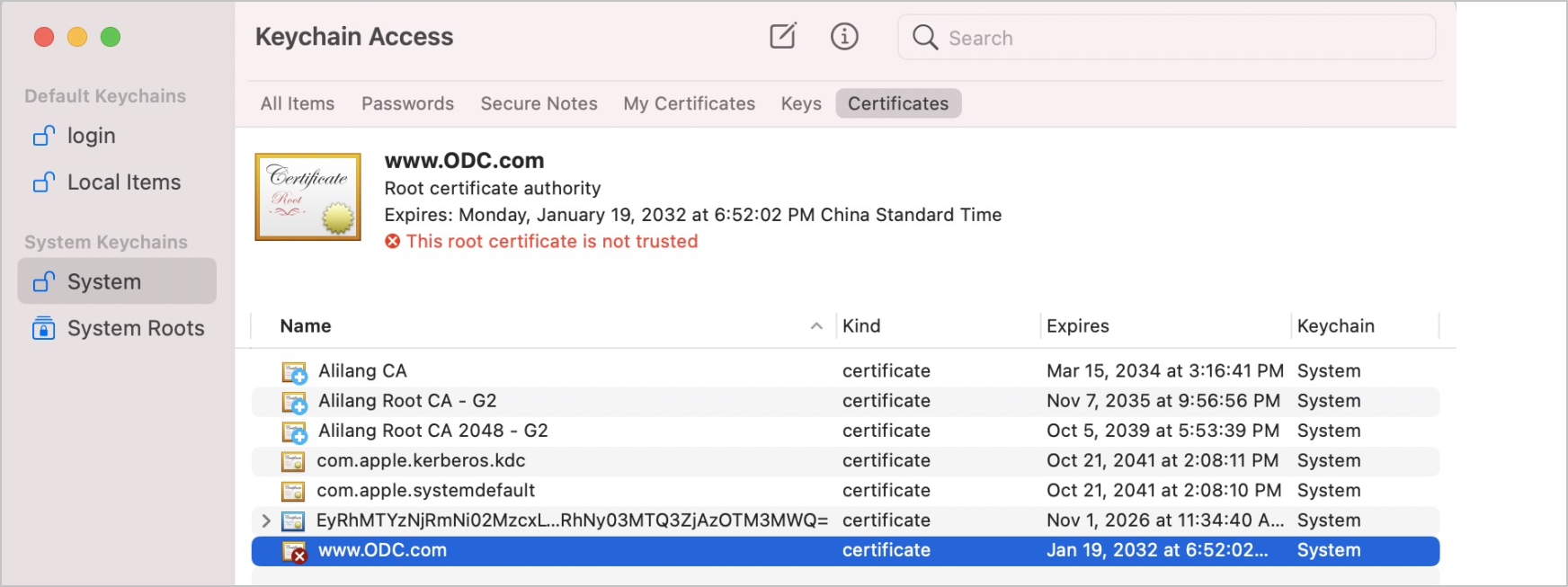
  4. In macOS, choose Applications > Utilities > Keychain Access . The Keychain Access window appears. In the left-side navigation pane, click System and click the plus sign (+) in the quick access toolbar. In the window that appears, select the certificate file that is created in the previous step to add the certificate into the system.
    macios4

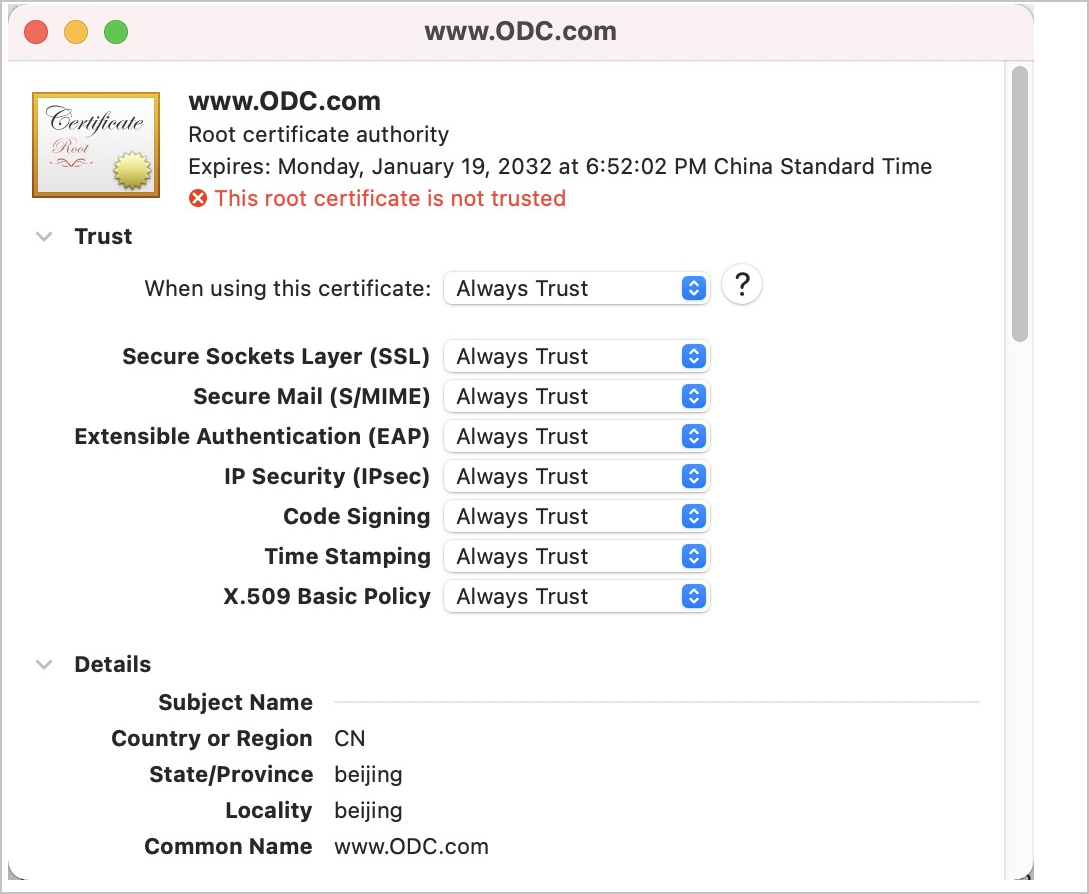
  5. Double-click the odc.oceanbase.com,odc.oceanbse.net certificate. In the certificate details window that appears, click Trust . In the configuration list that appears, set When using this certificate to Always Trust .
    macios5

  6. Close the certificate details window. When you try to close the window, the system reminds you to enter a password to make the configuration take effect. Enter the password to finish the configuration.

  7. After the certificate trust configuration is completed, log on to ODC again in the browser.

Previous topic

Deploy the NGINX proxy
Last

Next topic

Deployment verification
Next
on this page
Configure certificate trust in Windows
Configure certificate trust in macOS