OceanBase
English日本語简体中文
Docs Home
Products
Integrations
Release Notes

Databases

OceanBase DatabaseOceanBase Cloud OceanBase Best Practices

Tools

OceanBase Cloud PlatformOceanBase Migration ServiceOceanBase Developer CenterOceanBase Migration AssessmentOceanBase Admin ToolOceanBase Loader and DumperOceanBase DeployerKubernetes operator for OceanBaseOceanBase Diagnostic Tool OceanBase Binlog Service

Connectors and Middleware

OceanBase Database Proxy OceanBase Connector/C OceanBase Connector/J OceanBase Connector/ODBC OceanBase Connector/NETOceanBase Command-Line Client

Databases

OceanBase DatabaseOceanBase Cloud OceanBase Best Practices

Connectors and Middleware

OceanBase Database Proxy OceanBase Connector/C OceanBase Connector/J OceanBase Connector/ODBC OceanBase Connector/NETOceanBase Command-Line Client

Tools

OceanBase Cloud PlatformOceanBase Migration ServiceOceanBase Developer CenterOceanBase Migration AssessmentOceanBase Admin ToolOceanBase Loader and DumperOceanBase DeployerKubernetes operator for OceanBaseOceanBase Diagnostic Tool OceanBase Binlog Service
OceanBase DatabaseOceanBase Cloud ToolsConnectors and MiddlewareLifecycle Support Policy

OceanBase Developer Center

V3.4.0Enterprise Edition
  • Document Overview
  • What's New
    • What's New
  • Overview
    • What is ODC?
    • Benefits
    • Architecture
    • Features
    • Limits
  • Quick Start
    • Overview
    • Install ODC
    • Log on to ODC with an account
    • Create a private connection
  • Tutorials
    • Tips on the SQL Console
    • Create a connection
    • Export data
    • Import data
    • Debug a stored procedure
    • View the performance of an SQL statement
  • User Guide (Web ODC)
    • Log on to ODC
      • Log on to ODC with an account
      • Change the password
    • ODC homepage
    • Connect to a database
      • Create a private connection
      • Manage private connections
    • Public resource management
      • Overview
      • Quick start
      • Resource permissions
        • Manage public connections
        • Manage resource groups
        • Manage roles
        • Manage users
      • Task process management
      • Manage operation records
      • Data desensitization management
      • System settings
    • Use the workspace
      • Overview
      • SQL window
      • Anonymous block window
      • Command-line window
      • Stored scripts
      • Snippet
    • Use tools
      • Data export and import
        • Overview
        • Export and import formats
        • Batch export and import
        • Single table export and import
      • Data mocking
      • Database changes
    • Recycle bin
    • View operation records
    • Task management
      • Overview
      • Import tasks
      • Export tasks
      • Data mocking tasks
      • Database change tasks
      • Permission application tasks
    • Session management
    • Database objects
      • Table objects
        • Overview
        • Create a table
        • Table list
        • Manage table attributes
        • Manage table data
      • View objects
        • Overview
        • Create a view
        • Manage views
      • Function objects
        • Overview
        • Create a function
        • Manage functions
      • Stored procedure objects
        • Overview
        • Create a stored procedure
        • Manage stored procedures
      • Sequence objects
        • Overview
        • Create a sequence
        • Manage sequences
      • Package objects
        • Overview
        • Create a program package
        • Manage program packages
      • Trigger objects
        • Overview
        • Create a trigger
        • Manage triggers
      • Type objects
        • Overview
        • Create a type
        • Manage types
      • Synonym objects
        • Overview
        • Create a synonym
        • Manage synonyms
    • Help center
  • User Guide (Client ODC)
    • Install ODC
    • ODC homepage
    • Connect to a database
      • Establish a connection
      • Manage connections
    • Use the workspace
      • Overview
      • SQL window
      • Anonymous block window
      • Command-line window
      • Stored scripts
      • Snippet
    • Use tools
      • Data export and import
        • Overview
        • Export and import formats
        • Batch export and import
        • Single table export and import
      • Data mocking
      • Asynchronous execution
    • Recycle bin
    • View operation records
    • Task management
      • Overview
      • Import tasks
      • Export tasks
      • Data mocking tasks
      • Database Change
    • Session management
    • Database objects
      • Table objects
        • Overview
        • Create a table
        • Table list
        • Manage table attributes
        • Manage table data
      • View objects
        • Overview
        • Create a view
        • Manage views
      • Function objects
        • Overview
        • Create a function
        • Manage functions
      • Stored procedure objects
        • Overview
        • Create a stored procedure
        • Manage stored procedures
      • Sequence objects
        • Overview
        • Create a sequence
        • Manage sequences
      • Package objects
        • Overview
        • Create a program package
        • Manage program packages
      • Trigger objects
        • Overview
        • Create a trigger
        • Manage triggers
      • Type objects
        • Overview
        • Create a type
        • Manage types
      • Synonym objects
        • Overview
        • Create a synonym
        • Manage synonyms
    • Help center
  • Deployment Guide
    • Deployment overview
    • Preparations before deployment
    • Deploy a single ODC node
      • Deployment process
      • Load and run an ODC image
    • Deploy ODC in high availability mode
      • Deployment process
      • Load and run an ODC image
      • Deploy SSL certificate
      • Deploy the NGINX proxy
      • Configure certificate trust
    • Deployment verification
  • Upgrade Guide
    • Overview
    • Preparations before upgrade
    • Upgrade single-node ODC
      • Upgrade process
      • Stop ODC of the earlier version
      • Load and run an ODC image
    • Upgrade high-availability
      • Upgrade process
      • Stop ODC of the earlier version
      • Load and run an ODC image
      • Upgrade NGINX image
    • Upgrade verification
    • Rollback after upgrade failed
  • FAQ

Download PDF

Document Feedback
  1. Documentation Center
  2. OceanBase Developer Center
  3. V3.4.0

Asynchronous execution

Last Updated:2026-09-04 08:15:22

Overview
Procedure

Overview

Statements in the SQL window of OceanBase Developer Center (ODC) are executed synchronously. Therefore, the execution may time out when the statement runs for a long time. You can use the asynchronous execution tool to run time-consuming SQL statements to avoid execution timeout.
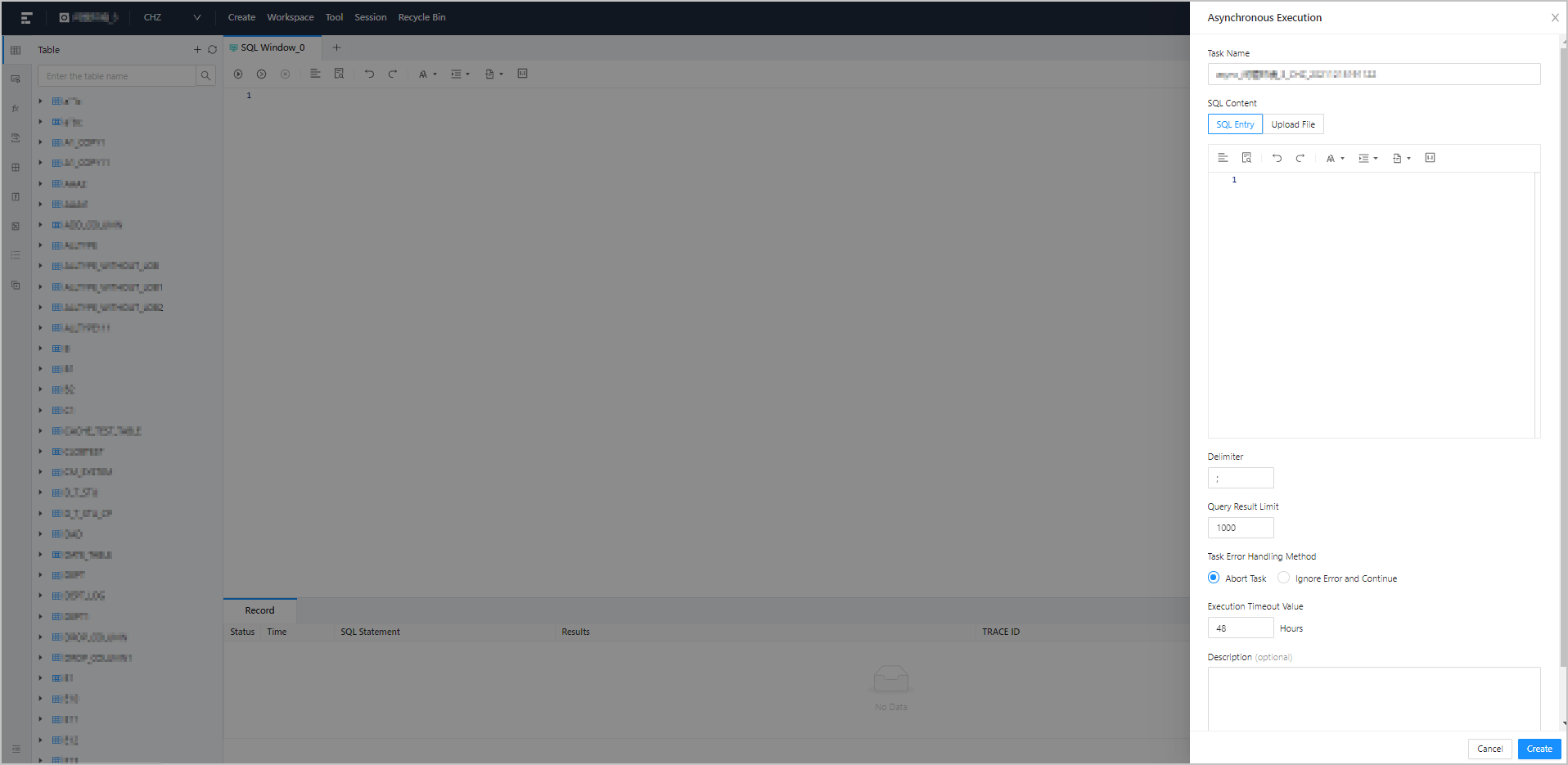
Image 441

Procedure

To use the asynchronous execution tool to execute SQL statements, perform the following steps:

  1. Enter the Asynchronous Execution panel.

    1. Log on to the ODC homepage, and click the name of the target connection to go to the corresponding database object management page.

    2. Click Tool in the top navigation bar.

    3. Select Asynchronous Execution in the drop-down list. The Create Async Task panel appears

  2. Specify the task name.

    Specify the task name in the Task Name field in the panel. The task name must be unique and must not exceed 110 characters in length.

  3. Specify SQL Content .

    The asynchronous execution tool provides two ways to specify SQL content:

    • SQL Entry : This is the default way to specify SQL content. You can directly write the SQL script in the editing area.

      Note

      • The maximum size of the SQL statements that can be entered in the SQL window is limited to 500,000 characters. If the SQL script to be executed has more than 500,000 characters, you can upload it in the form of a *.sql file.

      • Click IN Value Conversion to convert batch copied and pasted data into the in('A','B') format.

        • Column values are separated with line breaks.

        • Row values are separated with spaces or tabs.

    • Upload File : Click the file pool to go to the file explorer and select the file to be imported. You can also directly drag the file to the file pool to upload it. The file size cannot exceed 20 MB and only SQL files suffixed with .sql are supported.

  4. Specify the delimiter.

  5. Specify the query result limit. Value range: 1 to 1000000.

  6. Specify Task Error Handling Method .

    The asynchronous execution tool provides two methods to handle task errors:

    • Abort Task : This is the default option. When you select this option, the task is aborted if an error occurs when you run the script.

    • Ignore Error and Continue : When you select this option, the system skips the statement where an error occurs and continues to execute other statements in the script.

  7. Specify Execution Timeout Value .

    Specify the value in the Execution Timeout Value field in hours. Default value: 48. Maximum value: 480.

  8. Optional. Specify the task description.

    You can enter a description of no more than 200 characters in Task Description .

  9. Create the asynchronous task.

    After you specify the above information in the panel, click Create to submit the information to create the asynchronous execution task.

  10. After the task is created, ODC will direct you to the Asynchronous Execution page of the task center. On the Task Details page, you can click View to view the Task Information and Task Logs .

Previous topic

Data mocking
Last

Next topic

Recycle bin
Next
on this page
Overview
Procedure