
Overview
After you log on to the homepage of OceanBase Developer Center (ODC), you can click Create Connection in the upper-right corner of the Private Connection tab to create a private connection.
After you create the connection, you can view the saved database connection in the connection list on the ODC homepage.
Notice
In ODC V2.3.0 and later, the root@sys user permissions are required to query views when you use the import and export features. Therefore, to use the import and export features, you need to set the root@sys user in the Advanced Configuration section during connection creation. In ODC since V2.4.1, the dependency of the import and export feature on the root@sys user is removed when you query views. However, the root@sys user permissions are still required to view the partition information. Therefore, you must set the root@sys user in the Advanced Configuration section during connection creation. The Oracle connection mode is designed to share sessions. In this mode, when you actively commit or roll back a transaction, or trigger a transaction commit or rollback by creating, modifying, or deleting a database object or by executing a DDL statement, the transaction commit or rollback takes effect in all windows. When you enter a connection in Oracle mode for the first time, a reminder is displayed. In manual-commit mode, make sure to set the `ob_trx_idle_timeout` parameter to a value greater than or equal to the timeout value of SQL queries. Otherwise, if two SQL statements in one transaction are executed at an interval longer than the value of the `ob_trx_idle_timeout` parameter, the connection is terminated. However, if the `ob_trx_idle_timeout` parameter is set to an excessively large value, the session cannot be released in time, resulting in unnecessary memory consumption. Therefore, you must set this parameter to a proper value.
Procedure
Perform the following steps to create a connection:
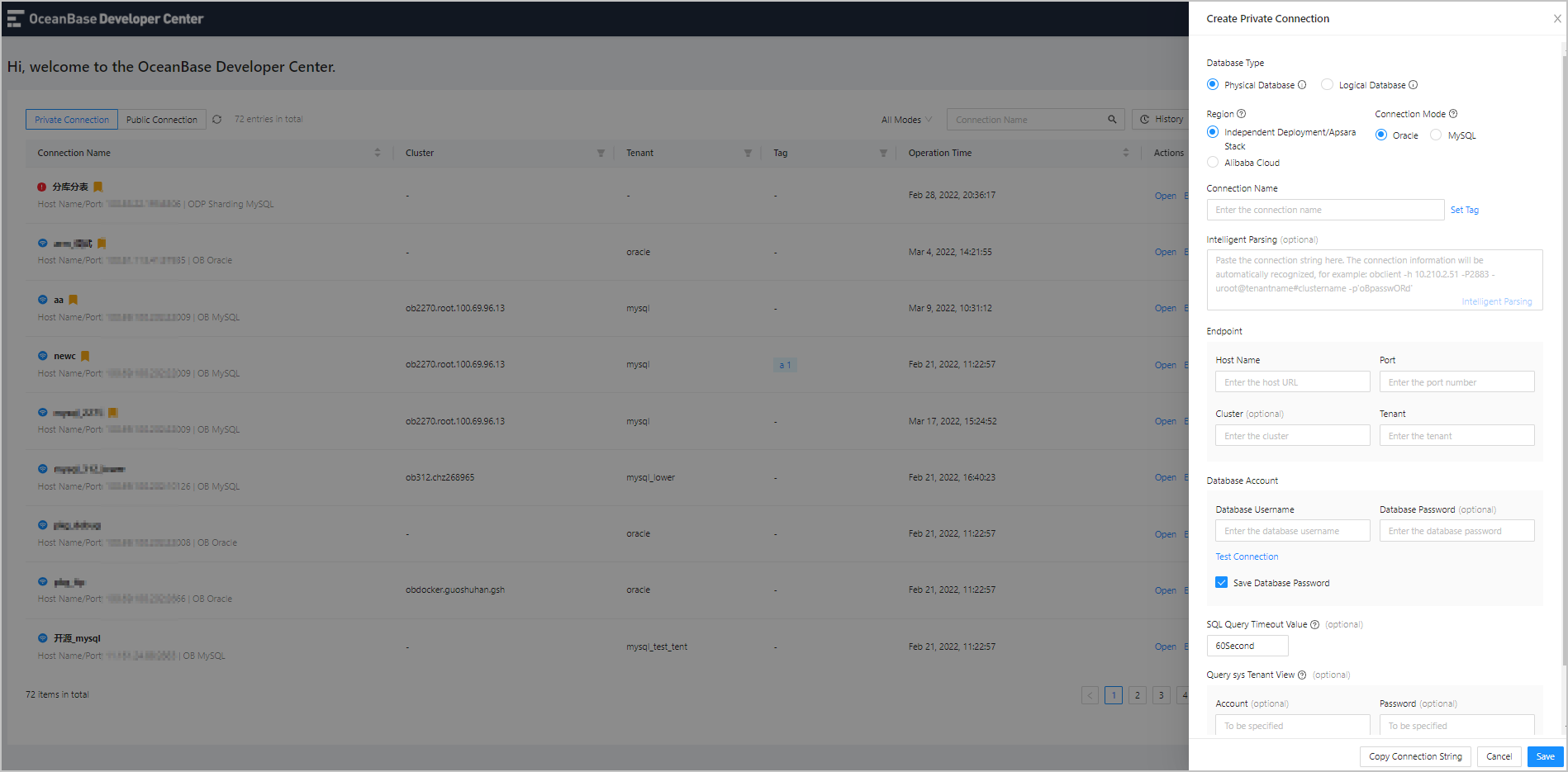
Log on to ODC and click Create Connection in the upper-right corner of the Private Connection tab.
In the Create Connection panel, specify the fields described in the following table. If you have an OceanBase connection string, which follows the mysql -h <host name> -P <port number> -u <database username@tenant name> # <cluster name> -D <default database> -p ' <database password> ' format, you can obtain the information from the string. You can also paste the string in the field of Intelligent Parsing on the panel to automatically populate the corresponding fields.
ParameterDescriptionRegion Select Public Cloud if your database instance is deployed on Alibaba Cloud, or select Independent Deployment/Apsara Stack if your database instance is deployed in your own environment. Connection Mode Select MySQL or Oracle . Connection Name Specify the name of the connection. Set Tag You can add some descriptive information for the connection. Click the Set Tag button after Connection Name to set a tag for the current connection. You can set and manage tags in the list that appears. * Set Tag: Select a tag from the drop-down list. Create tags first if the list is empty. * Manage tags: Click Create Tag at the bottom of the list or the settings icon above the list to go to the Tags page, where you can edit or delete created tags. You can also click Create Tag to set a name or color for the new tag. Endpoint * Host Name : the IP address of the server where the target database is located. * Port : the port number of the server where the target database is located. * Cluster : the name of the cluster in which the target database is located. * Tenant : the name of the tenant in which the target database is located. Note You can obtain the host name and port number from the details page of the tenant in which the target database is located, such as a tenant created on Alibaba Cloud or OceanBase Cloud Platform (OCP). Default Database When you connect to a database in a MySQL tenant, you must specify the default database for the connection. You do not need to specify this field when you connect to a database in an Oracle tenant. Note If you leave this parameter unspecified, the information_schema database is connected by default. However, if the connection to the information_schema database fails, you need to specify a database that the current user has access permissions. Database Username An account created in the tenant. In MySQL mode, this account must have access to the default database. Database Password The password of the account under the tenant. You can click Test Connection below the password field to check the connection to the target database. An error will be returned if the configurations such as the username, password, and network settings are invalid. You can only connect to a database in the current tenant. Otherwise, a test failure error will be returned. Save Database Password * If you disable this option, the database password for the connection is not saved. Each time you use or test the connection, you must enter the database password in the password dialog box. * If you enable this option, the database password for the connection is saved. You do not need to enter the database password each time you use the connection. Intelligent Parsing You can paste a connection string to the field. ODC automatically identifies the string and fills in the corresponding fields on the page. SQL Query Timeout Value You can specify a timeout value for SQL queries. A query whose execution time exceeds the timeout value is automatically terminated. The default timeout value is 60 seconds. Query sys Tenant View You can specify an account that has the permission to query the sys tenant view, and the password. This field is automatically populated when Tenant in Endpoint is set to sys. * Account : an account that has the privilege to check the views under the sys tenant. * Password : the password of the account. After you specify the account and password, click Test Connection next to the password field to verify whether the account information is valid. Note * In ODC V2.3.0 and later, to use the import and export features, you need to configure the root@sys account in the Advanced Configuration section during connection creation. * In ODC since V2.4.1, the dependency of the import and export feature on the root@sys user is removed when you query views. Click Save to save the current configuration in the ODC connection list. Next time you log on to ODC, you can directly select the connection from the list. The connection configuration does not necessarily need to pass the connection test when you save the configuration.
Click Copy Connection String in the lower part of the panel to copy the connection information being edited on the current panel as a connection string if necessary. This allows you to obtain the connection information with ease.
Click Cancel if you do not need to save the current connection configuration. Then, a confirmation dialog box appears.