OceanBase
English日本語简体中文
Docs Home
Products
Integrations
Release Notes

Databases

OceanBase DatabaseOceanBase Cloud OceanBase Best Practices

Tools

OceanBase Cloud PlatformOceanBase Migration ServiceOceanBase Developer CenterOceanBase Migration AssessmentOceanBase Admin ToolOceanBase Loader and DumperOceanBase DeployerKubernetes operator for OceanBaseOceanBase Diagnostic Tool OceanBase Binlog Service

Connectors and Middleware

OceanBase Database Proxy OceanBase Connector/C OceanBase Connector/J OceanBase Connector/ODBC OceanBase Connector/NETOceanBase Command-Line Client

Databases

OceanBase DatabaseOceanBase Cloud OceanBase Best Practices

Connectors and Middleware

OceanBase Database Proxy OceanBase Connector/C OceanBase Connector/J OceanBase Connector/ODBC OceanBase Connector/NETOceanBase Command-Line Client

Tools

OceanBase Cloud PlatformOceanBase Migration ServiceOceanBase Developer CenterOceanBase Migration AssessmentOceanBase Admin ToolOceanBase Loader and DumperOceanBase DeployerKubernetes operator for OceanBaseOceanBase Diagnostic Tool OceanBase Binlog Service
OceanBase DatabaseOceanBase Cloud ToolsConnectors and MiddlewareLifecycle Support Policy

OceanBase Developer Center

V4.4.2
  • Topics Overview
  • Overview
    • What is ODC?
    • Features
    • Architecture
    • Limitations
    • ODC console
  • Quick Start
    • Client ODC
      • Overview
      • Install Client ODC
      • Use Client ODC
    • Web ODC
      • Overview
      • Deploy Web ODC
      • Use Web ODC
  • Data Source Management
    • Create a data source
    • Data sources and project collaboration
    • Database O&M
      • Session management
      • Global variable management
      • Recycle bin management
  • SQL Development
    • Edit and execute SQL statements
    • Perform PL compilation and debugging
    • Use the command-line window
    • Edit and export the result set
    • Execution analysis
    • Generate test data
    • System settings
    • Intelligent SQL development
    • Common features
    • Database objects
      • Table objects
        • Overview
        • Create a table
      • View objects
        • Overview
        • Create a view
        • Manage views
      • Materialized view objects
        • Overview
        • Create a materialized view
        • Manage materialized views
      • Function objects
        • Overview
        • Create a function
        • Manage functions
      • Stored procedure objects
        • Overview
        • Create a stored procedure
        • Manage stored procedures
      • Sequence objects
        • Overview
        • Create a sequence
        • Manage sequences
      • Package objects
        • Overview
        • Create a program package
        • Manage program packages
      • Trigger objects
        • Overview
        • Create a trigger
        • Manage triggers
      • Type objects
        • Overview
        • Create a type
        • Manage types
      • Synonym objects
        • Overview
        • Create a synonym
        • Manage synonyms
      • External resource objects
        • External resources
        • Create an external resource
        • Manage external resources
  • Database Change Risk Management
    • Project collaborative management
      • Project management
      • Manage databases
      • Manage logical databases
      • Add object storage files
      • Manage project members
      • Desensitize data
      • Notification management
        • Overview
        • View notification records
        • Manage notification channels
          • Create a notification channel
          • View, edit, and delete a notification channel
          • Configure a custom channel
        • Manage notification rules
    • Manage user permissions
      • Users and roles
      • Automatic authorization
      • Apply for project permissions
      • Apply for database permissions
      • Apply table/view permissions
    • Security standards
      • Environment configuration
        • SQL check specifications
        • SQL window specification
      • Risk Management
        • Overview
        • Manage risk identification rules
        • Manage approval processes
      • Desensitization algorithms
      • Operation audit
  • Ticket Management
    • Import schemas and data
    • Export schemas and data
    • Database change management
    • Manage changes to logical databases
    • Batch database change management
    • Online schema changes
    • Synchronize shadow tables
    • Schema comparison
  • Data Lifecycle Management
    • Data archiving
    • Data cleanup
    • Manage partitioning plans
      • Manage partitioning plans
      • Set partitioning strategies
      • Examples of partitioning strategies
    • SQL Plan
  • System Integration
    • Login integration
    • Approval integration
    • SQL approval integration
    • Bastion host integration
    • Integrate with LLMs
  • Deployment Guide
    • Deployment overview
    • Preparations before deployment
    • Deploy ODC in single-node mode
    • Deploy ODC in high-availability mode
    • Deployment verification
  • Upgrade Guide
    • Upgrade Overview
    • Preparations for upgrade
    • Update single-node ODC
    • Update high-avaliability ODC
    • Upgrade verification
    • Rollback after upgrade failed
  • Best Practices
    • Tips for SQL development
    • Explore ODC team workspaces
    • Understanding real-time SQL diagnostics for OceanBase AP
    • OceanBase historical database solutions
    • ODC SQL check for automatic identification of high-risk operations
    • Integration with ODC enterprise-level account system
    • Manage and modify sharded databases and tables via ODC
    • Data masking and control practices
    • Enterprise-level control and collaboration: Safeguard every database change
  • Troubleshooting
    • ODC troubleshooting process
    • Collect message
      • View the runtime environment and version information
      • View web ODC logs
      • View client ODC logs
      • View end-to-end ODC-related logs
      • View ODC MetaDB data
      • Query the index status in OceanBase Database V4.x
      • Query the index status in OceanBase Database V1.4.x to V3.2.x
      • Collect JVM runtime information
      • Use tcpdump to capture packets
    • FAQ
      • Installation of client ODC
      • Web ODC deployment and startup
      • Connection Information
      • Command-line window
      • DDL statement display
  • Release Notes
    • V4.4
      • ODC V4.4.0
      • ODC V4.4.1
      • ODC V4.4.2
    • V4.3
      • ODC V4.3.4
      • ODC V4.3.3
      • ODC V4.3.2
      • ODC V4.3.1
      • ODC V4.3.0
    • V4.2
      • ODC V4.2.4
      • ODC V4.2.3
      • ODC V4.2.2
      • ODC V4.2.1
      • ODC V4.2.0
    • V4.1
      • ODC V4.1.3
      • ODC V4.1.2
      • ODC V4.1.1
      • ODC V4.1.0
    • V4.0
      • ODC V4.0.2
      • ODC V4.0.0
    • V3.4
      • ODC V3.4.0
    • V3.3
      • ODC V3.3.3
      • ODC V3.3.2
      • ODC V3.3.1
      • ODC V3.3.0
    • V3.2
      • ODC V3.2.3
      • ODC V3.2.2
      • ODC V3.2.1
      • ODC V3.2.0

Download PDF

Document Feedback
  1. Documentation Center
  2. OceanBase Developer Center
  3. V4.4.2

Tips for SQL development

Last Updated:2026-09-03 09:11:18

Background information
Quickly reuse SQL statements
Reuse built-in snippets
Reuse custom snippets
Quickly reuse SQL window content
Manage script files
Execute script files
Quickly view object DDL in SQL window
Manage result sets
Pin result set tabs
Useful features in the result set toolbar
Handle result set content
Quickly create a ticket
Drag and drop to generate SQL statements
Quickly search for objects
Customize your development environment
Customize editor styles
Restrict user behavior within a workspace

This topic introduces some common tips for SQL development and operations in ODC.

Background information

OceanBase Developer Center (ODC) is an open-source, enterprise-grade collaborative database development tool designed to improve the security, efficiency, and teamwork of SQL development. As a core component of the OceanBase ecosystem, ODC supports multiple data sources (such as OceanBase, MySQL, and Oracle) and provides full lifecycle management, from SQL writing and execution to change management. ODC also offers many convenient features to support database development and maintenance.

Quickly reuse SQL statements

Reuse built-in snippets

ODC comes with over 30 built-in code snippets. By typing keywords like query_, create_, or stats_ in the SQL window, you can easily access relevant snippets. Selecting a snippet will automatically insert the corresponding SQL template into the editor. These built-in snippets cover common tasks such as checking table data sizes, viewing available cluster resources, creating tenant resource pools, and more.
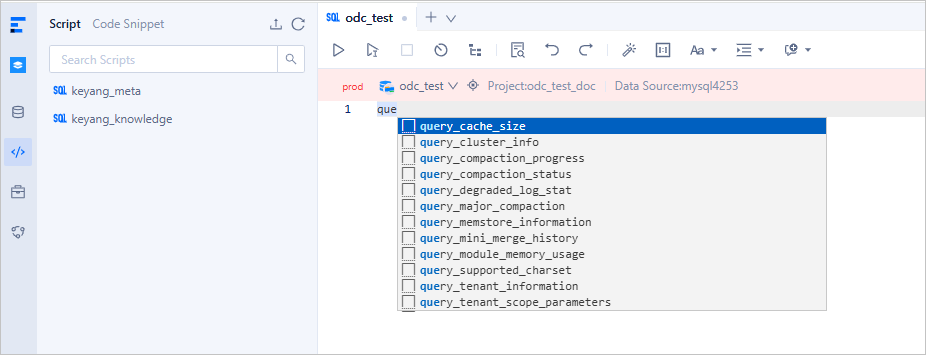
Built-in snippets

Reuse custom snippets

In addition to built-in snippets, you can also create and reuse your own custom snippets. Navigate to the snippet management page to create a snippet. Once saved, custom snippets can be accessed just like built-in snippets by typing matching keywords in the SQL window.
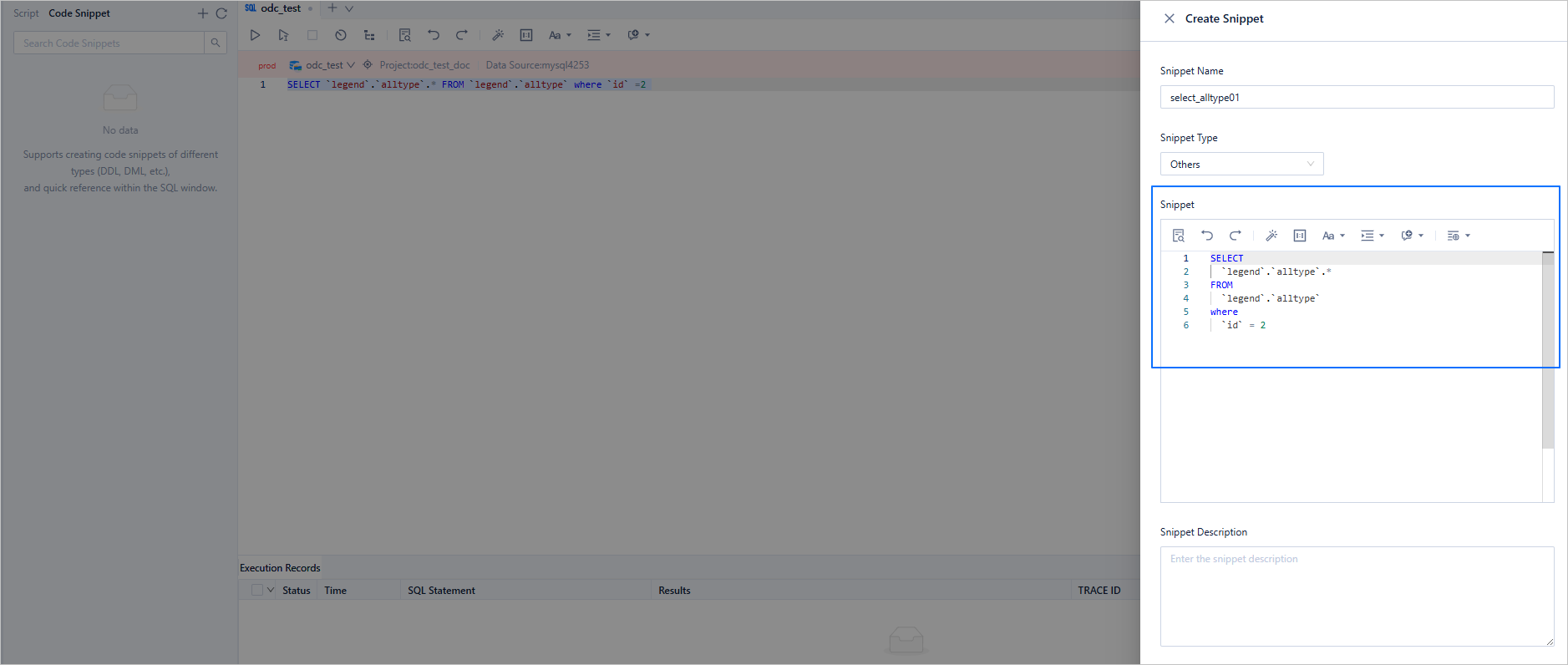
Custom snippets

Quickly reuse SQL window content

Manage script files

When developing SQL, you often need to share your work or reuse it in different environments. Manually copying and pasting across multiple windows can be time-consuming and error-prone. To solve this, ODC provides script management features that allow you to save SQL window content as script files, and supports batch download and import of scripts for easy reuse.
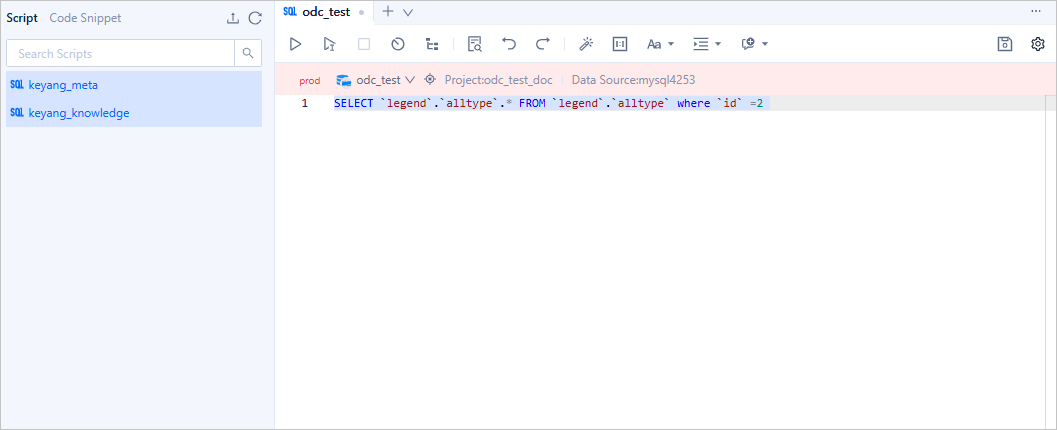
Script file management

Execute script files

Saved scripts can be executed by double-clicking the script name to open it in a SQL window, or directly from the command line. Right-click the target script, select Copy Path, and then use the source command in the command-line window to execute it.
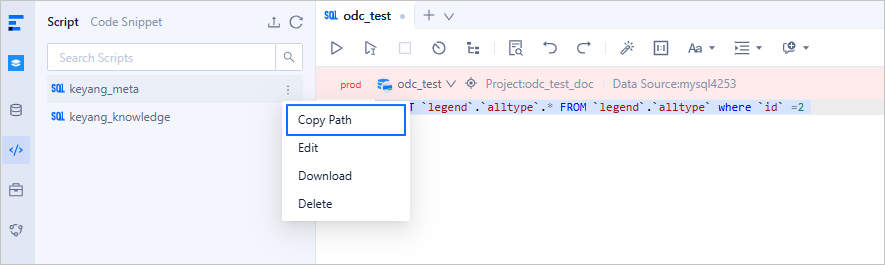
Execute script files

Quickly view object DDL in SQL window

While writing SQL, you often need to quickly check the DDL of a database object. Instead of navigating through a lengthy path to the object details, starting from ODC V4.3.4, you can simply hover over the object name to view its DDL directly.
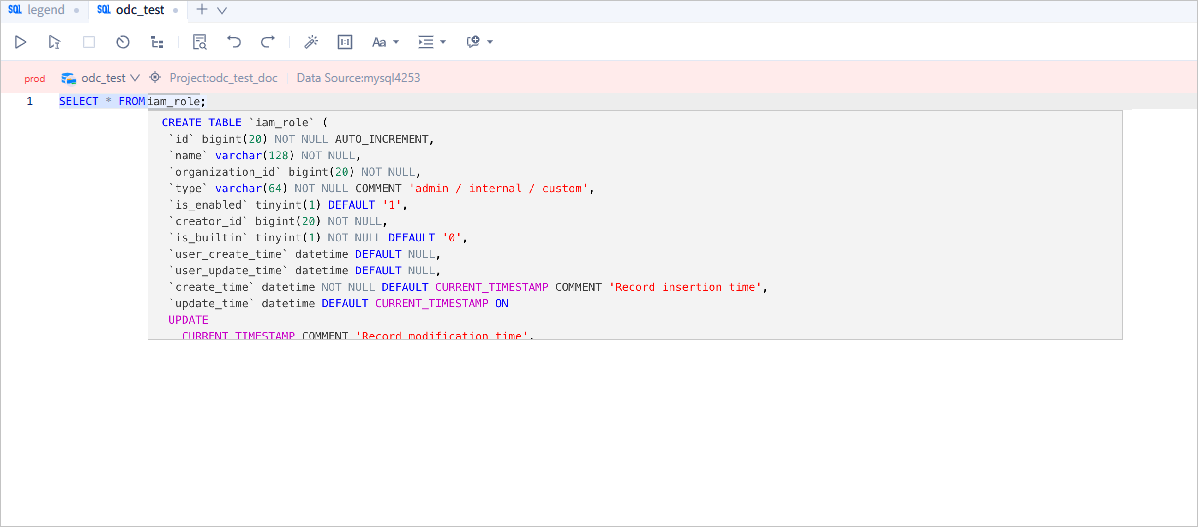
View object DDL

Manage result sets

ODC offers a wide range of result set management features. This section highlights some lesser-known but very useful features.

Pin result set tabs

If you want to compare multiple executions of the same SQL, you can hover over a result tab to preview the SQL statement associated with it. Right-click the tab to pin it. A pinned result set will not be overwritten by subsequent query executions.
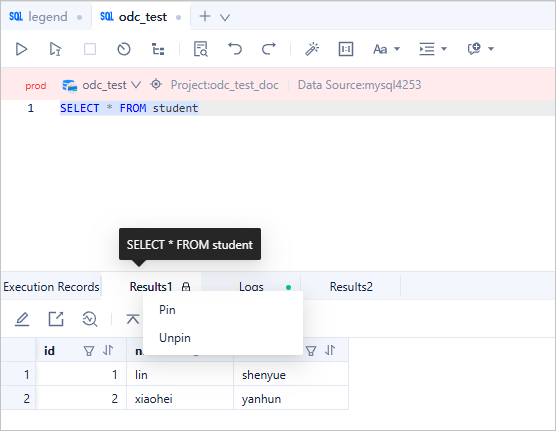
Pin result set tabs

Useful features in the result set toolbar

The result set toolbar provides options for editing, downloading, real-time analysis, searching, column filtering, and column view modes. In particular, the Real-Time Analysis feature is very helpful for diagnosing SQL issues. See Understanding real-time SQL diagnostics for OceanBase AP for details.

Here is a quick look at two features:

  • Column filtering: Hide unnecessary columns from the query result.
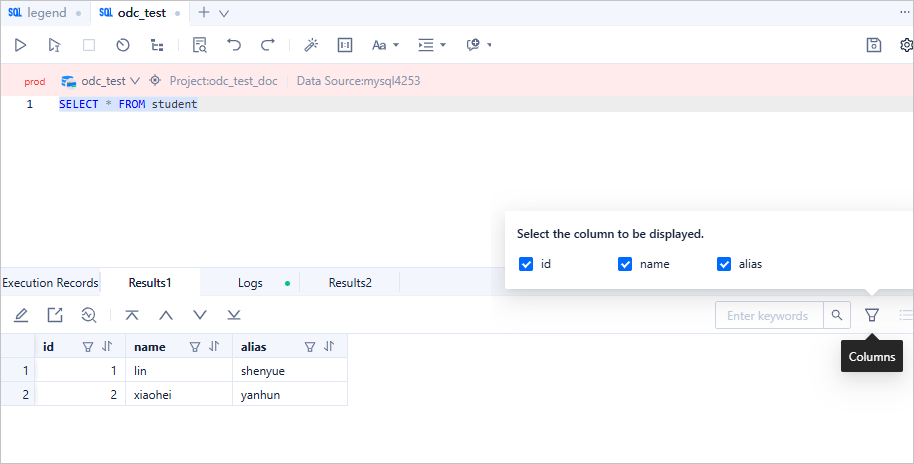
    Column filtering

  • Column mode: Switch to column view to easily review data when there are many columns.
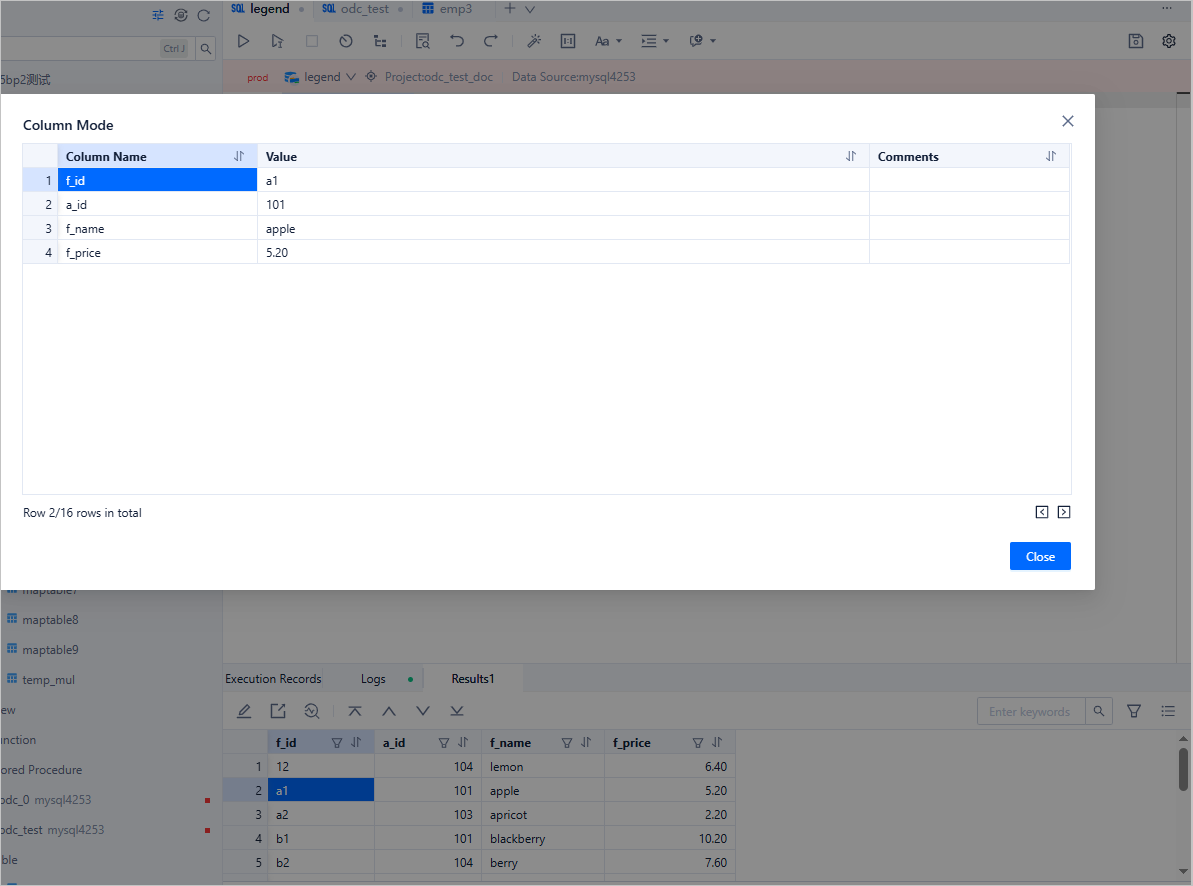
    Column mode

Handle result set content

  • Copy column names

    Double-click a column name to quickly copy it.
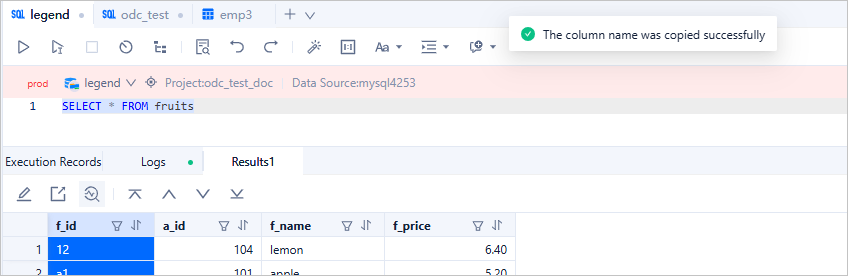
    Copy column names

  • View column properties

    Select a column to view its comments, field type, and other details in the status bar.
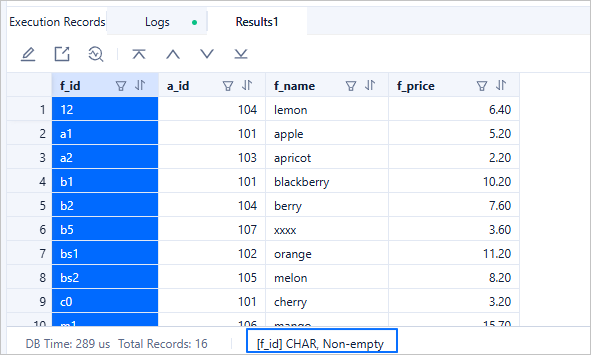
    View column properties

Export selected results

If you need to export specific rows, columns, or cells, select the desired content, right-click, and choose Export to Clipboard. You can then paste the content as SQL or CSV format into your target document.
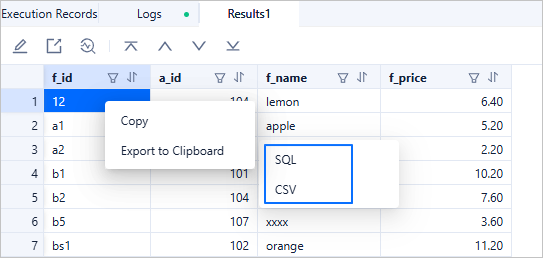
Export selected results

Compare rows

Use the Freeze this row feature to lock a reference row and scroll to compare different rows side-by-side.
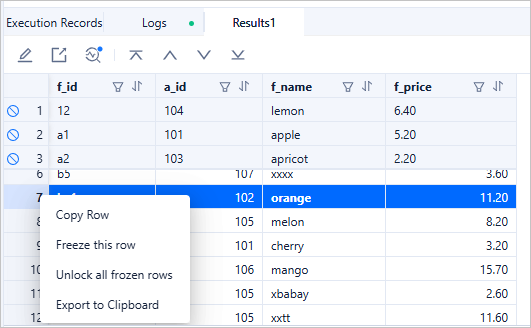
Compare rows

Select multiple rows and columns

  • Use the Shift key to select a continuous block of rows or columns.
  • Use the Command/Ctrl key to select non-continuous rows or columns.
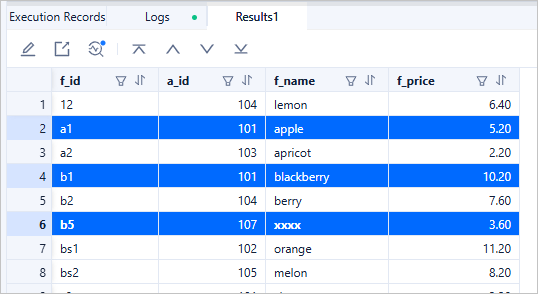
Select multiple rows and columns

View images in the result set

If the result set contains large objects (LOBs), ODC provides a LOB viewer that allows you to view images directly.
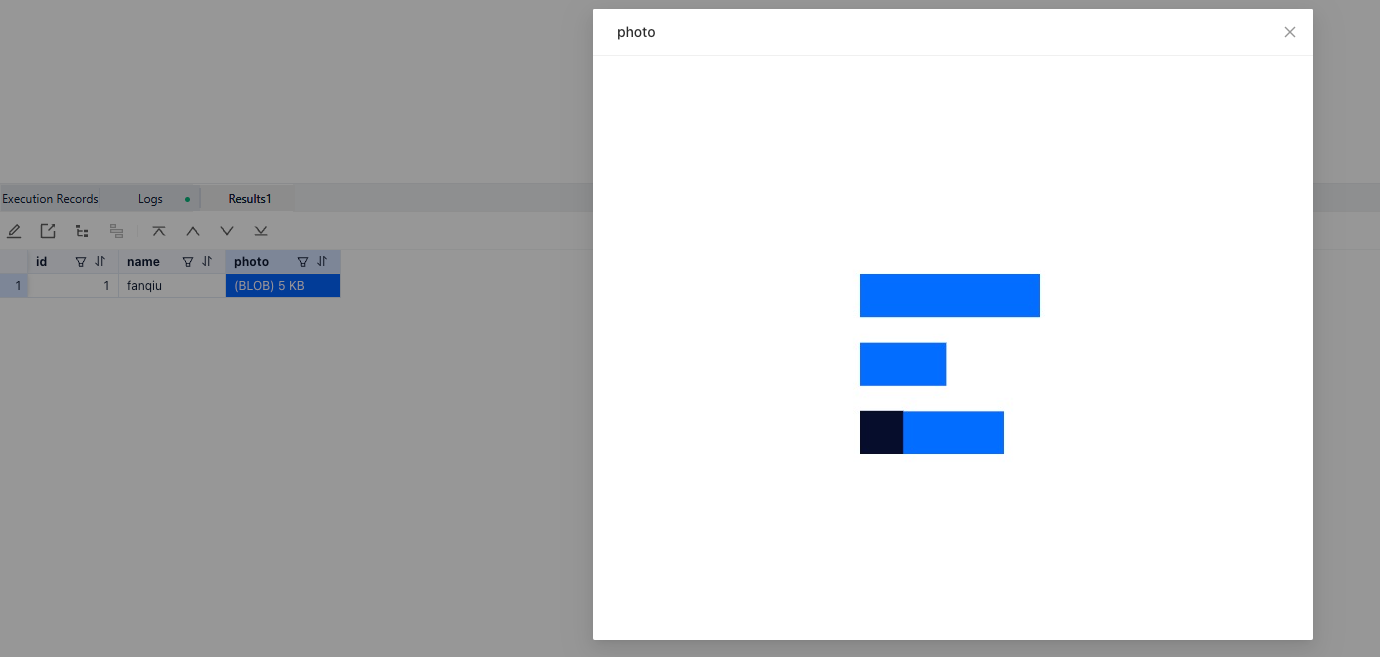
View images in result set

Set the date format for query results

Instead of manually setting the date format every time with SET SESSION nls_date_format='YYYY-MM-DD';, you can configure a default date format at the data source level. Edit the data source settings and adjust the Startup Script.
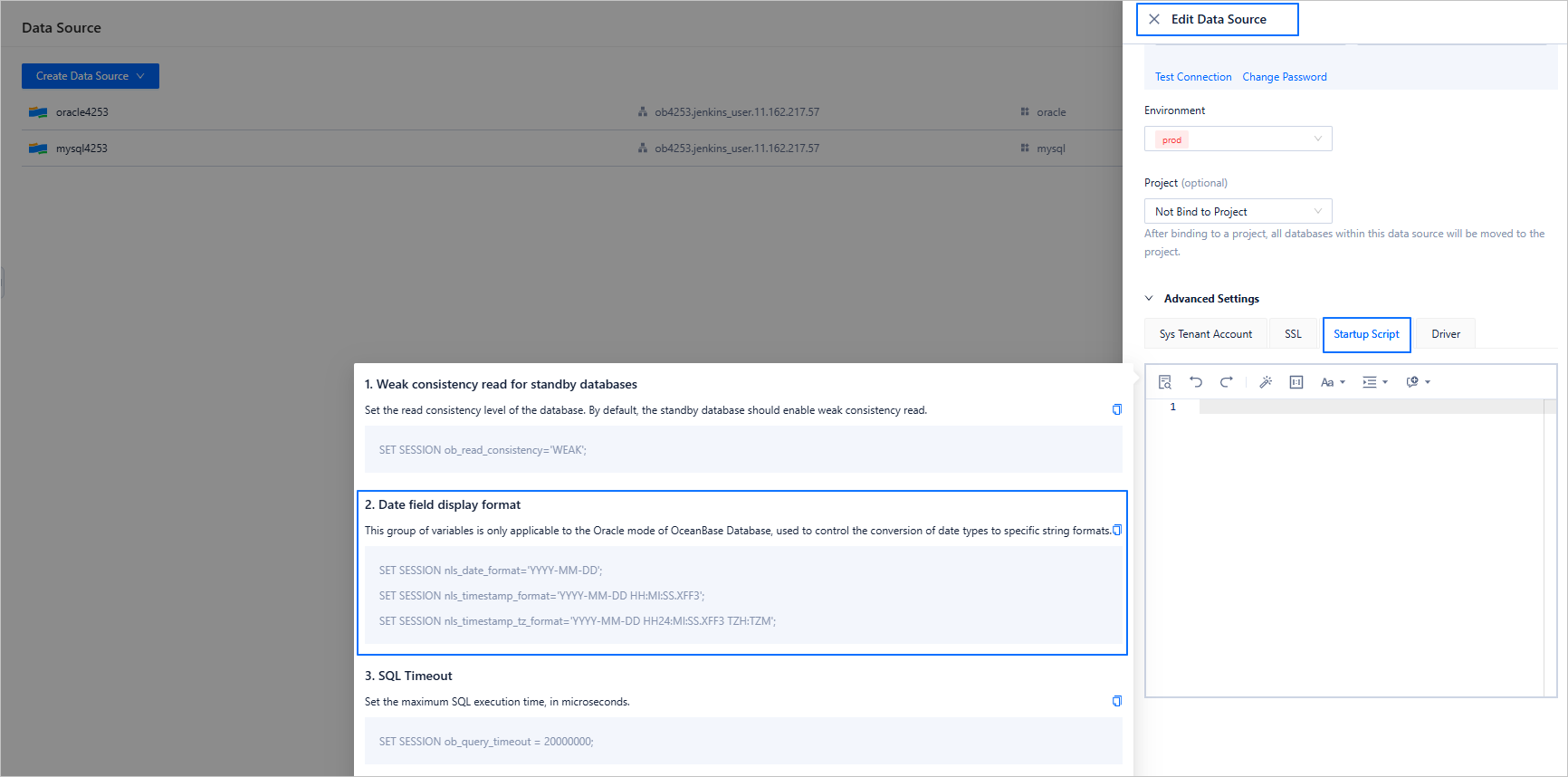
Set date format

Convert selected column values into WHERE conditions

If you want to perform a secondary query or data correction based on query results, ODC provides a handy feature to convert selected column values into an IN clause format, saving you from manually quoting and separating values.
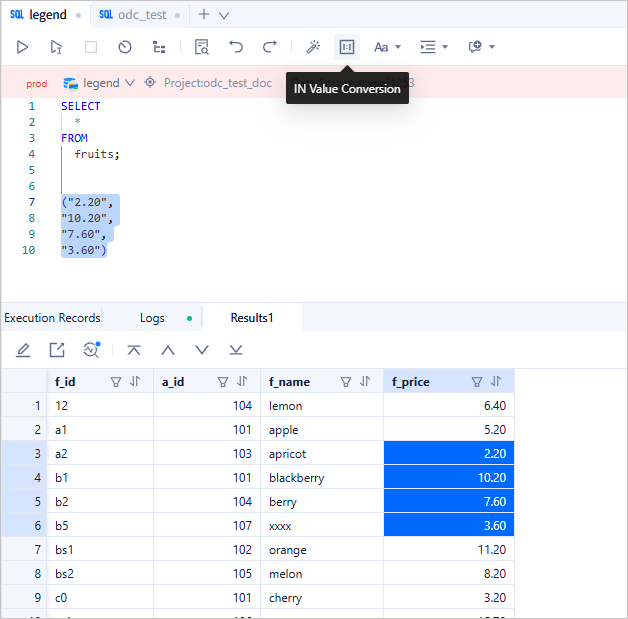
Convert values into WHERE

Quickly create a ticket

During SQL development, you may often need to initiate tasks such as database changes or data imports/exports. Tickets can be created via:

  • The Ticket module.
  • The Project module under ticket subcategories.
  • The Workspace, using the recently used databases section.
  • The SQL Console, under the ticket section.

Additionally, you can initiate a ticket directly from the resource tree. For example, if you are working on the legend database and need to submit a change, simply locate the database in the resource tree, right-click it, and start a ticket.
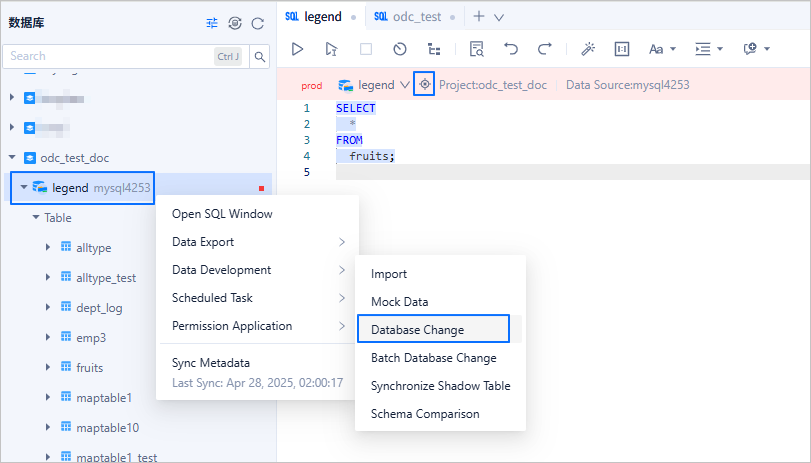
Quickly create a ticket

Drag and drop to generate SQL statements

To quickly generate a query for a table, simply drag the table from the resource tree into the SQL window. A SELECT statement for the table will be automatically generated.
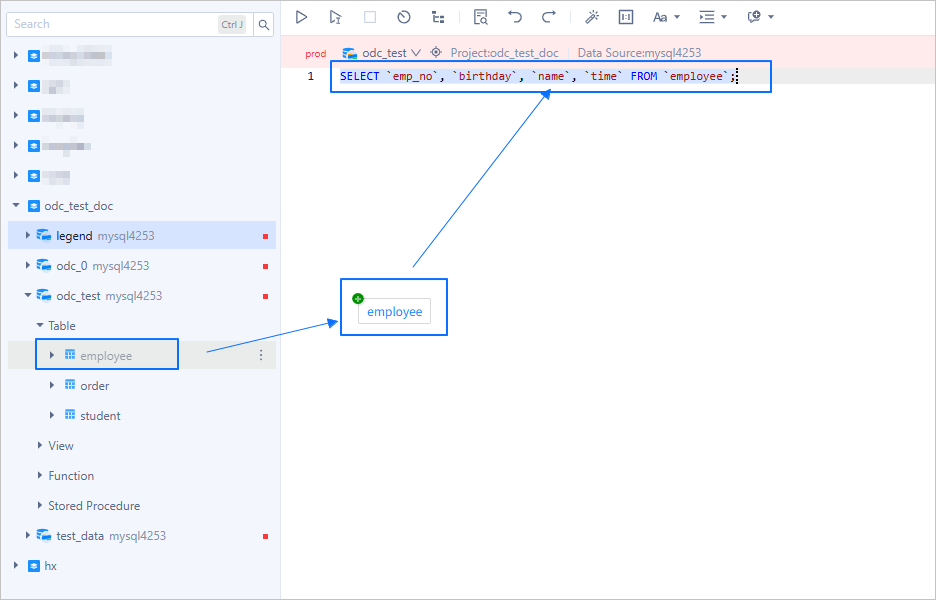
Drag and drop SQL

By default, dragging inserts only the table name. You can customize the drag-and-drop behavior in your user settings.
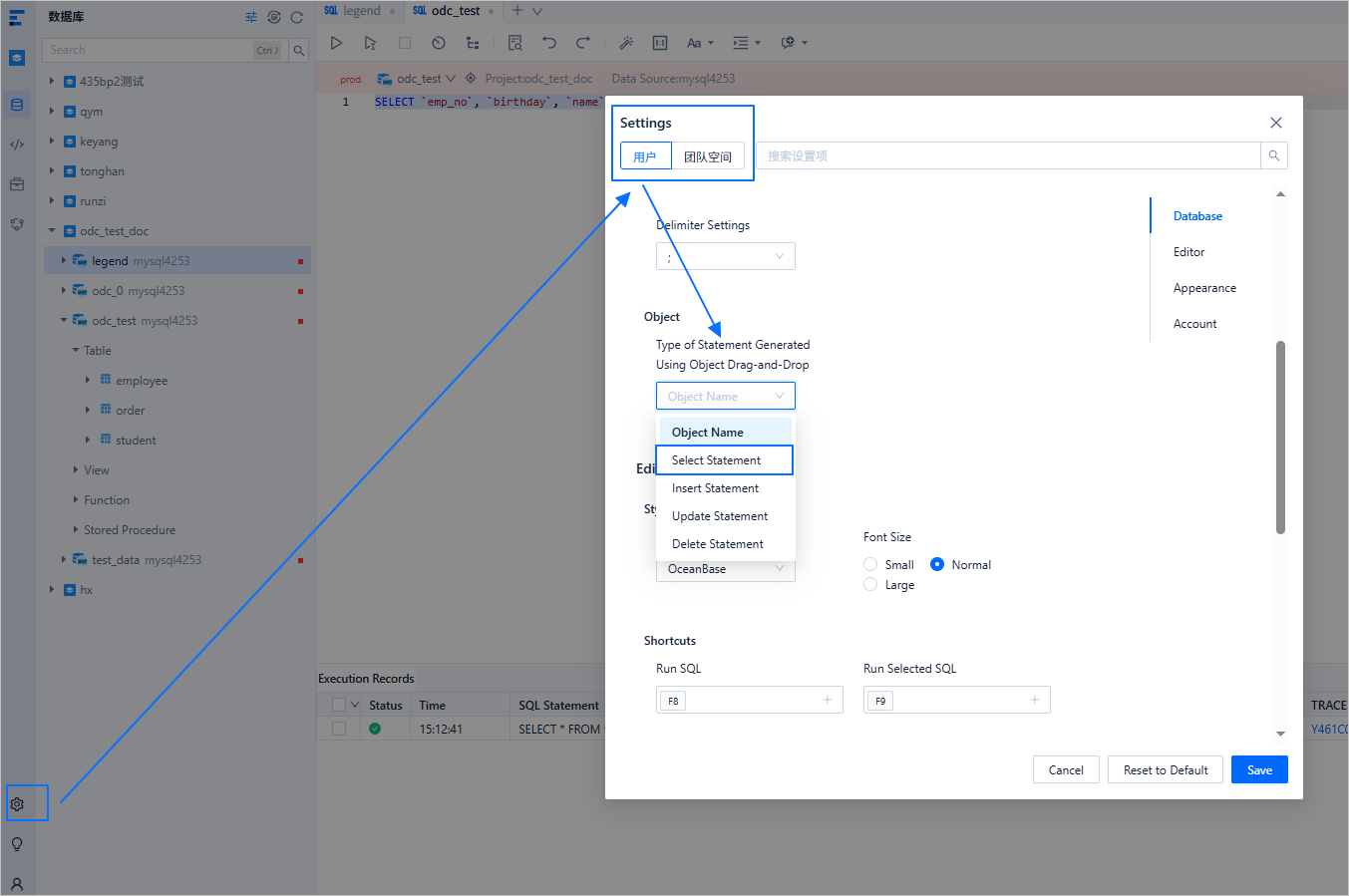
Customize drag behavior

Quickly search for objects

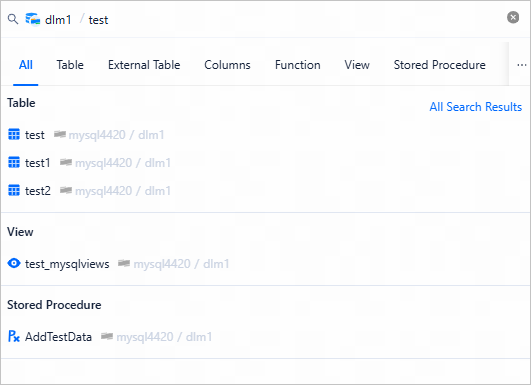
During SQL development, you often need to switch databases and search for certain objects in the database. You can use the global object search feature provided by ODC to select the target type to search for, including tables, databases, projects, and other common database objects. After the search is completed, the directory tree will filter and display the objects containing the search content.
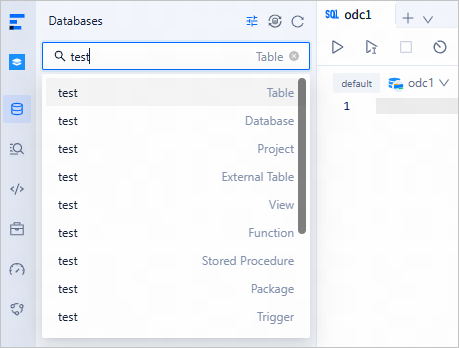
20

In the directory tree, click the global search button on the right to perform a detailed search for the content under the group.
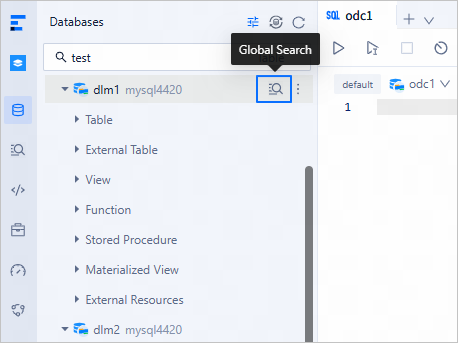
20-1

Here is an example:

20-2

Customize your development environment

Every developer has their own preferences. ODC allows you to configure personal preferences and workspace-level constraints through the settings center.

Notice

Workspace-level configurations require workspace admin privileges.

Customize editor styles

At the user level, you can configure session commit modes, result set and SQL execution behaviors, editor themes, font sizes, and shortcut key mappings.
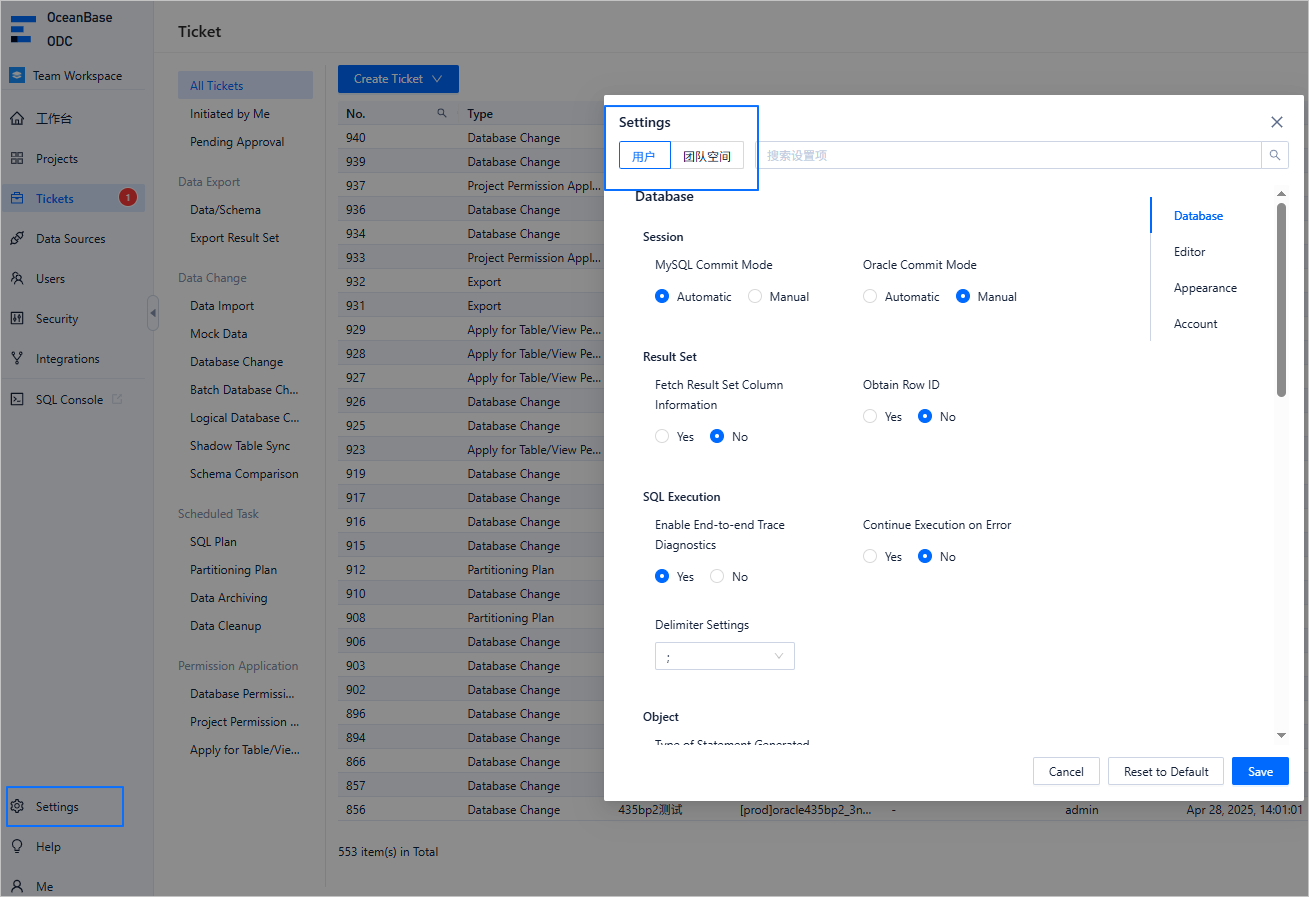
Customize editor styles

Restrict user behavior within a workspace

You can impose constraints on certain features to maintain workspace stability. For example, you can:

  • Set a Query Row Limit to restrict the number of rows returned by any SQL query.
  • Allow or restrict Schema Replacement during Import Tickets based on your workspace needs.

Previous topic

Rollback after upgrade failed
Last

Next topic

Explore ODC team workspaces
Next
on this page
Background information
Quickly reuse SQL statements
Reuse built-in snippets
Reuse custom snippets
Quickly reuse SQL window content
Manage script files
Execute script files
Quickly view object DDL in SQL window
Manage result sets
Pin result set tabs
Useful features in the result set toolbar
Handle result set content
Quickly create a ticket
Drag and drop to generate SQL statements
Quickly search for objects
Customize your development environment
Customize editor styles
Restrict user behavior within a workspace