
After you create a batch or single table export task in OceanBase Developer Center (ODC), you can view the task in the task list on the Import tab of the Task Center page.
On the management page of the database connection, click Task in the navigation bar on the top of the page to go to the Task Center page. Click Export to display the task list.
Task list
Note
- The task list displays the tasks in the last 48 hours.
- ODC allows you to run up to three export tasks in parallel, while subsequent tasks wait in the queue.
On the Export tab, the task list displays the tasks created in the recent 48 hours. The list displays the following information. You can filter and sort the tasks based on the information.
Connection: the name of the database connection to which the task belongs.
Task Name: the name of the task that you specified when you created the task.
Creation Time: the date and time when the task was created.
Task Status: the current status of the task. Valid values: Running , Aborted , Completed , and Failed . ODC provides different management actions for tasks in different states.
Actions: This column provides task management options, such as View , Download , Retry , Abort , and Delete .
Action |
Description |
|---|---|
| View | Click this button to go to the task details page to view the task information and task logs. |
| Download | Click this button to download the exported file to your local device when the task is completed. |
| Retry | Click this button to restart the task when the task fails. |
| Abort | Click this button to abort a task that is not completed. |
| Delete | Click this button to delete the task from the task list when the task is aborted, completed, or failed. |
Create an import task
On the Task Center panel that appears, click + on the right side of Export, and a new export task panel will pop up.

Specify the export content

ODC supports three export modes: Export Schema and Data, Export Data Only, and Export Schema Only. Export Schema Only exports the definition statements of the target object. You can select the export content from the Export Content drop-down list.
Select a database
Select the database where the object to export resides. The name of the database connection to which the task belongs is also displayed.
Specify the export range
You can select Partial Export or Full Export.
If you select Partial Export, you can select the objects you want to export in the Select Objects pane in the Export Objects section. You can use the search box to search for desired objects.
If you select Full Export, all objects in the database are exported.
Go to the Export Settings panel
Click Next: Export Settings to specify the file export settings and the sys tenant account.
Go to the Data File Settings panel
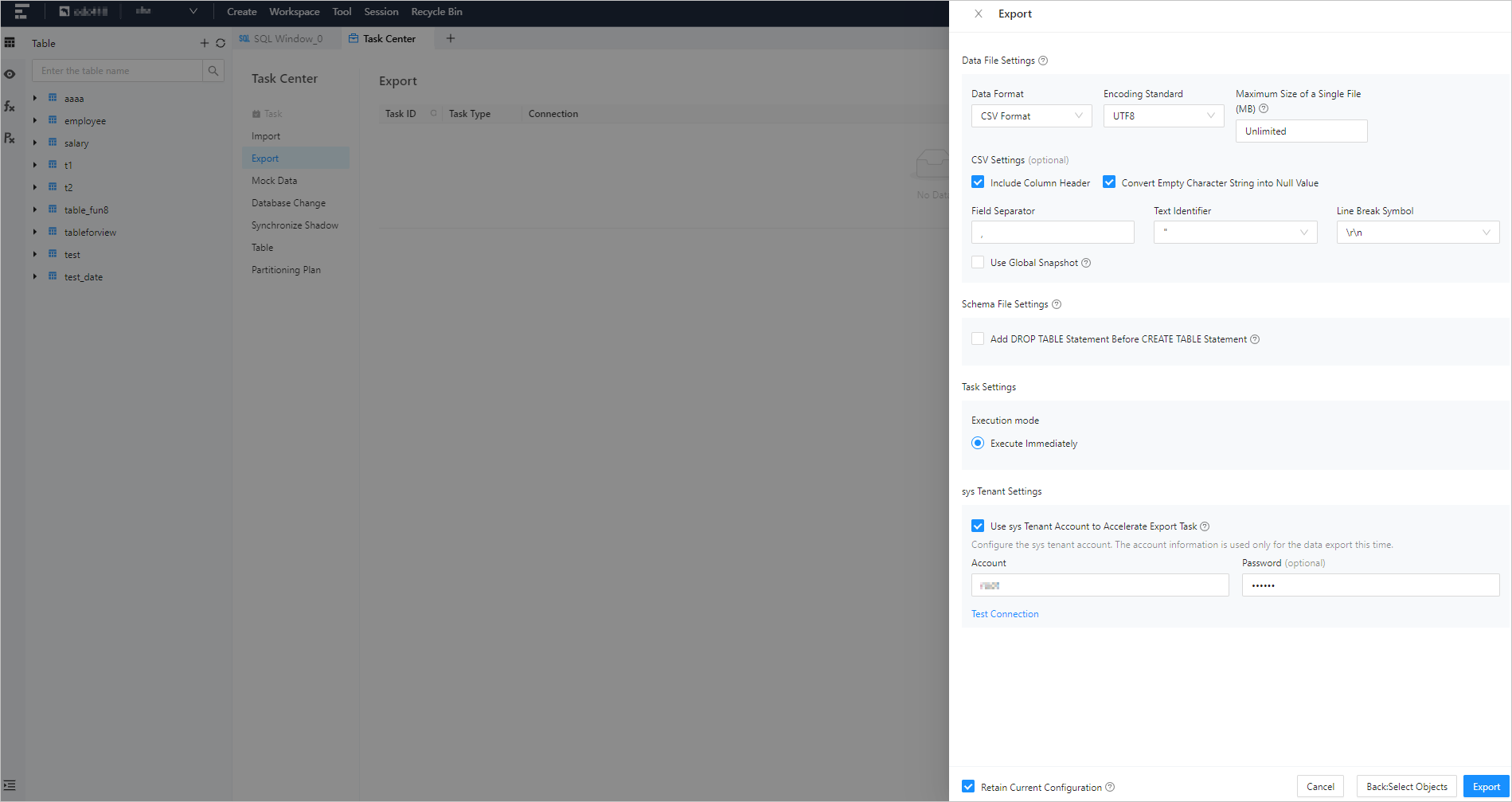
Note
If you select Export Schema Only for Export Content, you do not need to configure the export data settings.
a. Specify Data Format.
ODC supports exporting data to files in the CSV format and SQL format. If you specify Export Schema Only for Export Content, you can only export data to files in the SQL format. For more information about formats, see Export and import formats.
b. Specify File Encoding.
ODC supports the following encoding standards: **ASCII**, **ISO-8859-1**, **GB2312**, **GBK**, **GB18030**, **Unicode (UTF-8)**, **Unicode (UTF-16)**, **Unicode (UTF-32)**, and **BIG5**. You can select the encoding standard from the **File Encoding** drop-down list.c. Specify Maximum Size of a Single File.
If you select **Export Schema Only** for **Export Content**, you do not need to set the maximum size of a single file.

You can choose the upper limit of the exported single file.If the data file of a single table exceeds the upper limit, the file will be automatically split up. If you specify not to limit the file size, the file will not be split up.
d. Specify Data File Settings.
- **Use Global Snapshot**: If you select this option, ODC exports the data in the latest global snapshot of the specified table to ensure global data consistency.

- **Batch Commit Quantity (SQL Format)**: You can click **Advanced** next to **Export Data Settings** to specify this field. If you select **SQL Format** for **Data Format**, you can specify the number of rows to be committed during the export. When this number is reached, a `COMMIT` command is executed.

- Specify information for the CSV format.
Specify schema file settings
If you select Export Schema Only for Export Content, you can choose whether to select Merge Exported Results into an SQL File. If you select this option, the DDL will be merged and exported as a SQL file.
Choose whether to select Add DROP TABLE Statement before CREATE TABLE Statement. If you select this option, a
DROPstatement is added before the correspondingCREATEstatement of an object when the schema files of the object are exported.
Select an execution method
Select Execute immediately or Timed execution.
Set up the sys tenant account
a. Choose whether to select Use sys Tenant Account to Accelerate Export Task. If you select this option, specify Account and Password.
b. After you specify the account and password, you can click the Test Connection button next to the password box to verify whether the account information is valid. By default, the account for the connection settings is automatically filled in. If the connection fails, we recommend that you change the password for this export.
Notice
- The account and password of the sys tenant are the account and password of a user in a cluster tenant. Do not enter
@sys#clusterin the Account field. Example: accountodc, password******. - If the account of the sys tenant is not configured, indexes are not imported or exported.
- The account and password of the sys tenant are the account and password of a user in a cluster tenant. Do not enter
Retain Current Configuration
Check Retain Current Configuration to keep the current part of the data file and structure file configuration.
Generate an export task
After you specify all preceding information, you can click Export in the lower-right corner of the panel to create an export task and export the backup file directly to a local directory.
Task details
Click View in the Actions column of the row where the target task is located. The task details panel appears. Click Task Information in the upper-right corner of the panel to view the basic task information, information about the exported files, and information about the exported objects.
Basic task information: displays information such as Task Name , Connection Name , Mode Name , Task Type , Creation Time , Retry Limit , and Retry Time .
Information about exported files: displays information that you specified when you created the import task, such as Export Content , Data Format , Encoding Standard , Export Data Settings , Export Schema Settings, Task Error Handling Method , and Sys Tenant Account Settings .
Information about exported objects: displays the data export progress of the selected object, including
information such as Object Name , Object Type , Schema Processing Status , Total Record Number , Processed Data Entries , and Data Processing Status .
Task logs
Click View in the Actions column of the row where the target task is located. The task details panel appears. Click Task Logs in the upper-right corner of the panel to view the alert logs and all logs of the task.
All Logs: displays the full information of all task logs, including INFO , ERROR , and WARN logs.
Alert Logs: Alert logs include the ERROR and WARN logs of the task. If the task failed, you can view alert logs to learn of the error information.