OceanBase
English日本語简体中文
Docs Home
Products
Integrations
Release Notes

Databases

OceanBase DatabaseOceanBase Cloud OceanBase Best Practices

Tools

OceanBase Cloud PlatformOceanBase Migration ServiceOceanBase Developer CenterOceanBase Migration AssessmentOceanBase Admin ToolOceanBase Loader and DumperOceanBase DeployerKubernetes operator for OceanBaseOceanBase Diagnostic Tool OceanBase Binlog Service

Connectors and Middleware

OceanBase Database Proxy OceanBase Connector/C OceanBase Connector/J OceanBase Connector/ODBC OceanBase Connector/NETOceanBase Command-Line Client

Databases

OceanBase DatabaseOceanBase Cloud OceanBase Best Practices

Connectors and Middleware

OceanBase Database Proxy OceanBase Connector/C OceanBase Connector/J OceanBase Connector/ODBC OceanBase Connector/NETOceanBase Command-Line Client

Tools

OceanBase Cloud PlatformOceanBase Migration ServiceOceanBase Developer CenterOceanBase Migration AssessmentOceanBase Admin ToolOceanBase Loader and DumperOceanBase DeployerKubernetes operator for OceanBaseOceanBase Diagnostic Tool OceanBase Binlog Service
OceanBase DatabaseOceanBase Cloud ToolsConnectors and MiddlewareLifecycle Support Policy

OceanBase Developer Center

V4.1.3Enterprise Edition
  • Document Overview
  • Overview
    • What is ODC?
    • Benefits
    • Architecture
    • Features
    • Limits
  • Quick Start
    • Overview
    • Install ODC
    • Log on to ODC with an account
    • Create a private connection
  • Tutorials
    • Tips on the SQL Console
    • Create a connection
    • Export data
    • Import data
    • Debug a stored procedure
    • View the performance of an SQL statement
  • User Guide (Web ODC)
    • Log on to ODC
      • Log on to ODC with an account
      • Change the password
    • ODC homepage
    • Connect to a database
      • Create a private connection
      • Manage private connections
    • Public resource management
      • Overview
      • Quick start
      • Resource permissions
        • Manage public connections
        • Manage resource groups
        • Manage roles
        • Manage users
        • Automatic authorization rules
      • Task process management
      • Manage operation records
      • Data desensitization management
      • System settings
    • Use the workspace
      • Overview
      • SQL window
      • Anonymous block window
      • Command-line window
      • Stored scripts
      • Snippet
    • Use tools
      • Data export and import
        • Overview
        • Export and import formats
        • Batch export and import
        • Single table export and import
      • Data mocking
      • Partitioning plan
      • Database changes
      • Shadow table synchronization
      • SQL plan
    • Recycle bin
    • View operation records
    • Task management
      • Overview
      • Import tasks
      • Export tasks
      • Data mocking tasks
      • Database change tasks
      • Partitioning plan task
      • Permission application tasks
      • Shadow table synchronization tasks
      • SQL plan task
    • Session management
    • Database objects
      • Table objects
        • Overview
        • Create a table
        • Table list
        • Manage table attributes
        • Manage table data
      • View objects
        • Overview
        • Create a view
        • Manage views
      • Function objects
        • Overview
        • Create a function
        • Manage functions
      • Stored procedure objects
        • Overview
        • Create a stored procedure
        • Manage stored procedures
      • Sequence objects
        • Overview
        • Create a sequence
        • Manage sequences
      • Package objects
        • Overview
        • Create a program package
        • Manage program packages
      • Trigger objects
        • Overview
        • Create a trigger
        • Manage triggers
      • Type objects
        • Overview
        • Create a type
        • Manage types
      • Synonym objects
        • Overview
        • Create a synonym
        • Manage synonyms
    • Help center
  • User Guide (Client ODC)
    • Install ODC
    • ODC homepage
    • Connect to a database
      • Create a private connection
      • Manage connections
    • Use the workspace
      • Overview
      • SQL window
      • Anonymous block window
      • Command-line window
      • Stored scripts
      • Snippet
    • Use tools
      • Data export and import
        • Overview
        • Export and import formats
        • Batch export and import
        • Single table export and import
      • Data mocking
      • Asynchronous execution
      • Shadow table synchronization
    • Recycle bin
    • View operation records
    • Task management
      • Overview
      • Import tasks
      • Export tasks
      • Data mocking tasks
      • Database Change
      • Shadow table synchronization tasks
    • Session management
    • Database objects
      • Table objects
        • Overview
        • Create a table
        • Table list
        • Manage table attributes
        • Manage table data
      • View objects
        • Overview
        • Create a view
        • Manage views
      • Function objects
        • Overview
        • Create a function
        • Manage functions
      • Stored procedure objects
        • Overview
        • Create a stored procedure
        • Manage stored procedures
      • Sequence objects
        • Overview
        • Create a sequence
        • Manage sequences
      • Package objects
        • Overview
        • Create a program package
        • Manage program packages
      • Trigger objects
        • Overview
        • Create a trigger
        • Manage triggers
      • Type objects
        • Overview
        • Create a type
        • Manage types
      • Synonym objects
        • Overview
        • Create a synonym
        • Manage synonyms
    • Help center
  • Deployment Guide
    • Deployment overview
    • Preparations before deployment
    • Deploy a single ODC node
      • Deployment process
      • Load and run an ODC image
    • Deploy ODC in high availability mode
      • Deployment process
      • Load and run an ODC image
      • Deploy SSL certificate
      • Deploy the NGINX proxy
      • Configure certificate trust
    • Deployment verification
  • Upgrade Guide
    • Overview
    • Preparations before upgrade
    • Upgrade single-node ODC
      • Upgrade process
      • Stop ODC of the earlier version
      • Load and run an ODC image
    • Upgrade high-availability
      • Upgrade process
      • Stop ODC of the earlier version
      • Load and run an ODC image
      • Upgrade NGINX image
    • Upgrade verification
    • Rollback after upgrade failed
  • FAQ
  • Release Note
    • V4.1
      • ODC V4.1.3
      • ODC V4.1.1
      • ODC V4.1.2
      • ODC V4.1.0
    • V4.0
      • ODC V4.0.2
      • ODC V4.0.0
    • V3.4
      • ODC V3.4.0
    • V3.3
      • ODC V3.3.3
      • ODC V3.3.2
      • ODC V3.3.1
      • ODC V3.3.0
    • V3.2
      • ODC V3.2.3
      • ODC V3.2.2
      • ODC V3.2.1
      • ODC V3.2.0

Download PDF

Document Feedback
  1. Documentation Center
  2. OceanBase Developer Center
  3. V4.1.3

Automatic authorization rules

Last Updated:2026-09-04 08:15:22

Background
Create an automatic authorization rule
Procedure
Example
Manage automatic authorization rules
Rule list
View a rule
Edit a rule

Background

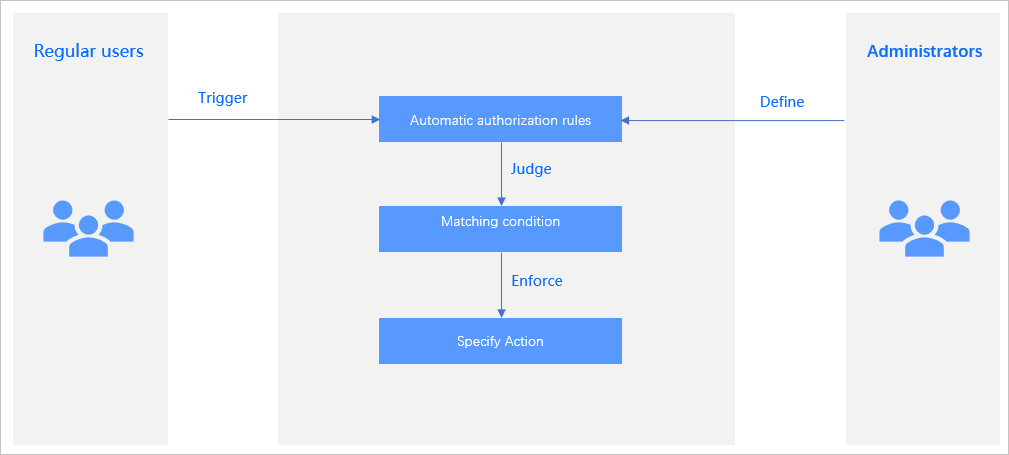
OceanBase Developer Center (ODC) allows system administrators to define automatic authorization rules. System administrators can create, modify, view, and disable automatic authorization rules in the public resource console.

The automatic authorization feature automatically grants roles or permissions to users whose names, departments, or logon methods meet specific conditions when they are being created or log on for the first time, to avoid redundant authorization operations.

This topic describes how to create and manage automatic authorization rules in the public resource console.
1

Create an automatic authorization rule

Procedure
2

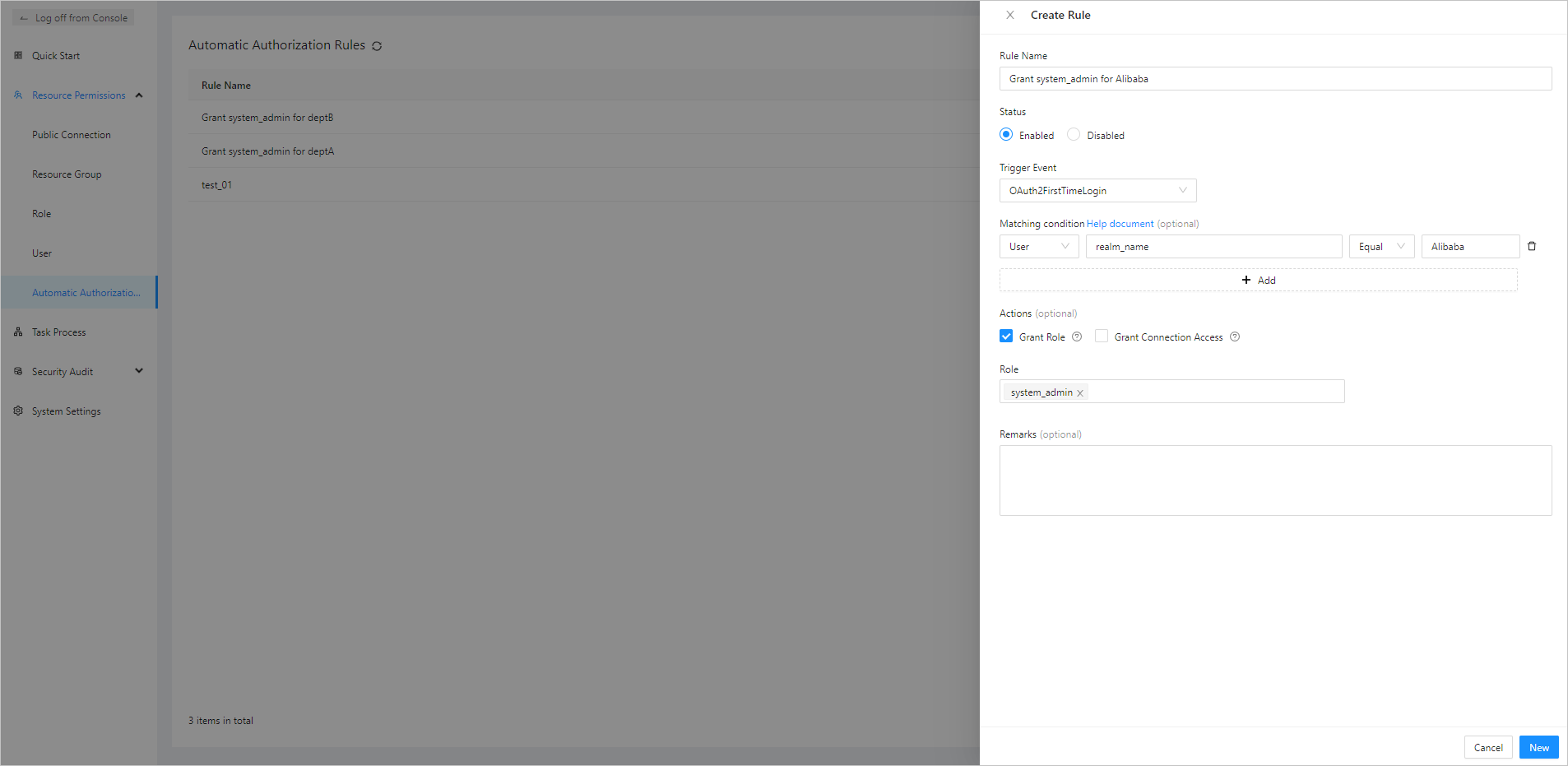
  1. In the upper-right corner of the Automatic Authorization Rules page, click Create Rule. The Create Rule panel appears.

  2. Specify the following parameters in the Create Rule panel.

    Parameter
    Description
    Rule Name The name of the rule, which must be unique.
    Status Select Enabled or Disabled.
    By default, the status of the rule is Enabled. You can set it to Disabled as needed. A disabled rule cannot be accessed.
    Trigger Event Select a trigger event. Only built-in events are available. Different events correspond to different trigger occasions.
    Matching Condition (Optional) Click Add Condition and specify the following four fields:
    • Object: stores the trigger condition and the information required for executing the action. It can be a complex nested object such as an array, a list, or a map, or a simple object such as a string or a number.
    • Expression: the index of the target in the object. Different types of objects use different indexing methods.
    • Operation: the supported operation, for example, "Contain", "Match", or "Equal".
    • Value: the target value.
      Note
      If you do not specify the matching condition, the action is unconditionally executed when the selected event is triggered.
    Actions (Optional) Select Grant Role and/or Grant Connection Access and specify the role name and/or public connection name.
    Note
    If you do not specify the action, no action is executed regardless of whether the matching condition is met.
    Remarks (Optional) The description of the rule.
  3. After you specify the preceding parameters, click Create in the lower-right corner of the panel.

Example

After you integrate ODC in OAuth 2.0 and log on to ODC, assume that the OAuth 2.0 system returns the following data structure:

{
  "id": 1,
  "name": "username",
  "mail": "example@email.com",
  "memberOf": {
    "department": [
      {
        "name": "deptA",
        "description": "this is a department"
      },
      {
        "name": "deptB",
        "description": "this is a department"
      }
    ],
    "extra": "some other info"
  }
}

You can use different expressions to obtain corresponding values from the data structure. Example:

Expression
Result
id 1
memberOf.department[0].name deptA
memberOf.department[*].name ["deptA", "deptB"]

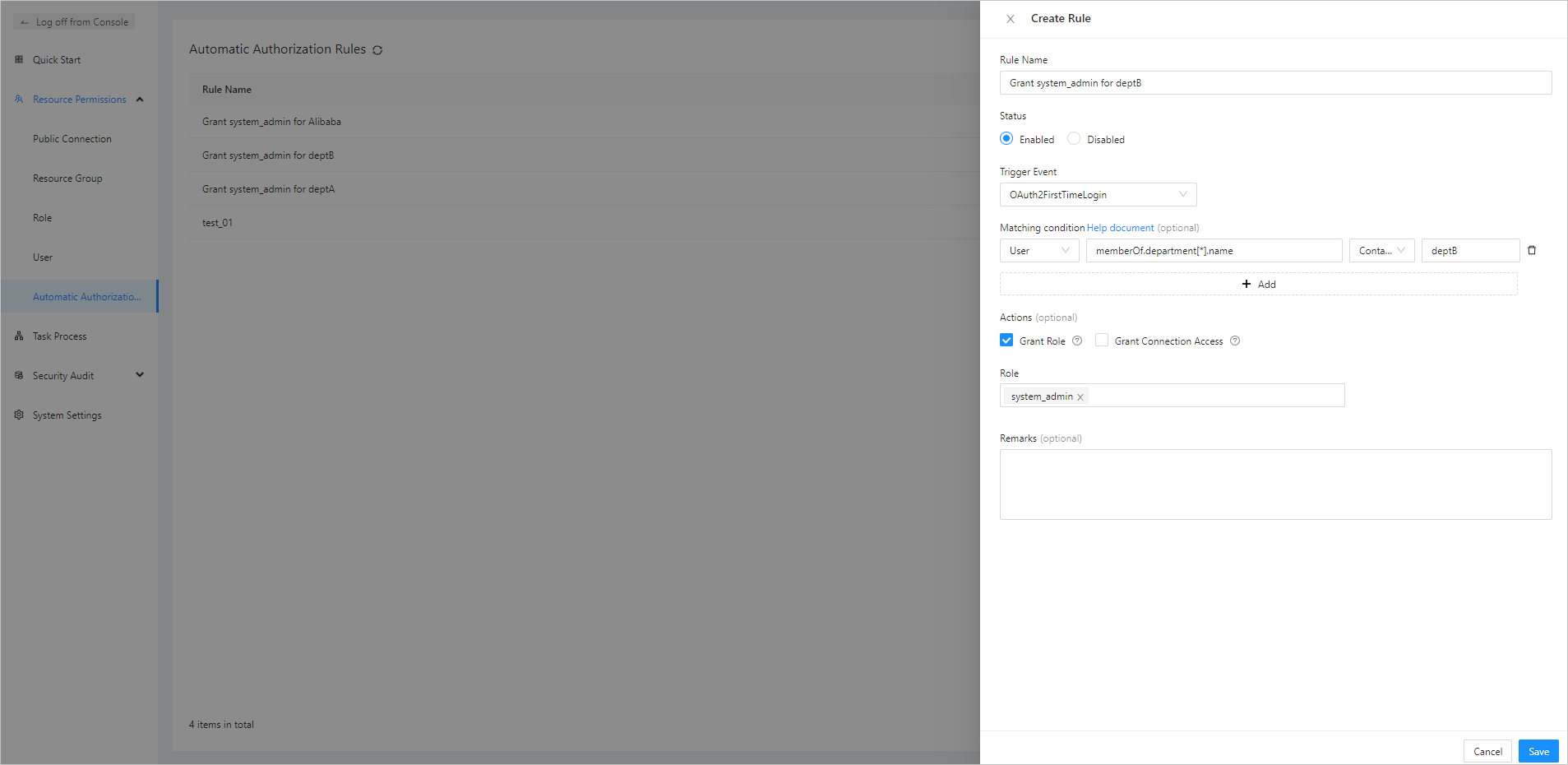
The administrator can configure an automatic authorization rule for a user when the user logs on to ODC from OAuth 2.0 for the first time. The example in the following figure shows how to create an authorization rule named Grant system_admin for deptB. If memberOf.department contains any element named deptB, the user is granted the system_admin role.
3

Manage automatic authorization rules

4

On the Automatic Authorization Rules page, information is displayed in a list, and you can perform the following operations:

  • Click the refresh icon to manually refresh the list.

  • Search for rules by using the search box in the upper-right corner of the list.

  • Adjust the column width of the rule list.

Rule list

The information of rules is provided by columns, which are described in the following table. A filter is provided in the Status column for you to filter rules by status.

Parameter
Description
Rule Name The name of the rule.
Created By The name of the user who created the rule.
You can click the search icon Search to search for rules created by a specific user.
Status The current status of the rule. Valid values: Enabled and Disabled.
You can click the filter icon Filter to filter rules by status.
Created At The last time when the rule was edited.
You can sort rules in ascending or descending order of creation time.
Actions The actions you can take. Valid values: View, Edit, Disable/Enable, and Delete.

View a rule

Click View in the Actions column of a rule to go to the Rule Information panel. The following information is displayed in the panel.

Information
Description
Rule information Displays the information you specified when you created the rule, such as Rule Name, Trigger Event, Matching Condition, Actions, Role, and Remarks.
Operation information Displays fields such as Created By and Created At.

Edit a rule

Click Edit in the Actions column of a rule to go to the Edit Rule panel.

The Edit Rule panel displays all the fields you specified when you created the rule. You can modify the fields as needed.

Previous topic

Manage users
Last

Next topic

Task process management
Next
on this page
Background
Create an automatic authorization rule
Procedure
Example
Manage automatic authorization rules
Rule list
View a rule
Edit a rule
