OceanBase
English日本語简体中文
Docs Home
Products
Integrations
Release Notes

Databases

OceanBase DatabaseOceanBase Cloud OceanBase Best Practices

Tools

OceanBase Cloud PlatformOceanBase Migration ServiceOceanBase Developer CenterOceanBase Migration AssessmentOceanBase Admin ToolOceanBase Loader and DumperOceanBase DeployerKubernetes operator for OceanBaseOceanBase Diagnostic Tool OceanBase Binlog Service

Connectors and Middleware

OceanBase Database Proxy OceanBase Connector/C OceanBase Connector/J OceanBase Connector/ODBC OceanBase Connector/NETOceanBase Command-Line Client

Databases

OceanBase DatabaseOceanBase Cloud OceanBase Best Practices

Connectors and Middleware

OceanBase Database Proxy OceanBase Connector/C OceanBase Connector/J OceanBase Connector/ODBC OceanBase Connector/NETOceanBase Command-Line Client

Tools

OceanBase Cloud PlatformOceanBase Migration ServiceOceanBase Developer CenterOceanBase Migration AssessmentOceanBase Admin ToolOceanBase Loader and DumperOceanBase DeployerKubernetes operator for OceanBaseOceanBase Diagnostic Tool OceanBase Binlog Service
OceanBase DatabaseOceanBase Cloud ToolsConnectors and MiddlewareLifecycle Support Policy

OceanBase Developer Center

V4.1.3Enterprise Edition
  • Document Overview
  • Overview
    • What is ODC?
    • Benefits
    • Architecture
    • Features
    • Limits
  • Quick Start
    • Overview
    • Install ODC
    • Log on to ODC with an account
    • Create a private connection
  • Tutorials
    • Tips on the SQL Console
    • Create a connection
    • Export data
    • Import data
    • Debug a stored procedure
    • View the performance of an SQL statement
  • User Guide (Web ODC)
    • Log on to ODC
      • Log on to ODC with an account
      • Change the password
    • ODC homepage
    • Connect to a database
      • Create a private connection
      • Manage private connections
    • Public resource management
      • Overview
      • Quick start
      • Resource permissions
        • Manage public connections
        • Manage resource groups
        • Manage roles
        • Manage users
        • Automatic authorization rules
      • Task process management
      • Manage operation records
      • Data desensitization management
      • System settings
    • Use the workspace
      • Overview
      • SQL window
      • Anonymous block window
      • Command-line window
      • Stored scripts
      • Snippet
    • Use tools
      • Data export and import
        • Overview
        • Export and import formats
        • Batch export and import
        • Single table export and import
      • Data mocking
      • Partitioning plan
      • Database changes
      • Shadow table synchronization
      • SQL plan
    • Recycle bin
    • View operation records
    • Task management
      • Overview
      • Import tasks
      • Export tasks
      • Data mocking tasks
      • Database change tasks
      • Partitioning plan task
      • Permission application tasks
      • Shadow table synchronization tasks
      • SQL plan task
    • Session management
    • Database objects
      • Table objects
        • Overview
        • Create a table
        • Table list
        • Manage table attributes
        • Manage table data
      • View objects
        • Overview
        • Create a view
        • Manage views
      • Function objects
        • Overview
        • Create a function
        • Manage functions
      • Stored procedure objects
        • Overview
        • Create a stored procedure
        • Manage stored procedures
      • Sequence objects
        • Overview
        • Create a sequence
        • Manage sequences
      • Package objects
        • Overview
        • Create a program package
        • Manage program packages
      • Trigger objects
        • Overview
        • Create a trigger
        • Manage triggers
      • Type objects
        • Overview
        • Create a type
        • Manage types
      • Synonym objects
        • Overview
        • Create a synonym
        • Manage synonyms
    • Help center
  • User Guide (Client ODC)
    • Install ODC
    • ODC homepage
    • Connect to a database
      • Create a private connection
      • Manage connections
    • Use the workspace
      • Overview
      • SQL window
      • Anonymous block window
      • Command-line window
      • Stored scripts
      • Snippet
    • Use tools
      • Data export and import
        • Overview
        • Export and import formats
        • Batch export and import
        • Single table export and import
      • Data mocking
      • Asynchronous execution
      • Shadow table synchronization
    • Recycle bin
    • View operation records
    • Task management
      • Overview
      • Import tasks
      • Export tasks
      • Data mocking tasks
      • Database Change
      • Shadow table synchronization tasks
    • Session management
    • Database objects
      • Table objects
        • Overview
        • Create a table
        • Table list
        • Manage table attributes
        • Manage table data
      • View objects
        • Overview
        • Create a view
        • Manage views
      • Function objects
        • Overview
        • Create a function
        • Manage functions
      • Stored procedure objects
        • Overview
        • Create a stored procedure
        • Manage stored procedures
      • Sequence objects
        • Overview
        • Create a sequence
        • Manage sequences
      • Package objects
        • Overview
        • Create a program package
        • Manage program packages
      • Trigger objects
        • Overview
        • Create a trigger
        • Manage triggers
      • Type objects
        • Overview
        • Create a type
        • Manage types
      • Synonym objects
        • Overview
        • Create a synonym
        • Manage synonyms
    • Help center
  • Deployment Guide
    • Deployment overview
    • Preparations before deployment
    • Deploy a single ODC node
      • Deployment process
      • Load and run an ODC image
    • Deploy ODC in high availability mode
      • Deployment process
      • Load and run an ODC image
      • Deploy SSL certificate
      • Deploy the NGINX proxy
      • Configure certificate trust
    • Deployment verification
  • Upgrade Guide
    • Overview
    • Preparations before upgrade
    • Upgrade single-node ODC
      • Upgrade process
      • Stop ODC of the earlier version
      • Load and run an ODC image
    • Upgrade high-availability
      • Upgrade process
      • Stop ODC of the earlier version
      • Load and run an ODC image
      • Upgrade NGINX image
    • Upgrade verification
    • Rollback after upgrade failed
  • FAQ
  • Release Note
    • V4.1
      • ODC V4.1.3
      • ODC V4.1.1
      • ODC V4.1.2
      • ODC V4.1.0
    • V4.0
      • ODC V4.0.2
      • ODC V4.0.0
    • V3.4
      • ODC V3.4.0
    • V3.3
      • ODC V3.3.3
      • ODC V3.3.2
      • ODC V3.3.1
      • ODC V3.3.0
    • V3.2
      • ODC V3.2.3
      • ODC V3.2.2
      • ODC V3.2.1
      • ODC V3.2.0

Download PDF

Document Feedback
  1. Documentation Center
  2. OceanBase Developer Center
  3. V4.1.3

Debug a stored procedure

Last Updated:2026-09-04 08:15:22

Background
Prerequisites
Procedure

This topic describes how to debug a stored procedure in OceanBase Developer Center (ODC).

Background

PL program development is important daily work for database service developers. Like the support module for SQL statements, the PL debugging module is also of great significance. Therefore, developers require a PL development area and a debugging feature during programming.

ODC V2.2.0 and later support the creation, compilation, running, and debugging of PL objects and anonymous blocks. In the editing area of the anonymous block window, you can compile PL/SQL statements, and edit and debug the created PL objects. ODC provides features such as Batch Execute, Step Over, Step Into, Step Out, Abort Debugging, Debug Again, and Exit Debugging for debugging PL objects. ODC also displays debugging information in tabs such as Parameters , Stacks and Variables , DBMS Output , Breakpoints , and Debugging Logs .

Prerequisites

  • The database is OceanBase Database V2.2.73 or later in Oracle mode.

  • ODC V3.2.2 or earlier does not support the debugging feature when you connect ODC to the target instance by using OBProxy. To use the debugging feature, directly connect ODC to the target instance.

  • ODC V3.2.2 and later support PL/SQL debugging when you connect to OBServer by using OBProxy.

  • You have installed the debugging packages such as DBMS_DEBUG and DBMS_OUTPUT in the connected database.

  • You have created a sample stored procedure named procedure_test by using the following sample script:

    CREATE OR REPLACE PROCEDURE procedure_test
    (
        A IN NUMBER,
        B IN NUMBER,
        C OUT NUMBER
    ) IS
    BEGIN
        C:= A + B;
        dbms_output.put_line ( C / 2  ) ;
    END procedure_test;
    

Procedure

The result of procedure_test is the value obtained by dividing the value of output parameter C by 2. The value of parameter C is equal to the sum of values of parameter A and parameter B. Therefore, you cannot directly learn the value of parameter C from the output result of the program. You can view and verify the actual value of parameter C during program running by debugging procedure_test.

  1. Enter the debugging mode.

    After you enter the connection, find the target stored procedure procedure_test in the stored procedure list in the left-side navigation pane. Then, right-click procedure_test and click Debug in the shortcut menu to start debugging. You can also click Edit in the shortcut menu to go to the object editing page, and then click the debug icon debug in the toolbar to start debugging.

  2. Set parameters.

    procedure_test has three parameters: input parameters A and B, and output parameter C.

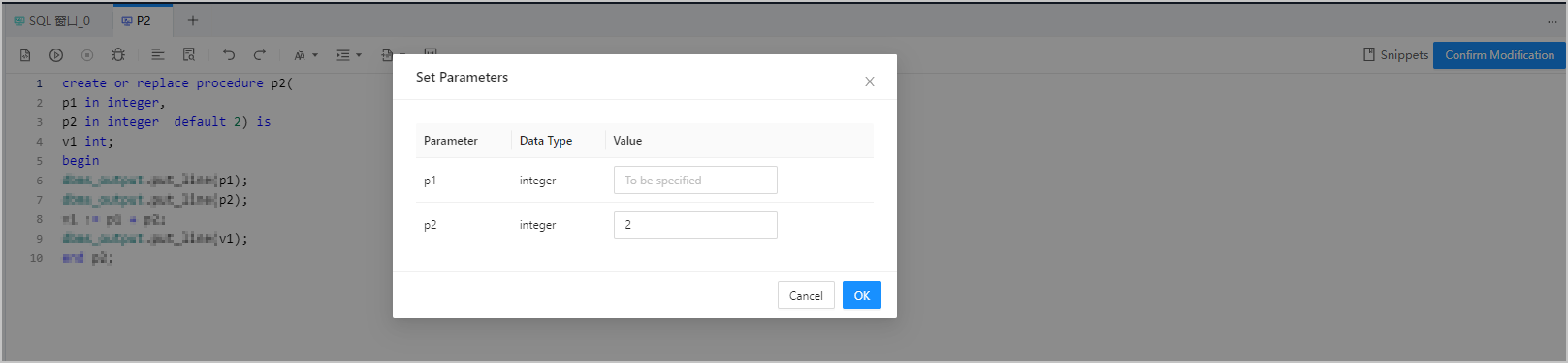
    1. If the input parameters already exist, you need to set the values of the input parameters first before debugging. When you start the debugging, ODC will first display the Set Parameters page for you to set values of the input parameters. In this example, the value of parameter A is set to 2 and the value of parameter B is set to 4.

    2. After you set the values, click OK .

      Image 223

  3. Go to the debugging page.

    The debugging page appears after you set the parameters.

    The Parameters tab below the editing area of the debugging page displays the definition information of all the parameters configured for the program. The definition information includes the parameter name, mode, and type. The values of the parameters may change accordingly in the debugging process.

    ODC provides the following buttons in the toolbar of the debugging page:

    • Batch Execute : Click this button to execute the statements till the next breakpoint or the end if no breakpoint exists.

    • Step Over : Click this button to step over a given line without stepping into any subprogram.

    • Step Into : Click this button to step into the called subprogram if the current line calls a defined stored procedure or function.

    • Step Out : For a subprogram, you can click this button to return to the next line of the upper-layer call position. For the main program, this button achieves the same effect as Auto Debugging .

    • Abort Debugging : Click this button to execute the stored procedure till the end and skip breakpoints.

  4. Set breakpoints.

    A breakpoint allows the program to stop at the specified position during execution, to facilitate program analysis. You can set a breakpoint in ODC by clicking a line number in the editing area:

    1. In the sample program, click the line number of the dbms_output.put_line ( C / 2 ); statement in the ninth line to set a breakpoint.

    2. The Breakpoints tab below the editing area displays information such as the PL/SQL Object Name and Line Number of all breakpoints set in the program. You are also allowed to Cancel and View breakpoints.

      Note
      The kernel does not support setting breakpoints in comment lines or keywords such as BEGIN and END.

  5. Start the debugging.

    After you set the breakpoints, click the batch execute icondebugin the toolbar to start the debugging. The debugging will stop at the breakpoints. You can also click the step over icondebug2to execute the program statements step by step. One step is executed when you click this icon once.

  6. View the debugging information.

    The program now stops at the ninth line. You can view the variables on the current stack and their values on the Stacks and Variables tab below the editing area. The program stops at the ninth line because of the breakpoint. So, on the Stacks and Variables tab, you can find that the value of variable C is 6. You can also view the records and error logs of actions such as starting debugging, aborting debugging, adding breakpoints, and canceling breakpoints on the Debugging Logs tab.

  7. Abort the debugging.

    Click the abort debugging iconabort debugin the toolbar. The program will continue to run till the end and skip subsequent breakpoints.

    The program contains the PL/SQL output statement dbms_output.put_line. Therefore, when the program ends, the DBMS Output tab below the editing area displays the value obtained by dividing the value of parameter C by 2. The value now displayed on the tab is 3, indicating that no error has occurred during the running of the program.

  8. Debug again.

    After the program running ends, you can click Debug Again in the toolbar to debug the current object again. The information and breakpoints of the previous debugging will be cleared. You can reset parameters and start a new round of debugging.

  9. Exit the debugging.

    After you finish the program analysis based on the debugging, you can click Exit Debugging in the toolbar to exit the debugging page.

Previous topic

Import data
Last

Next topic

View the performance of an SQL statement
Next
on this page
Background
Prerequisites
Procedure