OceanBase
English日本語简体中文
Docs Home
Products
Integrations
Release Notes

Databases

OceanBase DatabaseOceanBase Cloud OceanBase Best Practices

Tools

OceanBase Cloud PlatformOceanBase Migration ServiceOceanBase Developer CenterOceanBase Migration AssessmentOceanBase Admin ToolOceanBase Loader and DumperOceanBase DeployerKubernetes operator for OceanBaseOceanBase Diagnostic Tool OceanBase Binlog Service

Connectors and Middleware

OceanBase Database Proxy OceanBase Connector/C OceanBase Connector/J OceanBase Connector/ODBC OceanBase Connector/NETOceanBase Command-Line Client

Databases

OceanBase DatabaseOceanBase Cloud OceanBase Best Practices

Connectors and Middleware

OceanBase Database Proxy OceanBase Connector/C OceanBase Connector/J OceanBase Connector/ODBC OceanBase Connector/NETOceanBase Command-Line Client

Tools

OceanBase Cloud PlatformOceanBase Migration ServiceOceanBase Developer CenterOceanBase Migration AssessmentOceanBase Admin ToolOceanBase Loader and DumperOceanBase DeployerKubernetes operator for OceanBaseOceanBase Diagnostic Tool OceanBase Binlog Service
OceanBase DatabaseOceanBase Cloud ToolsConnectors and MiddlewareLifecycle Support Policy

OceanBase Developer Center

V4.1.3Enterprise Edition
  • Document Overview
  • Overview
    • What is ODC?
    • Benefits
    • Architecture
    • Features
    • Limits
  • Quick Start
    • Overview
    • Install ODC
    • Log on to ODC with an account
    • Create a private connection
  • Tutorials
    • Tips on the SQL Console
    • Create a connection
    • Export data
    • Import data
    • Debug a stored procedure
    • View the performance of an SQL statement
  • User Guide (Web ODC)
    • Log on to ODC
      • Log on to ODC with an account
      • Change the password
    • ODC homepage
    • Connect to a database
      • Create a private connection
      • Manage private connections
    • Public resource management
      • Overview
      • Quick start
      • Resource permissions
        • Manage public connections
        • Manage resource groups
        • Manage roles
        • Manage users
        • Automatic authorization rules
      • Task process management
      • Manage operation records
      • Data desensitization management
      • System settings
    • Use the workspace
      • Overview
      • SQL window
      • Anonymous block window
      • Command-line window
      • Stored scripts
      • Snippet
    • Use tools
      • Data export and import
        • Overview
        • Export and import formats
        • Batch export and import
        • Single table export and import
      • Data mocking
      • Partitioning plan
      • Database changes
      • Shadow table synchronization
      • SQL plan
    • Recycle bin
    • View operation records
    • Task management
      • Overview
      • Import tasks
      • Export tasks
      • Data mocking tasks
      • Database change tasks
      • Partitioning plan task
      • Permission application tasks
      • Shadow table synchronization tasks
      • SQL plan task
    • Session management
    • Database objects
      • Table objects
        • Overview
        • Create a table
        • Table list
        • Manage table attributes
        • Manage table data
      • View objects
        • Overview
        • Create a view
        • Manage views
      • Function objects
        • Overview
        • Create a function
        • Manage functions
      • Stored procedure objects
        • Overview
        • Create a stored procedure
        • Manage stored procedures
      • Sequence objects
        • Overview
        • Create a sequence
        • Manage sequences
      • Package objects
        • Overview
        • Create a program package
        • Manage program packages
      • Trigger objects
        • Overview
        • Create a trigger
        • Manage triggers
      • Type objects
        • Overview
        • Create a type
        • Manage types
      • Synonym objects
        • Overview
        • Create a synonym
        • Manage synonyms
    • Help center
  • User Guide (Client ODC)
    • Install ODC
    • ODC homepage
    • Connect to a database
      • Create a private connection
      • Manage connections
    • Use the workspace
      • Overview
      • SQL window
      • Anonymous block window
      • Command-line window
      • Stored scripts
      • Snippet
    • Use tools
      • Data export and import
        • Overview
        • Export and import formats
        • Batch export and import
        • Single table export and import
      • Data mocking
      • Asynchronous execution
      • Shadow table synchronization
    • Recycle bin
    • View operation records
    • Task management
      • Overview
      • Import tasks
      • Export tasks
      • Data mocking tasks
      • Database Change
      • Shadow table synchronization tasks
    • Session management
    • Database objects
      • Table objects
        • Overview
        • Create a table
        • Table list
        • Manage table attributes
        • Manage table data
      • View objects
        • Overview
        • Create a view
        • Manage views
      • Function objects
        • Overview
        • Create a function
        • Manage functions
      • Stored procedure objects
        • Overview
        • Create a stored procedure
        • Manage stored procedures
      • Sequence objects
        • Overview
        • Create a sequence
        • Manage sequences
      • Package objects
        • Overview
        • Create a program package
        • Manage program packages
      • Trigger objects
        • Overview
        • Create a trigger
        • Manage triggers
      • Type objects
        • Overview
        • Create a type
        • Manage types
      • Synonym objects
        • Overview
        • Create a synonym
        • Manage synonyms
    • Help center
  • Deployment Guide
    • Deployment overview
    • Preparations before deployment
    • Deploy a single ODC node
      • Deployment process
      • Load and run an ODC image
    • Deploy ODC in high availability mode
      • Deployment process
      • Load and run an ODC image
      • Deploy SSL certificate
      • Deploy the NGINX proxy
      • Configure certificate trust
    • Deployment verification
  • Upgrade Guide
    • Overview
    • Preparations before upgrade
    • Upgrade single-node ODC
      • Upgrade process
      • Stop ODC of the earlier version
      • Load and run an ODC image
    • Upgrade high-availability
      • Upgrade process
      • Stop ODC of the earlier version
      • Load and run an ODC image
      • Upgrade NGINX image
    • Upgrade verification
    • Rollback after upgrade failed
  • FAQ
  • Release Note
    • V4.1
      • ODC V4.1.3
      • ODC V4.1.1
      • ODC V4.1.2
      • ODC V4.1.0
    • V4.0
      • ODC V4.0.2
      • ODC V4.0.0
    • V3.4
      • ODC V3.4.0
    • V3.3
      • ODC V3.3.3
      • ODC V3.3.2
      • ODC V3.3.1
      • ODC V3.3.0
    • V3.2
      • ODC V3.2.3
      • ODC V3.2.2
      • ODC V3.2.1
      • ODC V3.2.0

Download PDF

Document Feedback
  1. Documentation Center
  2. OceanBase Developer Center
  3. V4.1.3

Anonymous block window

Last Updated:2026-09-04 08:15:22

Overview
PL editing area
PL/SQL Execution Result and DBMS Output tabs
Debugging page

Overview

To open an anonymous block window, perform the following steps: enter the Database Management page of OceanBase Developer Center (ODC), click Workspace in the top navigation bar, and click Anonymous Block Window .

An anonymous block window provides a PL/SQL editing area, the PL/SQL Execution Result and DBMS Output tabs, and the Debugging page.
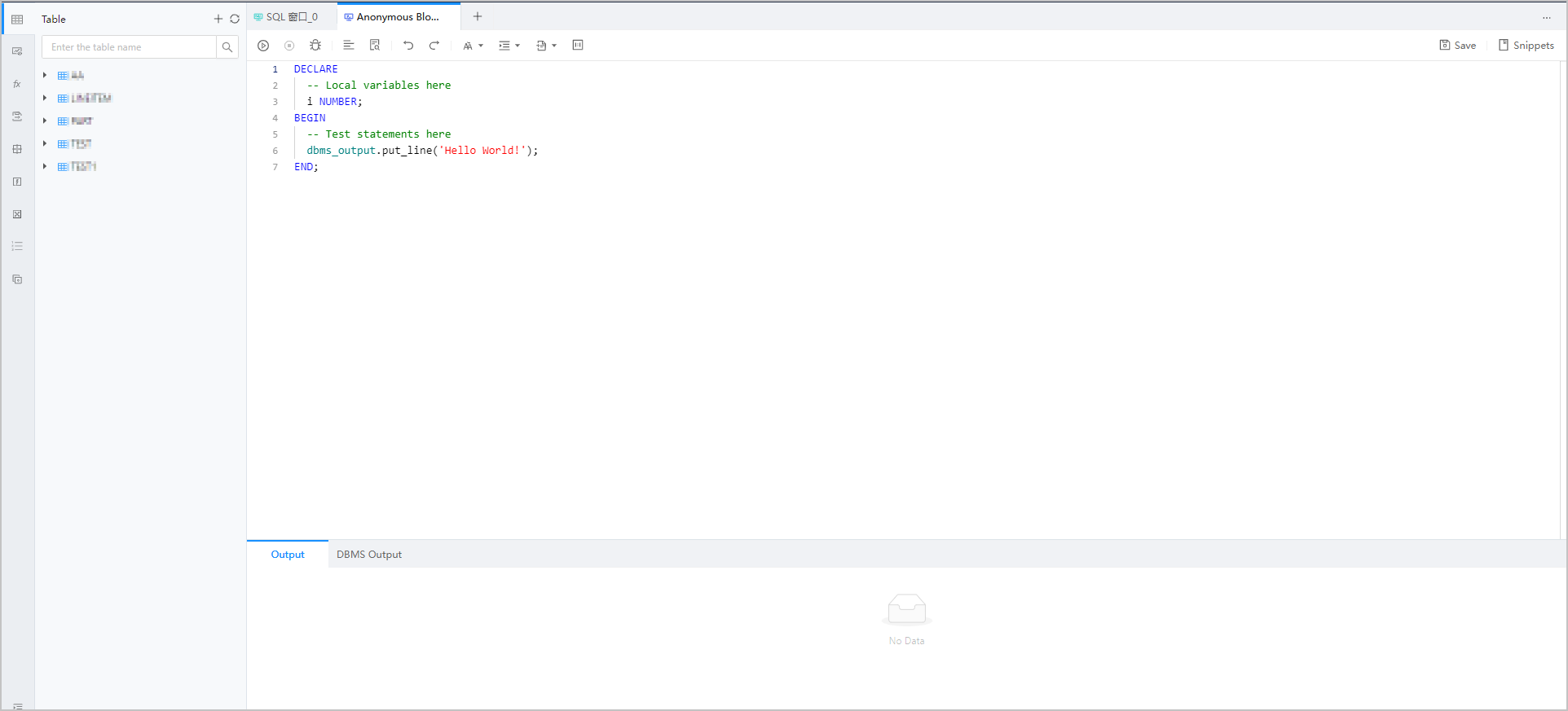
Image 460

PL editing area

The editing area of the anonymous block window provides many features for you. For example, when you open a new anonymous block window,

  • the guidance code is provided to make your script-writing easier.

  • Database keywords are highlighted in different colors.

  • It also provides features such as formatting to help you improve your PL/SQL statement writing efficiency.

    In addition to the preceding features, the toolbar of the editing area provides the following buttons.

    Button
    Description
    Run Click this button to execute the statements in the code area.
    Abort Click this button to abort the statement that is being executed.
    Debug Click this button to open the debugging page to debug the anonymous objects in the code area.
    Note
    It is recommended to upgrade the OceanBase database to version 3.2.4 and above to obtain better debugging capabilities and stability.
    Format Click this button to apply the formatting, such as indentation, line break, and keyword highlighting, to the selected SQL statements or all the SQL statements in the current SQL window.
    Find and Replace You can enter text in the search field to find the specific content and enter text in the replacement field to replace the content found.
    Undo Click this button to undo the last operation.
    Redo Click this button to reverse an Undo operation.
    Case Sensitivity The system supports three capitalization options: All C aps , All Lowercase , and Capitalize First Letter . Click the corresponding option to convert the selected statements in the script to the desired capitalization format.
    Indent You can add indents to or delete indents from the statements that you selected.
    Comments You can click Add Comments to convert the statements that you select into comments or click Delete Comment to convert comments to SQL statements.
    Save Click this button to save the script in the current window. You can open a saved script when you enter the workspace again. Note * You can view only the SQL scripts saved by yourself. The script names must be unique. * After you open a saved script, you can continue to edit it.

PL/SQL Execution Result and DBMS Output tabs

After you click the run iconrunin the toolbar of the editing area to execute the anonymous block, you can view the information in the Execution Result and DBMS Output tabs under the editing area.

  • The Execution Result tab displays the execution result of the script. If the execution was successful, Executed is displayed. Otherwise, an error message is displayed.

  • The DBMS Output tab displays the output of a subprogram that contains PL/SQL output statements, such as dbms_output.put_line.

Debugging page

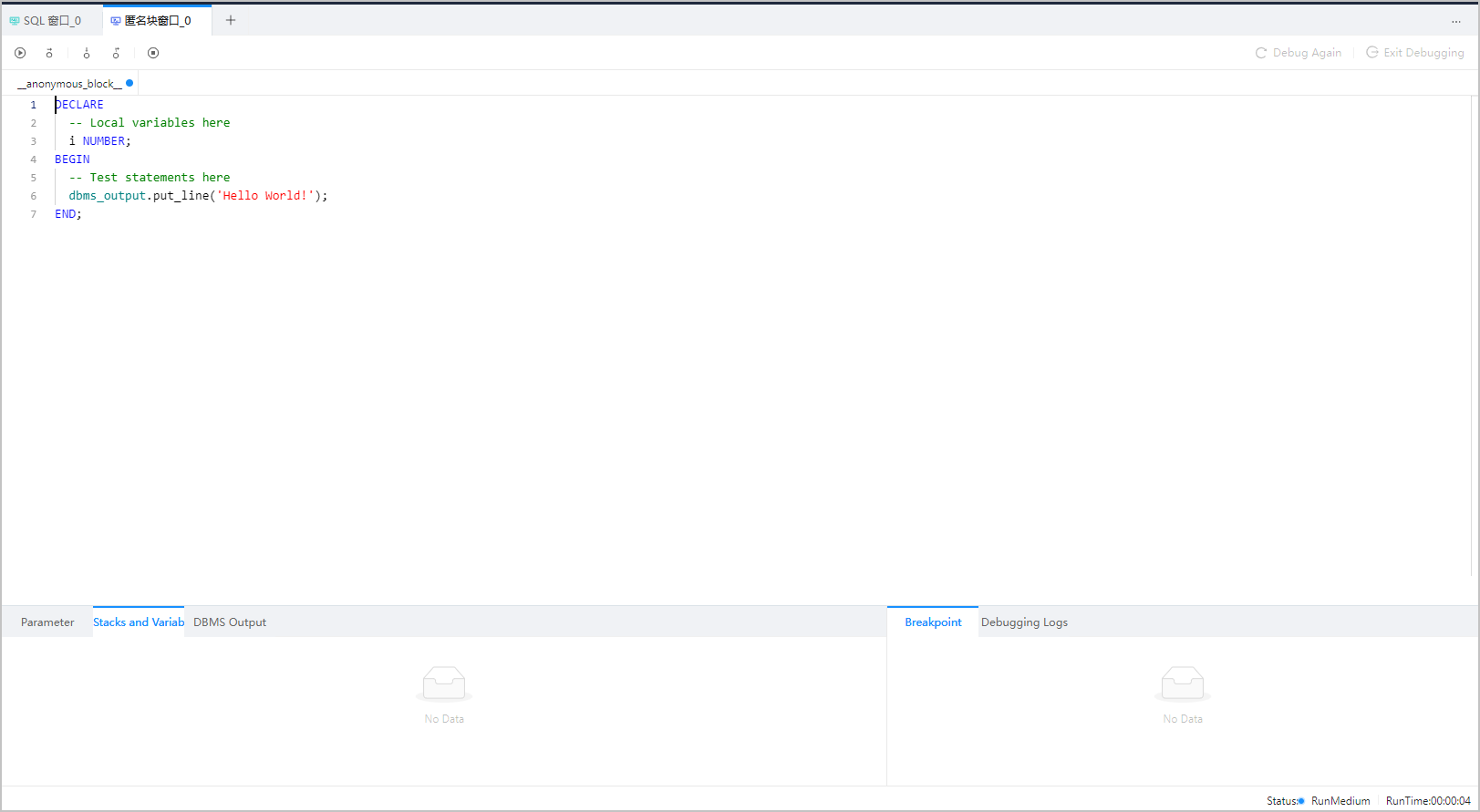
You can debug an anonymous block on the debugging page. To enter this page, click Debug in the toolbar of the editing area.

On the debugging page, you can debug the anonymous block.

Notice

  • We recommend that you upgrade to OBServer V2.2.77 or later. This is because some versions of OBServer have been found with PL/SQL debugging issues, which may compromise the OBServer stability.
  • ODC V3.2.2 or earlier does not support the debugging feature when you connect ODC to the target instance by using OBProxy. To use the debugging feature, directly connect ODC to the target instance.
  • ODC V3.2.2 and later support PL/SQL debugging when you connect to OBServer by using OBProxy.
  • You have installed the debugging packages such as DBMS_DEBUG and DBMS_OUTPUT in the connected database.
  • Debug

    In debugging mode, the toolbar in the editing area provides the following buttons.

    Button
    Description
    Batch Execute Runs till the next breakpoint. If no breakpoint exists, runs till the end.
    Step Over Click this button to step over a given line without stepping into any subprogram.
    Step Into Click this button to execute code line by line. If the line includes a call to a stored procedure or function, it steps into the called subprogram.
    Step Out For a subprogram, you can click this button to return to the next line of the upper-layer call position. For the main program, this button achieves the same effect as Auto Debugging .
    Abort Debugging Click this button to execute the stored procedure till the end and skip breakpoints.
    Debug Again Click this button to initiate a new round of debugging on the current object. Unlike Debug , it does not establish a new debugging connection.
    Exit Debugging Click this button to close the debugging connection and exit the debugging window.

    In addition to the editing area, the debugging mode also provides the following tabs:

    • Parameters : displays the definition information and values of all the parameters of the object to be debugged. The definition information includes the parameter name, mode, and type. The values may change as a result of the debugging process.

    • Stacks and Variables : displays the variables in the current stack and the values of the variables.

    • DBMS Output : If a subprogram contains PL/SQL output statements, such as dbms_output.put_line, the output is displayed on this tab.

    • Breakpoint : You can click the line number in the editing area to set a breakpoint, and click the line number again to remove the breakpoint. The Breakpoint tab displays all the breakpoints that you set in their execution order. You can select multiple breakpoints to cancel them at a time. The Actions column of each breakpoint information row provides the Cancel and View actions. You can click Cancel to cancel a breakpoint. After you click View, the cursor moves to the location of the breakpoint in the editing area.

    • Debugging Logs : displays the debugging logs and error logs. Debugging logs include information about the start and end of debugging and the addition and cancellation of breakpoints.

    Previous topic

    SQL window
    Last

    Next topic

    Command-line window
    Next
    on this page
    Overview
    PL editing area
    PL/SQL Execution Result and DBMS Output tabs
    Debugging page