OceanBase
English日本語简体中文
Docs Home
Products
Integrations
Release Notes

Databases

OceanBase DatabaseOceanBase Cloud OceanBase Best Practices

Tools

OceanBase Cloud PlatformOceanBase Migration ServiceOceanBase Developer CenterOceanBase Migration AssessmentOceanBase Admin ToolOceanBase Loader and DumperOceanBase DeployerKubernetes operator for OceanBaseOceanBase Diagnostic Tool OceanBase Binlog Service

Connectors and Middleware

OceanBase Database Proxy OceanBase Connector/C OceanBase Connector/J OceanBase Connector/ODBC OceanBase Connector/NETOceanBase Command-Line Client

Databases

OceanBase DatabaseOceanBase Cloud OceanBase Best Practices

Connectors and Middleware

OceanBase Database Proxy OceanBase Connector/C OceanBase Connector/J OceanBase Connector/ODBC OceanBase Connector/NETOceanBase Command-Line Client

Tools

OceanBase Cloud PlatformOceanBase Migration ServiceOceanBase Developer CenterOceanBase Migration AssessmentOceanBase Admin ToolOceanBase Loader and DumperOceanBase DeployerKubernetes operator for OceanBaseOceanBase Diagnostic Tool OceanBase Binlog Service
OceanBase DatabaseOceanBase Cloud ToolsConnectors and MiddlewareLifecycle Support Policy

OceanBase Developer Center

V4.3.3
  • Overview
    • What is ODC?
    • Features
    • Architecture
    • Limitations
    • ODC console
  • Quick Start
    • Client ODC
      • Overview
      • Install Client ODC
      • Use Client ODC
    • Web ODC
      • Overview
      • Deploy Web ODC
      • Use Web ODC
  • Data Source Management
    • Create a data source
    • Data sources and project collaboration
    • Database O&M
      • Session management
      • Global variable management
      • Recycle bin management
  • SQL Development
    • SQL editing and execution
    • Perform PL compilation and debugging
    • Use the command-line window
    • Edit and export the result set of an SQL statement
    • Execution analysis
    • Generate test data
    • Database objects
      • Table objects
        • Overview
        • Create a table
      • View objects
        • Overview
        • Create a view
        • Manage views
      • Function objects
        • Overview
        • Create a function
        • Manage functions
      • Stored procedure objects
        • Overview
        • Create a stored procedure
        • Manage stored procedures
      • Sequence objects
        • Overview
        • Create a sequence
        • Manage sequences
      • Package objects
        • Overview
        • Create a program package
        • Manage program packages
      • Trigger objects
        • Overview
        • Create a trigger
        • Manage triggers
      • Type objects
        • Overview
        • Create a type
        • Manage types
      • Synonym objects
        • Overview
        • Create a synonym
        • Manage synonyms
  • Import and Export
    • Import schemas and data
    • Export schemas and data
  • Database Change Management
    • User Permission Management
      • Users and roles
      • Automatic authorization
    • Project collaboration management
    • Risk levels, risk identification rules, and approval processes
    • SQL check specifications
    • SQL window specification
    • Database change management
    • Logical database change management
    • Batch database change management
    • Online schema changes
    • Synchronize shadow tables
    • Schema comparison
  • Data Lifecycle Management
    • Archive data
    • Clean up data
    • Partitioning Plan Management
      • Manage partitioning plans
      • Set partitioning strategies
      • Examples
    • SQL plan task
  • Data Desensitization and Auditing
    • Desensitize data
    • Operation records
  • Notification Management
    • Overview
    • View notification records
    • Manage Notification Channel
      • Create a notification channel
      • View, edit, and delete a notification channel
      • Configure a custom channel
    • Manage notification rules
  • System Integration
    • Login integration
    • Approval integration
    • SQL approval integration
    • Bastion host integration
  • Deployment Guide
    • Deployment overview
    • Preparations before deployment
    • Deploy ODC in single-node mode
    • Deploy ODC in high-availability mode
    • Deployment verification
  • Upgrade Guide
    • Upgrade Overview
    • Preparations before upgrade
    • Update single-node ODC
    • Update high-avaliability ODC
    • Upgrade verification
    • Rollback after upgrade failed
  • Troubleshooting
    • ODC troubleshooting process
    • Collect Message
      • View the runtime environment and version information
      • View web ODC logs
      • View client ODC logs
      • View end-to-end ODC-related logs
      • View ODC MetaDB data
      • Query the index status in OceanBase Database V4.x
      • Query the index status in OceanBase Database V1.4.x to V3.2.x
      • Collect JVM runtime information
      • Use tcpdump to capture packets
    • FAQ
      • Installation of client ODC
      • Web ODC deployment and startup
      • Connection Information
      • Command-line window
      • DDL statement display
  • Release Note
    • V4.3
      • ODC V4.3.3
      • ODC V4.3.2
      • ODC V4.3.1
      • ODC V4.3.0
    • V4.2
      • ODC V4.2.4
      • ODC V4.2.3
      • ODC V4.2.2
      • ODC V4.2.1
      • ODC V4.2.0
    • V4.1
      • ODC V4.1.3
      • ODC V4.1.2
      • ODC V4.1.1
      • ODC V4.1.0
    • V4.0
      • ODC V4.0.2
      • ODC V4.0.0
    • V3.4
      • ODC V3.4.0
    • V3.3
      • ODC V3.3.3
      • ODC V3.3.2
      • ODC V3.3.1
      • ODC V3.3.0
    • V3.2
      • ODC V3.2.3
      • ODC V3.2.2
      • ODC V3.2.1
      • ODC V3.2.0

Download PDF

Document Feedback
  1. Documentation Center
  2. OceanBase Developer Center
  3. V4.3.3

ODC console

Last Updated:2026-09-03 09:10:53

Project collaboration window
SQL development window

Project collaboration window

Log in to the OceanBase Developer Center (ODC) console and choose Team Workspace to go to the ODC project collaboration window.
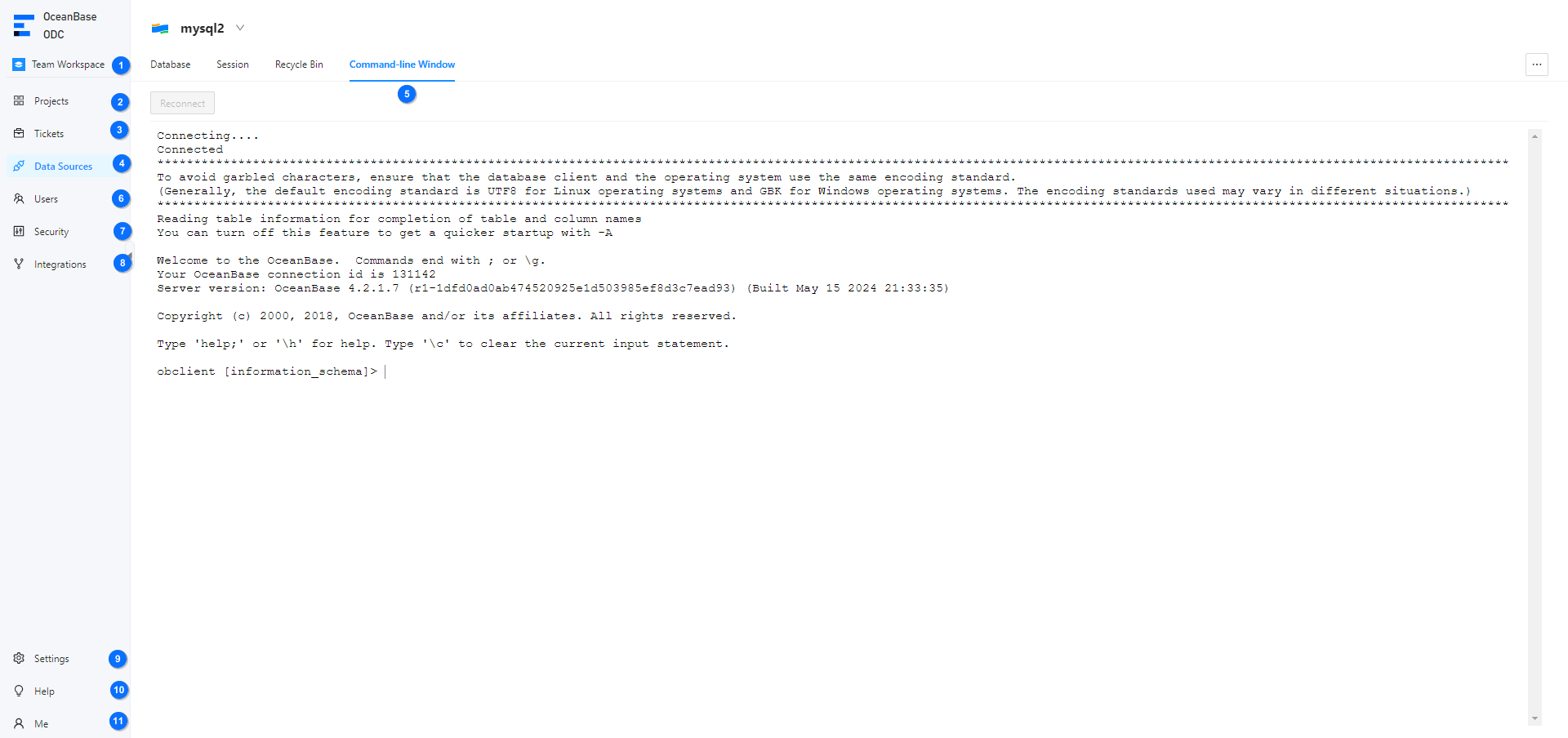
1

No.
Module
Description
1 Workspace You can click Team Workspace or Individual Workspace to switch between the two workspaces.
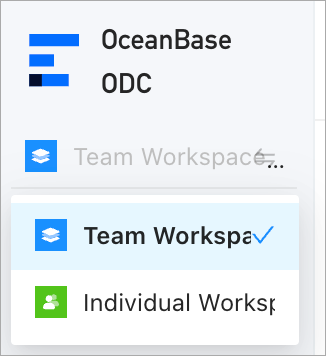
  • Team Workspace: provides unified control rules for multiple projects and members to ensure efficient team collaboration and secure data source changes.
  • Individual Workspace: allows you to flexibly manage and change data sources without configuring complex control rules.
2
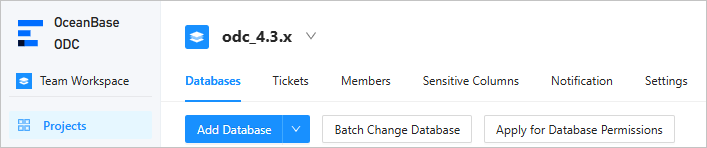
2 Projects You can create projects as the project administrator and configure members and databases for projects. A project contains four types of resources: databases, tickets, members, and sensitive data. A project is the minimum unit of collaboration. Tickets are most commonly used for collaboration in a project. Sensitive data is the subject for data desensitization strategies.
3
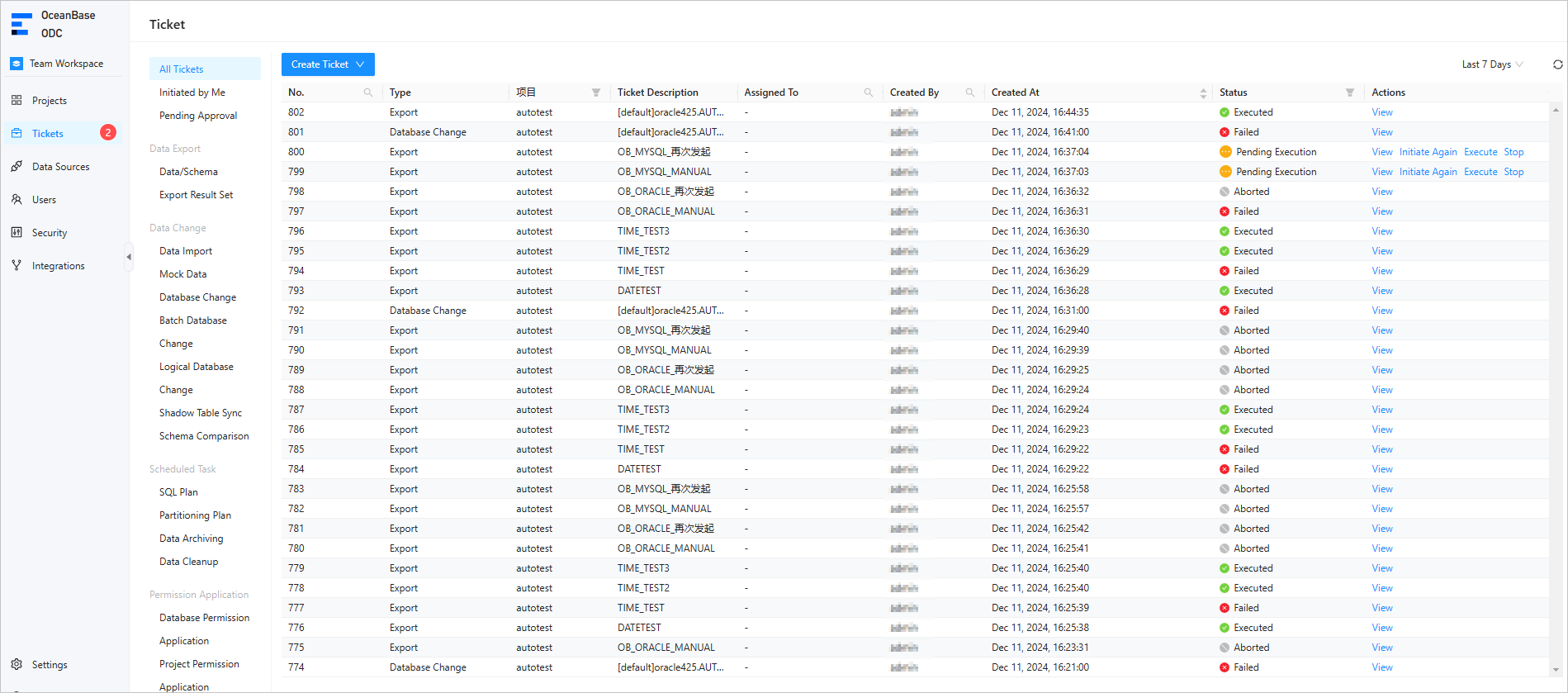
3 Tickets You can submit a ticket to perform operations such as importing, exporting, mocking, and archiving data, modifying a database, implementing lock-free structure changes, and managing SQL plans. You can also review the created tickets.
4
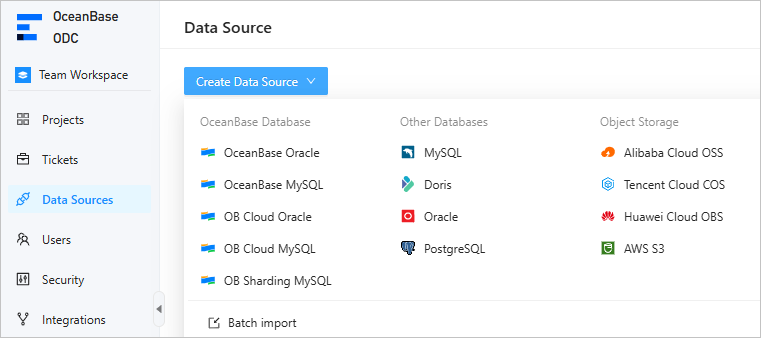
4 Data Sources ODC allows you to connect to OceanBase Database and MySQL Database to edit and manage data sources, including database objects and resources.
5
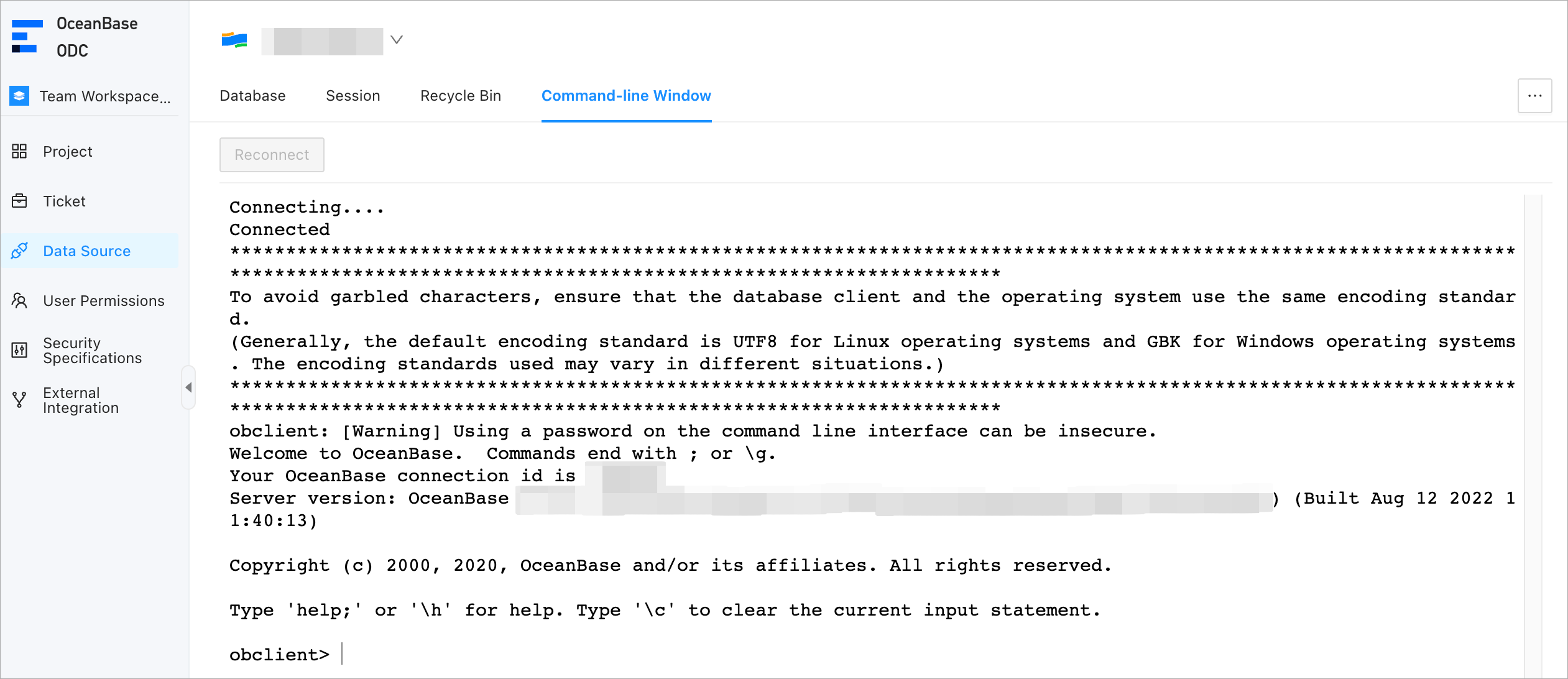
5 Command-line Window In a command-line window, you can directly execute SQL or PL statements and view the execution results in real time. You can also run the SOURCE command to run files uploaded to the server.
6
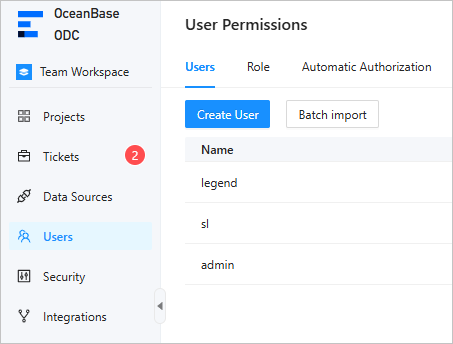
6 Users You can create and edit users as the ODC system administrator and assign roles to users to grant them the permissions on resource management and system operations. You can also configure automatic authorization rules to automatically grant specific roles or permissions to users that meet the specified conditions.
7
7 Security On the Security page, you can perform the following operations:
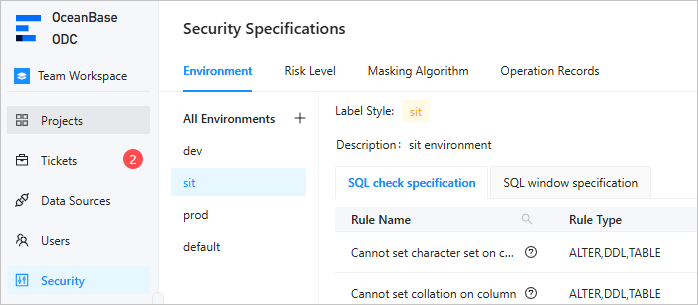
  • Manage SQL check and window specifications for different environments.
  • Configure risk identification rules to match approval processes for different risky operations.
  • View built-in data desensitization algorithms.
  • View the operation records of all users.
8
8 Integrations On the Integrations page, you can configure approval integration, SQL approval integration, and login integration.
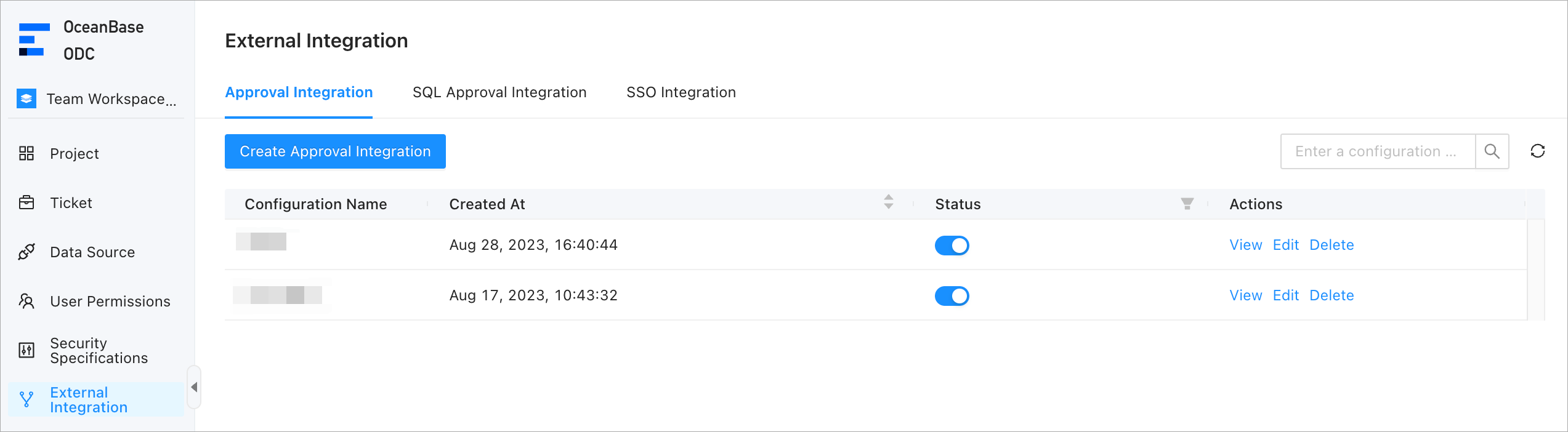
  • Approval Integration: You can integrate an external approval system with ODC for process approval.
  • SQL Approval Integration: You can integrate an external approval system with ODC for SQL interception check.
  • Login Integration: You can integrate an external account system with ODC for logon to ODC through single sign-on (SSO) by using OpenID Connect (OIDC) or Open Authorization (OAuth) 2.0.
9
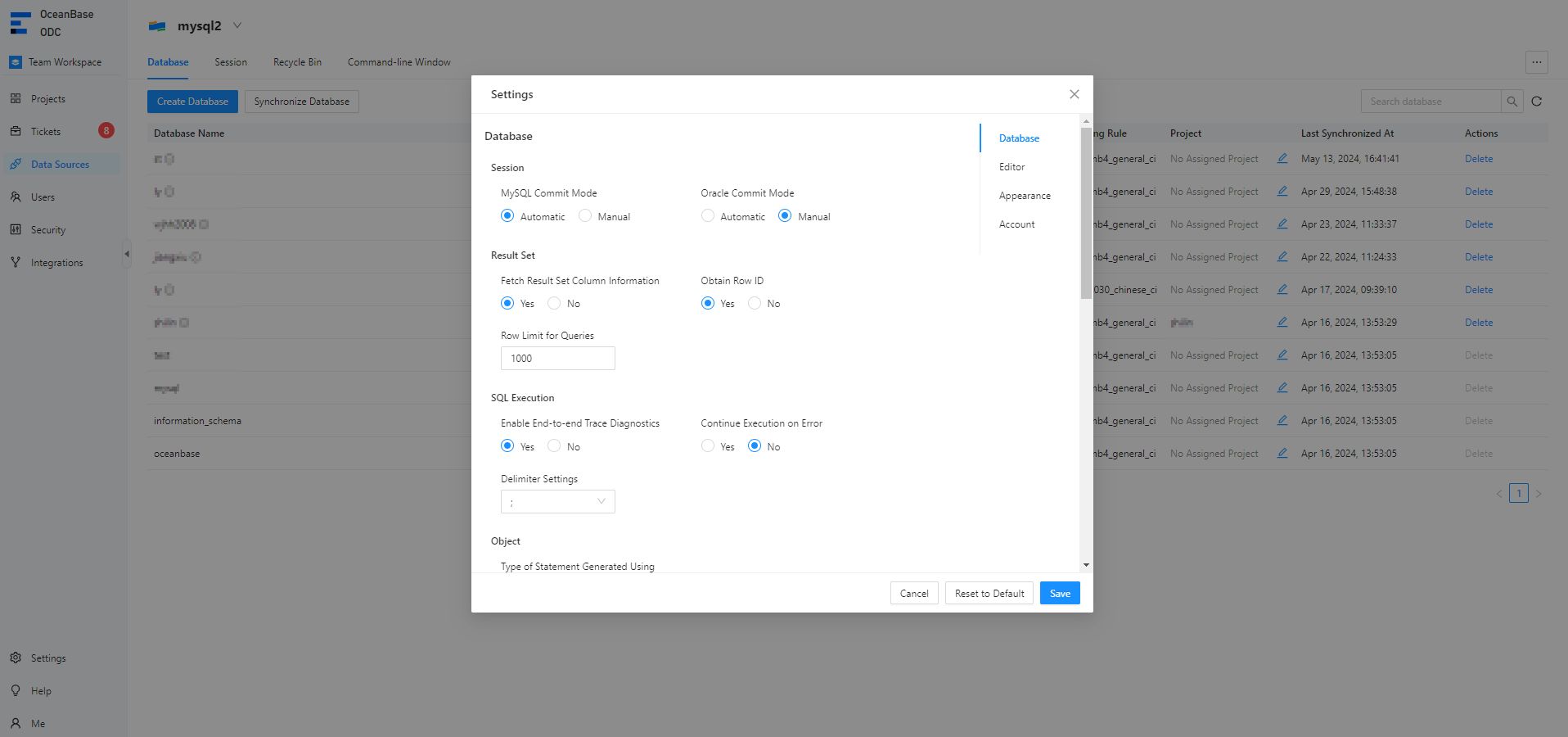
9 Settings On the homepage of ODC, click Settings in the lower-left corner to set the database, editor, appearance, and account.
10
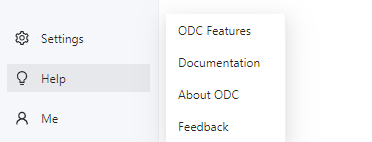
10 Help On the homepage of ODC, click Help in the lower-left corner to view tutorials for common ODC operations and new features of the current version. You can report questions to Github or support email.
11
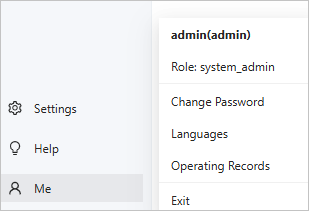
11 Me On the homepage of ODC, you can click Me in the lower-left corner. The menu that appears provides options for you to change the password, view the operation records, and log off.
12

SQL development window

After you log in to a database, go to the SQL development window.

12

No.
Module
Description
1 Workspace You can click Team Workspace or Individual Workspace to switch between the two workspaces.
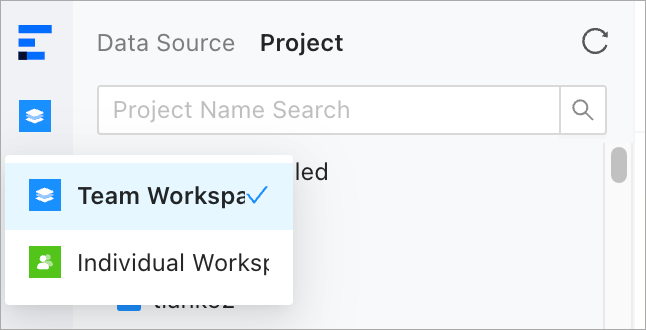
  • Team Workspace: provides unified control rules for multiple projects and members to ensure efficient team collaboration and secure data source changes.
  • Individual Workspace: allows you to flexibly manage and change data sources without configuring complex control rules.
13
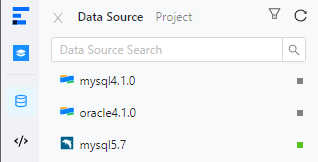
2 Databases You can create and manage database objects in databases of the data source or project.
14
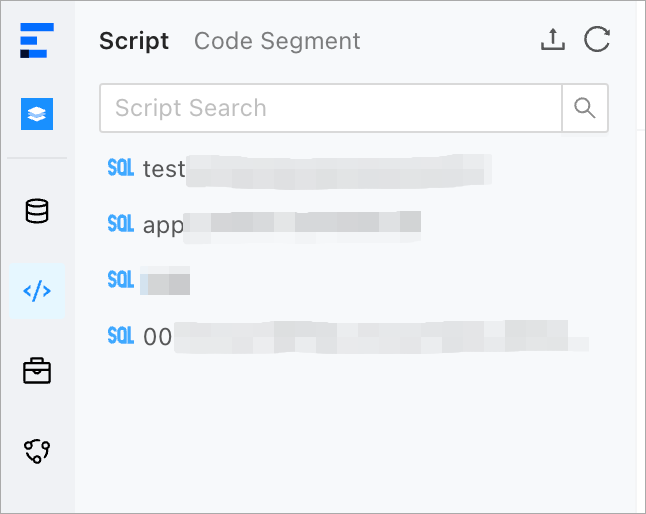
3 Scripts You can save edited scripts in the SQL Window and Anonymous Block Window and manage the saved scripts on the Script tab. You can also manage snippets on the Snippets tab.
15
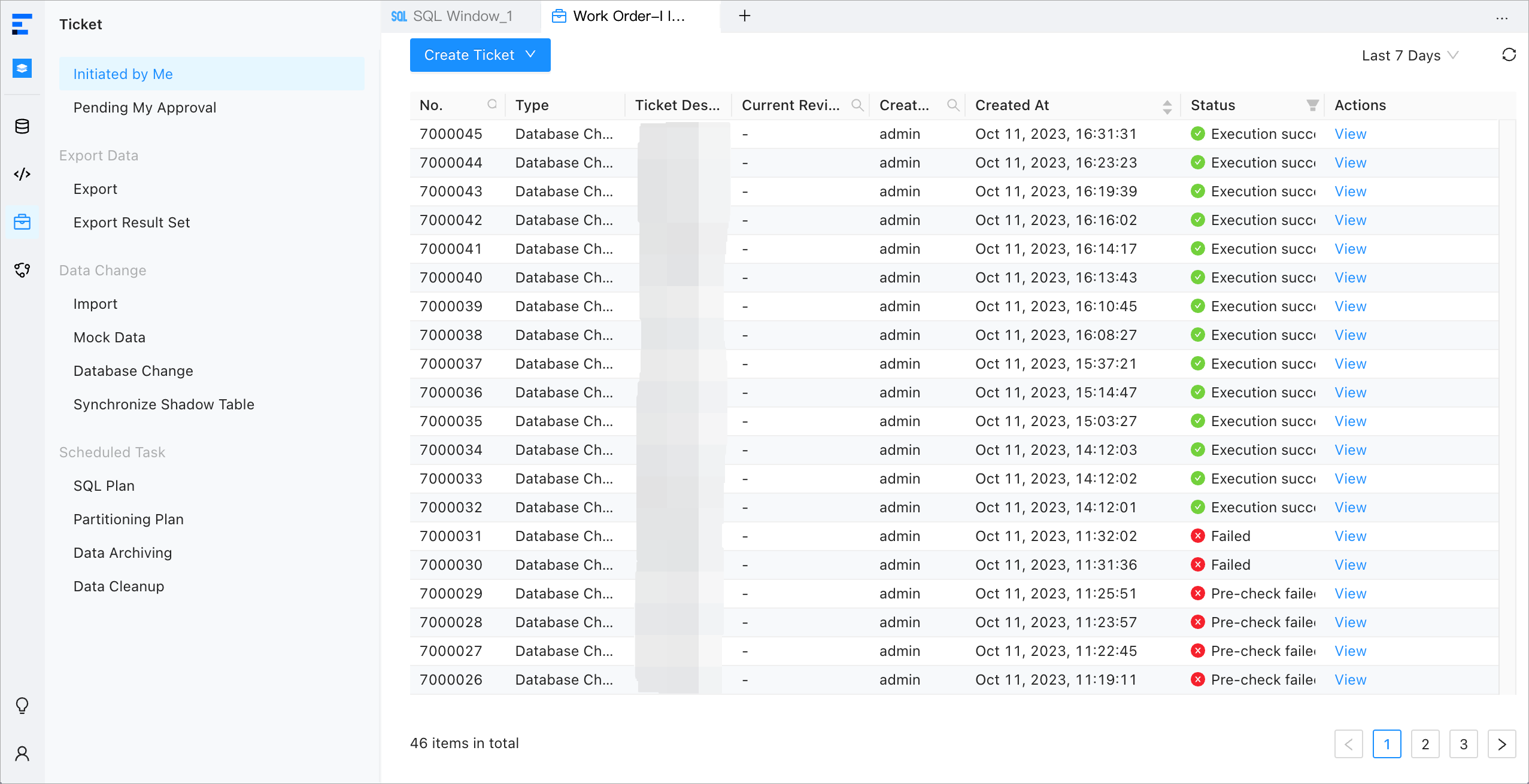
4 Tickets You can submit a ticket to perform operations such as importing, exporting, mocking, and archiving data, modifying a database, implementing online schema changes, and managing SQL plans. You can also review the created tickets.
16
5 O&M Management
  • Session Management: You can manage all sessions of the data source.
  • Global Variables: You can query and modify all variables of databases connected to the current data source.
  • Recycle Bin: You can query and restore deleted database objects.
17
6 SQL Window 18
  1. SQL editing section: You can edit and execute SQL statements in this section.
  2. Record tab: You can view the execution records of each SQL statement in the current connection.
  3. Logs tab: You can view the execution records of the current SQL window.
  4. Results tab: You can view the execution result of the current SQL statement.
7 Anonymous block window You can compile, run, and debug PL objects and anonymous blocks.

19

Previous topic

Limitations
Last

Next topic

Overview
Next
on this page
Project collaboration window
SQL development window

