OceanBase
English日本語简体中文
Docs Home
Products
Integrations
Release Notes

Databases

OceanBase DatabaseOceanBase Cloud OceanBase Best Practices

Tools

OceanBase Cloud PlatformOceanBase Migration ServiceOceanBase Developer CenterOceanBase Migration AssessmentOceanBase Admin ToolOceanBase Loader and DumperOceanBase DeployerKubernetes operator for OceanBaseOceanBase Diagnostic Tool OceanBase Binlog Service

Connectors and Middleware

OceanBase Database Proxy OceanBase Connector/C OceanBase Connector/J OceanBase Connector/ODBC OceanBase Connector/NETOceanBase Command-Line Client

Databases

OceanBase DatabaseOceanBase Cloud OceanBase Best Practices

Connectors and Middleware

OceanBase Database Proxy OceanBase Connector/C OceanBase Connector/J OceanBase Connector/ODBC OceanBase Connector/NETOceanBase Command-Line Client

Tools

OceanBase Cloud PlatformOceanBase Migration ServiceOceanBase Developer CenterOceanBase Migration AssessmentOceanBase Admin ToolOceanBase Loader and DumperOceanBase DeployerKubernetes operator for OceanBaseOceanBase Diagnostic Tool OceanBase Binlog Service
OceanBase DatabaseOceanBase Cloud ToolsConnectors and MiddlewareLifecycle Support Policy

OceanBase Developer Center

V4.3.2
  • Overview
    • What is ODC?
    • Features
    • Architecture
    • Limitations
    • ODC console
  • Quick Start
    • Client ODC
      • Overview
      • Install Client ODC
      • Use Client ODC
    • Web ODC
      • Overview
      • Deploy Web ODC
      • Use Web ODC
  • Data Source Management
    • Create a data source
    • Data sources and project collaboration
    • Database O&M
      • Session management
      • Global variable management
      • Recycle bin management
  • SQL Development
    • SQL editing and execution
    • Perform PL compilation and debugging
    • Use the command-line window
    • Edit and export the result set of an SQL statement
    • Execution analysis
    • Generate test data
    • Database objects
      • Table objects
        • Overview
        • Create a table
        • Manage tables
      • View objects
        • Overview
        • Create a view
        • Manage views
      • Function objects
        • Overview
        • Create a function
        • Manage functions
      • Stored procedure objects
        • Overview
        • Create a stored procedure
        • Manage stored procedures
      • Sequence objects
        • Overview
        • Create a sequence
        • Manage sequences
      • Package objects
        • Overview
        • Create a program package
        • Manage program packages
      • Trigger objects
        • Overview
        • Create a trigger
        • Manage triggers
      • Type objects
        • Overview
        • Create a type
        • Manage types
      • Synonym objects
        • Overview
        • Create a synonym
        • Manage synonyms
  • Import and Export
    • Import schemas and data
    • Export schemas and data
  • Database Change Management
    • User Permission Management
      • Users and roles
      • Automatic authorization
    • Project collaboration management
    • Risk levels, risk identification rules, and approval processes
    • SQL check specifications
    • SQL window specification
    • Database change management
    • Logical database change management
    • Batch database change management
    • Lock-free schema changes
    • Synchronize shadow tables
    • Schema comparison
  • Data Lifecycle Management
    • Archive data
    • Clean up data
    • Partitioning Plan Management
      • Manage partitioning plans
      • Set partitioning strategies
      • Examples
    • SQL plan task
  • Data Desensitization and Auditing
    • Desensitize data
    • Operation records
  • Notification Management
    • Overview
    • View notification records
    • Manage Notification Channel
      • Create a notification channel
      • View, edit, and delete a notification channel
      • Configure a custom channel
    • Manage notification rules
  • System Integration
    • Login integration
    • Approval integration
    • SQL approval integration
  • Deployment Guide
    • Deployment overview
    • Preparations before deployment
    • Deploy ODC in single-node mode
    • Deploy ODC in high-availability mode
    • Deployment verification
  • Upgrade Guide
    • Upgrade Overview
    • Preparations before upgrade
    • Update single-node ODC
    • Update high-avaliability ODC
    • Upgrade verification
    • Rollback after upgrade failed
  • Troubleshooting
    • ODC troubleshooting process
    • Collect Message
      • View the runtime environment and version information
      • View web ODC logs
      • View client ODC logs
      • View end-to-end ODC-related logs
      • View ODC MetaDB data
      • Query the index status in OceanBase Database V4.x
      • Query the index status in OceanBase Database V1.4.x to V3.2.x
      • Collect JVM runtime information
      • Use tcpdump to capture packets
    • Common Troubleshooting
      • Deployment Upgrade
        • Web ODC cannot be accessed after startup
      • Database Connection
        • Access denied in a connection trial or test
        • Connection is refused in a connection trial or test
        • Connection times out
        • `Connection reset` is reported for a time-consuming statement
        • `socket write error` or `closed by server` is reported for a connection
      • SQL Execution
        • Disconnection during SQL execution
        • `Over tenant memory limits` is reported during SQL execution
        • `Unknown thread id` is returned during SQL execution
        • `timeout` errors returned during SQL execution
        • `OutOfMemoryError` is returned during SQL execution
        • Incomplete result columns for the SELECT statement
        • Garbled Chinese characters in the SQL execution result set
        • Garbled Chinese data is returned for query of data in GBK encoding
      • PL Object
        • Debugging is not supported for invalid PL objects
        • `JSONException` is reported during PL debugging
        • Garbled variable values in debugging
        • Failed to view PL objects or garbled characters are returned
        • PL objects cannot be executed or an execution error is returned
        • ODC issues during PL debugging
        • PL anonymous block cannot be debugged
        • Alert information of a PL object is unavailable
      • Import and Export
        • Garbled Chinese characters in an imported file in GBK encoding
        • Invalid ZIP package reported during file import
        • Time-type data exported from an Oracle tenant cannot be imported
        • Mismatched columns reported during the import of a single-table CSV file
        • Failed to export a result set in ODC to an Excel file
        • Incorrect display in Excel for a result set exported in CSV format
        • Incomplete data in batch export of multiple tables
        • `javax.crypto.BadPaddingException: Given final block not properly padded` is returned for a data import or export failure
      • Client ODC Problems
        • Client ODC startup failure / H2 Database corruption: Chuck not found
        • Garbled Chinese characters in the command-line window of ODC
        • Failed to install client ODC
        • Client ODC startup failure or no response
        • `Not a valid secret key` is returned for connection creation in client ODC
        • `User does not exist` returned for connection creation in client ODC
        • High memory usage of client ODC
        • Client ODC fails to be installed or start due to a port conflict
      • Front Page Exception
        • JavaScript exception is thrown on the ODC page
        • No response in browser after opening ODC
        • White screen in ODC
      • Account Password Problem
        • Forgot the admin account password in ODC V3.2.0 or later
        • Forgot an account password in ODC V2.4.1 to V3.1.3
        • Forgot an account password in ODC V2.4.0 or earlier
    • FAQ
      • Installation of client ODC
      • Web ODC deployment and startup
      • Connection Information
      • Command-line window
      • DDL statement display
  • Release Note
    • V4.3
      • ODC V4.3.2
      • ODC V4.3.1
      • ODC V4.3.0
    • V4.2
      • ODC V4.2.4
      • ODC V4.2.3
      • ODC V4.2.2
      • ODC V4.2.1
      • ODC V4.2.0
    • V4.1
      • ODC V4.1.3
      • ODC V4.1.2
      • ODC V4.1.1
      • ODC V4.1.0
    • V4.0
      • ODC V4.0.2
      • ODC V4.0.0
    • V3.4
      • ODC V3.4.0
    • V3.3
      • ODC V3.3.3
      • ODC V3.3.2
      • ODC V3.3.1
      • ODC V3.3.0
    • V3.2
      • ODC V3.2.3
      • ODC V3.2.2
      • ODC V3.2.1
      • ODC V3.2.0

Download PDF

Document Feedback
  1. Documentation Center
  2. OceanBase Developer Center
  3. V4.3.2

Use Client ODC

Last Updated:2026-09-03 09:10:53

Create a data source
Edit and execute SQL statements
References

This topic describes some basic operations for using Client ODC.

Create a data source

Example: Create a data source in ODC for an OceanBase database in MySQL mode.

Parameter
Example value
Data Source Name mysql4.2.0
Host IP Address xxx.x.x.x
Port 8080
Database Username odc
Database Password ******
Sys Tenant Account test
Sys Tenant Password ******
  1. Obtain the connection information or connection string of the data source instance. A connection string is in the format of mysql -h host name -P port number -u database username@tenant name # cluster name -D default database -p 'database password'.

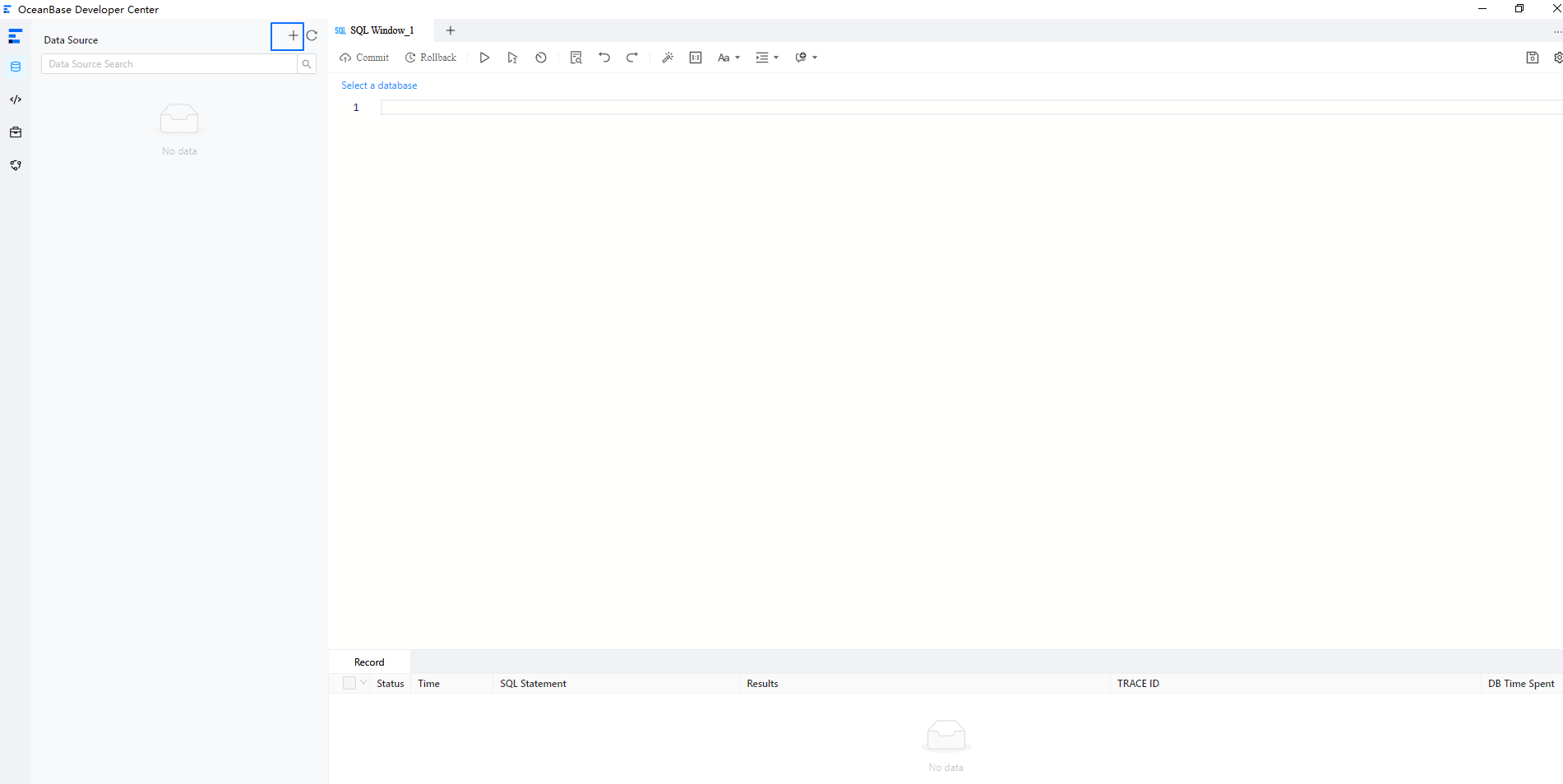
  2. In the left-side navigation pane, choose + > Create Data Source next to Data Sources.
    1

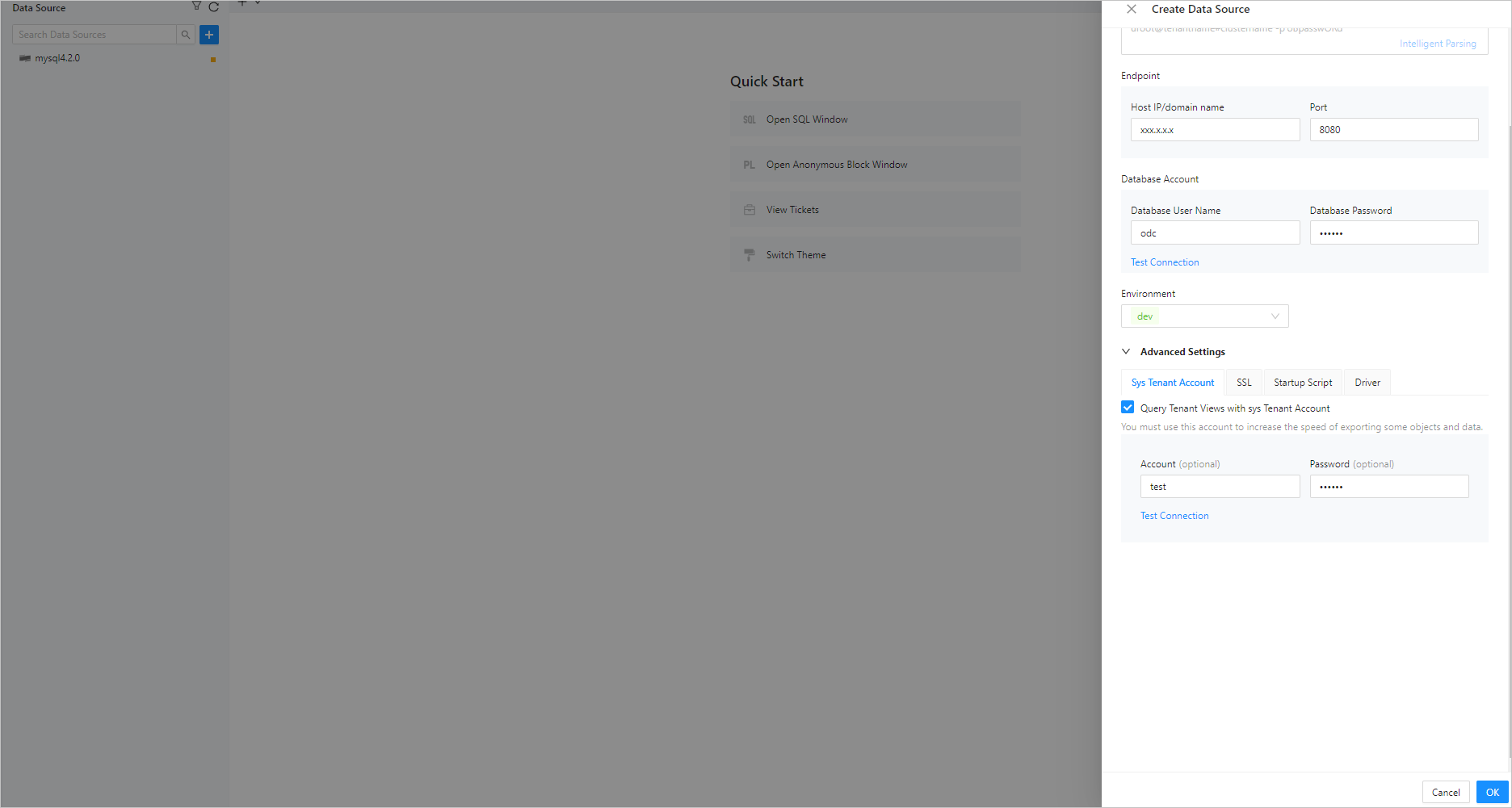
  3. In the Create Data Source panel that appears, specify the following information.

    Note

    If you already have the connection string of an OceanBase database, you can directly obtain the required information from the connection string or enter the required information by using the intelligent parsing tool provided on the tab.
    2

    Parameter
    Description
    Data Source Type OceanBase is selected by default.
    Intelligent Parsing You can paste a connection string to the field. ODC automatically identifies the string and fills in the corresponding value.
    Type The type of the database to be connected. ODC supports the following database types:
    • Independent Deployment/Apsara Stack (OceanBase MySQL/OceanBase Oracle): a database instance deployed in your own environment.
    • Public Cloud (OceanBase MySQL Cloud/OceanBase Oracle Cloud): a database instance deployed on Alibaba Cloud.
    • Logical Database (OceanBase MySQL Sharding): a logical databases, which supports only the MySQL mode.
    Endpoint
    • Host IP: the IP address of the server where the target database is located.
    • Port: the port number of the server where the target database is located.
    • Cluster: the name of the cluster where the target database is located. This parameter is not required for logical databases.
    • Tenant: the name of the tenant in which the target database is located. This parameter is not required for logical databases.
    **Note **
    You can obtain the host name and port number from the details page of the tenant in which the target database is located, such as a tenant created on Alibaba Cloud or in OceanBase Cloud Platform (OCP).
    Database Account
    • Account: the username of an account created in the tenant. In MySQL mode, this account must have the privilege to access the default database.
    • Password: the password of the account created in the tenant. You can click Test Connection next to the password field to test whether you can connect to the target database.
    Note
    • An error will be returned if the configurations such as the username, password, and network settings are invalid.
    • You can only connect to a database in the current tenant. Otherwise, a test failure error will be returned.
    • Before saving the settings, you can click Test Connection to test the database connection. If the database username and password are correct, Connection succeeded is displayed. If you use ODC V4.0.0 and later, you can save the connection without setting the database account and password.
    Environment The type of the environment. Valid values: Development, Test, and Production.
    Advanced Settings
    • sys Tenant Account: If you select Query Tenant Views with sys Tenant Account, you must specify Account and Password. When the database is a physical database, you can specify an account that has the permission to query the sys tenant views and the password. This field is automatically populated when sys is specified as the tenant in Endpoint.
      • Account: the username of an account that has the permission to query views in the sys tenant.
      • Password: the password of the account.
      After you specify the account username and password, you can click Test Connection next to the password field to verify whether the account information is valid.
    • SSL: Choose whether to enable SSL link encryption to ensure secure data transmission between clients and servers.
      Before you enable SSL in ODC, make sure that SSL is enabled for the OBServer nodes. If you connect to the OBServer nodes by using ODP, make sure that SSL is enabled for ODP. For more information about how to enable SSL for an OBServer node, see Transmission encryption of OBServer nodes and SSL link encryption.
    • Startup Script: You can configure a connection session by using an SQL statement. For example, you can execute the set session ob_query_timeout=60000000 statement to configure a connection session.
    • Driver: You can configure driver attributes to connect to OceanBase Database and implement specified features.

    Note

    • To use the import/export feature in ODC V2.3.0 and later, you must configure the root@sys account in Advanced Settings when you create a connection.
    • When you use the import/export feature to query views in ODC V2.4.1 and later, the root@sys account is not a must. Specifically, if you do not configure the root@sys account, some objects such as stored procedures and functions cannot be exported from ODC. If you configure the root@sys account, you can query views in the sys tenant to obtain the optimal data routing strategy, thereby increasing the export speed.
    • The account username and password of the sys tenant are the account username and password of a user in a cluster tenant. Do not specify the account username in the "@sys#cluster" format. For example, the root account can be used.
    • By default, the REQUIRE NONE option is specified when you create a user. The REQUIRE NONE option specifies that no encryption method is used. In this case, if you select Enable SSL, an SSL connection is created. Otherwise, a regular connection is created.
    • If the REQUIRE SSL option is specified when you create the user, you must select Enable SSL to create an SSL connection. Otherwise, the connection fails.
      If the user is created by specifying the REQUIRE SSL option, you do not need to upload the certificates, but you must select Enable SSL. Otherwise, the connection fails. We recommend that you upload the following certificates for identity verification:
      • CA certificate for the client to verify the identity of the server.
      • Client key and client certificate for the server to verify the identity of the client.
    • If the user is created by specifying the REQUIRE X509 option, you must select Enable SSL and upload the CA certificate, client key, and client certificate. The client and the server verify the identity of each other. If you do not select Enable SSL or upload the CA certificate, you cannot create the connection.

    Note

    For more information about how to configure a data source, see Data source management.

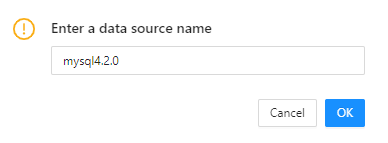
  4. Click OK in the lower-right corner of the panel. In the dialog box that appears, enter a connection name.
    3

Edit and execute SQL statements

Example: In the SQL window, create a table in the database of the target project.

Parameter
Example value
Data Source mysql4.2.0
The name of the database. odc_test
The name of the table. employee
  1. In the SQL window, click Select a database to select the project database.

    4

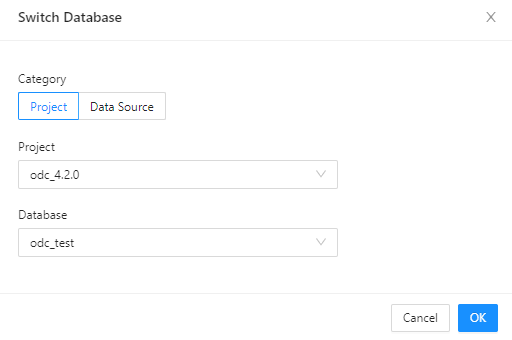
  2. In the Switch Database dialog box, select the target database to which the project belongs.
    5

  3. In the SQL window, edit the following SQL statements to create a table named employee.

    6

    CREATE TABLE odc_test.employee (
    emp_no int(120) COMMENT 'Employee ID' NOT NULL,
    birthday date COMMENT 'Birthday' NULL,
    name varchar(120) COMMENT 'Employee name' NULL,
    CONSTRAINT cons_employee_empno PRIMARY KEY (emp_no)) DEFAULT CHARSET = utf8mb4 COLLATE = utf8mb4_general_ci;
    
  4. After the SQL statements are edited, click Run F8 in the toolbar to run all SQL statements in the current SQL window.

    Feature
    Description
    Run F8 Runs all SQL statements in the current window.
    Run the current statement F9 Runs all the selected SQL statements or the SQL statement in the line where the pointer is located.
    Abort Aborts the statement that is being executed.

    7

  5. On the Results tab, view the execution records and logs.

    8

References

  • User permissions management

  • Data source management

  • Project collaboration management

  • SQL development

Previous topic

Install Client ODC
Last

Next topic

Overview
Next
on this page
Create a data source
Edit and execute SQL statements
References