
Background information
Generally, when you change the schema of a table, the table must be locked, which will block business requests. To resolve this issue, ODC V4.2.0 and later provide the lock-free schema change feature. This topic describes how to submit a ticket to perform a lock-free schema change task.
Notice
Lock-free schema change tasks are supported only in the MySQL tenant of the OceanBase database, and the enterprise or community edition of OceanBase Migration Service (OMS).
Technical mechanism
The principle of a lock-free schema change involves creating a temporary table, copying the data from the original table to the temporary table, altering the structure of the temporary table, then copying all the data back to the original table, and finally switching to the new table.
Create a temporary table.
Change the schema of the temporary table.
Copy all data.
Synchronize incremental data.
Verify the data consistency.
Kill the session.
Switch to the new table.
Execution process

Initiate a lock-free schema change ticket.
Perform a precheck on the entered SQL statement.
Approve the task process.
Execute the lock-free schema change task.
Operations supported for lock-free schema changes
Category |
Operation |
Supported |
Remarks |
|---|---|---|---|
| Column operations | Change the column type | Yes | |
| Rearrange columns (to move a column before or after another or to the first position) | Yes | ||
| Change the character set | Yes | ||
| Rename columns | No | ||
| Add columns | Yes | ||
| Drop columns | No | ||
| Add primary key columns | No | ||
| Primary key operations | Add a primary key | Yes | The target table must have a non-null unique key. |
| Modify a primary key | Yes | The target table must have a non-null unique key. | |
| Drop a primary key | Yes | The target table must have a non-null unique key. | |
| Partition operations | Drop partitions | Yes | |
| Truncate partitions | Yes | ||
| Repartition a table | Yes | ||
| Change a non-partitioned table into a partitioned table | Yes | ||
Considerations
Make sure that the database has sufficient disk space.
Make sure that the table contains a primary key or a non-null unique key, and does not contain a foreign key.
If you execute other DDL operations on a table on which a lock-free schema change task is being performed, the task will fail.
The table name must not exceed 54 characters in length in MySQL mode of OceanBase Database.
When ODC connects to an instance of OceanBase Database Community Edition, the data source configuration information must contain the cluster name and a sys tenant account.
In MySQL mode of OceanBase Database of a version earlier than V4.3.0, ODC locks the user and closes the session to prevent data writes during table name switching.
If you execute other DDL operations on a table on which a lock-free schema change task is being performed, the task will fail.
Create a lock-free schema change task
This topic uses OceanBase community edition and enterprise edition of OMS as examples, demonstrating the scenario of changing the column type of birth in the table student to date. The project name used in this example is odc_4.2.0, the database name is odc_test, and the table name is student.
(Optional) Install OceanBase Database Community Edition. If you have configured a cluster, skip this step.
Note
When you create an OceanBase data source in OMS, the cluster name must be specified. If OceanBase Database is in single-node mode, you cannot create a data source. For more information about how to deploy a cluster, see Solution 2: Deploy an OceanBase cluster.
Install ConfigServer.The config server serves as an API for OceanBase Database Proxy (ODP) to fetch the RootService list of OceanBase Database. After the config server address is configured, OceanBase Database automatically registers the RootService list with the config server.
Note
If you deploy a cluster by using OceanBase Cloud Platform (OCP) rather than OCP Express, skip this step. For a cluster created in OCP, the OCP address is automatically set as the config server address of OceanBase Database.
Install OMS-CE 4.2.0_ce. You can obtain an OMS version that supports lock-free schema changes by using Docker.
Configure ODC metadata and enable the lock-free schema change feature.
a. Configure OMS information in ODC.
Connect to the MetaDB of ODC and configure the URL and logon authorization information of OMS. The URL of OMS is in the format of
http://${oms_host}: ${oms_port}. The authorization information of OMS is a Base64-encoded value in the format ofusername:password. After the configuration, restart ODC for the configured OMS information to take effect.The syntax is as follows:
# Configure the URL of OMS.
update config_system_configuration set `value` = '${oms_url}' where `key` = 'odc.osc.oms.url';

# Configure the authorization information of OMS.
update config_system_configuration set `value` = '${oms_authornazition}' where  `key` = 'odc.osc.oms.authorization';

# Configure the region of OMS, such as cn-anhui.
update config_system_configuration set value = '${oms_region}' where `key` = 'odc.osc.oms.region'
Here is an example:
# Set the URL of OMS to http://localhost:8089.
update config_system_configuration set `value` = 'http://localhost:8089' where `key` = 'odc.osc.oms.url';

# Configure the authorization information of OMS. In this example, the username is `test` and the password is `123456`, which are Base64-encoded into `dGVzdDoxMjM0NTY=`.
update config_system_configuration set `value` = 'dGVzdDoxMjM0NTY=' where `key` = 'odc.osc.oms.authorization';

# Configure the region of OMS, such as cn-anhui, which is specified when OMS is installed. For more information, see the OMS installation procedure.
update config_system_configuration set value = 'cn-anhui' where `key` = 'odc.osc.oms.region'
b. Enable the lock-free schema change feature. At present, the lock-free schema change feature is available for ApsaraDB for OceanBase but unavailable for OceanBase Database Community Edition. Therefore, you must configure the MetaDB of ODC and enable this feature by using an SQL statement.
update config_system_configuration set value = 'true' where `key` = 'odc.features.task.osc.enabled';Create a data source in ODC and synchronize data to it.
Notice
You need to configure the
systenant when using ODC in OceanBase Database Community Edition.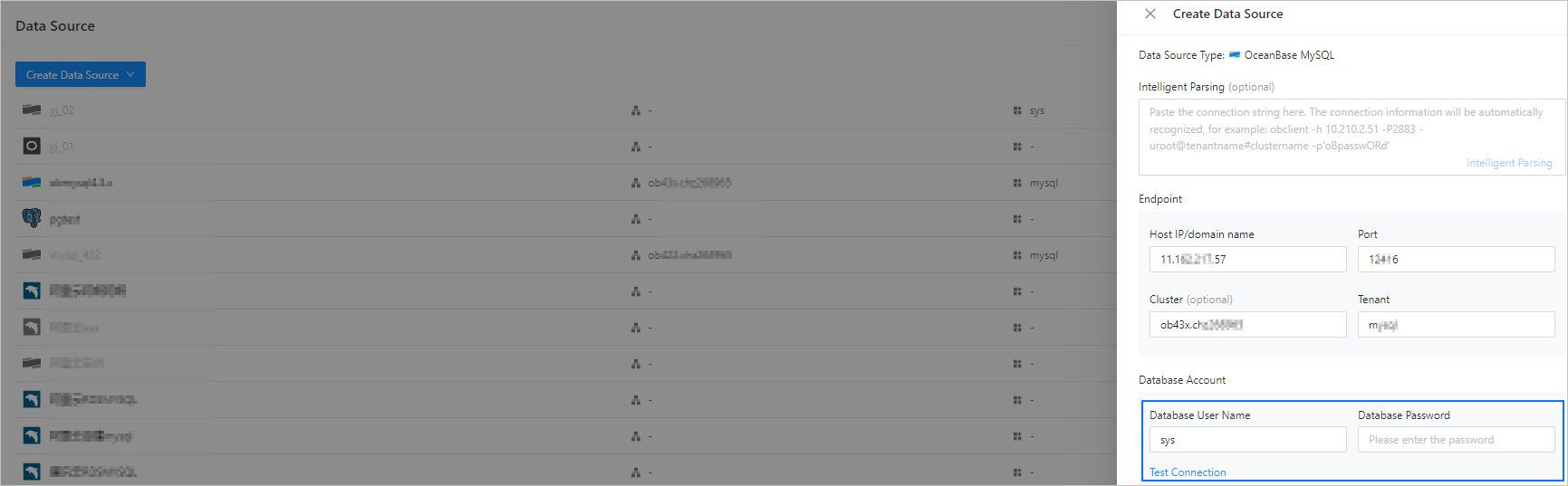
In the SQL window, write an SQL statement to create a table named
studentin theodc_testdatabase.
Lock an account / lock a table.
For versions of OceanBase MySQL prior to V4.2.5, table locking is not supported when you change the schema of a table. You need to specify the account to be locked. When switching to the new table (
Rename), ODC will execute thealter table user lock accountcommand for the locked account and close the session to terminate all processes under the locked account.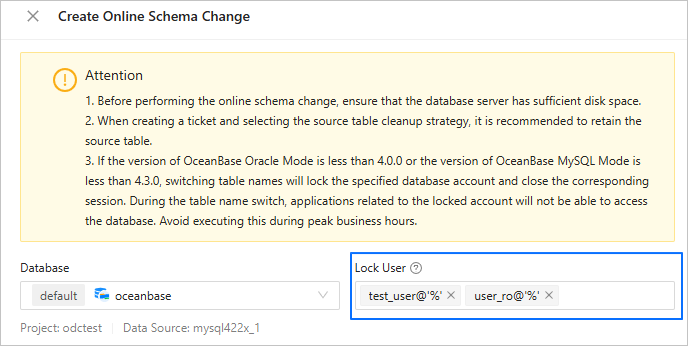
For versions of OceanBase MySQL V4.2.5 and later, ODC no longer uses account locking for table locking when you change the schema of a table. You need to ensure that the OBProxy version is V4.3.1 or later, and perform the following steps before executing a lock-free schema change task to successfully lock the table; otherwise, the table lock will fail.
Modify OBProxy parameters.
alter proxyconfig set proxy_id=1;
alter proxyconfig set client_session_id_version=2;
alter proxyconfig set enable_single_leader_node_routing = false;
Modify tenant-level parameters.
alter system set enable_lock_priority=true;To verify if the table lock is successful, execute the
lock tablecommand on a temporary table through ODC. Then, using a new connection to insert data into the temporary table. If the data insertion is blocked, it indicates that the table lock task is effective.create table test_table(id int not null primary key); session 1: session 2 lock table test_table; insert into test_table values(1); blocking... unlock table test_table; data insertion successful
Create a lock-free schema change task.
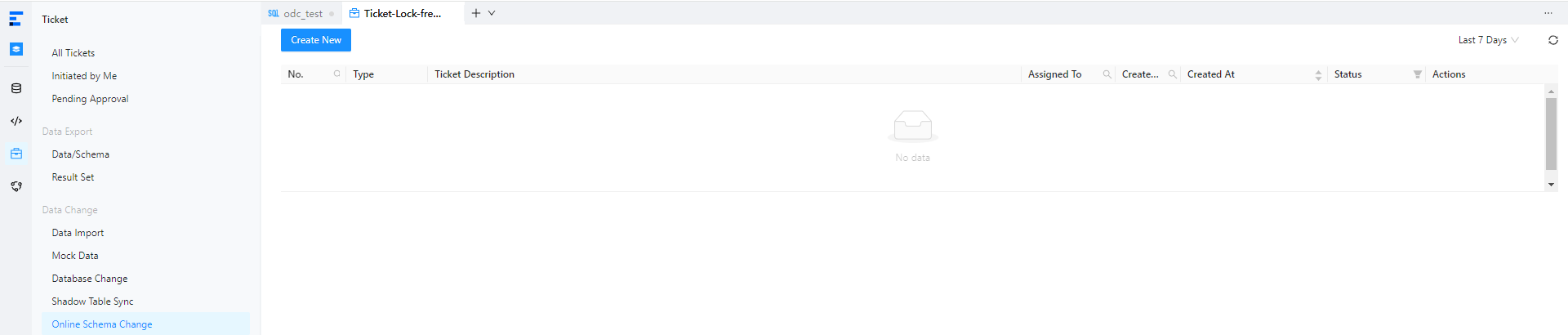
a. On the Tickets tab, choose Lock-free Schema Change > Create New.
b. In the Create Lock-free Schema Change panel, configure the following parameters.
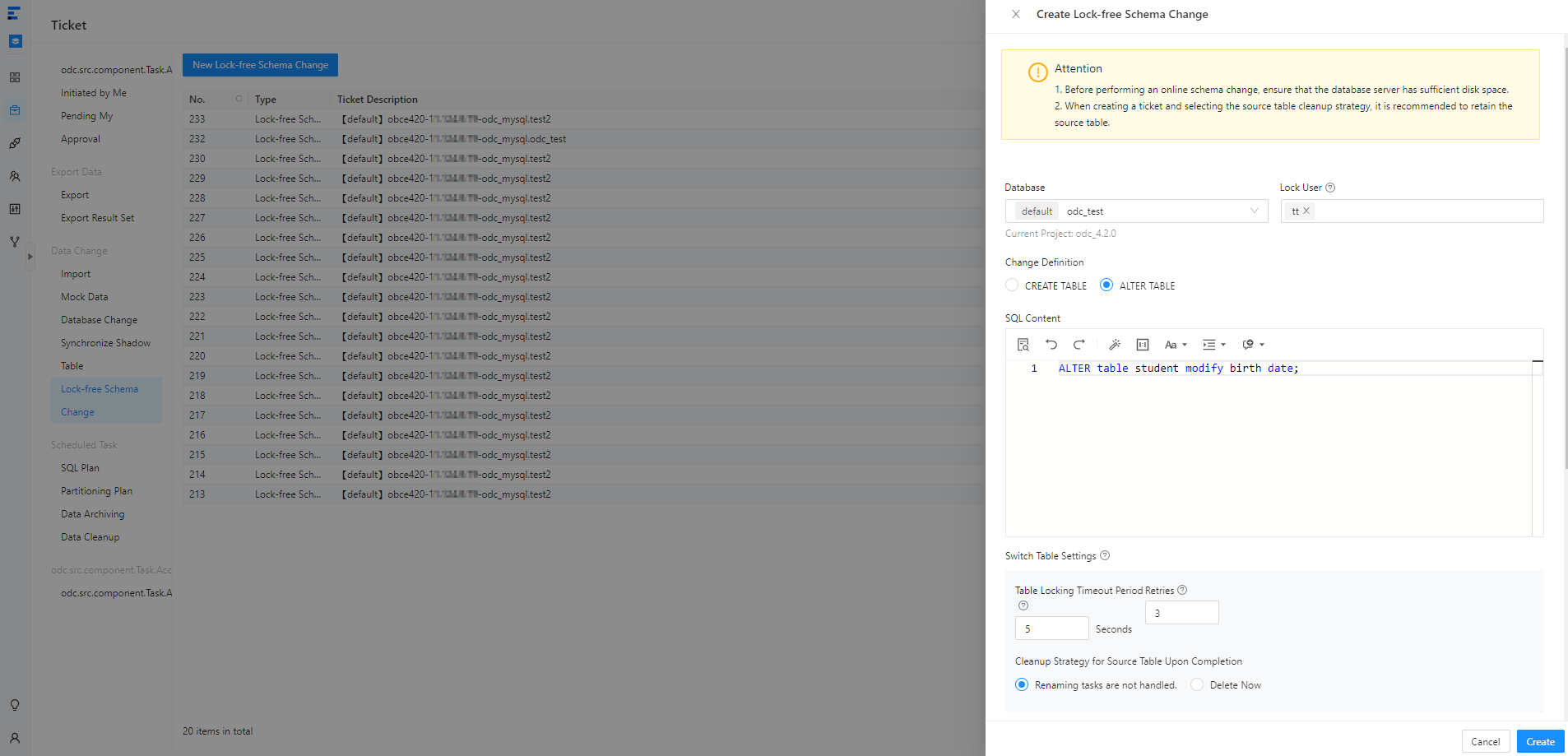 ParameterDescription
Database Select the database to which the database change task belongs. Lock User - If you specify to lock a user, ODC will lock the specified database account and close all sessions of this account before table name switching. This is to reduce the impact on businesses while ensuring data consistency during table name switching.
- If no account is specified, ODC will not lock any account or close any session. In this case, you must manually ensure data consistency during table name switching.
Note
You can not execute the lock-free schema change tasks of a table and its related table simultaneously.
Change Definition - CREATE TABLE: If other syntaxes are not supported in OceanBase Database, you need to use the CREATE statement.
- ALTER TABLE: In OceanBase Database V4.0.0 and later, you can use the ALTER statement in ALTER TABLE OFFLINE mode.
SQL Content Enter the SQL script in the editing section. Switch Table Settings Switch to the target table after data consistency is verified. - Table Locking Timeout Period: The table is locked during table switching. If table switching is not completed within the timeout period, the switching fails.
- Retries: If table switching is not completed within the specified period of time, a retry can be automatically initiated.
- Cleanup Strategy for Source Table Upon Completion: You can select Renaming tasks are not handled to rename the source table without deleting it, or select Delete Now to delete the source table after the lock-free schema change task is completed.
Task Settings - Select Execute Now or Scheduled Execution.
- The lock-free schema change tool provides two error handling methods:
- Abort Task: This is the default option. When you select this option, the task is aborted if an error occurs when you run the script.
- Ignore Error and Continue: When you select this option, the system skips the statement where an error occurs and continues to execute other statements in the script.
- Select Automatic Switch or Manual Switch.
- Configure a throttling strategy.
- Row Limit: limits the total number of data rows operated per second.
- Data Size Limit: limits the total size of data operated per second.
Notice
You can configure a throttling strategy only for ApsaraDB for OceanBase.
Remarks Optional. Additional information about the task, which cannot exceed 200 characters in length. c. Click Create.
d. After the lock-free schema change task is generated, choose Tickets > Lock-free Schema Change and view the task information in the task list.

View a lock-free schema change task
View task information
In the lock-free schema change task list on the Ticket tab, click View in the Actions column of the target task.
In the Task Details panel, click the Task Information tab to view the database, type, risk level, SQL content, and rollback statement of the task.
Click Initiate Again to initiate the lock-free schema change task again.
View task process
In the Task Details panel, click the Task Process tab and view information such as the task initiation status, approval status, execution status, and execution result.
View execution records
In the Task Details panel, click the Execution Records tab to view the DDL statements of the new and source tables.
View task logs
In the Task Details panel, click the Task Logs tab to view all logs and alert logs of the task.
Parameter |
Description |
|---|---|
| All Logs | Displays the complete information of all task logs, including INFO, ERROR, and WARN logs. You can click Search, Download, or Copy to search for, download, or copy all logs. |
| Alert Logs | Displays the ERROR and WARN logs of the task. When a task fails, you can view the error messages in the alert logs. You can click Search, Download, or Copy to search for, download, or copy alert logs. |