
Background information
OceanBase Developer Center (ODC) allows you to export the schemas and data of database objects in batches.
You can create an export task to export both the schemas and data, only the data, or only the schemas of database objects.
Export schemas and data: Definition statements and data of database objects are exported.
Export data only: Only data of table or view objects is exported.
Export only schemas: Only definition statements of database objects are exported.
Export format
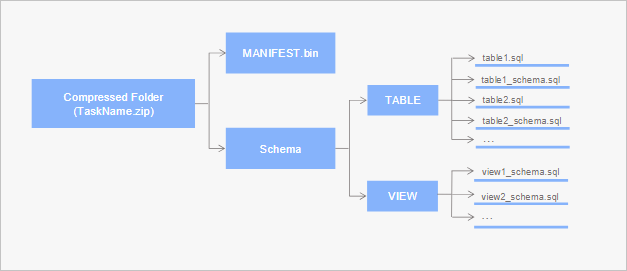
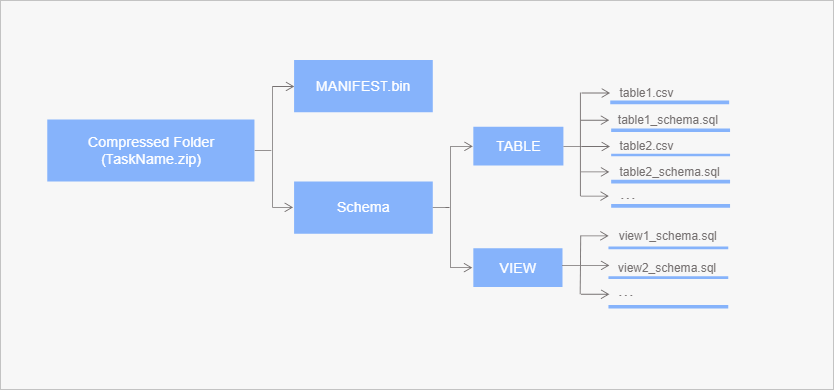
ODC exports data in a .zip file, which contains the metadata file MANIFEST.bin, the schema definition files of the exported objects, and the data files.
When you create an export task, if you set Data Format to SQL Format, the .zip file contains schema definition files named in the format of object name-schema.sql and data files named in the format of object name.sql. The object names are the same as those in the database.
If you set Data Format to CSV Format, the .zip file contains schema definition files named in the format of object name-schema.sql and data files named in the format of object name.csv. The object names are the same as those in the database.
Considerations
The maximum size of data exported in one batch in ODC cannot exceed 2 GB before compression. To export data of a larger size, use the data export tool OBDUMPER.
At most five concurrent export tasks are supported. Subsequent tasks need to wait in the queue.
By default, files related to export tasks are retained for 14 days.
In ODC of a version later than V4.1.0, you can configure a sys tenant account for an OceanBase data source to increase the export speed. When you export objects other than tables and views, a sys tenant account is no longer a must.
Create an export task
Export schemas and data from an OceanBase database
Example: Export the schemas and data of the employee and student tables in the odc_test database to your local disk in batches.
Parameter |
Example value |
|---|---|
| Data source | mysql410 |
| Database name | odc_test |
| Table name | employee and student |
On the Ticket tab, choose Data Export > Create New.

In the Export panel, specify Export Content.
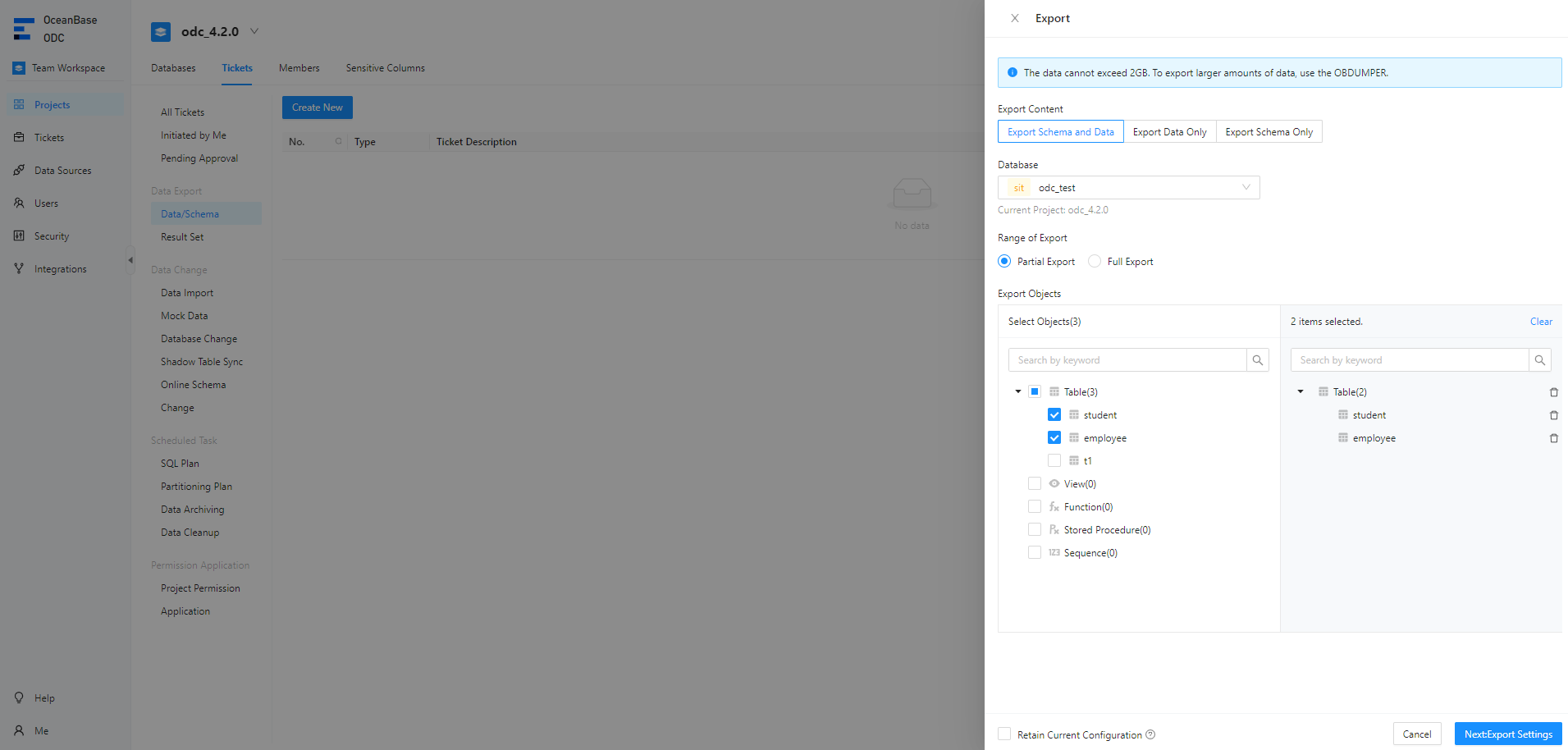
Select the database.
Select the database where the objects to export reside. The name of the data source for the database to which the task belongs is also displayed.
Notice
In MySQL mode of OceanBase Database, export is not supported for a built-in database.
Select the export scope.
You can select Partial Export or Full Export.
If you select Partial Export, you can select the objects you want to export in the Select Objects pane in the Export Objects section. You can use the search box to search for desired objects.
If you select Full Export, all objects in the database are exported.
Note
In ODC V4.2.2 and later, you can export type objects.
Go to the Export Settings panel.
Click Next: Export Settings to specify the file export settings and the sys tenant account.
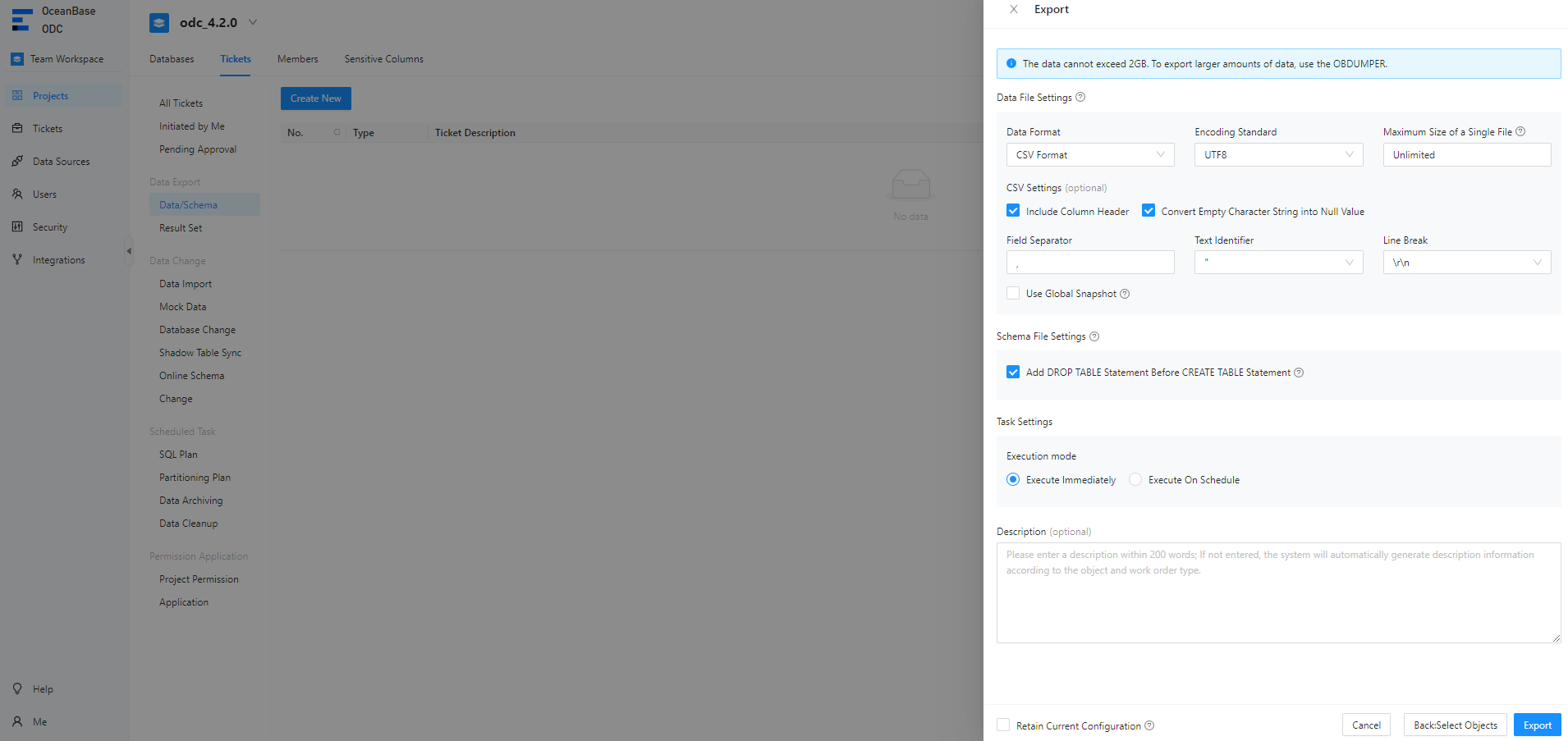
Configure data file settings.
Note
If you have selected Export Schema Only for Export Content, you do not need to configure data file settings.
ParameterDescriptionData Format ODC supports exporting data to files in the CSV format and SQL format. If you have selected Export Schema Only for Export Content, you can export data only to files in the SQL format. File Encoding ODC supports the following encoding standards: ASCII, ISO-8859-1, GB2312, GBK, GB18030, Unicode (UTF-8), Unicode (UTF-16), Unicode (UTF-32), and BIG5. Maximum Size of a Single File If you have selected Export Schema Only for Export Content, you do not need to set the maximum size of a single file.
You can set the maximum size of a single file. When the size of a file exceeds the specified value, it is automatically split. If you set this parameter to Unlimited, files will not be split.CSV Settings If you have selected CSV Format for Data Format and Export Schema and Data for Export Content, you can set the following parameters: - Include the Column Header: specifies whether to include column headers when data is exported in the CSV format. This option is selected by default.
- Convert the Empty String into a Null Value: specifies whether to convert empty strings in the table to NULL values when data is exported in the CSV format. This option is selected by default.
- Field Separator: specifies the separator between fields. The following signs are supported: commas (,), semicolons (;), and colons (:). You can also use a character as the separator.
- Text Identifier: specifies the identifier for the text content. Single quotation marks (') and double quotation marks (") are supported.
- Line Break Symbol: specifies the line break symbol. The following characters are supported: \n, \r, and \r\n.
Batch Commit Quantity This parameter specifies the number of rows exported that triggers the database to perform an autocommit when the data is exported as a file in the SQL format. In other words, a COMMITcommand is added to the exported file each time when the specified amount of data is exported.Use Global Snapshot If you select this option, ODC exports the data in the latest global snapshot of the specified table to ensure global data consistency. Configure schema file settings.
If you have selected Export Schema Only for Export Content, you can select Merge Exported Results into an SQL File. After you select this option, DDL statements are merged and exported as one SQL file.
Choose whether to select Add DROP TABLE Statement before CREATE TABLE Statement. If you select this option, a
DROPstatement is added before the correspondingCREATEstatement of an object when the schema files of the object are exported.
Select the task execution mode.
Select Execute Now or Scheduled Execution.
Complete the settings in the sys Tenant Settings section.
a. Choose whether to select the Use sys Tenant Account to Accelerate Import Task option. If you select this option, you must also specify Account and Password.
b. Click Test Connection next to the password field to verify whether the account information is correct. By default, the account for the connection settings is automatically filled in. If the connection fails, we recommend that you change the password for this export.
Notice
- The account and password of the sys tenant are the account and password of a user in a cluster tenant. Do not enter
@sys#clusterin the Account field. For example, you can set the account toodcand password to*******. - If no account of the sys tenant is specified, the import/export will be slow.
- The account and password of the sys tenant are the account and password of a user in a cluster tenant. Do not enter
Choose whether to retain the current settings.
You can select Retain Current Configuration in the lower-right corner to save the current data file and schema file settings.
Generate an export task.
After you specify all preceding information, you can click Export in the lower-right corner of the panel to create an export task.
Export schemas and data from a MySQL database
Note
In ODC V4.2.3 and later, you can export schemas and data from a MySQL database.
Example: Export the schemas and data of the employee and student tables of the odc_test database to your local disk in batches.
Parameter |
Example value |
|---|---|
| Data source | mysql8 |
| Database name | odc_mysql |
| Table name | employee and student |
On the Ticket tab, choose Data Export > Create New.
In the Export panel, specify Export Content.
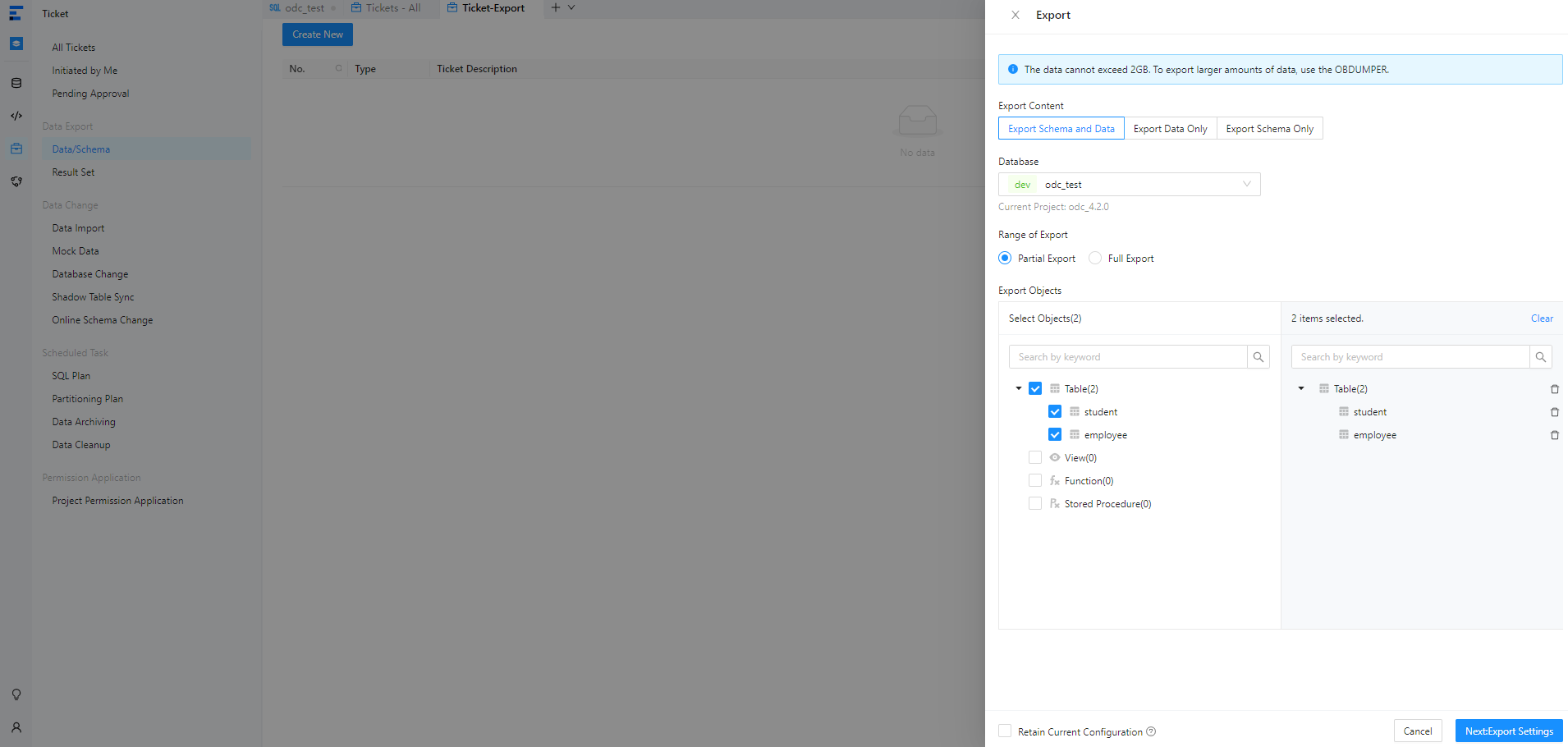
Select the database.
Select the database where the objects to export reside. The name of the data source for the database to which the task belongs is also displayed.
Notice
In MySQL mode of OceanBase Database, export is not supported for a built-in database.
Select the export scope.
You can select Partial Export or Full Export.
If you select Partial Export, you can select the objects you want to export in the Select Objects pane in the Export Objects section. You can use the search box to search for desired objects.
If you select Full Export, all objects in the database are exported.
Note
In ODC V4.2.2 and later, you can export type objects.
Go to the Export Settings panel.
Click Next: Export Settings to specify the file export settings and the sys tenant account.
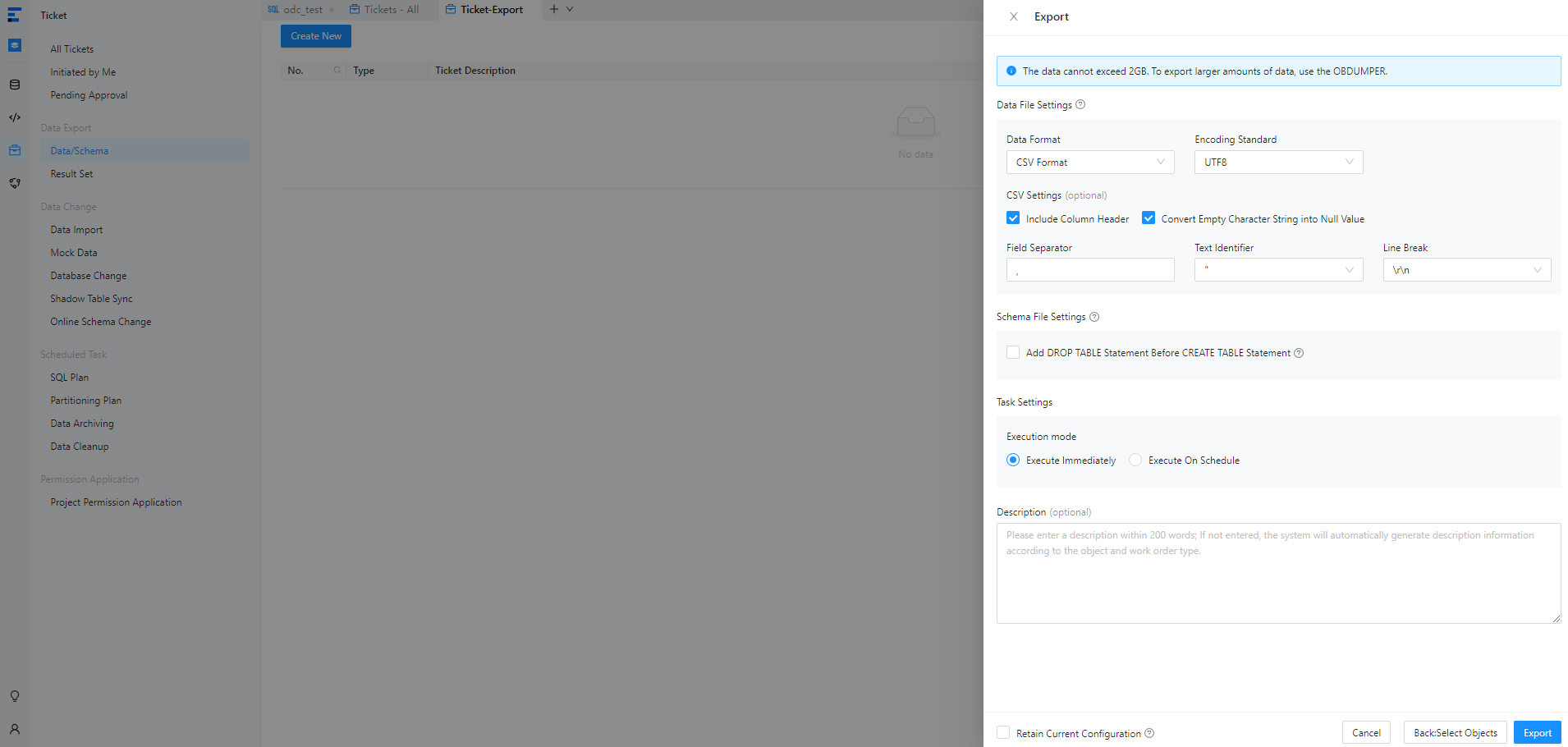
Configure data file settings.
Note
If you have selected Export Schema Only for Export Content, you do not need to configure data file settings.
ParameterDescriptionData Format ODC supports exporting data to files in the CSV format and SQL format. If you have selected Export Schema Only for Export Content, you can export data only to files in the SQL format. File Encoding ODC supports the following encoding standards: ASCII, ISO-8859-1, GB2312, GBK, GB18030, Unicode (UTF-8), Unicode (UTF-16), Unicode (UTF-32), and BIG5. CSV Settings If you have selected CSV Format for Data Format and Export Schema and Data for Export Content, you can set the following parameters: - Include the Column Header: specifies whether to include column headers when data is exported in the CSV format. This option is selected by default.
- Convert the Empty String into a Null Value: specifies whether to convert empty strings in the table to NULL values when data is exported in the CSV format. This option is selected by default.
- Field Separator: specifies the separator between fields. The following signs are supported: commas (,), semicolons (;), and colons (:). You can also use a character as the separator.
- Text Identifier: specifies the identifier for the text content. Single quotation marks (') and double quotation marks (") are supported.
- Line Break Symbol: specifies the line break symbol. The following characters are supported: \n, \r, and \r\n.
Batch Commit Quantity This parameter specifies the number of rows exported that triggers the database to perform an autocommit when the data is exported as a file in the SQL format. In other words, a COMMITcommand is added to the exported file each time when the specified amount of data is exported.Configure schema file settings.
If you have selected Export Schema Only for Export Content, you can select Merge Exported Results into an SQL File. After you select this option, DDL statements are merged and exported as one SQL file.
Choose whether to select Add DROP TABLE Statement before CREATE TABLE Statement. If you select this option, a
DROPstatement is added before the correspondingCREATEstatement of an object when the schema files of the object are exported.
Select the task execution mode.
Select Execute Now or Scheduled Execution.
Choose whether to retain the current settings.
You can select Retain Current Configuration in the lower-right corner to save the current data file and schema file settings.
Generate an export task.
After you specify all preceding information, you can click Export in the lower-right corner of the panel to create an export task.
View an export task
Task list
Note
- The task list displays tasks of the last 48 hours.
- At most three concurrent export tasks are supported. Subsequent tasks need to wait in the queue.
After an export task is generated, the Ticket tab automatically appears. You can view the approval status and basic information of the task in the task list, and download the exported data and schema files.

The following table describes the columns in the export task list.
Parameter |
Description |
|---|---|
| No. | The ID of the export task. |
| Type | The type of the task specified when you created the task. |
| Ticket Description | The description entered when the task was initiated. |
| Current Reviewer | The approver. You can click the Search icon to search for or filter tasks by a specific reviewer. |
| Created By | The user who created the export task. You can click the search icon to search for or filter tasks by a specific creator. |
| Created At | The date and time when the task was generated. |
| Status | The current status of the task. ODC provides different management actions for tasks in different states. |
| Actions | Click View to go to the Task Details panel to view the task information and task logs. |
Task information
In the export task list shown in the preceding figure, click View in the Actions column of an export task to view information about the task.
In the Task Details panel of the task, click the Task Information tab to view the basic task information, file export information, and object information.
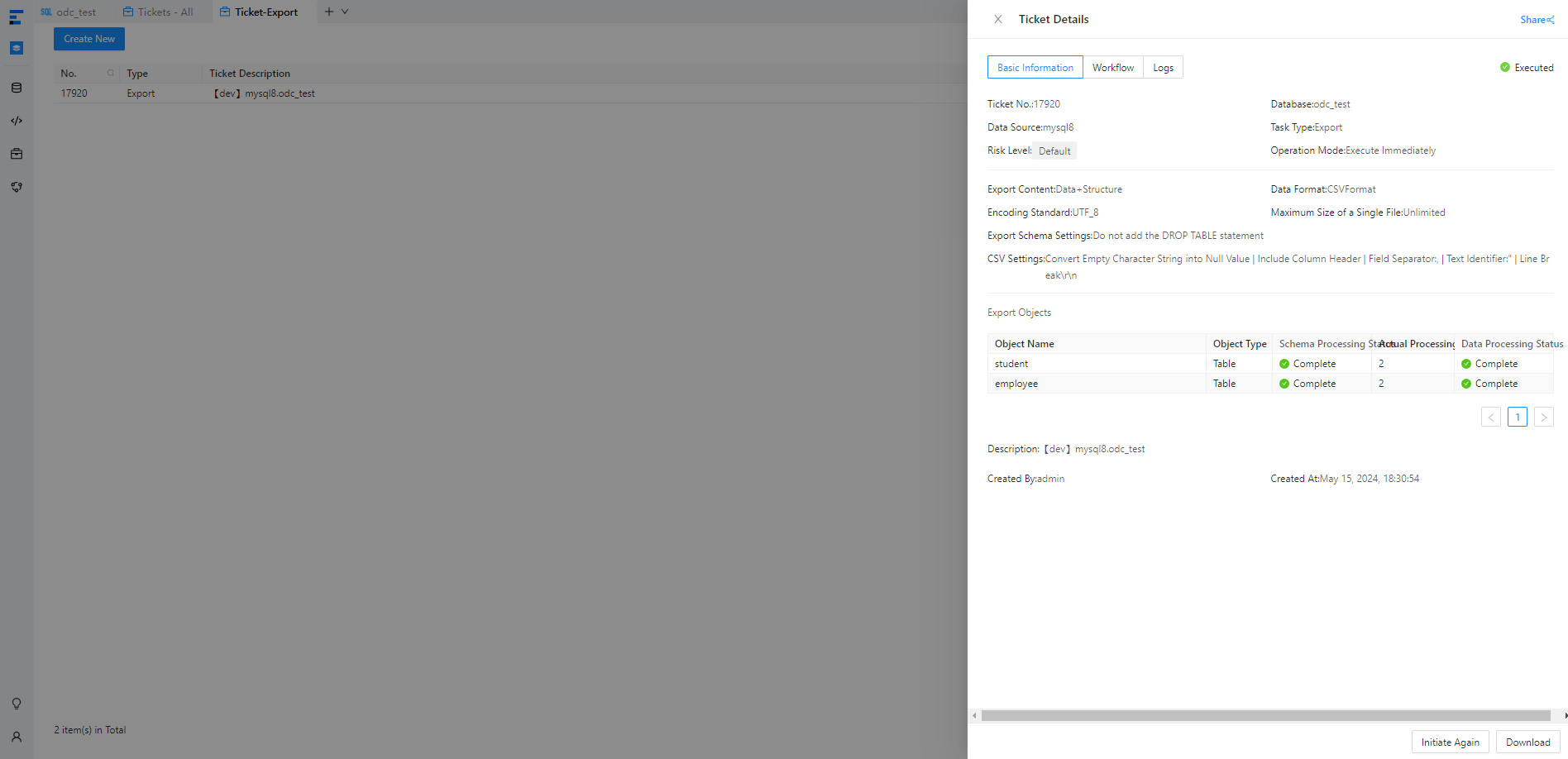 ItemDescription
Basic task information The execution status, ID, database, type, risk level, execution method, creator, and creation time of the task are displayed. File export information The export content, data format, file encoding standard, data export settings, schema export settings, error handling method, and sys tenant account specified when the export task was created are displayed. Object information The information about the export objects is displayed in the following columns: Object Name, Object Type, Schema Processing Status, Actual Processing Quantity, and Data Processing Status.
Task process
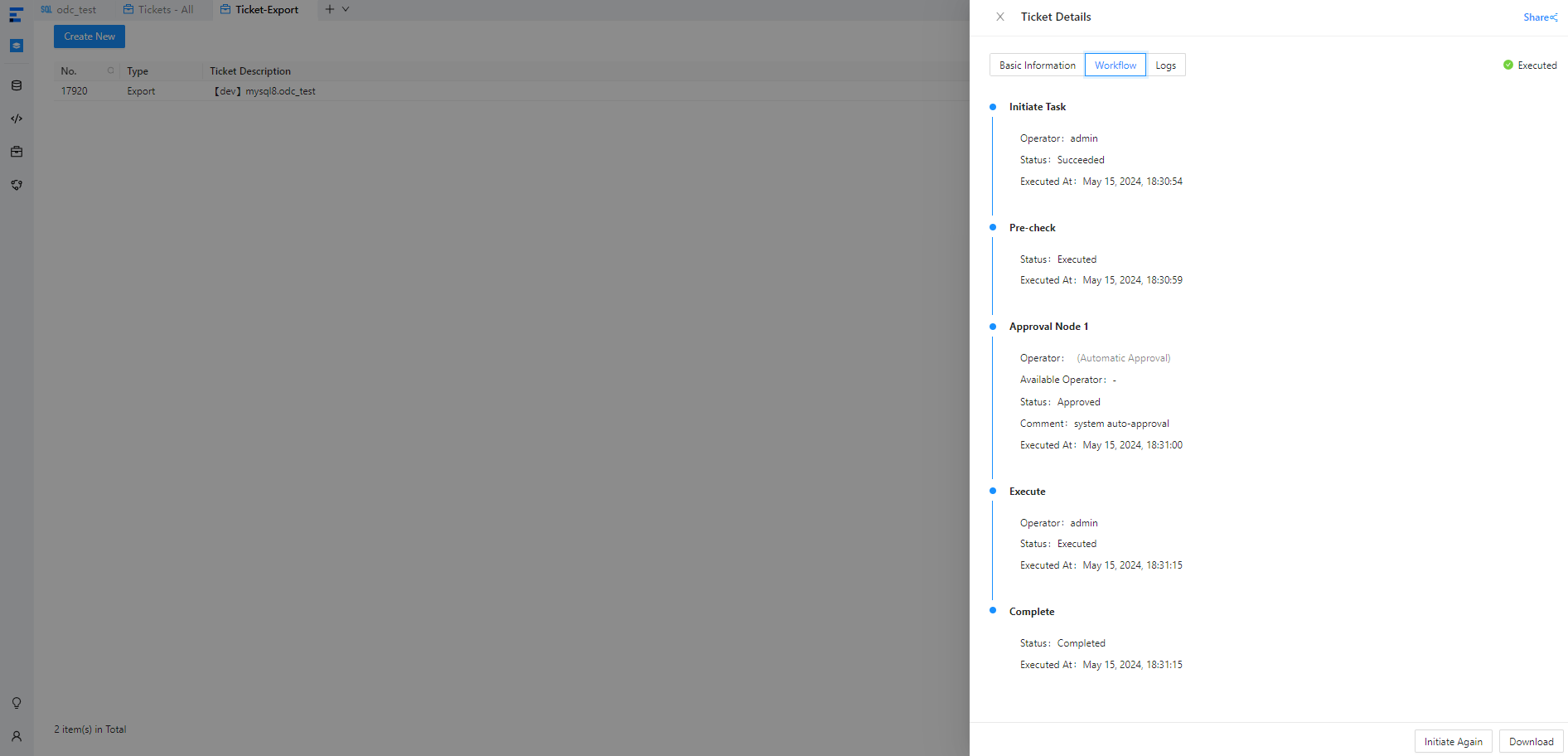
In the Task Details panel of the target task, click the Task Process tab to view the initiation, approval, and execution information of the task.
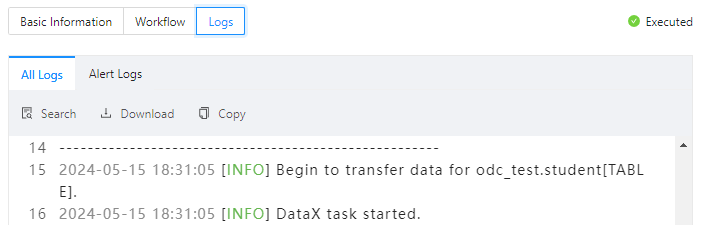
Task logs
In the Task Details panel of the target task, click the Task Logs tab to view all logs and alert logs of the task.
Parameter |
Description |
|---|---|
| All Logs | Displays the complete information of all task logs, including INFO, ERROR, and WARN logs. |
| Alert Logs | Displays the ERROR and WARN logs of the task. When a task fails, you can view the error message in the alert logs. |
In addition, the toolbar provides the following icons:
Icon |
Description |
|---|---|
| Search | Click this icon to search for logs. |
| Download | Click this icon to download logs. |
| Copy | Click this icon to copy logs. |
Export the generated file
In the Task Details panel of the target task, click Download in the lower-right corner to export the generated file to your local disk.