
This topic describes some basic operations for using Web ODC.
Create a user
Example: Create a user named ODCUSER1 in OceanBase Developer Center (ODC) as the administrator and grant the permissions of the system_admin role to the user.
Log in to Web ODC. In the left-side navigation pane of the project collaboration window, choose User Permissions > Users. On the Users tab, click Create User.

On the Create User page, complete the user and role settings.
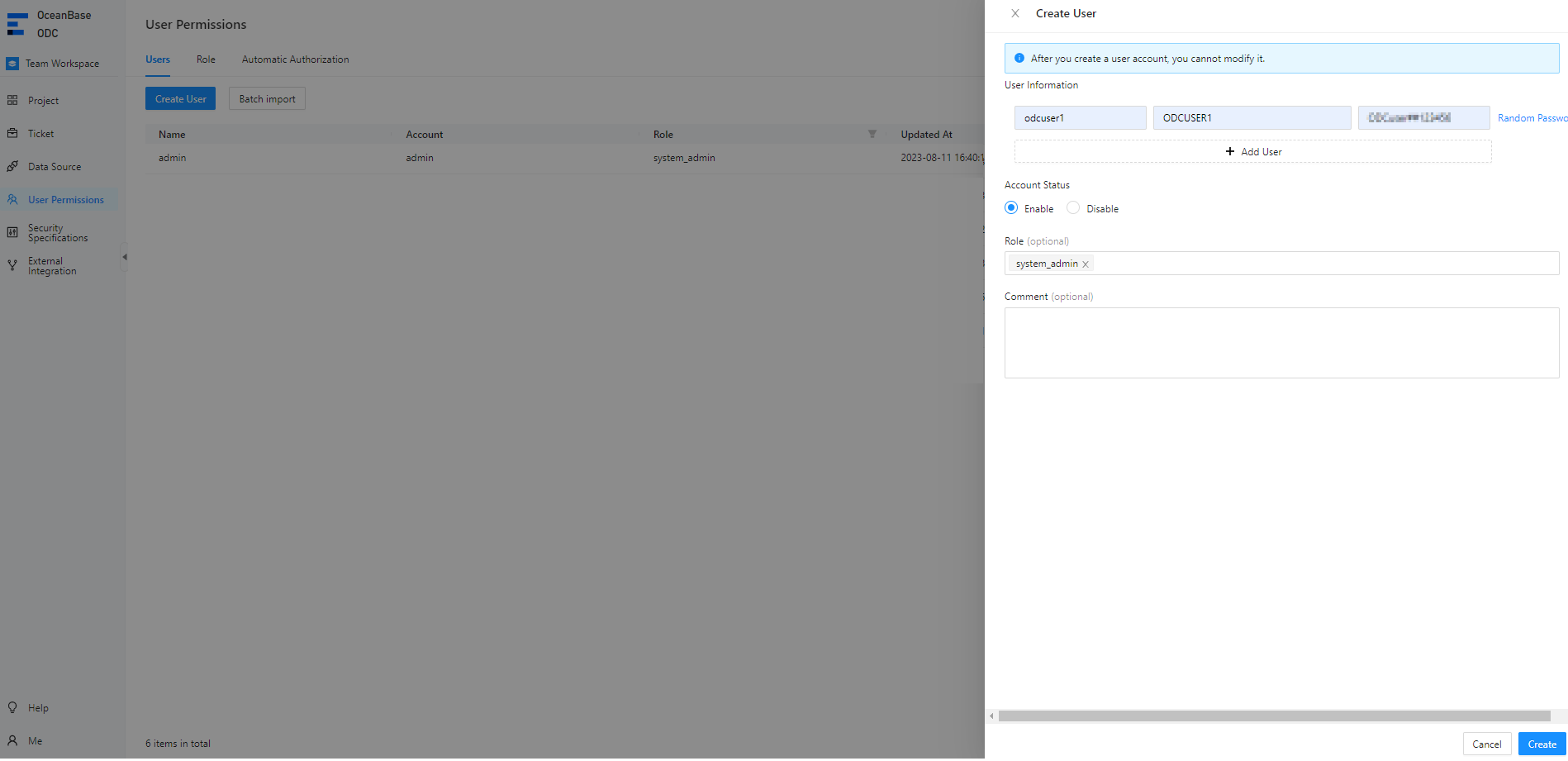
This parameter is optional. You can assign multiple roles to a user. Click the field. In the drop-down list, select the roles that you want to assign to all users that you have created. If no role is available, go to the Create Role page to create one.
Click Create.
Create a data source
Create an OceanBase data source
Example: Create an OceanBase MySQL data source in ODC.
Parameter |
Example value |
|---|---|
| Data source name | mysql4.2.0 |
| Host IP address | xxx.x.x.x |
| Port number | 8080 |
| Cluster name | odc_cluster |
| Tenant name | mysql_tenant |
| Database username | odc |
| Database password | ****** |
| sys tenant account | test |
| sys tenant password | ****** |
Obtain the connection information or connection string of the data source instance. The connection string is in the format of
mysql -h host name -P port number -u database username@tenant name#cluster name -D default database -p ' database password'. Here is an example:-hxxx.x.x.x -P8080 -uodc@mysql_tenant#odc_cluster -Dodc -p'******'In the left-side navigation pane of the project collaboration window, choose Data Sources > Create Data Source > OceanBase MySQL.
ODC supports the following OceanBase Database instance types:
OceanBase MySQL or OceanBase Oracle: a database instance that you build in your own environment.
OB Cloud MySQL or OB Cloud Oracle: a database instance on Alibaba Cloud.
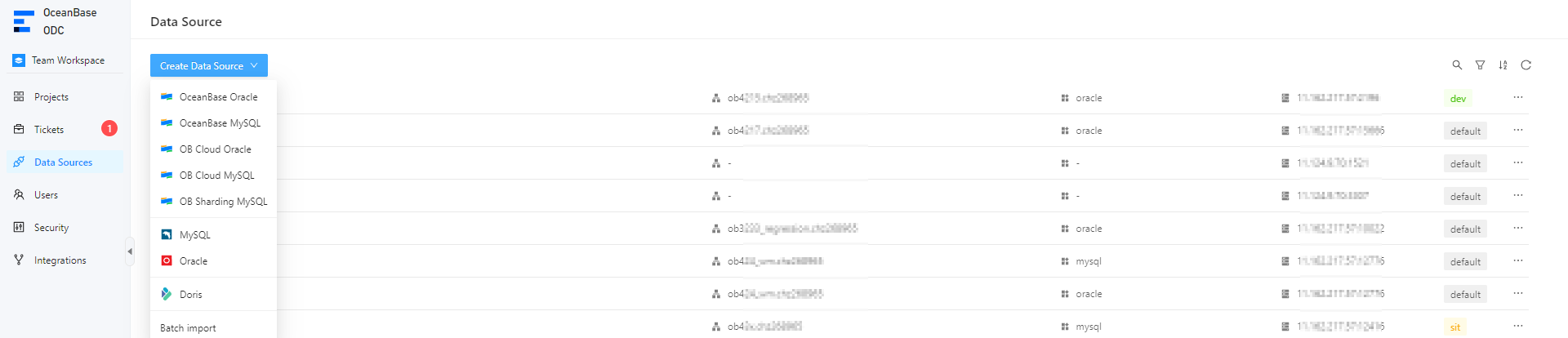
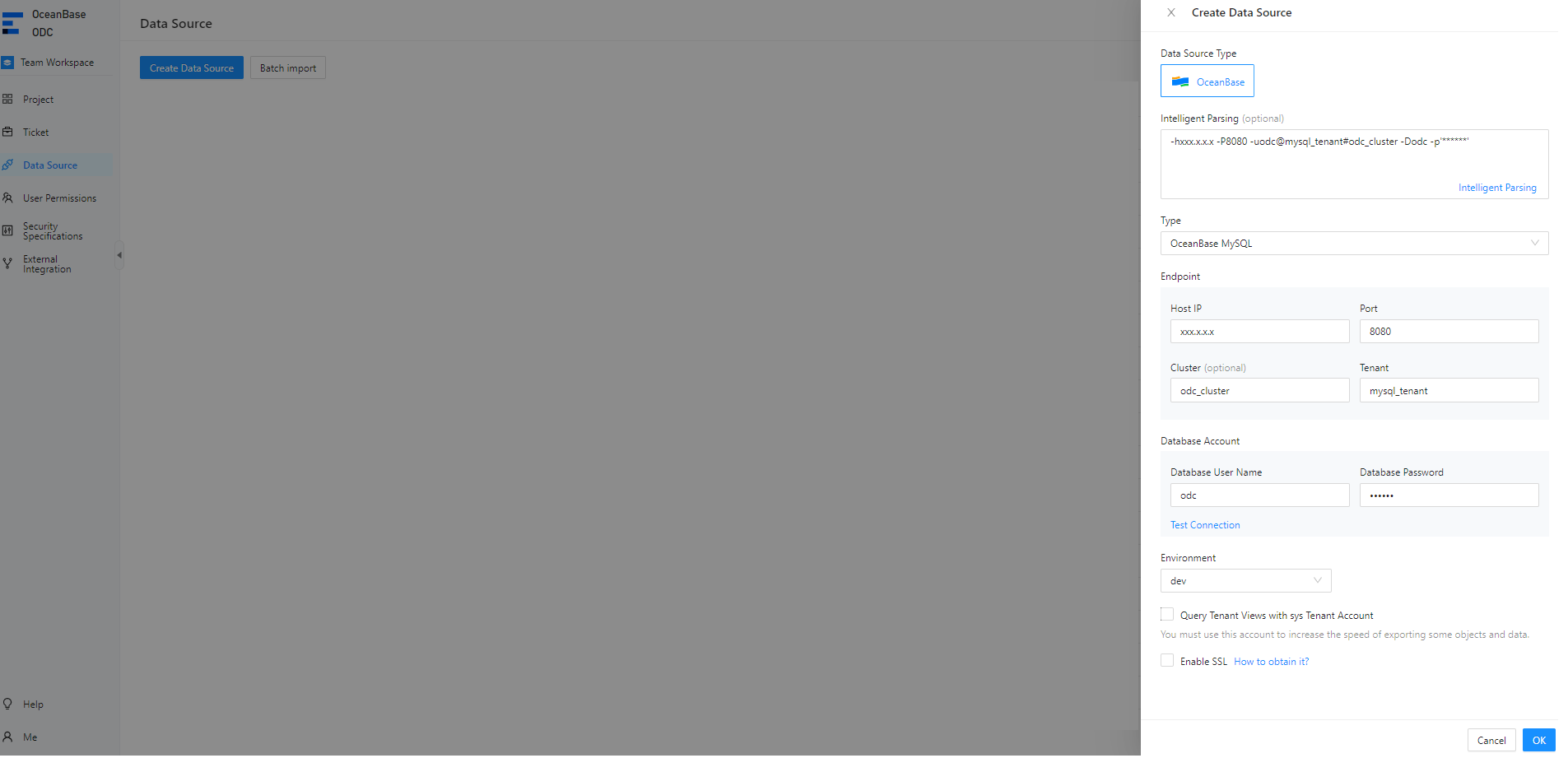
In the Create Data Source panel, specify the following information.
Note
If you have obtained the connection string of the database, you can obtain the following information from the connection string or use the intelligent parsing tool provided on the tab to fill in the information.
 ParameterDescription
Data Source Type By default, the selected data source type is displayed. Intelligent Parsing You can paste a connection string to the field. ODC automatically identifies the string and fills in the corresponding values. Endpoint - Host IP/Domain Name: the IP address of the server where the target database is located.
- Port: the port number of the server where the target database is located.
- Cluster: the name of the cluster where the target database is located. This parameter is not required for logical databases.
- Tenant: the name of the tenant in which the target database is located. This parameter is not required for logical databases.
Note
If the tenant is created on Alibaba Cloud or in OCP, you can obtain the host name and port number from the information page of the tenant in which the target database is located. The default port is
8989.Database Account - Database User Name: the username of an account created in the tenant. In MySQL mode, this account must have the privilege to access the default database.
- Database Password: the password of the account created in the tenant. You can click Test Connection next to the password field to test whether you can connect to the target database.
Note
- An error will be returned if the configurations such as the username, password, or network settings are invalid.
- You can only connect to a database in the current tenant. Otherwise, a test failure error will be returned.
- Before you save the configurations, you can click Test Connection to test the database connection. If the database username and password are correct, the system returns a message indicating that the connection succeeded. In ODC V4.0.0 and later, you can save the connection without setting the database account and password.
Environment You can select an environment type as needed. Valid values: dev, sit, and prod. Note
For more information about data source configurations, see Manage data sources.
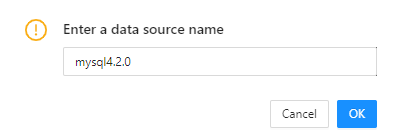
Click OK in the lower-right corner of the panel. In the dialog box that appears, enter the name of the data source.
Create a MySQL data source
Note
In ODC V4.2.2 and later, you can create a MySQL data source to manage the data in a MySQL database from ODC. For the limitations on features of MySQL data sources, see Limitations.
Example: Create a MySQL data source in ODC.
Parameter |
Example value |
|---|---|
| Data source name | mysql4.2.2 |
| Host IP address | xxx.x.x.x |
| Port number | 8080 |
| Database username | odc |
| Database password | ****** |
Log in to Web ODC. In the left-side navigation pane of the project collaboration window, choose Data Sources > Create Data Source > MySQL.
In the Create Data Source panel, specify the following information.
Note
If you have obtained the connection string of the database, you can obtain the following information from the connection string or use the intelligent parsing tool provided on the tab to fill in the information.
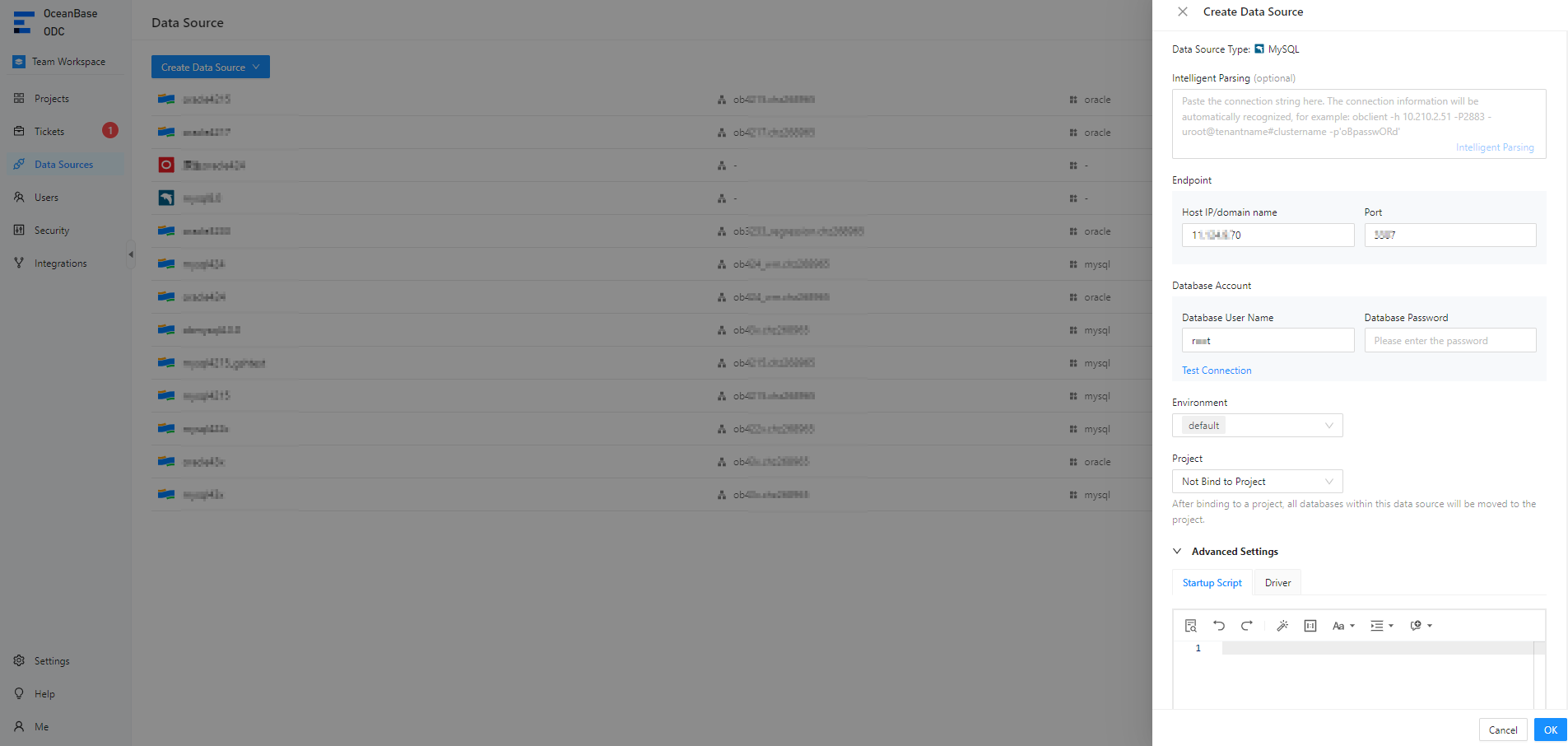 ParameterDescription
Data Source Type By default, the selected data source type is displayed. Intelligent Parsing You can paste a connection string to the field. ODC automatically identifies the string and fills in the corresponding values. Endpoint - Host IP/Domain Name: the IP address of the server where the target database is located.
- Port: the port number of the server where the target database is located.
Database Account - Database User Name: the username of an account created in the MySQL database.
- Database Password: the password of the account created in the MySQL database. You can click Test Connection next to the password field to test whether you can connect to the target database.
Note
- An error will be returned if the configurations such as the username, password, or network settings are invalid.
- Before you save the configurations, you can click Test Connection to test the database connection. If the database username and password are correct, the system returns a message indicating that the connection succeeded. In ODC V4.0.0 and later, you can save the connection without setting the database account and password.
Environment You can select an environment type as needed. Valid values: dev, sit, and prod. Project You can choose to bind the created data source to the specified project or not to bind it to any project. After the data source is bound to a project, the databases created in the data source will be automatically moved to the project. Advanced Settings - Startup Script: You can configure a connection session by using an SQL statement. For example, you can execute the
set session ob_query_timeout=60000000statement to configure a connection session. - Driver: You can configure driver attributes to connect to OceanBase Database and implement specified features.
After you specify the preceding information, click OK in the lower-right corner of the panel.
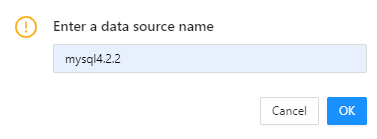
In the dialog box that appears, enter the data source name and click OK. The data source is then saved to the data source list of ODC.
Create an Oracle data source
Note
In ODC V4.2.4 and later, you can create an Oracle data source to manage the data in an Oracle database from ODC. For the limitations on features of Oracle data sources, see Limitations.
Example: Create an Oracle data source in ODC.
Parameter |
Example value |
|---|---|
| Data source name | oracle4.2.4 |
| Host IP address | xxx.x.x.x |
| Port number | 8080 |
| Database SID | test |
| Database username | odc |
| Database password | ****** |
Log in to Web ODC. In the left-side navigation pane of the project collaboration window, choose Data Sources > Create Data Source > Oracle.
In the Create Data Source panel, specify the following information.
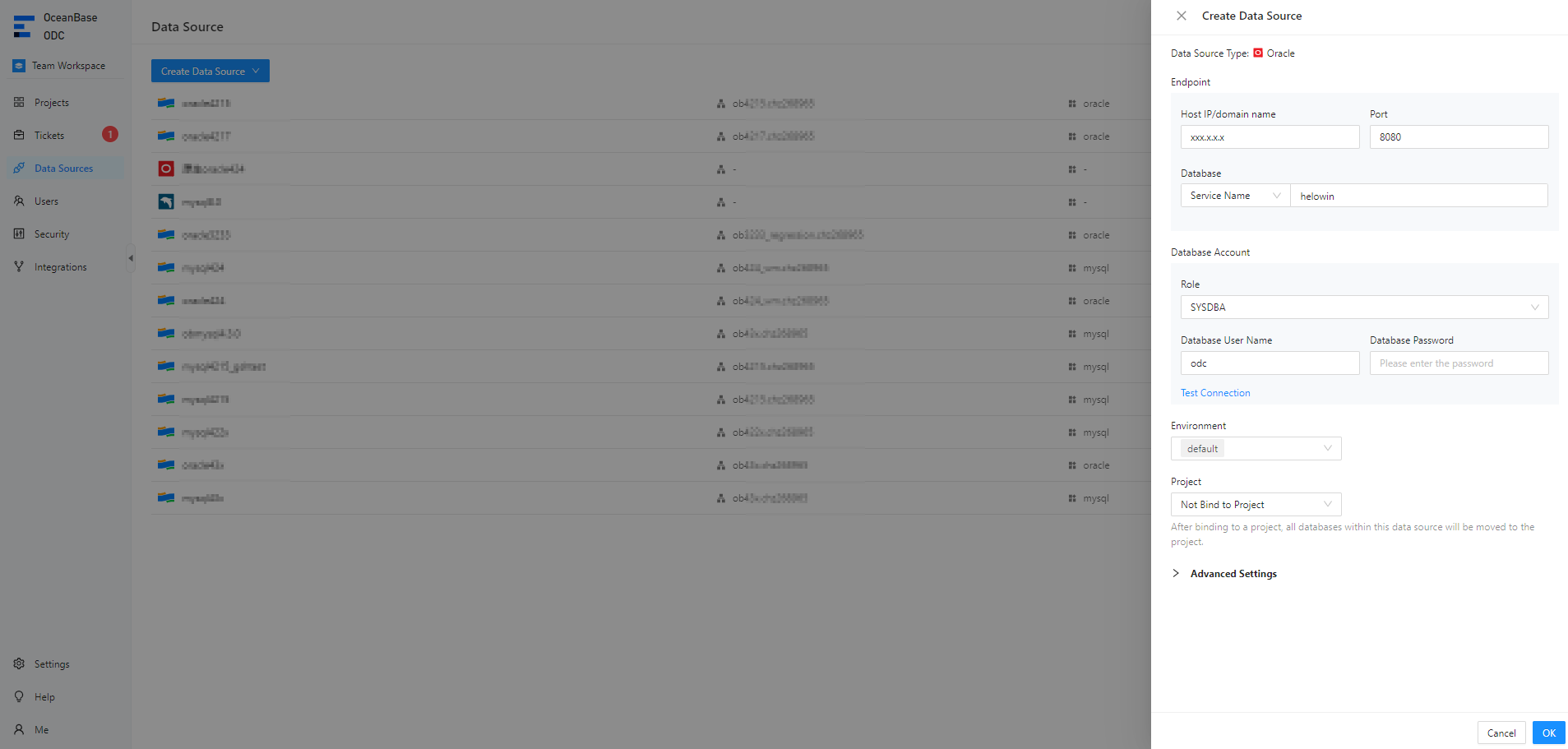 ParameterDescription
Data Source Type By default, the selected data source type is displayed. Endpoint - Host IP/Domain Name: the IP address of the server where the target database is located.
- Port: the port number of the server where the target database is located.
- Database: the instance name (SID) or service name (SERVICE_NAME).
Database Account - Role: the role of the database account. Valid values: Default, SYSDBA, and SYSOPER.
- Database User Name: the username of an account created in the Oracle database.
- Database Password: the password of the account created in the Oracle database. You can click Test Connection next to the password field to test whether you can connect to the target database.
Note
- An error will be returned if the configurations such as the username, password, or network settings are invalid.
- Before you save the configurations, you can click Test Connection to test the database connection. If the database username and password are correct, the system returns a message indicating that the connection succeeded. In ODC V4.0.0 and later, you can save the connection without setting the database account and password.
Environment You can select an environment type as needed. Valid values: dev, sit, and prod. Project You can choose to bind the created data source to the specified project or not to bind it to any project. After the data source is bound to a project, the databases created in the data source will be automatically moved to the project. Advanced Settings - Startup Script: You can configure a connection session by using an SQL statement. For example, you can execute the
set session ob_query_timeout=60000000statement to configure a connection session. - Driver: You can configure driver attributes to connect to OceanBase Database and implement specified features.
After you specify the preceding information, click OK in the lower-right corner of the panel.
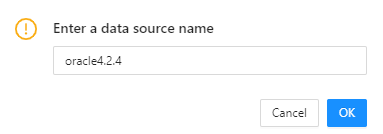
In the dialog box that appears, enter the data source name and click OK. The data source is then saved to the data source list of ODC.
Create a project
Grant the project creation permission to the user as the ODC system administrator.
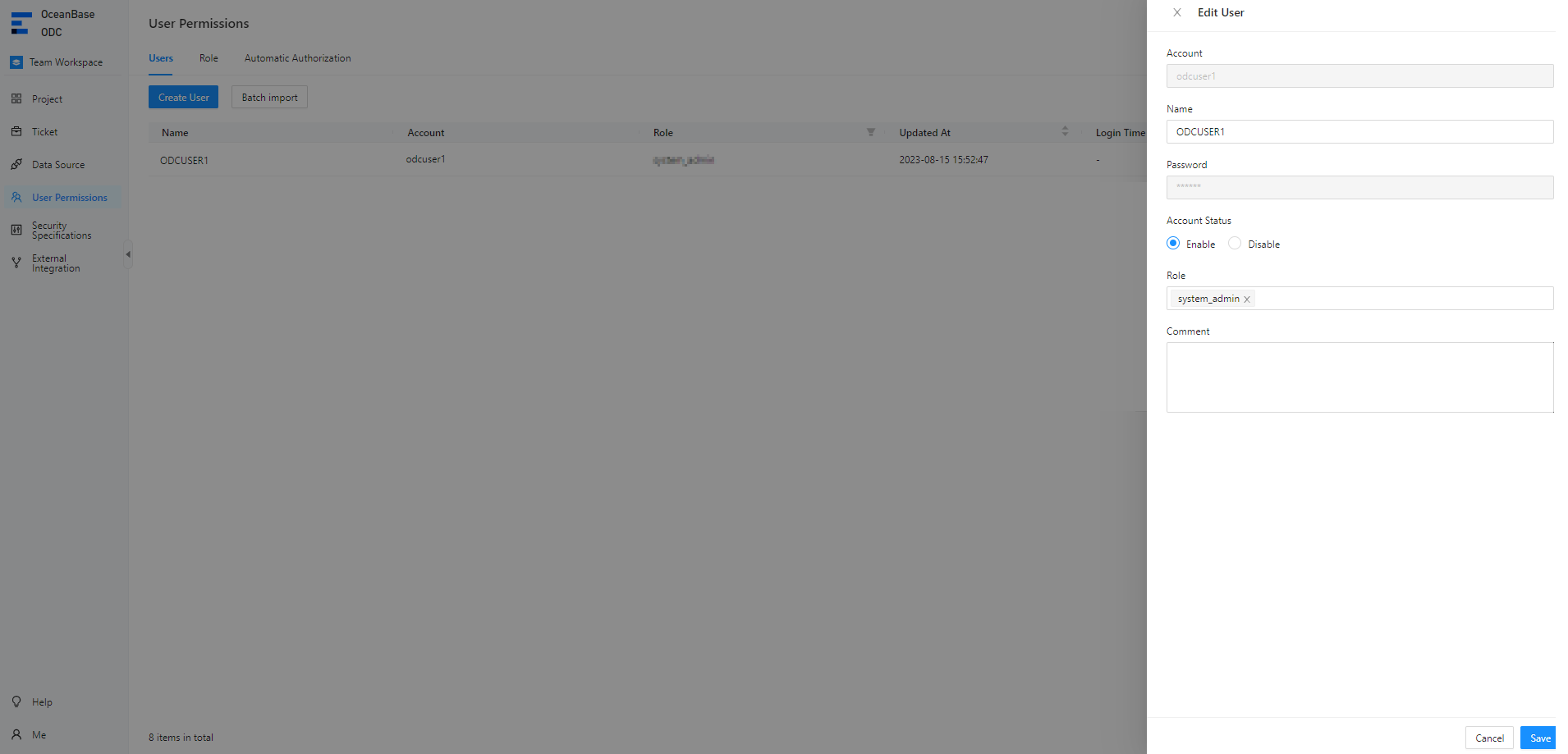
Choose Projects > All Projects and click Create Project.

On the Create Project page, configure the following parameters.
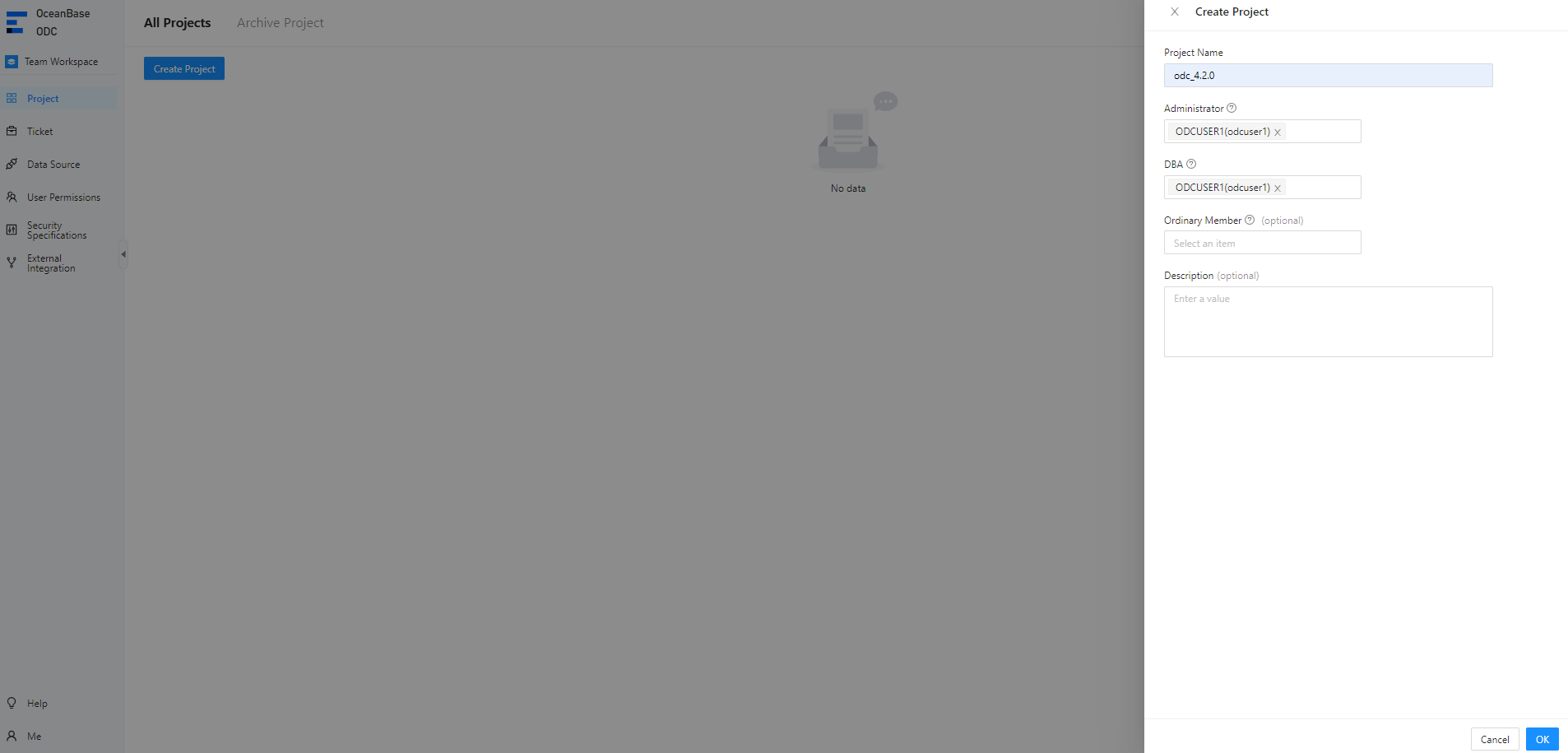 ParameterDescription
Project Name The name of the project. Administrator A user that manages all databases and members of the project. DBA A user that manages all databases of the project. Developer (Optional) A user that can access all databases of the project. Security Administrator (Optional) A user that can manage only sensitive columns of the project and participate in review. Participant (Optional) A user that can view basic project information, apply for database permissions, and submit tickets. Description (Optional) The description of the project. Click OK.
Note
If you do not have the permission to create projects, you can apply for project permissions on the Projects or Tickets tab to join an existing project.
Add a database to the project
Example: Add the odc_test database to the odc_4.3.X project.
Parameter |
Example value |
|---|---|
| Project name | odc_4.3.X |
| Data source | obmysql4.3.X |
| Database name | odc_test |
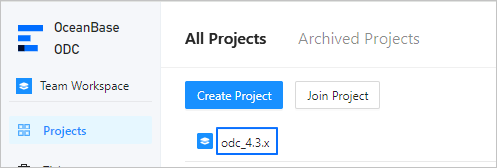
Choose Projects > All Projects. On the tab that appears, click the project name odc_4.2.0.
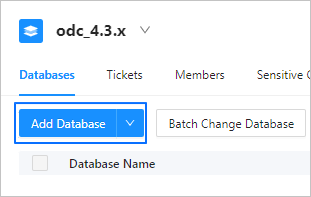
On the Databases tab, click Add Database.
In the Add Database dialog box, select the created data source mysql410 and database odc_test, and then click OK.
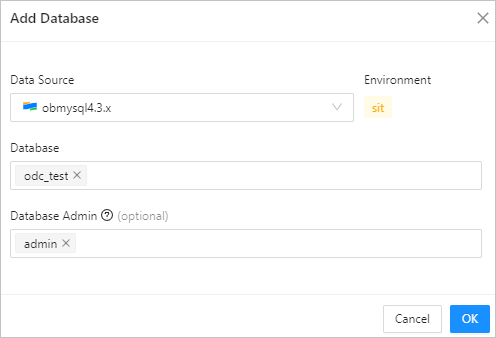
In the database list, view the added database odc_test.

Click the database name odc_test in the database list, click Log in to Database in the upper-right corner of the Databases tab, or click Log in to Database in the Actions column of the database to log in to the database.

Go to the SQL development window.

Note
If you do not have database permissions, you can apply for database permissions on the Projects > Databases or Tickets tab.
Edit and execute SQL statements
Example: In the SQL window, create a table in the database of the target project.
Parameter |
Example value |
|---|---|
| Project name | odc_4.2.0 |
| Data source | obmysql4.3.0 |
| Database name | odc_test |
| Table name | employee |
In the odc_4.2.0 project, click Log in to Database to go to the SQL window.

In the SQL window, edit an SQL statement to create a table named
employee.
CREATE TABLE odc_test.employee (
emp_no int(120) COMMENT 'Employee ID' NOT NULL,
birthday date COMMENT 'Birthday' NULL,
name varchar(120) COMMENT 'Employee name' NULL,
CONSTRAINT cons_employee_empno PRIMARY KEY (emp_no)) DEFAULT CHARSET = utf8mb4 COLLATE = utf8mb4_general_ci;
In the SQL window shown in the preceding figure, click
 to switch to another database.
After you complete writing SQL statements, click Press F8 in the toolbar to run all SQL statements in the current SQL window. The following table describes the icons related to SQL statement execution.
IconDescriptionPress F8 Click this icon to run all SQL statements in the current SQL window. Run Current Statement (F9) Click this icon to run all selected SQL statements or the statement in the line where the pointer is hovering. Abort Click this icon to abort the running statements. 
On the result tabs, view the execution records and logs.

Note
If you do not have permission to the table, you can query/export/update the table through Table Permissions Apply in Tickets.
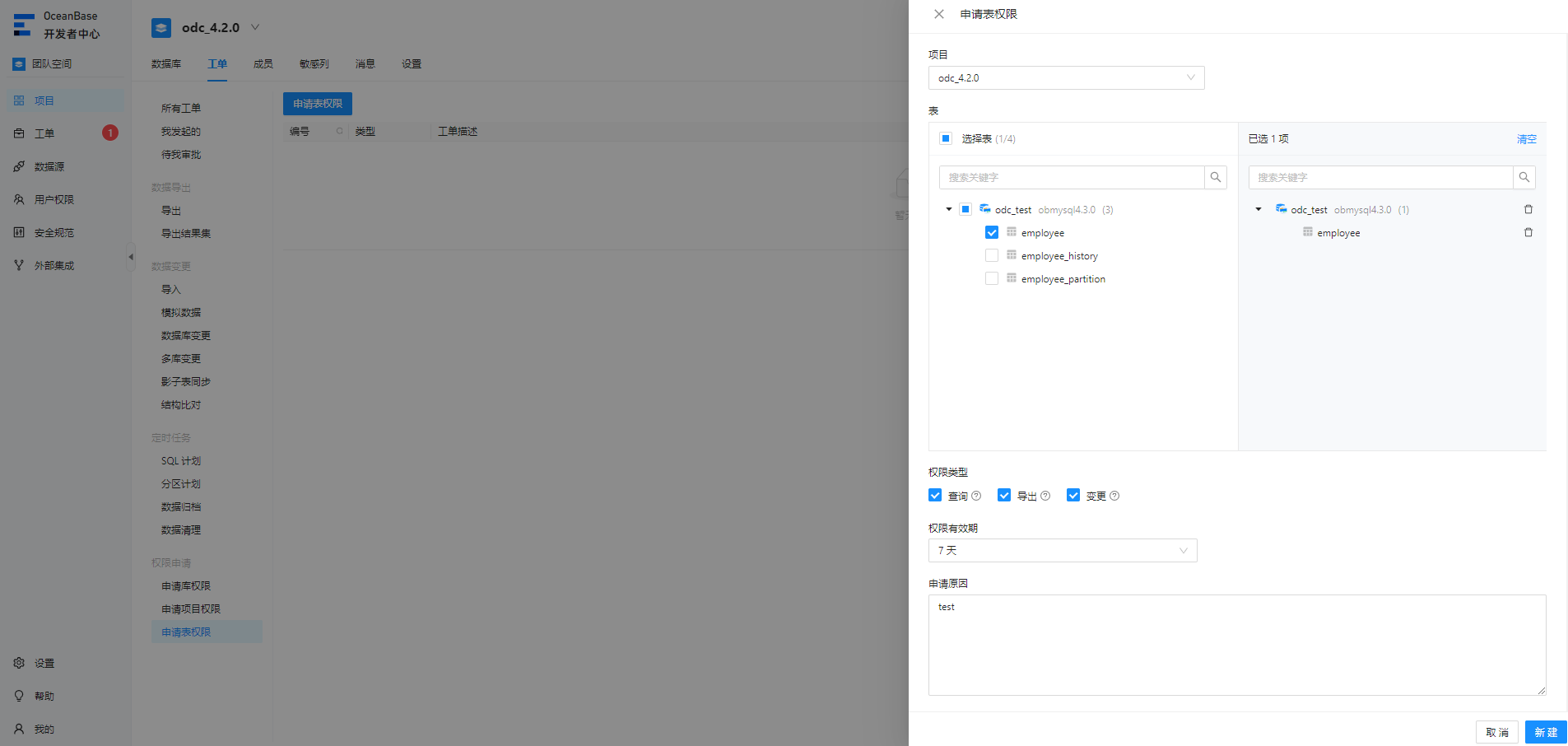
Create a database change task
Example: Change the value of name from xiaoguo to xiaofeng in the employee table in the odc_test database.
Parameter |
Example value |
|---|---|
| Project name | odc_4.2.0 |
| Data source | obmysql4.3.0 |
| Database name | odc_test |
| Table name | employee |
Choose Projects > All Projects. On the tab that appears, click the project name odc_4.2.0.

On the Tickets tab, choose Database Change > Create New.
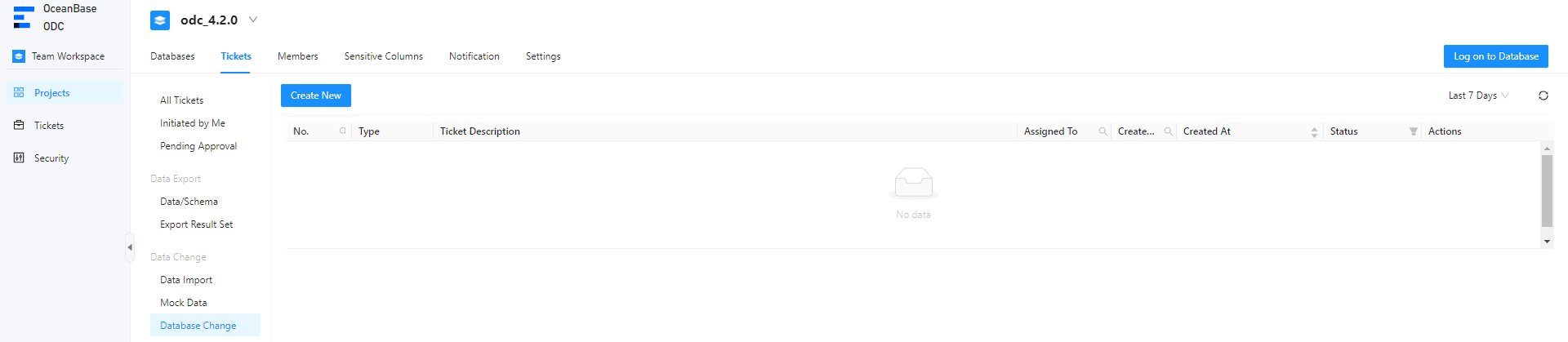
In the Create Database Change Task panel, configure the following parameters.
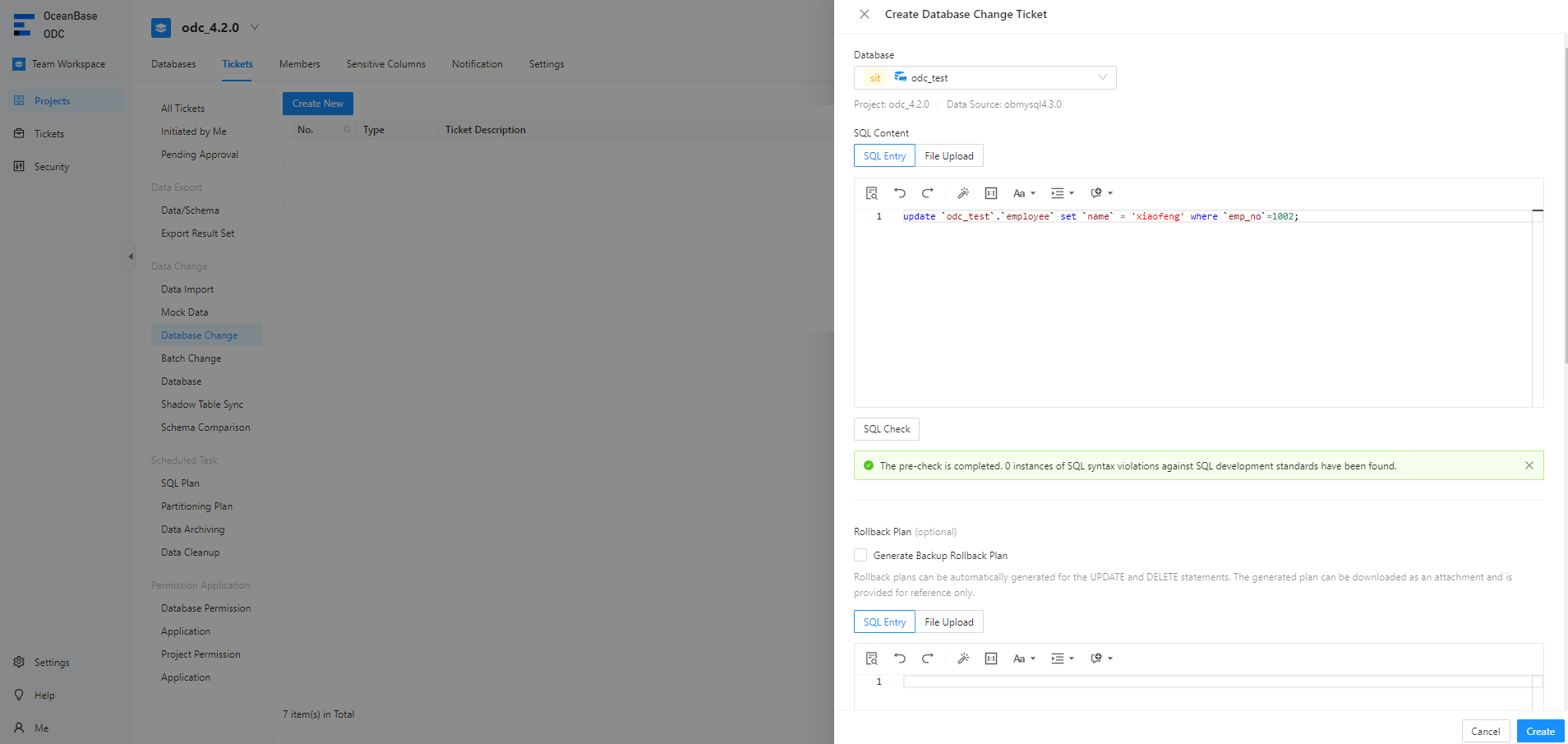
Click Create.
On the Tickets tab, you can view the approval status and basic information of the task in the database change task list.
