OceanBase
English日本語简体中文
ドキュメントホーム
製品
エコシステム
リリース

データベース

OceanBase CloudOceanBaseデータベース

ツール

OceanBase Cloud PlatformOceanBase移行サービス(OMS)OceanBaseデベロッパーセンターOceanBase Admin Tool

データベース

OceanBase CloudOceanBaseデータベース

ツール

OceanBase Cloud PlatformOceanBase移行サービス(OMS)OceanBaseデベロッパーセンターOceanBase Admin Tool
OceanBase CloudOceanBaseデータベース

OceanBaseデベロッパーセンター

V4.5.1
  • ドキュメント概要
  • 製品概要
    • OceanBase開発者センターとは
    • 機能と特徴
    • 製品アーキテクチャ
    • 使用上の制限
    • ユーザーインターフェース
  • クイックスタート
    • デスクトップ版ODC
      • クイックスタート
      • デスクトップ版ODCのインストール
      • デスクトップ版ODCの使用
    • Web版ODC
      • クイックスタート概要
      • Web版ODCのデプロイ
      • Web版ODCの使用
  • データソース管理
    • データソースの作成
    • データソースとプロジェクトの連携
    • データベースの運用・保守
      • セッション管理
      • グローバル変数の管理
      • ごみ箱の管理
  • SQL開発
    • SQLの編集と実行
    • PLコンパイルとデバッグ
    • コマンドラインウィンドウ
    • 結果の編集とエクスポート
    • 実行分析
    • テストデータの生成
    • システム設定
    • スマートSQL開発
    • 主な機能の概要
    • データベースオブジェクト
      • テーブルオブジェクト
        • 概要
        • テーブルの作成
      • ビューオブジェクト
        • 概要
        • ビューの作成
        • ビューの管理
      • マテリアライズドビューオブジェクト
        • 概要
        • マテリアライズドビューの作成
        • マテリアライズドビューの管理
      • 関数オブジェクト
        • 概要
        • 関数の作成
        • 関数の管理
      • ストアドプロシージャオブジェクト
        • 概要
        • ストアドプロシージャの作成
        • ストアドプロシージャの管理
      • シーケンスオブジェクト
        • 概要
        • シーケンスの作成
        • シーケンスの管理
      • プログラムパッケージオブジェクト
        • 概要
        • プログラムパッケージの作成
        • プログラムパッケージの管理
      • トリガーオブジェクト
        • 概要
        • トリガーの作成
        • トリガーの管理
      • タイプオブジェクト
        • 概要
        • タイプの作成
        • タイプの管理
      • シノニムオブジェクト
        • 概要
        • シノニムの作成
        • シノニムの管理
      • 外部リソースオブジェクト
        • 外部リソース
        • 外部リソースの作成
        • 外部リソースの管理
  • 変更リスク管理
    • プロジェクト協働管理
      • プロジェクト管理
      • データベース管理
      • 論理データベースの管理
      • オブジェクトストレージの追加
      • プロジェクトメンバー管理
      • データマスキング
      • メッセージ通知管理
        • メッセージ通知の概要
        • プッシュ履歴の表示
        • プッシュチャネルの管理
          • プッシュチャネルの作成
          • プッシュチャネルの表示・編集・削除
          • カスタムチャネルの使用例
        • プッシュルールの管理
    • ユーザー権限管理
      • ユーザーとロール
      • 自動権限付与
      • プロジェクト権限の申請
      • データベース権限の申請
      • テーブル/ビュー権限申請
    • 安全規範
      • 環境設定
        • SQLチェック仕様
        • SQLウィンドウ仕様
      • リスク管理
        • リスク管理の概要
        • リスク識別ルールの管理
        • 承認フローの管理
      • データマスキングアルゴリズム
      • 操作監査
  • チケット管理
    • 構造とデータのインポート
    • スキーマとデータのエクスポート
    • データベース変更管理
    • 論理データベースの変更管理
    • マルチデータベース変更管理
    • ロックフリースキーマ変更
    • シャドウテーブルの同期
    • 構造比較
  • ジョブスケジューリング
    • データアーカイブ
    • データのクリーンアップ
    • パーティション計画の管理
      • パーティション計画の管理
      • パーティションポリシーの設定
      • パーティションポリシーの使用例
    • SQLスケジュールタスク
  • システム統合
    • ログイン連携
    • 承認連携
    • SQLレビューの統合
    • 踏み台ホストの統合
    • 大規模モデルの統合
  • デプロイガイド
    • デプロイの概要
    • デプロイ前の準備
    • シングルノードODCのデプロイ
    • 高可用性ODCのデプロイ
    • デプロイの検証
  • アップグレードガイド
    • アップグレードの概要
    • アップグレード前の準備
    • シングルノードODCのアップグレード
    • 高可用性ODCのアップグレード
    • アップグレード検証
    • アップグレード失敗時のロールバック
  • ベストプラクティス
    • SQL開発でよく使われるコツ
    • ODCチームスペースの素晴らしい世界へようこそ
    • OceanBase APのリアルタイムSQL診断機能の解説
    • OceanBase履歴データソリューション
    • ODC SQLチェック仕様による高リスク操作の自動識別
    • ODCとの企業レベルアカウントシステムの迅速な連携
    • ODCによるデータベース・テーブルのシャーディング管理と変更
    • データマスキングの管理と運用の実践
    • エンタープライズレベルの管理・協働:データベースの変更を守るために
  • トラブルシューティング
    • ODCのトラブルシューティングの基本手順
    • 情報収集
      • 実行時環境とバージョン情報の確認
      • Web版ODCのログを確認する
      • ODCデスクトップ版のログを表示する
      • ODC関連のフルリンクログを表示する
      • ODC MetaDBデータの確認
      • OceanBase V4.xのインデックス状態を照会する
      • OceanBase V1.4.x ~ V3.2.x のインデックス状態の確認
      • JVMランタイム情報の収集
      • tcpdumpを使用したパケットキャプチャ
    • よくある質問
      • デスクトップ版ODCのインストールに関する質問
      • Web版ODCのデプロイおよび起動に関する質問
      • 接続情報に関する質問
      • コマンドラインツール関連の質問
      • DDLステートメントの表示に関する質問
  • リリースノート
    • V4.5
      • ODC V4.5.0
    • V4.4
      • ODC V4.4.0
      • ODC V4.4.1
      • ODC V4.4.2
      • ODC V4.4.3
    • V4.3
      • ODC V4.3.4
      • ODC V4.3.3
      • ODC V4.3.2
      • ODC V4.3.1
      • ODC V4.3.0
    • V4.2
      • ODC V4.2.4
      • ODC V4.2.3
      • ODC V4.2.2
      • ODC V4.2.1
      • ODC V4.2.0
    • V4.1
      • ODC V4.1.3
      • ODC V4.1.2
      • ODC V4.1.1
      • ODC V4.1.0
    • V4.0
      • ODC V4.0.2
      • ODC V4.0.0
    • V3.4
      • ODC V3.4.0
    • V3.3
      • ODC V3.3.3
      • ODC V3.3.2
      • ODC V3.3.1
      • ODC V3.3.0
    • V3.2
      • ODC V3.2.3
      • ODC V3.2.2
      • ODC V3.2.1
      • ODC V3.2.0

PDF をダウンロード

このページには現在中国語/日本語版がなく、英語版を表示しています。
ドキュメントフィードバック
  1. ドキュメントセンター
  2. OceanBaseデベロッパーセンター
  3. V4.5.1

Automatic authorization

最終更新:2026-09-03 09:10:53

Background information
Create an automatic authorization rule
View automatic authorization rules
Go to the list of automatic authorization rules
View details of a rule
Edit a rule
Delete a rule
References

This topic describes how to create and manage automatic authorization rules.

Background information

OceanBase Developer Center (ODC) allows system administrators to define automatic authorization rules. System administrators can create, modify, view, and disable automatic authorization rules.

The automatic authorization feature automatically grants roles or permissions to users whose names, departments, or login methods meet specific conditions when they are being created or log in for the first time, to avoid redundant authorization operations.

This topic describes how to create an automatic authorization rule named grant system_admin for deptB, which automatically grants the system_admin role to a user whose username in memberOf.department contains deptB.

Create an automatic authorization rule

  1. Integrate OAuth 2.0 with ODC and authorize login to ODC. Assume that the OAuth 2.0 system returns the following data structure:

    {
      "id": 1,
      "name": "username",
      "mail": "example@email.com",
      "memberOf": {
        "department": [
          {
            "name": "deptA",
            "description": "this is a department"
          },
          {
            "name": "deptB",
            "description": "this is a department"
          }
        ],
        "extra": "some other info"
      }
    }
    

    You can use different expressions to obtain corresponding values from this data structure. The following table shows sample expressions and the corresponding values returned.

    Expression
    Result
    id 1
    memberOf.department[0].name deptA
    memberOf.department[*].name ["deptA", "deptB"]
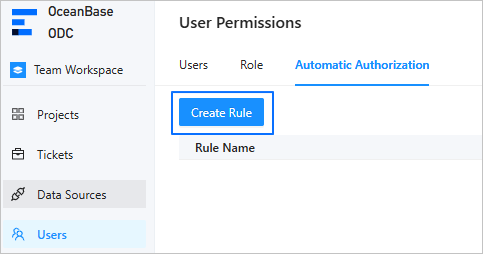
  2. Log in to Web ODC with a third-party account. In the left-side navigation pane of the project collaboration window, choose Users > Automatic Authorization > Create Rule.
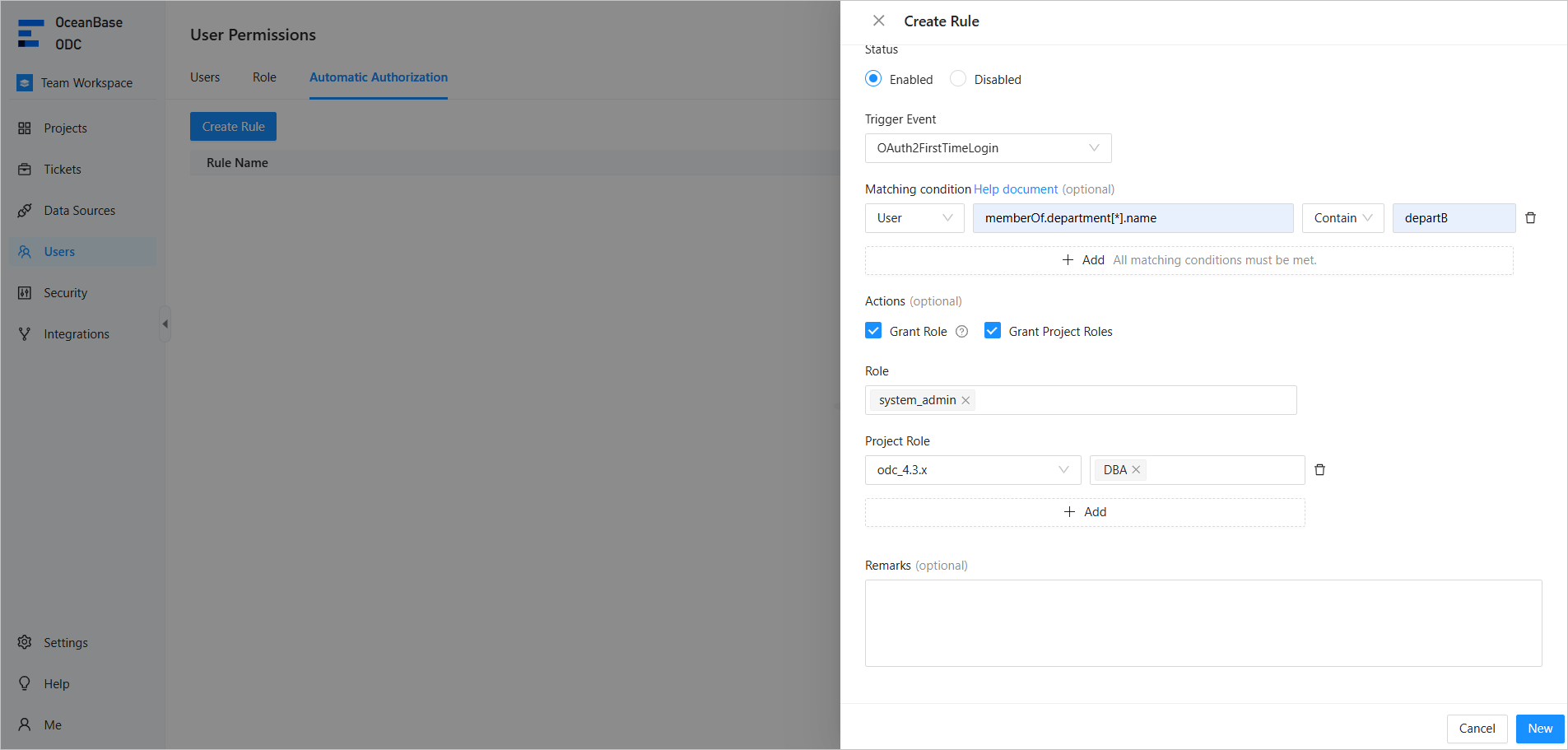
  3. Specify the following parameters in the Create Rule panel.
    Parameter
    Description
    Rule Name The name of the rule, which must be unique.
    Status Select Enabled or Disabled.
    By default, the status of the rule is Enabled. You can set it to Disabled as needed. A disabled rule cannot be accessed.
    Trigger Event Select a trigger event. Only built-in events are available. Different events correspond to different trigger occasions.
    Matching Condition (Optional) Click Add and specify the following four fields:
    • Object: stores the trigger condition and the information required for executing the action. It can be a complex nested object such as an array, a list, or a map, or a simple object such as a string or a number.
    • Expression: the index of the target in the object. Different types of objects use different indexing methods.
    • Operation: the supported operation, such as "Contain", "Match", or "Equal".
    • Value: the target value.

      Note

      • If you do not specify the matching condition, the action is unconditionally executed when the selected event is triggered.
      • If you select Match for the Operation field of the Matching Condition parameter, the value must be a regular expression.
    Actions (Optional) Select Grant Role and/or Grant Project Roles and specify the role name and/or project role name.

    Note

    If you do not specify the action, no action is executed regardless of whether the matching condition is met.

    Remarks (Optional) The description of the rule.
  4. After you specify the preceding information, click Create in the lower-right corner of the panel.

  5. After the rule is created, you can view the rule in the rule list.

View automatic authorization rules

Go to the list of automatic authorization rules

The following table describes the columns that provide information of automatic authorization rules in the list.

Column
Description
Rule Name The name of the rule.
Created By The name of the user who created the rule.
You can click the search icon Search to search for rules created by a specific user.
Created At The time when the rule was last edited.
You can sort rules in ascending or descending order of creation time.
Enabling Status The status of the rule. Valid values: Enabled and Disabled.
You can click the filter icon Filter to filter rules by status.
Operation You can view, edit, and delete rules.

View details of a rule

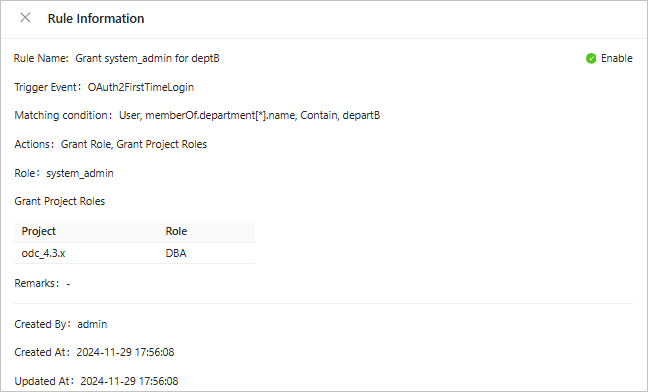
In the Operation column, click View. The Rule Information panel appears. The following information is displayed in the panel.

Information
Description
Rule information Displays the information you specified when you created the rule, such as Rule Name, Trigger Event, Matching Condition, Actions, Role, Grant Project Role, and Remarks.
Operation information Displays information in fields such as Created By, Created At, and Updated At.

Edit a rule

In the Operation column, click Edit. The Edit Rule panel appears.

The Edit Rule panel displays all the fields you specified when you created the rule. You can modify the fields as needed.

Delete a rule

In the Operation column, click Delete to delete an automatic authorization rule.

References

  • Users and roles

  • Login integration

次のトピック

ドキュメント概要
次へ
このページの内容
Background information
Create an automatic authorization rule
View automatic authorization rules
Go to the list of automatic authorization rules
View details of a rule
Edit a rule
Delete a rule
References