OceanBase
English日本語简体中文
ドキュメントホーム
製品
エコシステム
リリース

データベース

OceanBase CloudOceanBaseデータベース

ツール

OceanBase Cloud PlatformOceanBase移行サービス(OMS)OceanBaseデベロッパーセンターOceanBase Admin Tool

データベース

OceanBase CloudOceanBaseデータベース

ツール

OceanBase Cloud PlatformOceanBase移行サービス(OMS)OceanBaseデベロッパーセンターOceanBase Admin Tool
OceanBase CloudOceanBaseデータベース

OceanBaseデベロッパーセンター

V4.5.1
  • ドキュメント概要
  • 製品概要
    • OceanBase開発者センターとは
    • 機能と特徴
    • 製品アーキテクチャ
    • 使用上の制限
    • ユーザーインターフェース
  • クイックスタート
    • デスクトップ版ODC
      • クイックスタート
      • デスクトップ版ODCのインストール
      • デスクトップ版ODCの使用
    • Web版ODC
      • クイックスタート概要
      • Web版ODCのデプロイ
      • Web版ODCの使用
  • データソース管理
    • データソースの作成
    • データソースとプロジェクトの連携
    • データベースの運用・保守
      • セッション管理
      • グローバル変数の管理
      • ごみ箱の管理
  • SQL開発
    • SQLの編集と実行
    • PLコンパイルとデバッグ
    • コマンドラインウィンドウ
    • 結果の編集とエクスポート
    • 実行分析
    • テストデータの生成
    • システム設定
    • スマートSQL開発
    • 主な機能の概要
    • データベースオブジェクト
      • テーブルオブジェクト
        • 概要
        • テーブルの作成
      • ビューオブジェクト
        • 概要
        • ビューの作成
        • ビューの管理
      • マテリアライズドビューオブジェクト
        • 概要
        • マテリアライズドビューの作成
        • マテリアライズドビューの管理
      • 関数オブジェクト
        • 概要
        • 関数の作成
        • 関数の管理
      • ストアドプロシージャオブジェクト
        • 概要
        • ストアドプロシージャの作成
        • ストアドプロシージャの管理
      • シーケンスオブジェクト
        • 概要
        • シーケンスの作成
        • シーケンスの管理
      • プログラムパッケージオブジェクト
        • 概要
        • プログラムパッケージの作成
        • プログラムパッケージの管理
      • トリガーオブジェクト
        • 概要
        • トリガーの作成
        • トリガーの管理
      • タイプオブジェクト
        • 概要
        • タイプの作成
        • タイプの管理
      • シノニムオブジェクト
        • 概要
        • シノニムの作成
        • シノニムの管理
      • 外部リソースオブジェクト
        • 外部リソース
        • 外部リソースの作成
        • 外部リソースの管理
  • 変更リスク管理
    • プロジェクト協働管理
      • プロジェクト管理
      • データベース管理
      • 論理データベースの管理
      • オブジェクトストレージの追加
      • プロジェクトメンバー管理
      • データマスキング
      • メッセージ通知管理
        • メッセージ通知の概要
        • プッシュ履歴の表示
        • プッシュチャネルの管理
          • プッシュチャネルの作成
          • プッシュチャネルの表示・編集・削除
          • カスタムチャネルの使用例
        • プッシュルールの管理
    • ユーザー権限管理
      • ユーザーとロール
      • 自動権限付与
      • プロジェクト権限の申請
      • データベース権限の申請
      • テーブル/ビュー権限申請
    • 安全規範
      • 環境設定
        • SQLチェック仕様
        • SQLウィンドウ仕様
      • リスク管理
        • リスク管理の概要
        • リスク識別ルールの管理
        • 承認フローの管理
      • データマスキングアルゴリズム
      • 操作監査
  • チケット管理
    • 構造とデータのインポート
    • スキーマとデータのエクスポート
    • データベース変更管理
    • 論理データベースの変更管理
    • マルチデータベース変更管理
    • ロックフリースキーマ変更
    • シャドウテーブルの同期
    • 構造比較
  • ジョブスケジューリング
    • データアーカイブ
    • データのクリーンアップ
    • パーティション計画の管理
      • パーティション計画の管理
      • パーティションポリシーの設定
      • パーティションポリシーの使用例
    • SQLスケジュールタスク
  • システム統合
    • ログイン連携
    • 承認連携
    • SQLレビューの統合
    • 踏み台ホストの統合
    • 大規模モデルの統合
  • デプロイガイド
    • デプロイの概要
    • デプロイ前の準備
    • シングルノードODCのデプロイ
    • 高可用性ODCのデプロイ
    • デプロイの検証
  • アップグレードガイド
    • アップグレードの概要
    • アップグレード前の準備
    • シングルノードODCのアップグレード
    • 高可用性ODCのアップグレード
    • アップグレード検証
    • アップグレード失敗時のロールバック
  • ベストプラクティス
    • SQL開発でよく使われるコツ
    • ODCチームスペースの素晴らしい世界へようこそ
    • OceanBase APのリアルタイムSQL診断機能の解説
    • OceanBase履歴データソリューション
    • ODC SQLチェック仕様による高リスク操作の自動識別
    • ODCとの企業レベルアカウントシステムの迅速な連携
    • ODCによるデータベース・テーブルのシャーディング管理と変更
    • データマスキングの管理と運用の実践
    • エンタープライズレベルの管理・協働:データベースの変更を守るために
  • トラブルシューティング
    • ODCのトラブルシューティングの基本手順
    • 情報収集
      • 実行時環境とバージョン情報の確認
      • Web版ODCのログを確認する
      • ODCデスクトップ版のログを表示する
      • ODC関連のフルリンクログを表示する
      • ODC MetaDBデータの確認
      • OceanBase V4.xのインデックス状態を照会する
      • OceanBase V1.4.x ~ V3.2.x のインデックス状態の確認
      • JVMランタイム情報の収集
      • tcpdumpを使用したパケットキャプチャ
    • よくある質問
      • デスクトップ版ODCのインストールに関する質問
      • Web版ODCのデプロイおよび起動に関する質問
      • 接続情報に関する質問
      • コマンドラインツール関連の質問
      • DDLステートメントの表示に関する質問
  • リリースノート
    • V4.5
      • ODC V4.5.0
    • V4.4
      • ODC V4.4.0
      • ODC V4.4.1
      • ODC V4.4.2
      • ODC V4.4.3
    • V4.3
      • ODC V4.3.4
      • ODC V4.3.3
      • ODC V4.3.2
      • ODC V4.3.1
      • ODC V4.3.0
    • V4.2
      • ODC V4.2.4
      • ODC V4.2.3
      • ODC V4.2.2
      • ODC V4.2.1
      • ODC V4.2.0
    • V4.1
      • ODC V4.1.3
      • ODC V4.1.2
      • ODC V4.1.1
      • ODC V4.1.0
    • V4.0
      • ODC V4.0.2
      • ODC V4.0.0
    • V3.4
      • ODC V3.4.0
    • V3.3
      • ODC V3.3.3
      • ODC V3.3.2
      • ODC V3.3.1
      • ODC V3.3.0
    • V3.2
      • ODC V3.2.3
      • ODC V3.2.2
      • ODC V3.2.1
      • ODC V3.2.0

PDF をダウンロード

このページには現在中国語/日本語版がなく、英語版を表示しています。
ドキュメントフィードバック
  1. ドキュメントセンター
  2. OceanBaseデベロッパーセンター
  3. V4.5.1

Configure certificate trust

最終更新:2026-09-03 09:10:51

Configure certificate trust in Windows
Configure certificate trust in macOS

A browser does not trust a self-signed certificate. You must manually configure certificate trust in the browser.

Notice Google Chrome does not trust a self-signed certificate. After you complete the certificate trust configuration, you will receive a message indicating that the connection is not secure.

Configure certificate trust in Windows

Google Chrome is used as an example to describe the certificate trust configuration procedure.

  1. Log on to ODC in Chrome. When the system prompts that the connection is not secure, click Not Secure on the left side of the address bar and click Certificate in the list that appears to view the certificate details.
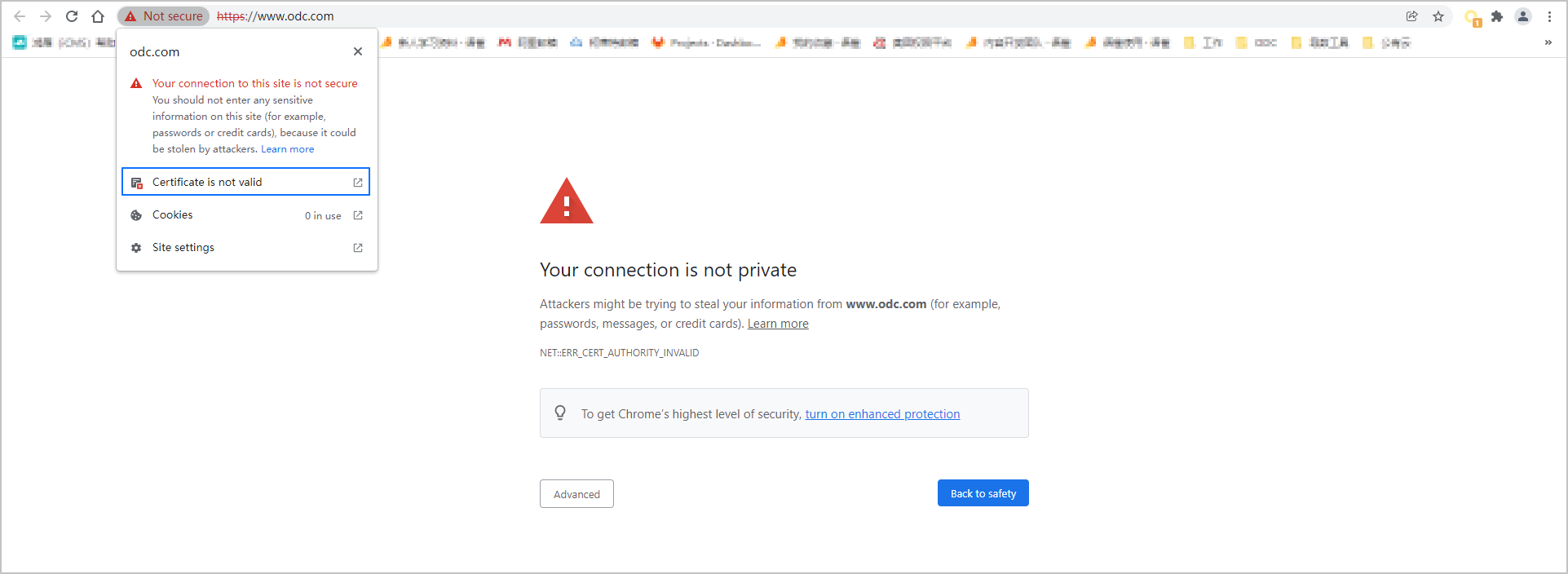
    Image 739

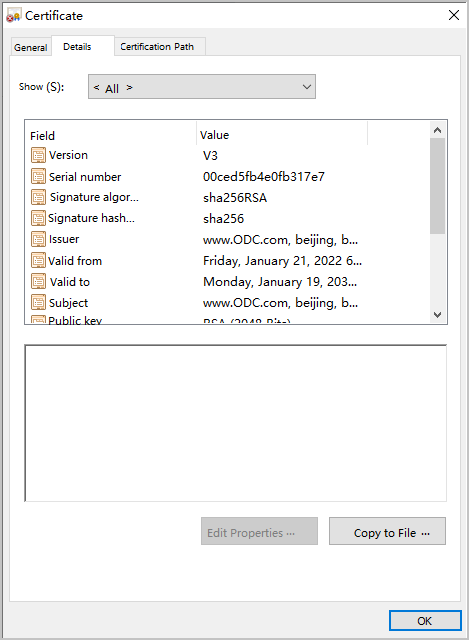
  2. In the Certificate window that appears, click the Details tab and click Copy to File in the lower-right corner of the tab.
    window2

  3. In the Certificate Export Wizard step, click Next .

  4. In the file export format setting step, select DER encoded binary X.509 (CER) and click Next .

  5. In the file path selection step, click Browse . In the file resource manager window, select an export path, enter a file name in the File Name field, and click Save to go back to the Certificate Export Wizard step. Then, click Next .

  6. In the Completing the Certificate Export Wizard step, click Finish in the lower-right corner to export the file to a local device.

  7. Find the certificate file in the path specified in Step 5, right-click the certificate file, and then select Install Certificate from the context menu that appears.

  8. In the Certificate Import Wizard window, click Next .

  9. In the Certificate Store step, select Place all certificates in the following store and click Browse . In the Select Certificate Store window, select Trusted Root Certification Authorities and click OK . In the Certificate Store step, click Next .

  10. In the Completing the Certificate Export Wizard step, click Finish in the lower-right corner.

  11. After the certificate trust configuration is completed, log on to ODC again in the browser.

Configure certificate trust in macOS

Google Chrome is used as an example to describe the certificate trust configuration procedure.

  1. Log on to ODC in Chrome. When the system prompts that the connection is not secure, click Not Secure on the left side of the address bar and click Certificate in the list that appears to view the certificate details.
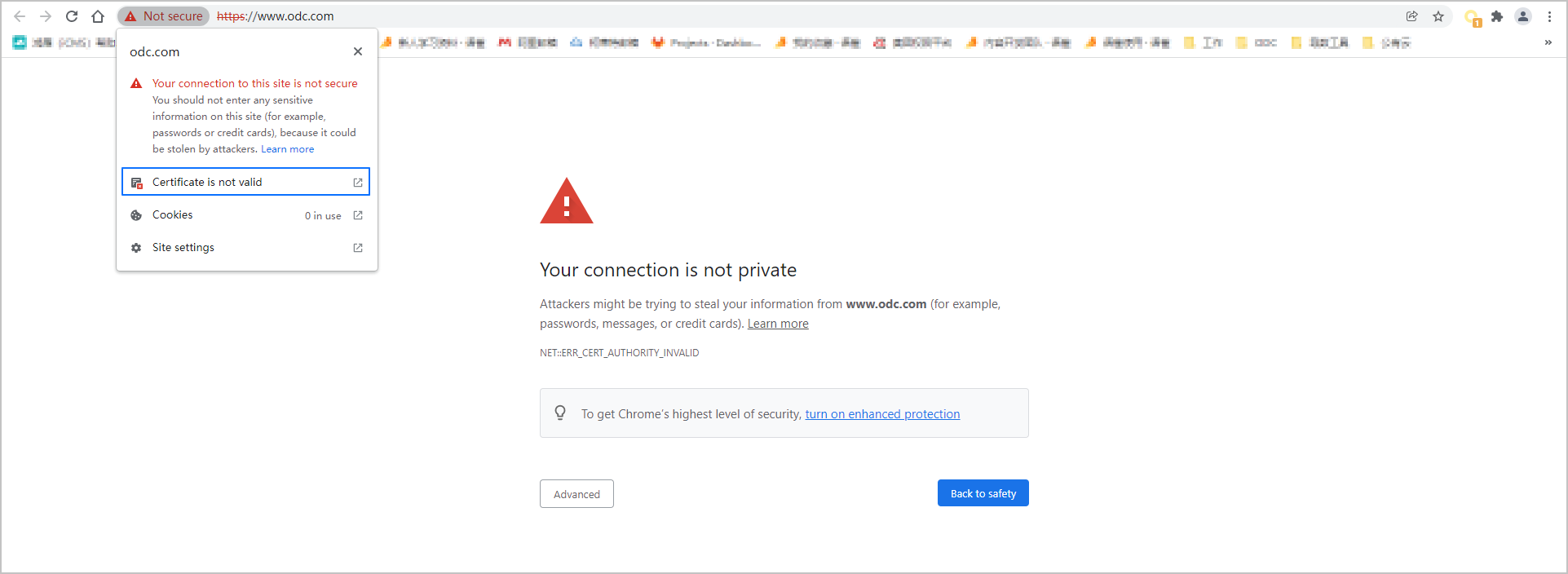
    Image 749

  2. Details of the certificate are displayed.
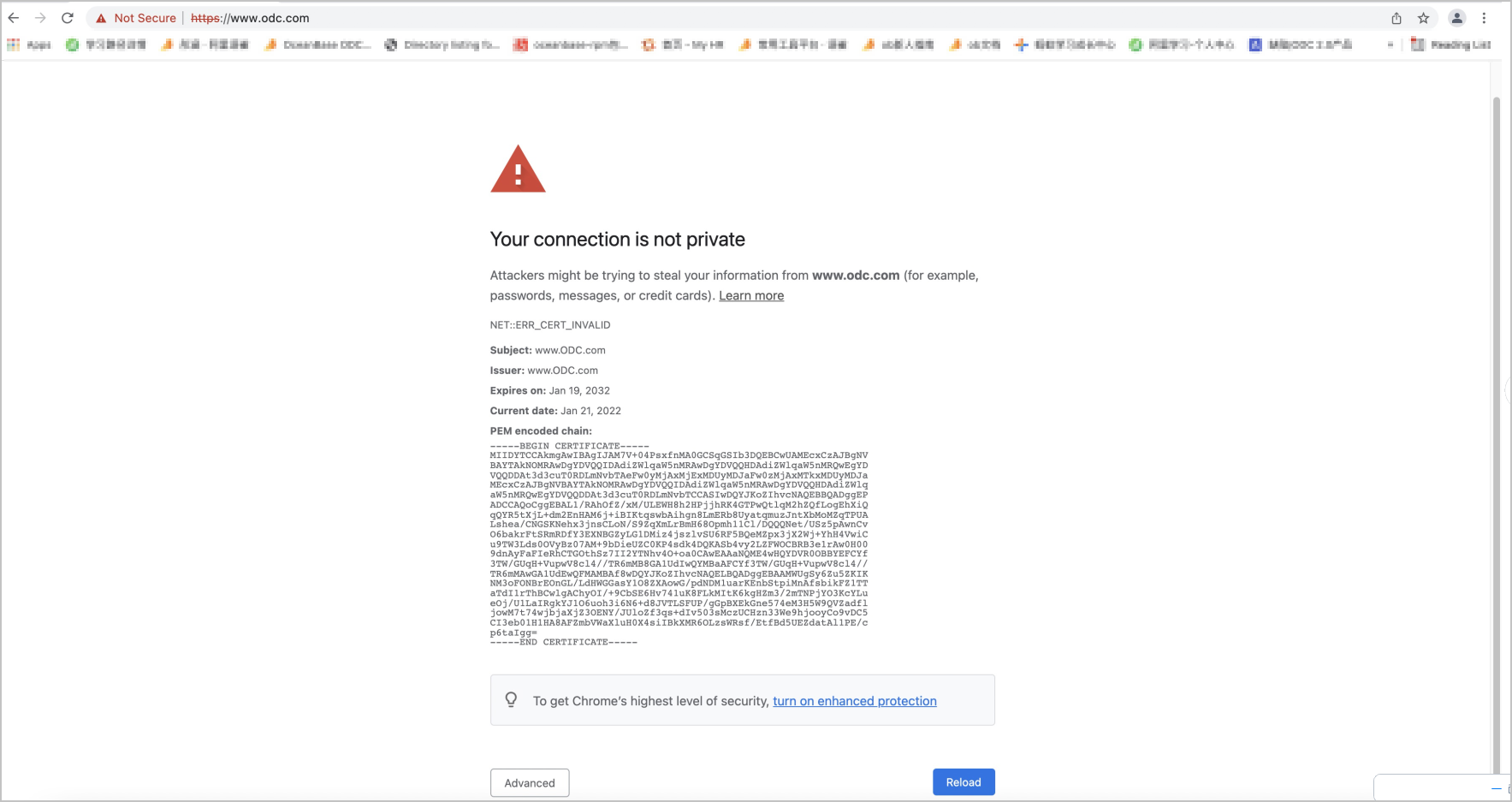
    Image 750

  3. Create a file with the extension of .cer, copy the certificate details to this file, and save the file.
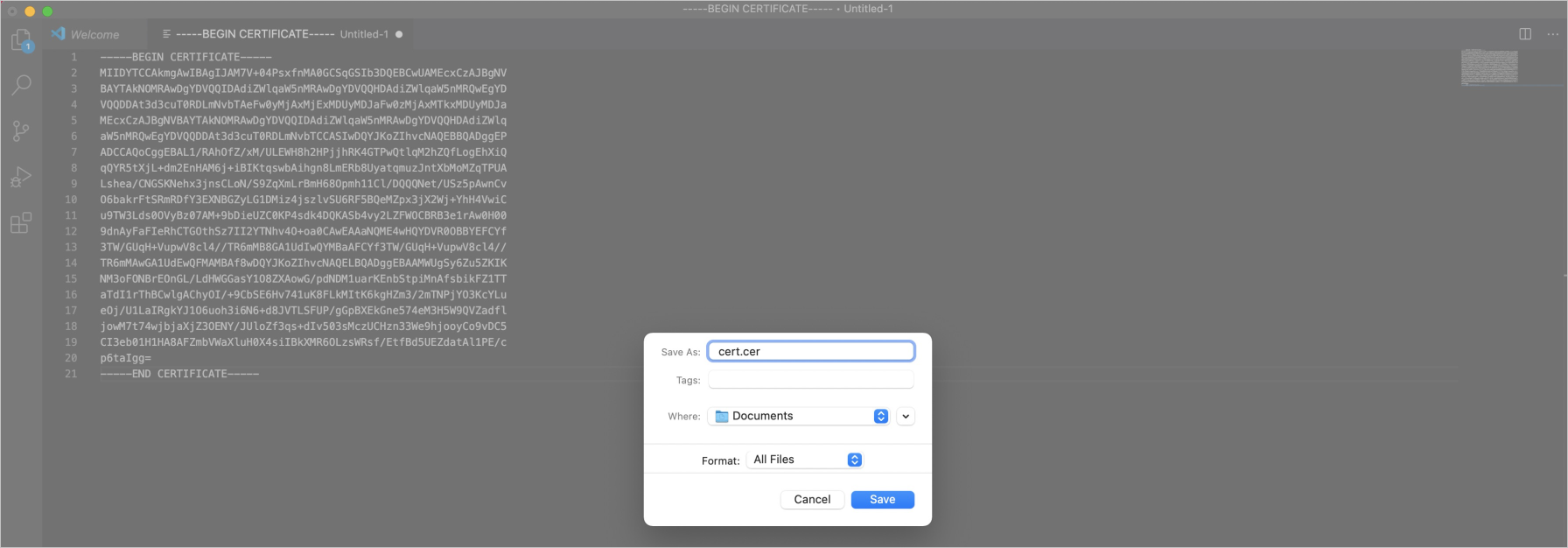
    macios3

  4. In macOS, choose Applications > Utilities > Keychain Access . The Keychain Access window appears. In the left-side navigation pane, click System and click the plus sign (+) in the quick access toolbar. In the window that appears, select the certificate file that is created in the previous step to add the certificate into the system.
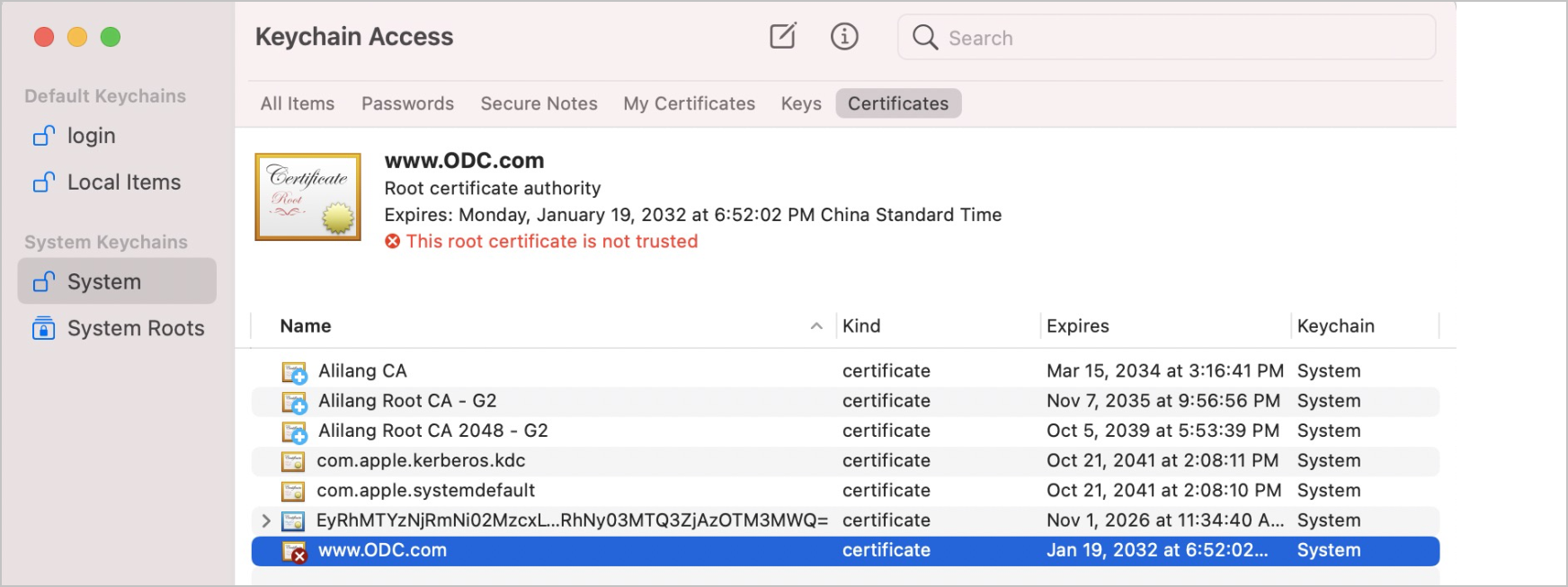
    macios4

  5. Double-click the odc.oceanbase.com,odc.oceanbse.net certificate. In the certificate details window that appears, click Trust . In the configuration list that appears, set When using this certificate to Always Trust .
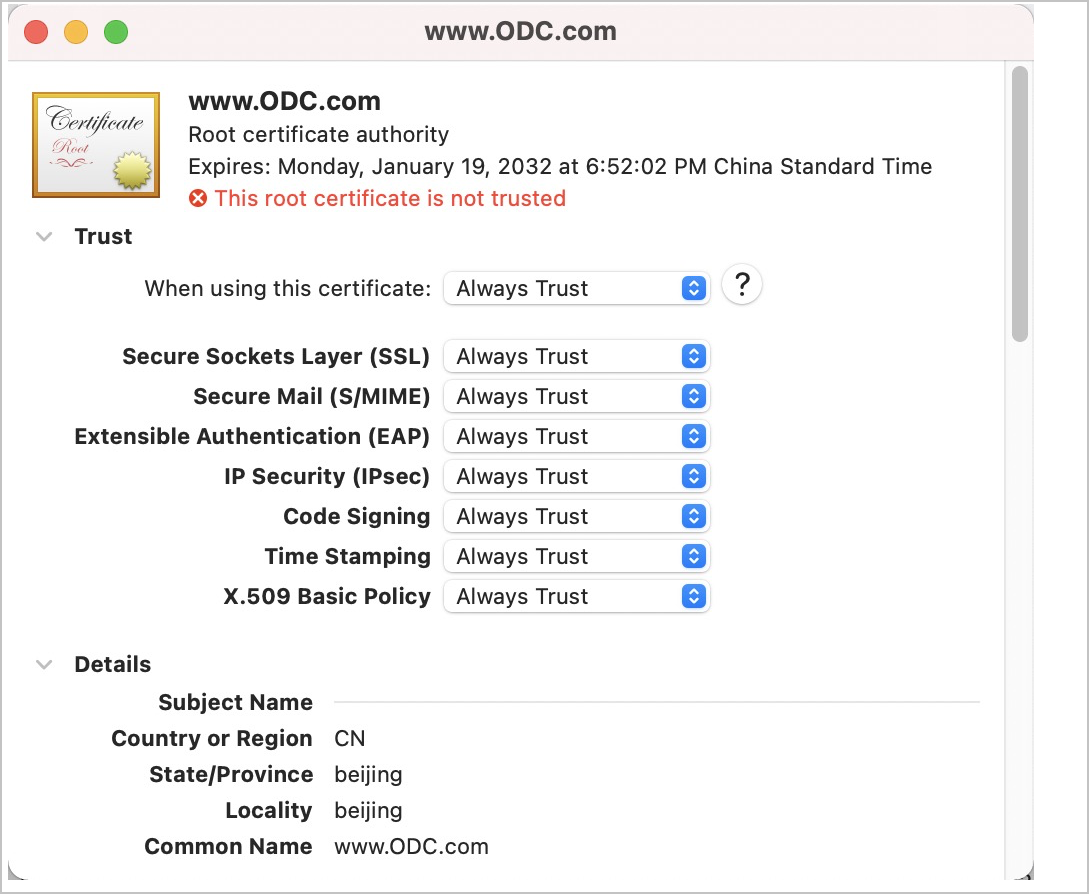
    macios5

  6. Close the certificate details window. When you try to close the window, the system reminds you to enter a password to make the configuration take effect. Enter the password to finish the configuration.

  7. After the certificate trust configuration is completed, log on to ODC again in the browser.

次のトピック

ドキュメント概要
次へ
このページの内容
Configure certificate trust in Windows
Configure certificate trust in macOS