
After a data migration task starts, you can view the task metrics on the details page of the task, such as the basic information, and task progress and status.
Access the details page
Log in to the OceanBase Migration Service (OMS) console.
In the left-side navigation pane, click Data Migration.
On the Data Migration page, click the name of the target task to go to the details page and view its Basic Information and Migration Details.
On the Data Migration page, you can search for data migration tasks by tag, status, type, or keyword. Some of the states of a data migration task are described as follows:
Not Started: The data migration task has not been started. You can click Start in the Actions column to start the task.
Running: The data migration task is in progress. You can view the data migration plan and current progress on the right.
Modifying: The migration objects in the migration task are being modified.
Integrating: The data migration task of the modified migration object is being integrated with the migration object modification task.
Paused: The data migration task is manually paused. You can click Resume in the Actions column to resume the task.
Failed: The data migration task has failed. You can view where the failure occurred on the right. To view the error message, click the task name to go to the task details page.
Completed: The data migration task is completed, and OMS has migrated the specified data to the target database in the configured migration mode.
Releasing: The data migration task is being released. You cannot edit a data migration task in this state.
Released: The data migration task is released. After the task is released, OMS terminates the current migration and incremental synchronization task.
View basic information
The Basic Information section displays the basic information about a data migration task.
Parameter |
Description |
|---|---|
| ID | The unique ID of the data migration task. |
| Migration Type | The migration type selected when the data migration task was created. |
| Alert Level | The alert level of the data migration task. OMS supports the following alert levels: No Protection, High Protection, Medium Protection, and Low Protection. For more information, see Alert settings. |
| Created By | The user who created the data migration task. |
| Created At | The time when the data migration task was created. |
| Concurrency for Full Migration | The value can be Smooth, Normal, or Fast. The amount of resources to be consumed by a full migration task varies based on the migration performance. |
| Full Verification Concurrency | The value can be Smooth, Normal, or Fast. Resources consumed at the source and target databases vary based on the specified concurrency. |
| Connection Details | Click Connection Details to view information about the connection between the source and target databases of the data migration task. |
You can perform the following operations:
View migration objects
Click View Objects in the upper-right corner to view the migration objects of the data migration task. You can also modify the migration objects when the data migration task is running. For more information, see View and modify migration objects.
View the component monitoring metrics
Click View Component Monitoring in the upper-right corner to view information about the Store, Incr-Sync, Full-Import, and Full-Verification components. You can perform the following operations on the components:
Start a component: Click Start in the Actions column of the component that you want to start. In the dialog box that appears, click OK.
Pause a component: Click Pause in the Actions column of the component that you want to pause. In the dialog box that appears, click OK.
Update a component: Click Update in the Actions column of the component that you want to update. On the Update Configuration page, modify the configurations and then click Update.
Notice
The system restarts after you update the component. Proceed with caution.
View logs: Click View Logs in the Actions column of a component. The View Logs page displays the latest logs of the component. You can search for, download, and copy the logs.
View or modify parameter configurations
You can view the parameter configurations of a data migration task in the Running, Modifying, Integrating, Completed, Stopping, or Stopped state. You can modify the parameter configurations of a data migration task in the Not Started, Paused, or Failed state. For more information, see View and modify the parameter configurations of a data migration task.
The parameters that can be modified vary with the type and stage of the data migration task.
Download object settings
OMS allows you to download configuration information of data migration tasks and import migration task settings in batches. For more information, see Download and import the settings of migration objects.
View migration details
The Migration Details section displays the status, progress, start time, completion time, and total duration of all subtasks.
Schema migration
The definitions of data objects, such as tables, indexes, constraints, comments, and views, are migrated from the source database to the target database. Temporary tables are automatically filtered out. If the source database is not an OceanBase database, OMS performs format conversion and encapsulation based on the syntax definition and standard of the type of the target tenant of OceanBase Database and then replicates the data to the target database. If a migration object with the same name already exists in the target database, OMS skips the migration object. You must ensure the consistency of table schemas between the source and target databases.
When you advance to the forward switchover step in a data migration task, OMS automatically drops the hidden columns and unique indexes based on the type of the data migration task. For more information, see Hidden column mechanisms.
You can view the overall status, start time, completion time, total time consumed, and table and view migration progress for a schema migration task on the Schema Migration page. You can also perform the following operations on an object:
View creation syntax: On the Database or Table tab, click View next to the target object to view the creation syntax of a database, table, or index.
If the object creation syntax is fully compatible, the DDL syntax executed on the OBServer node is displayed. Incompatible syntax is converted before it is displayed.
Modify creation syntax and try again: View the error information, check and modify the definition of the conversion result of a failed DDL statement, and then migrate the data to the target database again.
Retry one or all failed objects: You can retry failed schema migration tasks one by one or retry all failed tasks at a time.
Skip one or multiple tasks: You can skip failed schema migration tasks one by one or skip multiple failed tasks at a time. To skip multiple objects at a time, select the objects, and click Batch Skip in the upper-right corner. If you skip an object, its index is also skipped.
Remove one or multiple tasks: You can remove failed schema migration tasks one by one or remove multiple failed tasks at a time. To remove multiple failed objects at a time, select the objects, and click Batch Remove in the upper-right corner. If you remove an object, its index is also removed.
View details: The DDL statements executed on the OBServer node and the execution error information of a failed schema migration task are displayed.
Full migration
Full migration aims to migrate existing data from tables in the source database to corresponding tables in the target database. On the Full Migration page, you can filter objects by source and target databases, or select View Objects with Errors to filter out objects that hinder the overall migration progress. You can also view related information on the Table Objects, Table Indexes, and Migration Performance tabs. The status of a full migration task changes to Completed only after the table objects and table indexes are migrated.
On the Table Objects tab, you can view the names, source and target databases, estimated data volume, migrated data volume, and status of tables.
On the Table Indexes tab, you can view the table objects, source and target databases, creation time, end time, time consumed, and status. You can also view the index creation syntax and remove unwanted indexes.
On the Full Migration Performance tab, you can view diagrams on the performance of the current migration task, including the RPS, migration traffic, and read/write time of the source or target database, to help you identify performance-related issues, if any.
You can combine full migration with incremental synchronization to ensure data consistency between the source and target databases. If any objects fail to be migrated during full migration, the causes of the failure are displayed.
Notice
If you do not select Schema Migration for Migration Type, OMS migrates the fields in the source database that match those in the target database during full migration, without checking whether the schemas are consistent.
After full migration is completed and the subsequent step is started, you cannot click Rerun in the **Actions** column of the target Full-Verification component on the page displayed after you choose OPS & Monitoring > Component > Full-Verification.
Incremental synchronization
After incremental synchronization starts, data that has been changed (added, modified, or deleted) in the source database is synchronized to the corresponding tables in the target database. When services continuously write data to the source database, OMS starts the incremental data pull module to pull incremental data from the source instance, parses and encapsulates the incremental data, and then stores the data in OMS. After that, OMS starts the full migration.
After the full migration task is completed, OMS starts the incremental data replay module to pull incremental data from the incremental data pull module. The incremental data is synchronized to the target instance after being filtered, mapped, and converted. If an Incr-Sync exception occurs after you execute a DDL statement in the source database and the data migration task fails, a page appears, displaying the DDL statement that causes the task failure and a Skip button. You can click Skip and confirm your operation.
Notice
This operation may lead to data structure inconsistency between the source and target databases. Proceed with caution.
For a data migration task in the Running state, you can view its latency, current timestamp, and incremental synchronization performance in the incremental synchronization section. The latency is displayed in the following format: X seconds (updated Y seconds ago). Normally, Y is less than 20.
For a data migration task in the Stopped or Failed state, you can enable the DDL/DML statistics collection feature to collect statistics on database operations performed after this feature is enabled. You can also view the specific information about incremental synchronization objects and the incremental synchronization performance.
The Synchronization Object Statistics tab displays the statistics about table-level DML statements executed for each incremental synchronization object in the current task. The numbers displayed in the Change Sum, Delete, Insert, and Update fields in the section above the Synchronization Object Statistics tab are the sums of the corresponding columns on this tab.
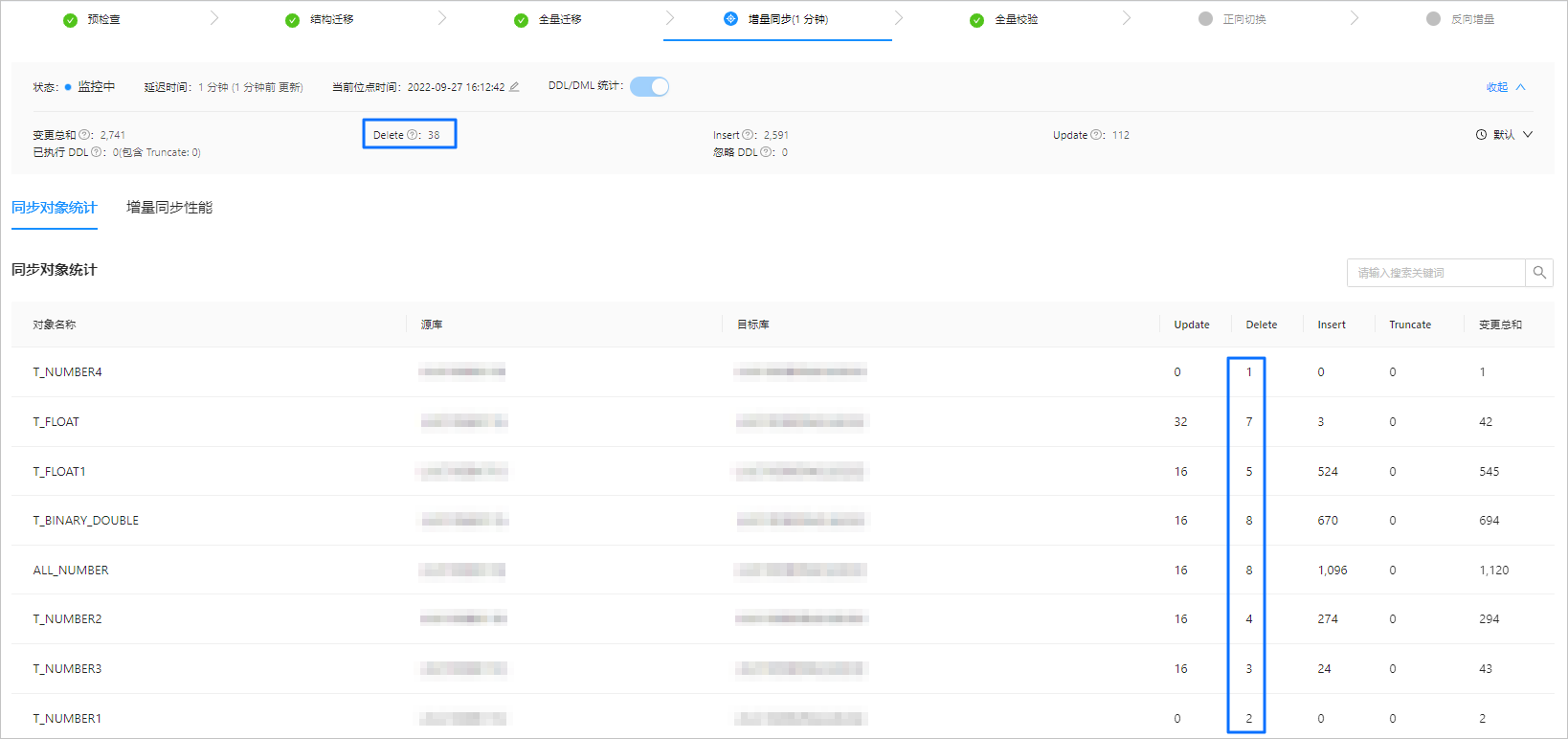
The Incremental Synchronization Performance tab displays the following content:
Latency: the latency in synchronizing incremental data from the source database to the target database, in seconds.
Migration traffic: the traffic throughput of incremental data synchronization from the source database to the target database, in KB/s.
Average execution time: the average execution time of an SQL statement, in ms.
Average commit time: the average commit time of a transaction, in ms.
RPS: the number of rows written to the target database per second.
When you create a data migration task, we recommend that you specify related information such as the alert level and alert frequency, to help you understand the task status. OMS provides low-level protection by default. You can modify the alert level based on your business needs. For more information, see Manage alert settings.
When the incremental synchronization latency exceeds the specified alert threshold, the incremental synchronization status stays at Running and the system does not trigger any alerts.
When the incremental synchronization latency is less than or equal to the specified alert threshold, the incremental synchronization status changes from Running to Monitoring. After the incremental synchronization status changes to Monitoring, it will not change back to Running when the latency exceeds the specified alert threshold.
Full verification
After the full migration and incremental migration are completed, OMS automatically initiates a full verification task to verify the data tables in the source and target databases.
Notice
If you do not select Schema Migration for Migration Type, OMS migrates the fields in the source database that match those in the target database during full verification, without checking whether the schemas are consistent.
During a full verification task, if you perform a
CREATE,DROP,ALTER, orRENAMEoperation on the source table, the task may exit.
You can also initiate custom data verification tasks during incremental synchronization. On the Full Verification page, you can view the overall status, start time, end time, total consumed time, estimated total number of rows, number of migrated rows, real-time traffic, and RPS of the full verification task.
The Full Verification page contains the Verified Objects and Full Verification Performance tabs.
On the Verified Objects tab, you can view the verification progress and verification object list.
You can view the names, source and target databases, full verification progress and results, and result summary of all migration objects.
You can filter migration objects by source or target database.
You can select View Completed Objects Only to view the basic information of objects that have completed schema migration, such as the object names.
You can choose Reverify > Restart Full Verification to run full verification again for all migration objects.
Take note of the following items for tables with inconsistent verification results:
If you need to reverify all data in the tables, choose Reverify > Reverify Abnormal Table.
If you need to reverify only inconsistent data, choose Reverify > Verify Only Inconsistent Records.
Notice
Correction operations are not supported if the source database has no corresponding data.
On the Full Verification Performance tab, you can view the graphs of performance data such as the RPS and verification traffic of the source and target databases and performance benchmarks. Such information can help you identify performance issues in a timely manner.
OMS allows you to skip full verification for a task that is being verified or has failed verification. On the Full Verification page, click Skip Full Verification in the upper-right corner. In the dialog box that appears, click OK.
Notice
If you skip full verification, you cannot resume the verification task for data comparison and correction. You can only clone the current task to initiate full verification again. Therefore, proceed with caution.
After the full verification is completed, you can click Go To Next Stage to start a forward switchover. After you enter the switchover process, you cannot recheck the current verification task to compare or correct data.
Forward switchover
Forward switchover is an abstract and standard process of traditional system cutover and does not involve the switchover of application connections. This process includes a series of tasks that are performed by OMS for application switchover in a data migration task. You must make sure that the entire forward switchover process is completed before the application connections are switched over to the target database.
Forward switchover is required for data migration. By performing forward switchover, OMS ensures the completion of forward data migration. You can start the Incr-Sync component for reverse incremental synchronization based on your business needs. The forward switchover process involves the following operations:
You must make sure that data migration is completed and wait until forward synchronization is completed.
OMS automatically supplements CHECK constraints, FOREIGN KEY constraints, and other objects that are ignored in the schema migration phase when the target is an Oracle database, an Oracle-compatible tenant of OceanBase Database, or a DB2 LUW database.
OMS automatically drops the additional hidden columns and unique indexes that the migration depends on.
This operation is performed only for data migration between an Oracle database and an OceanBase database or between OceanBase databases. For more information, see Hidden column mechanisms.
You need to supplement triggers, functions, stored procedures, and other database objects in the source database that are not supported by OMS to the target database.
You need to disable triggers and FOREIGN KEY constraints in the source database when the data migration task involves reverse incremental migration.
The forward switchover process contains the following steps:

Start forward switchover.
In this step, you can start forward switchover, but no operation is performed in the background. After you confirm that data migration is completed, you can click Start Forward Switchover to start the forward switchover process for business cutover.
Notice
Before you start forward switchover, make sure that data writing has stopped in the source database.
Perform a switchover precheck.
In this step, OMS checks the following items:
Synchronization latency between the source and target databases. If the synchronization latency is within 15 seconds, this check item is passed.
Write privilege of the account in the source database. If the data migration task involves reverse incremental migration, OMS checks whether the account configured in the source database has the privilege to write data, to ensure that data can be properly written during reverse incremental migration.
Read privilege of the account on incremental data in the target database. If the data migration task involves reverse incremental migration, OMS checks whether the account configured in the target database has the privilege to read data. This ensures that data can be properly written to the target database during reverse incremental migration.
Incremental logs in the target database. If the data migration task involves reverse incremental migration, OMS checks whether the incremental logging configuration in the target database meets the log extraction requirements of reverse incremental migration.
If the switchover precheck is passed, OMS automatically proceeds to the next step. If the switchover precheck fails, OMS provides two options: Retry and Skip.
Notice
If you click **Skip**, data loss may occur in the target database, or the reverse incremental migration process may fail. Proceed with caution.
Start the Store component in the target database.
Note
This step is available only when the data migration task involves reverse incremental migration.
If the forward switchover precheck is passed, OMS automatically starts the incremental log pull service for the target database to obtain the DML and DDL operations performed in the target database and parse and save related log data, to prepare for reverse incremental migration. This step takes 3 to 5 minutes.
Confirm that data writing has stopped in the source database.
In this step, OMS checks whether business data is still being written to the source database. If you make sure that no new data is written to the source database, click OK to go to the next step.
Confirm the data writing stop timestamp upon synchronization completion.
In this step, OMS checks whether the target database is synchronized to the data writing stop timestamp in the source database. If this step is in progress or fails and the synchronization is not completed after a long period, you can click Skip.
Notice
If you choose to skip this step, data inconsistency may occur between the source and target databases. Proceed with caution.
Stop forward synchronization.
In this step, you can stop forward synchronization. After forward synchronization is stopped, any database changes in the source database are no longer synchronized to the target database. If the service fails to be stopped, OMS provides two options: Retry and Skip.
Notice
You can skip this step only after you confirm that forward synchronization is completed in the background. Otherwise, data in the source database may be unexpectedly written to the target database. Proceed with caution.
Process database objects.
In this step, you can process objects that are ignored during data migration or not supported by OMS. This ensures normal running of business after its cutover to the target database.
Migrate database objects to the target database: You need to migrate triggers, functions, stored procedures, and other database objects in the source database that are not supported by OMS to the target database. After you complete the migration, click Mark as Complete.
Disable triggers and FOREIGN KEY constraints in the source database: This operation is required only when the data migration task involves reverse incremental synchronization. It prevents data from being affected by triggers or FOREIGN KEY constraints, to avoid failures of reverse incremental synchronization. After you complete this operation, click Mark as Complete.
Supplement objects ignored during schema migration to the target: This operation is automatically performed only when the target is an Oracle database, an Oracle-compatible tenant of OceanBase Database, or a DB2 LUW database. This operation aims to supplement CHECK constraints, FOREIGN KEY constraints, and other objects ignored during schema migration to the target. When the type of the target is not any of the aforementioned ones, the preceding objects are migrated during schema migration by default and no extra operation is required.
Drop additional hidden columns and unique indexes added by OMS: This operation is automatically performed only for data migration between an Oracle database and an OceanBase database or between OceanBase databases. This operation aims to drop the additional hidden columns and unique indexes added to the target database by OMS to ensure data consistency during data migration. This operation runs automatically, and the amount of time required depends on the amount of data in the target database. OMS provides the Skip option for this operation. If you choose to skip this operation, you need to manually perform the drop operation. Proceed with caution. For more information, see Hidden column mechanisms.
Start reverse incremental migration.
Note
This step is available only when the data migration task involves reverse incremental migration.
In this step, you can start incremental synchronization for the target database to synchronize incremental DML or DDL operations from the target database to the source database in real time. The configuration of incremental synchronization is the same as that specified during task creation. For more information, see topics for specific databases in the Supported DDL operations and limits for synchronization chapter.
Reverse incremental migration
For a data migration task in the Running state, you can view its latency, current timestamp, and performance of reverse incremental migration in the Reverse Incremental Migration section. The latency is displayed in the following format: X seconds (updated Y seconds ago). Normally, Y is less than 20.
For a data migration task in the Stopped or Failed state, you can enable the DDL/DML statistics collection feature to collect statistics on database operations performed after this feature is enabled. You can also view the specific information about the objects and performance of reverse incremental migration.
The Synchronization Object Statistics tab displays the statistics about table-level DML statements executed for each incremental synchronization object in the current task. The numbers displayed in the Change Sum, Delete, Insert, and Update fields in the section above the Synchronization Object Statistics tab are the sums of the corresponding columns on this tab.
The Reverse Incremental Migration Performance tab displays the following content:
Latency: the latency in synchronizing incremental data from the target database to the source database, in seconds.
Migration traffic: the traffic throughput of incremental data synchronization from the target database to the source database, in Kbit/s.
Average execution time: the average execution time of an SQL statement, in ms.
Average commit time: the average commit time of a transaction, in ms.
RPS: the number of rows written to the target database per second.